Windows Not Detecting Storage Drive Fix: Easy Solutions That Work
Is your Windows computer not detecting your storage drive? This can be frustrating and confusing, especially when you need to access important files or install new programs.
But don’t worry—you’re not alone, and there are simple steps you can take to fix this problem quickly. You’ll discover easy solutions that anyone can follow, even if you’re not tech-savvy. Keep reading, and you’ll have your storage drive working properly again in no time.
Common Causes Of Drive Detection Issues
Storage drive detection issues in Windows can be frustrating. They stop your computer from accessing important files. Many factors cause these problems. Understanding common causes helps fix them fast. Below are the main reasons Windows may not detect your storage drive.
Connection And Cable Problems
Poor connections or faulty cables often cause drive detection issues. Loose or damaged USB or SATA cables prevent proper communication. Dust or dirt in ports can block connections. Sometimes the drive is not fully plugged in. Checking and replacing cables often solves this problem.
Driver And Firmware Issues
Outdated or corrupted drivers stop Windows from recognizing drives. Drivers allow the operating system to communicate with hardware. Firmware problems inside the drive can also cause detection failure. Updating drivers and firmware can restore proper function. Always use official sources for updates to avoid risks.
Disk Management Errors
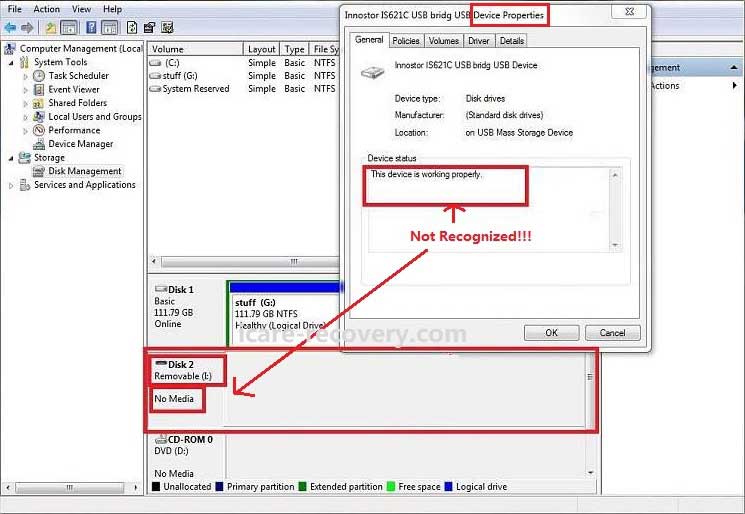
Windows Disk Management controls drive recognition and setup. Sometimes drives appear as unallocated or offline there. Incorrect partition styles or missing drive letters cause issues. Users may need to initialize or assign letters to drives. Disk errors or corruption also impact detection in this tool.
Hardware Failures
Physical damage inside the storage drive leads to non-detection. Mechanical failures in HDDs or electronic faults in SSDs stop them working. Age and wear reduce drive reliability. Testing the drive on another computer confirms if hardware is the issue. Replacing faulty drives is often necessary.
Credit: www.shoshitamam.com
Basic Troubleshooting Steps
Basic troubleshooting steps are the first things to try when Windows does not detect your storage drive. These steps help find simple problems and fix them fast. They do not need special skills or tools. Follow these steps carefully to check your drive and system.
Checking Physical Connections
Start by checking the physical connections. Make sure the storage drive is plugged in securely. Look for loose or damaged cables. If using an external drive, check the USB or power cable. A bad connection can stop Windows from seeing the drive.
Restarting Your Pc
Restarting your PC can solve many problems. It refreshes the system and can fix temporary glitches. Turn off your computer and wait a few seconds. Then turn it back on. Check if Windows detects the storage drive after restart.
Trying Different Usb Ports
Try plugging the drive into a different USB port. Some ports may not work well or have low power. Using another port can help find if the problem is with the port itself. Use ports directly on your PC, not on a hub or extension.
Using Disk Management Tools
Using disk management tools is an important step to fix storage drive detection issues on Windows. These tools help you see all connected drives and manage their settings. You can assign drive letters, initialize new drives, and solve many common problems.
Disk Management works well for drives that Windows does not show in File Explorer. It gives a clear view of your disks and their status. This makes it easier to identify and fix issues quickly.
Accessing Disk Management
To open Disk Management, press Windows + X on your keyboard. Select Disk Management from the menu. You can also type diskmgmt.msc in the Run box and press Enter. This opens the tool where you see all your drives and partitions.
Assigning Drive Letters
Sometimes, drives do not have a letter assigned. Without a letter, Windows cannot show the drive in File Explorer. Right-click the drive without a letter. Choose Change Drive Letter and Paths. Click Add and pick a letter for the drive. Click OK to save. The drive should now appear in File Explorer.
Initializing New Drives
New drives may not appear because they are not initialized. In Disk Management, new drives often show as Not Initialized. Right-click the drive and select Initialize Disk. Choose a partition style, usually MBR or GPT. Click OK. After initialization, create a new volume and format the drive to use it.
Updating And Reinstalling Drivers
Updating and reinstalling drivers can fix many storage drive detection problems. Drivers help Windows communicate with your storage hardware. Outdated or corrupt drivers often cause the system to miss the drive. Keeping these drivers current ensures smooth operation and device recognition.
Follow these simple steps to update or reinstall your drivers safely. This process can restore your drive’s visibility and improve overall system stability.
Using Device Manager
Open Device Manager by typing it in the Start menu. Find the category called “Disk Drives” and expand it. Right-click your storage drive and select “Update driver.” Choose “Search automatically for updated driver software.” Windows will look for the latest drivers and install them if found. Restart your computer after the update.
Downloading Drivers From Manufacturer
Visit the official website of your drive’s manufacturer. Look for the “Support” or “Downloads” section. Enter your drive’s model number to find the correct driver. Download the latest version available. Run the installer and follow the on-screen instructions. Reboot your PC to complete the installation.
Uninstalling And Reinstalling Storage Controllers
Open Device Manager again. Scroll to “Storage controllers” and expand it. Right-click each controller and select “Uninstall device.” Confirm the uninstallation. Restart your computer. Windows will automatically reinstall the controllers on startup. This step can fix corrupted controller drivers causing detection issues.
Running Windows Troubleshooters
Windows has built-in troubleshooters that help fix common problems. These tools scan your system and find errors automatically. They work well for hardware and storage issues. Running these troubleshooters can save time and effort. They guide you through simple steps to repair your system.
Hardware And Devices Troubleshooter
This troubleshooter checks connected hardware and devices. It finds problems with drives, printers, and other parts. The tool runs a scan and shows detected issues. It offers fixes you can apply with one click. Use it to spot errors that block your storage drive.
Storage Device Troubleshooter
This troubleshooter focuses on storage devices like hard drives and SSDs. It detects errors that stop Windows from recognizing drives. The tool tests the connection and device status. It provides easy fixes to restore proper function. Running this troubleshooter helps recover missing or hidden drives.
Checking Bios And Firmware Settings
Checking BIOS and firmware settings is a key step to fix storage drive detection issues in Windows. The BIOS controls hardware recognition during startup. Incorrect settings may stop your drive from showing up in Windows.
Firmware updates improve hardware compatibility and fix bugs. Ensuring your BIOS and firmware are up to date can help Windows detect your storage drive properly.
Accessing Bios Setup
Restart your computer and watch for the BIOS access key. Common keys are F2, Del, or Esc. Press the key quickly before Windows loads.
The BIOS menu will appear on a simple screen. Use arrow keys to navigate. Avoid changing unknown settings to prevent errors.
Verifying Drive Detection
In BIOS, locate the storage or SATA configuration section. Check if your drive is listed there. If not, the system may not see the drive physically.
Verify the drive mode is set to AHCI or the correct option for your drive type. Incorrect mode may cause detection problems in Windows.
Updating Bios Firmware
Visit your motherboard or laptop manufacturer’s website. Find the latest BIOS update for your model. Download and read the update instructions carefully.
Use the recommended tool to flash the BIOS. Do not turn off your computer during this process. A successful update can resolve detection issues.
Advanced Solutions
Advanced solutions help fix storage drive detection issues when basic steps fail. These methods use built-in Windows tools to repair or format drives safely. They require simple commands but can solve complex problems.
Using Command Prompt For Disk Repair
Open Command Prompt as an administrator. Type diskpart and press Enter. This tool manages your disk partitions. List disks by typing list disk. Select the problematic disk with select disk X (replace X with the disk number). Use clean to remove all partitions. Then create a new partition using create partition primary. Format it with format fs=ntfs quick. This process repairs many detection errors.
Running Chkdsk Utility
CHKDSK scans and fixes file system errors. Open Command Prompt as admin. Type chkdsk X: /f /r (replace X with your drive letter). The /f flag fixes errors, and /r locates bad sectors. This scan might take time but improves drive health. Restart your PC after the process finishes for best results.
Formatting Drives Safely
Formatting erases all data but can fix serious issues. Access Disk Management by typing diskmgmt.msc in Run. Right-click the unrecognized drive and choose Format. Select the file system (NTFS is common). Use Quick Format to save time. Confirm and wait for completion. This method prepares the drive for new data and clears errors.
Credit: www.youtube.com
When To Seek Professional Help
Knowing when to seek professional help is crucial for fixing Windows not detecting your storage drive. Some issues go beyond basic troubleshooting and need expert care. Acting early can save your data and prevent further damage. Recognizing the right time to get help avoids wasting time and effort.
Signs Of Hardware Failure
Unusual noises from the drive, like clicking or grinding, signal hardware failure. The drive may disconnect randomly or not show up in BIOS. Slow performance and frequent errors also indicate problems. If Windows still does not detect the drive after basic fixes, hardware might be the cause.
Data Recovery Options
Professionals use special tools to recover data from damaged drives. They can handle physical and logical failures safely. DIY recovery risks losing data permanently. Trusted data recovery services offer a better chance of restoring your files. Seek help quickly to improve recovery success.
Credit: www.youtube.com
Frequently Asked Questions
Why Is Windows Not Detecting My Storage Drive?
Windows may not detect your storage drive due to outdated drivers, loose connections, or corrupted file systems. Check hardware connections first. Updating drivers or using Disk Management to initialize the drive often resolves this issue quickly and effectively.
How Can I Fix A Storage Drive Not Showing In Windows?
Start by checking physical connections and restarting your PC. Then, update storage drivers via Device Manager. Use Disk Management to assign a drive letter or initialize the drive. Running hardware diagnostics can also help identify underlying problems.
Can A Bios Setting Cause Storage Drives To Be Undetected?
Yes, incorrect BIOS settings can prevent Windows from detecting storage drives. Ensure SATA mode is set correctly (AHCI/IDE). Resetting BIOS to default or updating BIOS firmware may resolve detection issues related to system settings.
What Tools Can Help Recover An Undetected Storage Drive?
Disk Management and Device Manager are built-in Windows tools to detect and manage drives. Third-party recovery software like MiniTool Partition Wizard or EaseUS Partition Master can help recover or repair undetected drives effectively.
Conclusion
Fixing Windows not detecting your storage drive is possible. Check cables, ports, and power first. Update or reinstall drivers next. Use Disk Management to spot issues. Sometimes, changing drive letters helps. Scanning for hardware changes can refresh the system. If problems continue, testing the drive on another PC can confirm hardware faults.
Stay patient and follow these steps carefully. Your storage drive should appear soon. Keep your data safe by backing up regularly. Simple fixes often resolve this common problem fast.