How to Quiet Cpu Fan: Easy Tips to Stop Annoying Noise Fast
Is your computer’s noisy CPU fan driving you crazy? That constant buzzing and whirring can make it hard to focus or enjoy your work.
You don’t have to put up with this distracting sound any longer. You’ll discover simple and effective ways to quiet your CPU fan fast. Imagine working in peace without that annoying noise stealing your attention. Keep reading, and you’ll learn easy steps that anyone can follow to make your computer run quieter and smoother.
Your ears will thank you!
Credit: www.quietpcusa.com
Causes Of Loud Cpu Fans
Loud CPU fans can disturb your work or gaming experience. Understanding why these fans get noisy helps fix the problem. Several common causes lead to this noise. Each one affects fan performance and sound differently.
Dust And Dirt Buildup
Dust and dirt block air vents and fan blades. This buildup forces the fan to spin faster to cool the CPU. Faster spinning creates more noise. Cleaning the inside of your computer can reduce this noise.
High Cpu Temperature
The CPU heats up when running heavy tasks. To cool down, the fan speeds up. Higher fan speed means louder noise. Checking your CPU temperature helps identify if this is the cause.
Faulty Fan Bearings
Fan bearings wear out over time. Damaged bearings cause grinding or rattling sounds. This noise is often louder and constant. Replacing the fan can solve this issue.
Improper Fan Settings
Fan speed settings in your BIOS or software may be too high. This causes the fan to run loud even at low temperatures. Adjusting these settings lowers fan speed and noise.
Cleaning Your Cpu Fan
Cleaning your CPU fan is a key step to keep it quiet and efficient. Dust and dirt buildup make the fan work harder. This causes noise and can lead to overheating. Regular cleaning helps your computer run cooler and quieter.
Gathering Cleaning Tools
Start by collecting simple tools. You need a soft brush, a small screwdriver, and a can of compressed air. Have a clean, flat workspace ready. Use an anti-static wristband to avoid damage. These tools make the cleaning process safe and easy.
Removing Dust Safely
Turn off and unplug your computer. Open the case carefully using the screwdriver. Avoid touching sensitive parts inside. Use the soft brush to loosen dust on the fan blades. Gently wipe away loose dust without pushing it deeper.
Using Compressed Air Effectively
Hold the can upright and spray short bursts of air. Aim at the fan blades and vents to blow out dust. Keep the fan from spinning by holding it still with a finger. This prevents damage. Repeat until no dust remains. Avoid shaking the can for best results.
Optimizing Fan Settings
Optimizing fan settings can help reduce CPU fan noise significantly. Adjusting these settings allows the fan to run only as fast as needed. This keeps your computer cool and quiet. You can change fan behavior through BIOS or software. Custom fan curves offer precise control based on temperature. Small changes here make a big difference in noise levels.
Adjusting Bios Fan Controls
BIOS often includes fan control options. Restart your computer and enter BIOS setup. Look for hardware monitoring or fan control settings. You can set fan speed modes like silent, normal, or performance. Some BIOS allow custom speed adjustments based on temperature. Save changes before exiting. This method controls fan speed without extra software.
Using Software To Control Fan Speed
Software tools provide easy control over fan speeds. Programs like SpeedFan or manufacturer utilities work well. Install the software and open the fan control section. Adjust fan speed sliders manually or choose presets. Monitor CPU temperature to avoid overheating. Software control is user-friendly and flexible. It can work alongside BIOS settings for better results.
Setting Custom Fan Curves
Fan curves map fan speed to CPU temperature. You create a graph where speed rises as temperature increases. This avoids running fans at full speed all the time. Custom curves keep noise low during light tasks. Increase fan speed only during heavy CPU use. Use BIOS or software tools to set these curves. Experiment to find a balance between cooling and noise.

Credit: www.amazon.com
Improving Cpu Cooling
Improving CPU cooling helps reduce fan noise and keeps your computer running smoothly. A cooler CPU works better and lasts longer. Quiet fans mean less distraction and a better workspace. Small changes can make a big difference in cooling performance.
Reapplying Thermal Paste
Thermal paste helps move heat from the CPU to the cooler. Old or dried paste can cause high temperatures. Remove the old paste gently with alcohol and a soft cloth. Apply a small, pea-sized amount of new thermal paste on the CPU. This improves heat transfer and lowers fan speed.
Upgrading Cpu Cooler
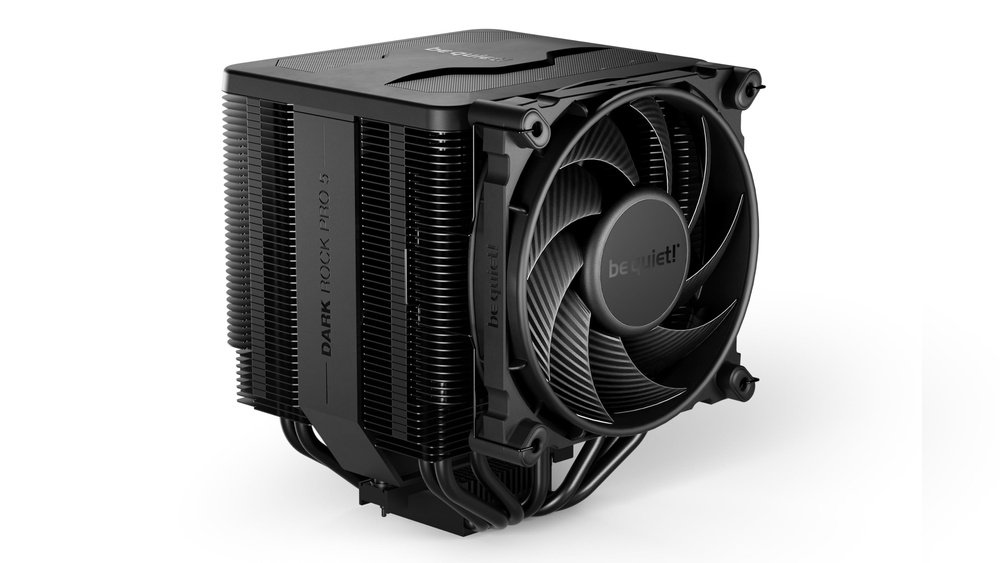
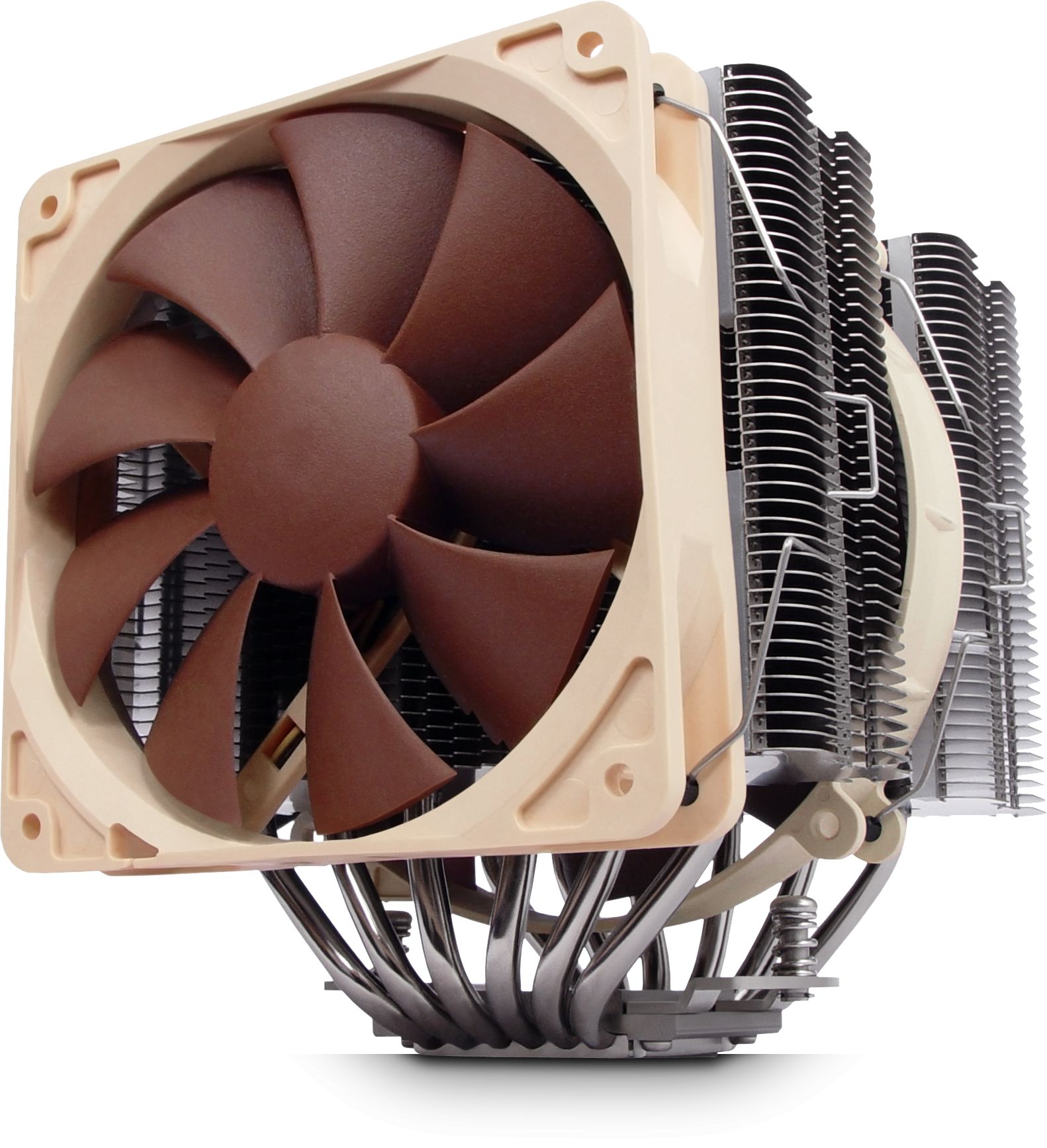
Stock coolers often struggle with heat and noise. A better cooler uses bigger fans or liquid to cool more quietly. Choose a cooler that fits your CPU socket and case size. Larger fans run slower but move more air. Quiet coolers reduce fan noise while keeping temperatures low.
Improving Case Airflow
Good airflow helps remove hot air from inside the case. Place intake fans at the front and exhaust fans at the back. Keep cables tidy to avoid blocking airflow. Clean dust filters and fan blades regularly. Better airflow lowers CPU temperature and quiets the fan.
Replacing Or Repairing The Fan
Replacing or repairing a noisy CPU fan can solve many common computer problems. A damaged or old fan often causes loud noise. Fixing or swapping it can bring back quiet and cool operation. This section guides you through the steps to check, choose, and install a new fan.
Identifying Fan Damage
Start by turning off your computer and opening the case. Look for dust build-up on the fan blades. Check if the blades are cracked or bent. Listen for grinding or rattling noises when the fan spins. If the fan stops spinning smoothly, it likely needs repair or replacement.
Choosing A Compatible Replacement
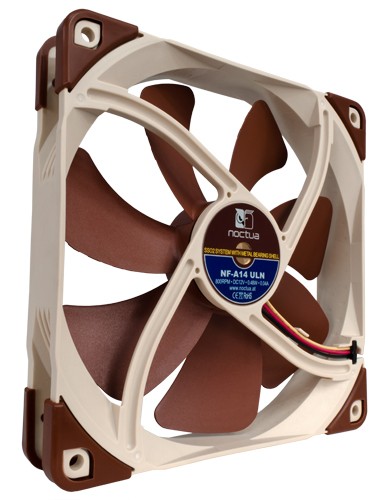
Find a fan that fits your CPU model and case size. Check the fan’s voltage and connector type to match your motherboard. Look for fans with good airflow and low noise levels. Brands with good reviews usually work better. Avoid very cheap fans as they might fail quickly.
Installing A New Fan
Power off your computer and unplug it. Remove the old fan carefully from the CPU heatsink. Attach the new fan to the same spot using screws or clips. Connect the fan’s power cable to the motherboard header. Close the case and power on your computer to test the new fan.
Credit: www.quietpc.com
Additional Noise Reduction Tips
Reducing CPU fan noise goes beyond basic steps. Small changes can make a big difference. These tips help lower sound and keep your computer quieter. Focus on cutting vibration and keeping the fan clean.
Using Fan Dampeners
Fan dampeners are small pads placed between the fan and case. They absorb vibrations that cause noise. These soft materials stop the fan from shaking the case. Install dampeners to reduce buzzing sounds. They are cheap and easy to add.
Isolating Vibrations
Vibrations spread noise fast. Use rubber mounts or silicone washers to isolate the fan. These parts stop hard contact between fan and case. Less contact means less vibration noise. Check all fan screws and tighten them firmly. Loose screws make more noise.
Regular Maintenance Schedule
Dust buildup makes fans work harder and louder. Clean your fans regularly with compressed air. Remove dust from fan blades and vents. Set a schedule to clean every few months. This keeps airflow smooth and noise low. Well-maintained fans last longer and run quietly.
Frequently Asked Questions
Why Is My Cpu Fan So Loud All Of A Sudden?
A loud CPU fan often means high temperatures. Dust buildup, poor ventilation, or heavy workloads can cause this noise. Cleaning the fan and improving airflow usually quiets it down effectively.
How Can I Reduce Cpu Fan Noise Safely?
Lower fan speed using BIOS or software tools designed for your motherboard. Ensure your CPU temperature stays within safe limits while doing this to avoid overheating risks.
Does Thermal Paste Affect Cpu Fan Noise?
Yes, old or dried thermal paste can cause higher CPU temperatures. Reapplying quality thermal paste helps improve heat transfer and reduces fan noise by lowering temperatures.
Can Upgrading Cpu Fans Reduce Noise?
Upgrading to a high-quality, quieter fan can significantly reduce noise. Look for fans with fluid dynamic bearings and low RPM for the best quiet performance.
Conclusion
A quiet CPU fan helps your computer run better and last longer. Regular cleaning keeps dust from building up inside. Adjusting fan speed can lower noise without harming performance. Using good thermal paste improves heat transfer and cooling. Check for loose parts that might cause extra sound.
These simple steps make your computer environment calm and more pleasant. Keep your PC quiet, and enjoy smoother work or play. Small changes bring big comfort.