Can Laptop Gpu Be Upgraded: Ultimate Guide to Boost Performance
Are you frustrated with your laptop’s slow graphics performance? Maybe you want to play the latest games or run powerful design software, but your current GPU just can’t keep up.
You might be wondering—can your laptop’s GPU be upgraded to boost speed and visuals? If you’ve been searching for a way to give your laptop new life without buying a whole new machine, this question matters to you. Keep reading to discover the truth about laptop GPU upgrades and what options you really have to improve your graphics power.
Credit: www.sietesetenta.com.ar
Laptop Gpu Basics
The graphics processing unit, or GPU, plays a key role in a laptop’s ability to handle images and videos. It affects how well your laptop runs games, edits photos, or plays videos. Understanding the basics of laptop GPUs helps you know what to expect from your device. This knowledge also guides decisions about upgrades and performance needs.
Let’s break down the main types of laptop GPUs and see how they impact your laptop’s power.
Types Of Laptop Gpus
Laptop GPUs mainly come in two types: integrated and dedicated. Integrated GPUs share memory with the CPU. They use less power and create less heat. Dedicated GPUs have their own memory and power source. These offer better performance for demanding tasks. Most gaming and design laptops use dedicated GPUs. Basic laptops and ultrabooks usually have integrated GPUs.
Integrated Vs Dedicated Gpus
Integrated GPUs are built into the CPU chip. They handle everyday tasks like web browsing and video playback well. Dedicated GPUs are separate chips inside the laptop. They provide more power for 3D games and video editing. Dedicated GPUs improve frame rates and visual quality. Integrated GPUs save battery life but have lower performance. Your choice depends on what you need your laptop to do.
How Laptop Gpus Affect Performance
A strong GPU makes games run smoothly. It speeds up video editing and 3D rendering. A weak GPU can cause lag and low-quality images. GPU power affects battery life too. High-performance GPUs use more energy and generate more heat. This can reduce your laptop’s runtime. Choosing the right GPU balances performance and battery life. Knowing your GPU type helps set realistic expectations for your laptop’s speed and visuals.
Upgrade Possibilities
Upgrading a laptop GPU can improve graphics performance and extend the device’s life. The upgrade options depend on the laptop’s design and hardware. Some laptops allow GPU upgrades, but most have fixed components. Understanding these possibilities helps decide the best path to better graphics.
Soldered Vs Modular Gpus
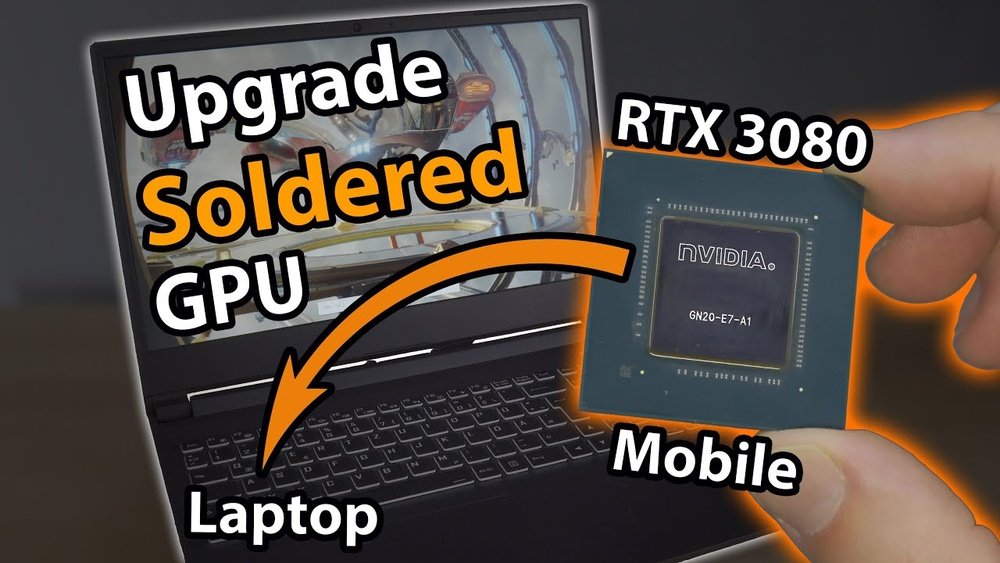
Most laptops have soldered GPUs. This means the graphics chip is fixed on the motherboard. It cannot be removed or replaced easily. Modular GPUs, found in some high-end models, are separate cards. These can be swapped out like desktop GPUs. Soldered GPUs limit upgrade options to external solutions.
External Gpu Options
External GPUs (eGPUs) connect through ports like Thunderbolt 3. They offer a powerful graphics boost without opening the laptop. Users plug in an external box with a desktop GPU inside. This setup is popular for gaming and creative work. eGPUs require compatible ports and may add extra cost.
Compatibility Considerations
Not every laptop supports GPU upgrades or eGPU use. Check the laptop model for upgrade paths. Confirm if it has a modular GPU or a Thunderbolt port. Power and cooling also affect compatibility. Some laptops cannot handle high-power GPUs. Research is essential before buying or upgrading.
External Gpu Setup
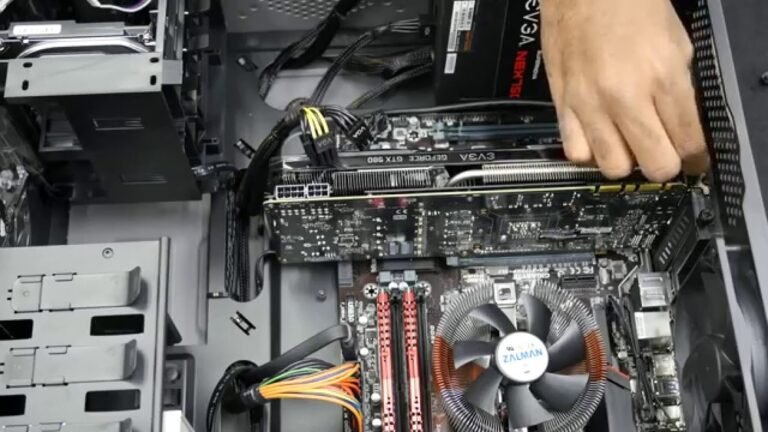
An external GPU setup allows you to boost your laptop’s graphics power. This setup uses a separate box called an eGPU enclosure. It holds a desktop graphics card and connects to your laptop. This method offers a way to improve graphics without opening your laptop.
External GPUs are popular among gamers and creative professionals. They help run demanding games and software smoothly. Setting up an eGPU requires choosing the right enclosure, connecting it properly, and understanding its performance limits.
Choosing The Right Egpu Enclosure
Pick an eGPU enclosure that fits your graphics card size and power needs. Check the enclosure’s power supply to support your GPU. Look for good cooling features to keep the card cool. Also, ensure it has the right ports for your laptop connection. A well-chosen enclosure improves performance and protects your hardware.
Connecting Egpu To Your Laptop
Most eGPUs connect through a Thunderbolt 3 or 4 port. This connection offers high data speed needed for graphics. Plug the eGPU into your laptop’s port and power it on. Install any necessary drivers for your GPU to work. Some laptops may need BIOS updates or settings changes. Follow the enclosure’s manual for proper setup.
Performance Gains And Limitations
An eGPU can greatly improve gaming and design work. Expect better frame rates and smoother visuals. Yet, performance is not equal to a desktop PC. The Thunderbolt connection limits the maximum speed. Some games and apps may not fully support eGPU use. Battery life may reduce faster with an eGPU attached. Still, it is a good option for better graphics on laptops.
Credit: www.shoshitamam.com
Diy Internal Gpu Upgrade
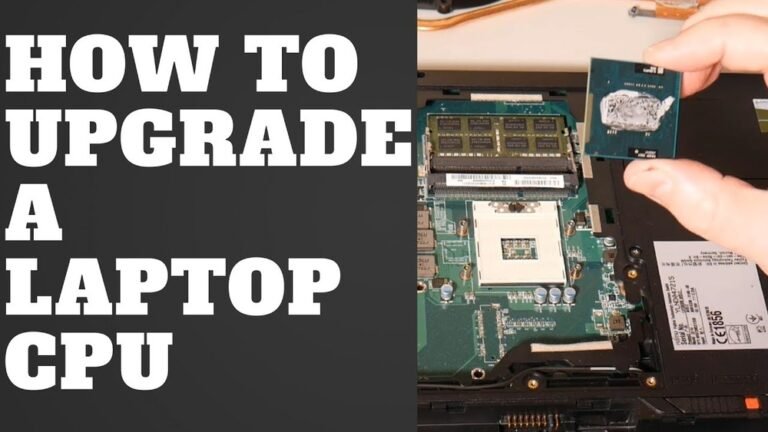
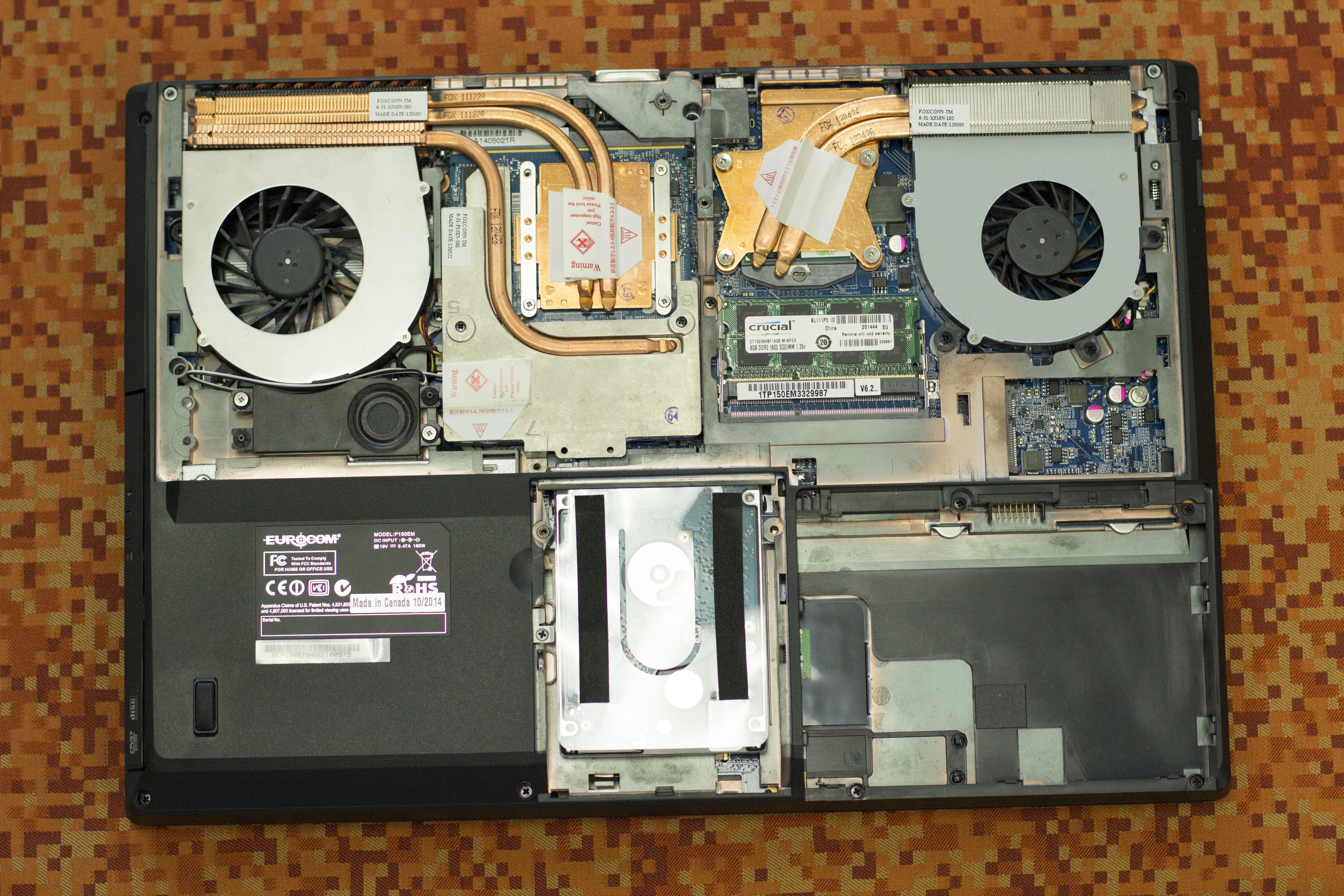
Upgrading a laptop’s internal GPU is not common. Most laptops have GPUs soldered to the motherboard. Still, some models allow a DIY upgrade. This upgrade can boost graphics performance without buying a new laptop.
DIY internal GPU upgrade means opening the laptop and changing the graphics card inside. It takes time, tools, and some technical skills. Not all laptops support this type of upgrade.
Laptops With Mxm Slots
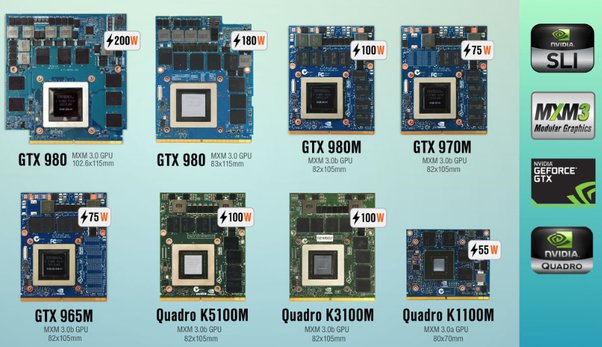
Some laptops come with MXM (Mobile PCI Express Module) slots. These slots hold modular GPUs. This design allows users to remove and replace the GPU.
MXM laptops are rare but popular among gamers and professionals. They offer flexibility to upgrade or repair the GPU later. Check your laptop model to see if it has an MXM slot.
Step-by-step Gpu Replacement
First, power off the laptop and unplug all cables. Remove the back cover carefully using the right screwdriver. Locate the GPU module, usually near the cooling system.
Unscrew the GPU from its slot and gently unplug it. Insert the new GPU into the MXM slot. Screw it back securely and reconnect any cables.
Replace the back cover and power on the laptop. Install the proper GPU drivers for the new hardware. Test the laptop to ensure the GPU works well.
Risks And Challenges
Opening a laptop can void the warranty. Internal parts are delicate and can break easily. Static electricity may damage components without proper precautions.
Finding a compatible GPU for the MXM slot is difficult. Cooling issues may arise if the new GPU uses more power. Some laptops may not recognize the new GPU without BIOS updates.
This upgrade is not for beginners. Mistakes can lead to expensive repairs or a broken laptop.
Alternative Performance Boosts
Upgrading a laptop GPU can be difficult or impossible. Many laptops have GPUs soldered to the motherboard. This limits direct hardware upgrades. Yet, there are other ways to improve your laptop’s performance. These alternatives help your laptop run faster and smoother. They also extend the life of your laptop without costly hardware changes.
Below are some simple and effective methods to boost your laptop’s speed and graphics handling.
Upgrading Ram And Storage
Adding more RAM helps your laptop handle more tasks at once. It reduces slowdowns caused by too many open programs. Faster storage like SSDs speeds up loading times for games and software. Upgrading RAM and storage is often easier than changing the GPU. It gives your laptop a noticeable boost in daily use and gaming.
Optimizing Software Settings
Adjusting your laptop’s software can improve graphics performance. Lower game or app resolution for smoother play. Close unnecessary background programs to free up memory. Update drivers regularly for better hardware compatibility. These changes help your laptop use its current hardware more efficiently.
Using Cooling Pads For Better Performance
Heat slows down your laptop’s GPU and CPU. A cooling pad keeps your laptop cool during heavy use. Cooler hardware runs faster and lasts longer. Cooling pads are affordable and easy to use. They help prevent thermal throttling and keep performance steady.
Cost Vs Benefit Analysis
Upgrading a laptop GPU involves weighing costs against the benefits. This helps decide if the investment is worth it. Many factors affect this decision, including expense, performance gain, and overall value. Understanding these elements guides you to the best choice for your needs.
Expense Of Upgrading Gpus
Upgrading a laptop GPU can be costly. Most laptops have GPUs soldered to the motherboard. This makes upgrades difficult or impossible without expert help. External GPU enclosures exist but add extra costs. These enclosures require compatible laptops and often need a powerful power supply.
Besides hardware costs, labor charges for installation may add up. Repairs or replacements can also occur if done incorrectly. These factors increase the total expense beyond the GPU price.
Comparing Upgrades To New Laptop Purchase
Buying a new laptop may sometimes be cheaper than upgrading. New laptops offer the latest GPUs and other improved parts. They come with warranties and support. Upgrading an old laptop might not boost performance enough to justify the cost. New devices also last longer with newer technology.
Consider your budget and how often you use your laptop. A new laptop might offer better value for money and longer use.
Long-term Performance Expectations
Upgraded GPUs might improve performance temporarily. Newer games and software demand more power over time. An upgraded GPU can become outdated quickly. Buying a new laptop ensures compatibility with future software updates. It provides stable performance for years without extra upgrades.
Think about your needs for the next few years. Decide if a short boost or long-term solution suits you better.
Common Myths And Facts
Many people wonder if laptop GPUs can be upgraded. There are many myths and facts about this topic. Understanding these can help you make better decisions about your laptop’s performance. Let’s clear up some common misunderstandings and look at what is really possible.
Debunking Upgrade Limitations
Many think laptop GPUs are impossible to upgrade. This is not always true. Some high-end gaming laptops use modular GPUs. These can be swapped out, but they are rare. Most laptops have GPUs soldered to the motherboard. This means they cannot be replaced or upgraded. External GPU enclosures offer another option. They connect via Thunderbolt ports. This allows better graphics without changing the internal GPU. Still, external GPUs need compatible laptops and extra investment.
Realistic Performance Improvements
Upgrading a laptop GPU can boost gaming and design work. But the improvement depends on the model and connection type. Internal GPU upgrades are limited to certain laptops. External GPUs provide a bigger performance jump. Yet, they might not match desktop GPU speeds. Cooling and power supply also affect results. Small laptops may struggle with heat from powerful GPUs. Real gains come from using the right tools for your laptop’s design.

Credit: www.youtube.com
Frequently Asked Questions
Can I Upgrade My Laptop Gpu Easily?
Upgrading a laptop GPU is usually difficult. Most laptops have integrated or soldered GPUs. Only some gaming laptops allow GPU upgrades via MXM modules. Always check your laptop’s compatibility before considering an upgrade.
Are External Gpu Docks A Good Option?
Yes, external GPU docks connect via Thunderbolt 3 or 4. They boost gaming and graphic performance without internal upgrades. However, they can be expensive and may have some performance limitations.
Will Upgrading My Laptop Gpu Improve Gaming?
Upgrading or adding an external GPU significantly enhances gaming performance. It allows higher frame rates and better graphics settings. But ensure your laptop supports the upgrade method for the best results.
How Do I Know If My Laptop Gpu Is Upgradeable?
Check your laptop’s specifications and manufacturer’s support. Look for MXM slots or Thunderbolt ports for external GPUs. Research model-specific upgrade guides or consult professional technicians for accurate advice.
Conclusion
Upgrading a laptop GPU is often very hard or not possible. Most laptops have built-in graphics that cannot be changed. Some models let you add external GPUs, but this needs extra parts and can be costly. Think about your needs before buying a laptop for gaming or heavy work.
Choosing the right laptop first saves trouble later. Understanding your device helps you avoid problems. Always research your laptop’s specs and upgrade options carefully. This way, you can make smarter decisions and enjoy better performance.