How Can I Check My Gpu: Quick and Easy Methods Explained
Are you curious about your computer’s graphics card but don’t know where to start? Knowing how to check your GPU is easier than you might think—and it can help you boost your gaming, improve video editing, or simply understand your system better.
You’ll discover simple steps to find out exactly what GPU you have, why it matters, and how this knowledge can make your digital experience smoother. Keep reading, and soon you’ll have all the answers right at your fingertips.
Credit: canellimare.com
Identify Your Gpu Model
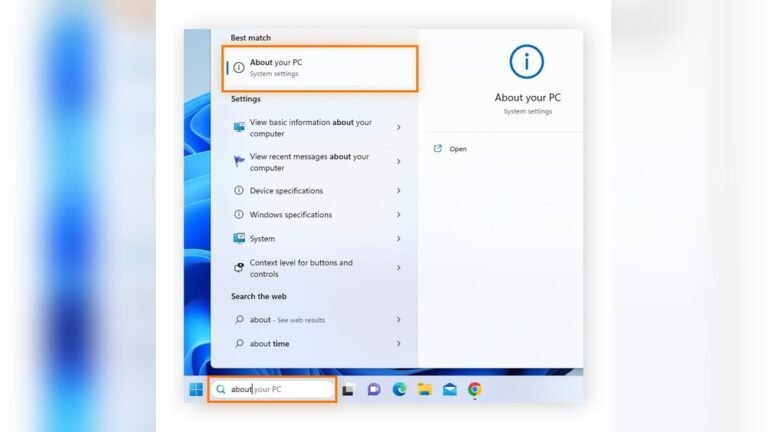
Knowing your GPU model is the first step to understanding your computer’s graphics power. It helps with driver updates, troubleshooting, and choosing software or games. There are easy ways to find out which GPU you have. Below are three simple methods to identify your GPU model quickly.
Using Device Manager
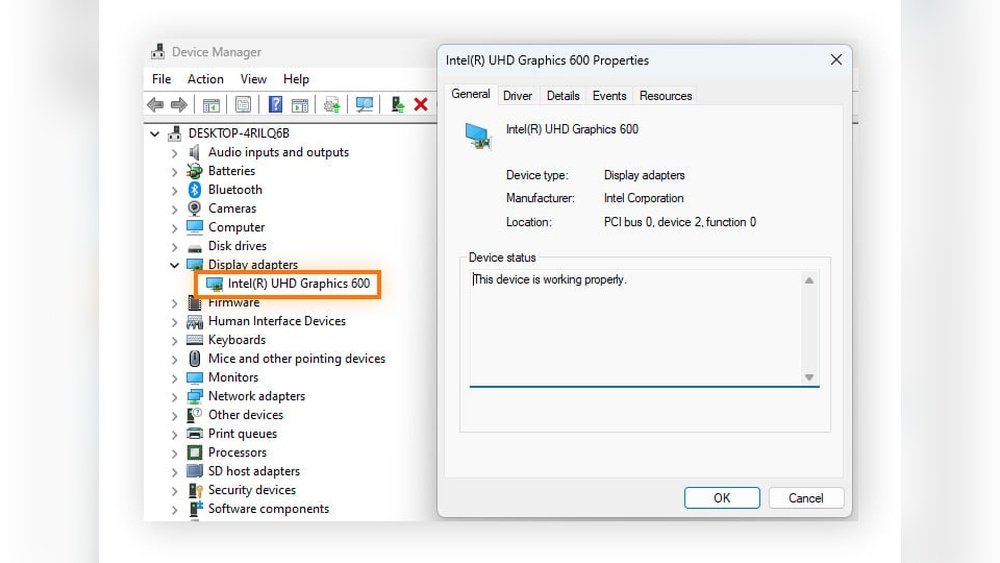
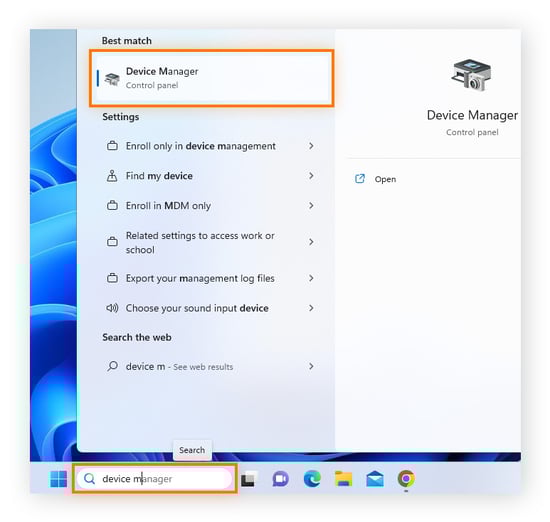
Device Manager shows all hardware in your PC. To open it, press Windows + X and select Device Manager. Find the “Display adapters” section and click the arrow. Your GPU model appears here. This method works on most Windows versions.
Checking System Information
System Information gives detailed hardware data. Press Windows + R, type “msinfo32”, and hit Enter. Look for “Components” and then “Display.” Your GPU name and details show on the right side. This tool helps verify your graphics card easily.
Third-party Tools For Gpu Info
Third-party apps provide extra GPU information. Programs like GPU-Z or Speccy are popular choices. Download and install one of these tools. They display detailed GPU specs, temperatures, and driver versions. These tools help if Windows methods seem unclear.

Credit: www.acquetech.com
Monitor Gpu Performance
Monitoring your GPU performance helps you understand how well your graphics card works. It shows temperature, usage, and speed. Watching these details keeps your system safe. It also helps find problems early. You can use built-in tools or special software. Each method gives useful information in real-time.
Using Task Manager
Task Manager is built into Windows. Press Ctrl + Shift + Esc to open it. Click the Performance tab. Select GPU from the list on the left. You see usage, memory, temperature, and driver info. This tool is simple and quick to access. It works well for basic monitoring without extra software.
Gpu-z For Real-time Stats
GPU-Z is a free program made for detailed GPU info. Download and install it from the official website. It shows clock speeds, temperatures, and fan speed in real-time. The interface is clean and easy to read. This tool helps you check your GPU under heavy load. It is good for deeper hardware details.
Msi Afterburner Features
MSI Afterburner is popular for monitoring and tweaking GPUs. It works with most graphics cards, not just MSI brands. The software shows usage, temperature, and voltage. You can create custom fan profiles to cool your GPU better. It also allows you to overclock safely. This tool suits users who want more control over performance.
Test Gpu Health
Testing your GPU health helps you know if it works well. It shows if your graphics card is strong enough. You can find problems early and avoid bigger issues. Checking the GPU health keeps your computer safe and fast.
Running Benchmark Tests
Benchmark tests measure your GPU’s power. They compare your card to others. Use tools like 3DMark or Unigine Heaven. These tests show how your GPU performs in games or apps. Scores help spot slow or weak GPUs. Run tests in normal conditions for best results.
Stress Testing Your Gpu
Stress tests push your GPU to its limit. They check if it stays stable under heavy load. Use programs like FurMark or MSI Kombustor. Watch for crashes, freezes, or artifacts during tests. These signs show if your GPU has issues. Stop the test if temperatures get too high.
Detecting Overheating Issues
Overheating can damage your GPU over time. Use monitoring tools like HWMonitor or GPU-Z to check temperatures. Keep your GPU below 85°C for safety. Clean dust from fans and heatsinks to improve cooling. Good airflow inside your PC case helps too. Overheating signs include slow performance and sudden shutdowns.
Update Gpu Drivers
Updating your GPU drivers keeps your graphics card running smoothly. New drivers fix bugs and improve performance. They ensure compatibility with new games and apps. Regular updates help avoid crashes and errors.
Automatic Driver Updates
Many computers update GPU drivers automatically. Windows often checks for updates and installs them. This method is easy and fast. It requires little effort from you. Automatic updates keep your system current without hassle.
Manual Driver Installation
You can update GPU drivers manually too. Visit the official website of your GPU brand. Download the latest driver for your model. Run the installer and follow the steps. This method gives you control over updates.
Using Manufacturer Software
GPU makers offer software to manage drivers. Nvidia has GeForce Experience, AMD offers Radeon Software. These tools check for updates and install them. They also optimize settings for your games. Manufacturer software simplifies driver management.
Troubleshoot Common Gpu Issues
GPU issues can affect your computer’s performance and display quality. Troubleshooting these problems helps keep your system running smoothly. Understanding common GPU problems and their fixes saves time and frustration.
Below are simple ways to identify and fix common GPU issues. Follow these steps to improve your GPU’s health and performance.
Fixing Display Problems
Display problems often cause flickering, black screens, or strange colors. Check the cable connections first. Loose or damaged cables can cause display issues. Try reconnecting or replacing the cables.
Update your GPU drivers to ensure compatibility. Old drivers can cause screen glitches. Also, reset your monitor settings to default. This can fix incorrect display configurations.
Resolving Performance Drops
Performance drops make games and apps run slowly. Close background programs that use GPU power. Too many running apps reduce available resources.
Clean your computer’s fans and vents. Dust buildup can overheat the GPU and reduce speed. Lower the graphics settings in games to ease GPU load. This often improves performance.
Addressing Driver Conflicts
Driver conflicts happen when GPU drivers clash with other software. Uninstall old GPU drivers completely before installing new ones. Use tools like Display Driver Uninstaller for a clean removal.
Download drivers from the official GPU manufacturer website. Avoid third-party sites to prevent corrupted files. Restart your computer after driver updates to apply changes properly.
Credit: vixencomposites.com
Frequently Asked Questions
How Do I Find My Gpu Model On Windows?
Open Device Manager, expand Display adapters, and check your GPU name. Alternatively, use DirectX Diagnostic Tool (dxdiag) for detailed info.
Can I Check Gpu Specs Using Software Tools?
Yes, tools like GPU-Z, Speccy, and HWMonitor provide detailed GPU specifications and performance data for all systems.
How To Monitor Gpu Temperature And Usage?
Use software like MSI Afterburner or HWMonitor to track real-time GPU temperature, usage, and clock speeds effectively.
Is It Possible To Check Gpu Details On Mac?
Yes, click the Apple logo, select About This Mac, then System Report to view GPU information on macOS.
Conclusion
Checking your GPU is easier than you might think. Simple steps can show your graphics card details quickly. Knowing your GPU helps with gaming, software, and updates. Use built-in tools on your computer for fast results. Keep your system running smoothly by staying informed.
Now you can confidently check your GPU anytime. No need to guess or worry about your hardware. Just follow easy methods and get the info you want.