Can I Upgrade a Laptop Gpu: Ultimate Guide to Boost Performance
Are you wondering if you can upgrade your laptop GPU to boost gaming or graphic performance? You’re not alone.
Many laptop users dream of giving their machines a powerful graphics boost without buying a whole new device. But is it really possible to swap out your laptop’s GPU like you would with a desktop? You’ll discover the truth behind upgrading your laptop GPU, what options you have, and how to make the best choice for your needs.
Keep reading to find out if your laptop can handle a GPU upgrade and how to get the most from your device.
Credit: www.youtube.com
Laptop Gpu Upgrade Basics
Upgrading a laptop GPU is a topic many users ask about. The process is not as simple as desktop upgrades. This section explains the basics of laptop GPU upgrades. It covers how laptop GPUs differ, types of GPUs, and the benefits of upgrading.
How Laptop Gpus Differ From Desktops
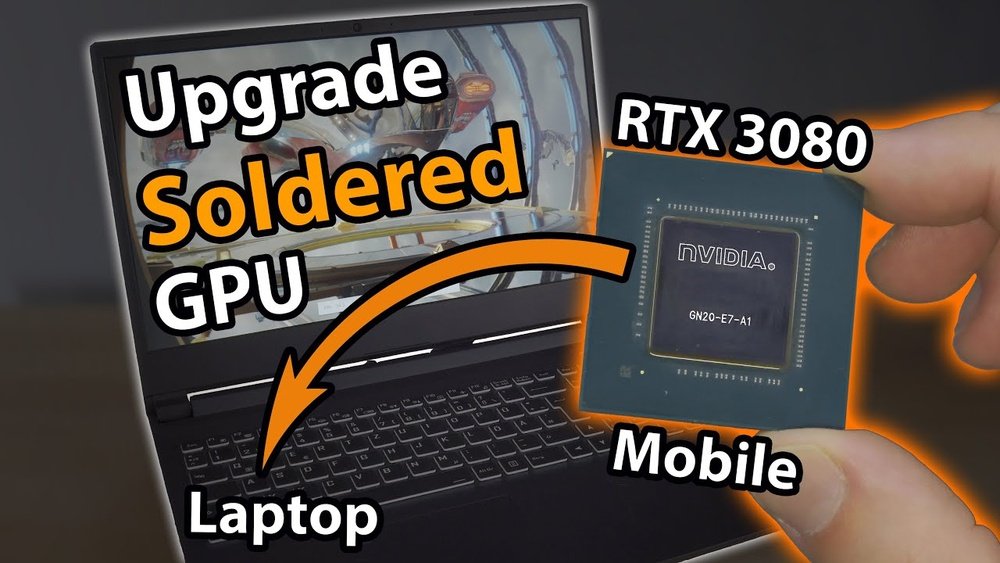
Laptop GPUs are often smaller and use less power. They are built to fit inside tight spaces. Desktop GPUs are larger and use more power. Laptops usually have GPUs soldered onto the motherboard. This design limits the ability to swap or upgrade the GPU.
Cooling is also different. Laptop GPUs have smaller cooling systems. This affects performance and upgrade options. Desktop GPUs have better cooling and more upgrade freedom.
Types Of Laptop Gpus
There are two main types of laptop GPUs. Integrated GPUs share memory with the CPU. They are common in budget laptops. Dedicated GPUs have their own memory. They offer better performance for games and design work.
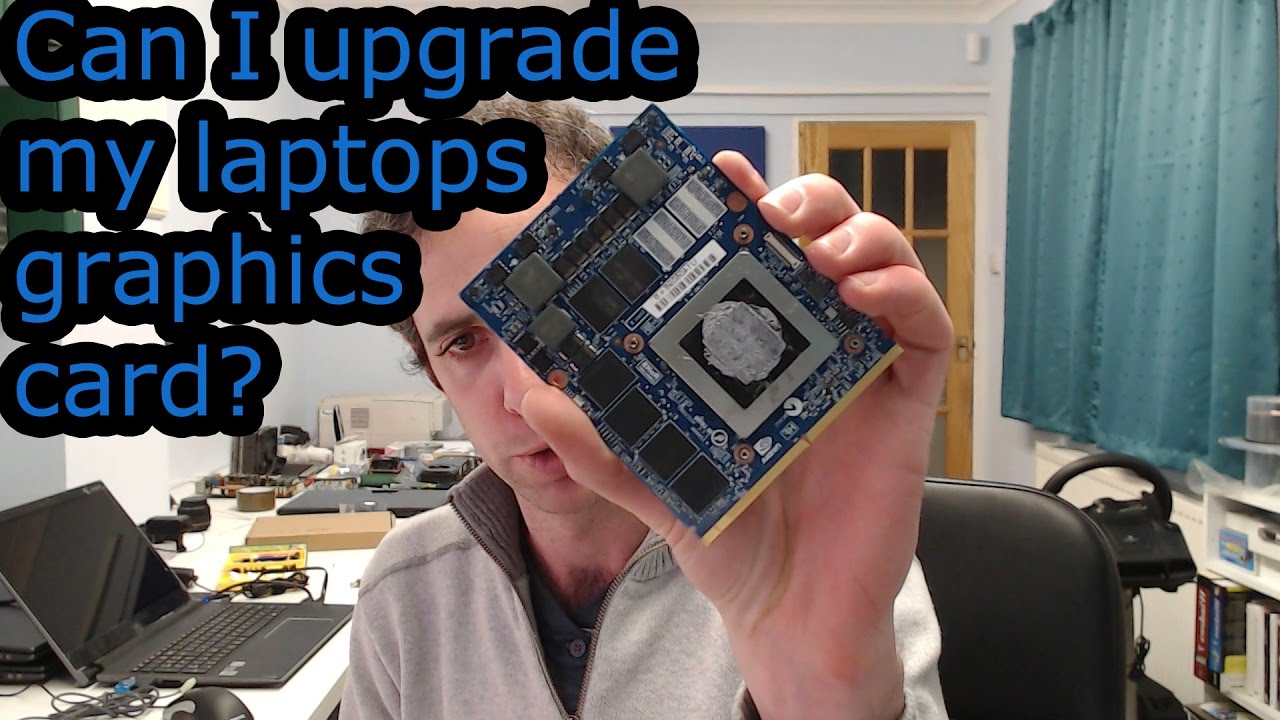
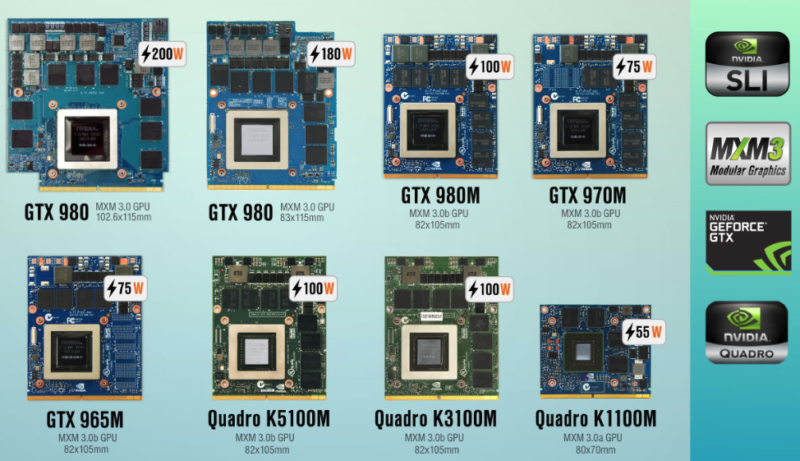
Some laptops have removable GPUs using MXM modules. These are rare and mostly found in gaming or professional laptops. Most laptops have built-in GPUs that cannot be replaced easily.
Benefits Of Upgrading Your Gpu
Upgrading a laptop GPU can improve gaming and video editing. It helps run newer software smoothly. A better GPU can extend the laptop’s useful life. It also improves overall speed and multitasking ability.
However, not all laptops support GPU upgrades. Knowing your laptop’s design helps decide if an upgrade is possible.
Checking Compatibility
Upgrading a laptop GPU requires careful checking of compatibility. Not all laptops support GPU upgrades. Knowing your current hardware helps avoid costly mistakes. This section guides you through the key steps to check compatibility before upgrading your laptop GPU.
Identifying Your Current Gpu
Start by finding out which GPU your laptop has now. You can check this in the device manager or use system information tools. Knowing the exact model helps you find a suitable upgrade. Some laptops have integrated GPUs, which usually cannot be replaced.
Assessing Laptop Hardware Constraints
Laptops have size and power limits that affect GPU upgrades. Many GPUs are soldered onto the motherboard. Cooling systems may not support stronger GPUs. Battery and power supply must handle the new GPU’s demand. Check your laptop’s manual or support site for hardware details.
Bios And Firmware Considerations
BIOS controls hardware functions and may block new GPUs. Firmware updates can add support for newer GPUs. Some laptops have locked BIOS, preventing GPU changes. Verify if your BIOS can recognize and work with a new GPU. Updating BIOS requires care to avoid damage.
Upgrade Options
Upgrading a laptop GPU can improve gaming, design, and video tasks. Options depend on your laptop model and design. Some upgrades are easy; others need tech skills and special parts. Here are common ways to upgrade a laptop GPU.
Swapping Dedicated Gpus
Some laptops have dedicated GPUs that you can replace. This option works only if your laptop uses a removable GPU card. Most laptops have GPUs soldered to the motherboard, so swapping is not possible. Check your laptop’s manual or support site to see if the GPU is replaceable. Swapping requires opening the laptop carefully and using a compatible GPU card.
External Gpu Solutions (egpu)
External GPUs connect to your laptop via Thunderbolt or USB-C ports. They offer a simple way to boost graphics power. eGPUs work with many laptops and do not require opening the device. You need an eGPU dock and a desktop GPU card. This option is great for users who want better graphics without changing the laptop internally. Performance depends on the connection speed and GPU used.
Using Mxm Gpu Modules
MXM is a special slot for GPUs in some gaming and professional laptops. It allows GPU upgrades like desktop cards but in a smaller form. Only a few laptop models support MXM modules. These GPUs are more expensive and harder to find. Upgrading with MXM requires technical knowledge and checking compatibility carefully. This option offers good performance but limited availability.
Step-by-step Upgrade Process
Upgrading a laptop GPU can be tricky but rewarding. It can improve your laptop’s graphics and speed. This step-by-step guide helps you do it safely. Follow the steps carefully to avoid damage.
Preparing Your Laptop For Upgrade
Turn off your laptop and unplug it from power. Remove the battery if possible. Clear a clean workspace to avoid losing small parts. Gather tools like a screwdriver and an anti-static wristband. Ground yourself to prevent static damage to components.
Removing The Old Gpu
Open your laptop’s back panel by unscrewing the screws. Locate the GPU, usually near the cooling fan. Carefully disconnect the power cables from the GPU. Unscrew the GPU mounting screws and gently lift it out. Avoid forcing the GPU to prevent damage.
Installing The New Gpu
Align the new GPU with the slot on the motherboard. Insert it gently but firmly until it clicks into place. Screw the GPU securely to the frame. Reconnect any power cables you removed earlier. Double-check all connections before closing the panel.
Driver Installation And Setup
Turn on your laptop after the hardware installation. Download the latest GPU drivers from the manufacturer’s website. Install the drivers following the on-screen instructions. Restart your laptop to complete the setup. Check device manager to confirm the GPU is recognized.
Performance Boost Tips
Boosting your laptop’s GPU performance can make a big difference. Small changes help your laptop run games and software smoother. These tips improve speed and reduce lag without hardware upgrades. Follow simple steps to get better results from your current GPU.
Optimizing Graphics Settings
Lowering resolution can help increase frame rates. Turn off extra effects like shadows and reflections. Use presets like “medium” instead of “high” for smoother play. Close background apps to free up GPU power. Adjust settings one by one to find the best balance.
Cooling Solutions For Better Performance
Heat slows down your GPU. Clean your laptop’s vents and fans regularly. Use a cooling pad to keep temperatures low. Avoid using your laptop on soft surfaces like beds. Cooler hardware runs faster and lasts longer.
Updating Drivers Regularly
Old drivers cause crashes and poor performance. Check for updates from the GPU maker’s website. Install the latest version to fix bugs and add features. Set your system to update drivers automatically. Updated drivers keep your laptop running smoothly.
Credit: www.shoshitamam.com
Potential Risks And Limitations
Upgrading a laptop GPU sounds like a good idea for better graphics. Still, it has many risks and limits. These can affect your laptop’s performance and lifespan. Knowing these risks helps you decide wisely.
Warranty And Support Issues
Changing the GPU often voids the laptop’s warranty. Manufacturers may refuse to fix your laptop for free. Support services might not help with problems caused by upgrades. This can lead to extra costs for repairs.
Thermal And Power Challenges
Laptop GPUs need proper cooling. New GPUs may produce more heat than old ones. This can cause the laptop to overheat and slow down. Power supply may not support a stronger GPU. The laptop might shut down or fail to start.
Compatibility Pitfalls
Not all GPUs fit every laptop model. Many laptops have GPUs soldered to the motherboard. Finding a matching GPU that works is tough. Drivers and software might not support the new GPU. This can cause errors or poor performance.
Alternative Ways To Improve Graphics
Upgrading a laptop GPU is often difficult or impossible. Many laptops have GPUs soldered to the motherboard. This limits your options for better graphics power.
Alternative methods can still improve your laptop’s graphics performance. These methods help games and apps run smoother. They also enhance video playback and overall visual quality. Here are some practical ways to boost graphics without changing the GPU.
Upgrading Ram And Storage
More RAM lets your laptop handle graphics tasks better. It reduces slowdowns and improves multitasking. Increasing RAM is usually easier than changing a GPU. Also, upgrading to a faster storage drive, like an SSD, helps. It speeds up loading times for games and programs. Both upgrades make your laptop feel faster and more responsive.
Overclocking Your Gpu
Overclocking means making your GPU run faster than usual. This can improve graphics speed and frame rates. Some laptops allow safe overclocking through software tools. Be careful; overclocking raises heat and power use. Always monitor temperatures to avoid damage. This method works best for users who want extra power without hardware changes.
Cleaning And Maintenance
Dust and dirt inside your laptop reduce cooling efficiency. Poor cooling causes the GPU to slow down to avoid overheating. Cleaning vents and fans helps keep temperatures low. Use compressed air to remove dust from inside the laptop. Regular maintenance improves performance and extends your laptop’s life. It is a simple step that benefits graphics performance indirectly.
Credit: rog.asus.com
Frequently Asked Questions
Can I Upgrade My Laptop Gpu Easily?
Upgrading a laptop GPU is usually difficult. Most laptops have integrated or soldered GPUs. Only some gaming laptops with MXM slots allow easy GPU upgrades. Always check your laptop’s specifications before attempting an upgrade.
What Laptops Support Gpu Upgrades?
High-end gaming and workstation laptops with MXM modules often support GPU upgrades. Most thin and lightweight laptops do not. Verify your model’s compatibility through the manufacturer’s documentation or forums before considering an upgrade.
Does Upgrading Laptop Gpu Improve Performance?
Yes, upgrading your laptop GPU can significantly boost graphics performance. It helps in gaming, video editing, and 3D rendering. However, the upgrade depends on hardware compatibility and power constraints.
Are External Gpu Enclosures A Good Alternative?
External GPU enclosures offer a practical upgrade for laptops without upgradeable GPUs. They connect via Thunderbolt 3/4 ports and provide desktop-level GPU power. This solution is effective but less portable and more expensive.
Conclusion
Upgrading a laptop GPU is not always easy or possible. Many laptops have fixed graphics cards. Some models allow upgrades but need special parts. Check your laptop’s manual or ask a technician first. Consider if the cost and effort are worth it.
Sometimes, buying a new laptop fits better. Knowing your options helps you make a good choice. Keep your needs and budget in mind before deciding.