How to Clean Gpu Fans: Ultimate Guide for Peak Performance
Is your computer making more noise than usual? That constant buzzing might be your GPU fans working overtime because they’re clogged with dust.
Cleaning your GPU fans is easier than you think, and it can make your graphics card run cooler and quieter. If you want to boost your PC’s performance and extend the life of your hardware, you need to know how to clean your GPU fans properly.
Keep reading, and you’ll discover simple steps that anyone can follow to get your GPU running smoothly again.

Credit: www.youtube.com
Why Clean Gpu Fans
Keeping your GPU fans clean is very important. Dust and dirt can build up quickly inside your computer. This buildup blocks airflow and causes your GPU to get hot. A hot GPU does not work well and can slow down your computer. Cleaning the fans helps your GPU stay cool and run smoothly. It also extends the life of your graphics card.
Regular cleaning stops problems before they start. It keeps your system stable during games and heavy tasks. This simple step saves you money by avoiding costly repairs. Understanding why you need to clean GPU fans makes maintenance easier.
Impact Of Dust On Performance
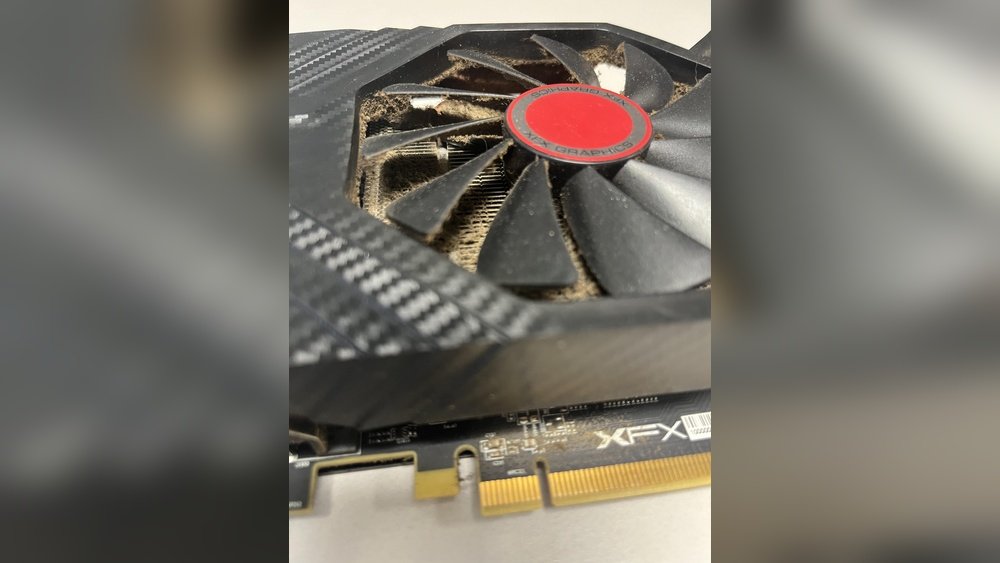
Dust reduces the fan’s ability to cool the GPU. Fans clogged with dust spin slower and less efficiently. This causes the GPU temperature to rise quickly. High temperatures make the GPU slow down to protect itself. This slowdown means lower frame rates and lag in games. Over time, dust buildup can cause permanent damage.
Signs Of Dirty Gpu Fans
You may notice your computer running louder than usual. The fan noise increases as it works harder to cool the GPU. Your system might also get hotter during use. Sometimes, games or programs crash unexpectedly. Another sign is poor graphics performance or stuttering. These signs mean it is time to clean the fans.
Tools Needed
Cleaning GPU fans keeps your computer cool and runs better. The right tools make this job easier and safer. Gather these items before you start. This ensures a smooth and effective cleaning process.
Essential Cleaning Supplies
- Compressed air can – blows dust from hard-to-reach places.
- Soft brush – removes dust gently without damage.
- Microfiber cloth – cleans surfaces without scratching.
- Isopropyl alcohol (70% or higher) – removes sticky dirt safely.
- Small screwdriver – opens GPU casing if needed.
Optional Accessories For Deep Cleaning
- Vacuum cleaner with small nozzle – sucks dust away quickly.
- Anti-static wrist strap – prevents static electricity damage.
- Cotton swabs – cleans tight corners and edges.
- Thermal paste – for reapplying after deep GPU cleaning.
Preparing Your Workspace
Preparing your workspace is the first step to clean GPU fans effectively. A clean, organized area helps you focus and avoid mistakes. It also protects your computer parts from dust and damage. Take time to set up the right space before starting the cleaning process.
Safety Precautions
Turn off your PC and unplug it from the power source. Ground yourself to avoid static electricity. Static can harm sensitive computer parts. Work in a dry area to prevent electric shocks. Avoid touching the fan blades roughly. Use gentle motions to keep the fan intact.
Organizing Your Tools
Gather all tools before you start cleaning. Use a soft brush, compressed air can, and microfiber cloth. Keep small tools like screwdrivers close by. Arrange everything on a clean surface. This setup makes cleaning faster and smoother. Avoid using wet cloths or liquids near the GPU.
Credit: www.reddit.com
Step-by-step Cleaning Process
Cleaning your GPU fans helps keep your computer cool and running well. Dust and dirt block airflow and cause overheating. Follow these simple steps to clean your GPU fans safely and effectively.
Take your time and handle parts carefully. This guide shows each step clearly for easy understanding.
Removing The Gpu
Turn off your computer and unplug all cables. Open the case carefully. Find the GPU and unscrew it from the case. Gently pull the GPU out of the slot. Place it on a clean, static-free surface.
Cleaning The Fan Blades
Use a soft brush or compressed air to remove dust from fan blades. Hold the fan still while cleaning. Avoid spinning the fan too fast. Clean each blade gently to avoid damage.
Cleaning The Heatsink And Vents
Dust also collects in the heatsink and vents. Use compressed air to blow dust out. Blow air from different angles for better cleaning. A small brush can help remove stubborn dust.
Reassembling The Gpu
Check that the GPU is dry and clean. Carefully insert the GPU back into its slot. Screw it securely into the case. Close the computer case and reconnect all cables. Power on your computer and check for normal fan operation.
Cleaning Without Removing Gpu
Cleaning your GPU fans without removing the graphics card is a safe and quick way to keep your PC running cool. Dust and dirt build up on the fans over time. This buildup can make the fans noisy and slow. It also causes your GPU to get hotter than it should. You can clean these fans easily while the GPU stays in your computer. This method saves time and reduces the risk of damaging the hardware.
Using Compressed Air
Compressed air is a simple tool to clean GPU fans. Use a can of compressed air with a small nozzle. Hold the can upright and spray short bursts of air. Aim the air at the fan blades and the heat sink. Do not spin the fans too fast with air. Hold the fan still by gently pressing a finger against it. This prevents damage to the fan motor. Clean in a well-ventilated area to blow dust away safely.
Brushing And Wiping Techniques
Use a soft brush to loosen stuck dust. A small paintbrush or a makeup brush works well. Brush gently along the fan blades and around the fan hub. Avoid using too much force. After brushing, use a dry microfiber cloth to wipe off dust. You can also use cotton swabs to reach tight spots. Never use water or cleaning liquids on your GPU fans. Keep the area dry to avoid any damage.
Maintaining Gpu Fans
Maintaining GPU fans is key to keeping your graphics card working well. Clean fans help avoid overheating and keep your computer running smoothly. Dirt and dust can slow down your fans and cause noise. Regular care makes your GPU last longer and perform better.
Regular Cleaning Schedule
Set a regular time to clean your GPU fans. Every one to two months is a good start. More often if you live in a dusty place. Turn off your computer and unplug it before cleaning. Use a soft brush or compressed air to remove dust. Avoid using water or liquids on the fans.
Preventing Dust Build-up
Keep your computer in a clean area to reduce dust. Use dust filters on your PC case vents. Clean these filters often to keep air flowing well. Store your computer off the floor where dust gathers. Keep pets and food away from your PC to stop dirt buildup.
Troubleshooting Fan Issues
GPU fans are vital for keeping your graphics card cool. Fan problems can cause overheating and damage. Identifying and fixing fan issues quickly protects your hardware. This section covers common fan problems and how to address them.
Noisy Fans
Noisy GPU fans often mean dust or debris inside. Dirt causes the fan blades to wobble or rub. Clean the fan carefully with compressed air or a soft brush. Check for loose screws or worn bearings. Tighten screws or replace bearings if needed.
Fans Not Spinning
Fans that do not spin may have power issues. Verify the fan connector is plugged into the GPU header. Check your graphics card settings in the software to ensure fans are enabled. Test the fan by spinning it gently with your finger. If it feels stuck, clean and lubricate the fan hub.
Replacing Faulty Fans
Some fan issues cannot be fixed by cleaning or repair. A faulty fan needs a replacement to avoid GPU damage. Find a compatible fan model for your GPU. Remove the old fan carefully by unscrewing it. Connect and install the new fan, ensuring it fits securely.

Credit: www.youtube.com
Frequently Asked Questions
How Often Should I Clean My Gpu Fans?
You should clean your GPU fans every 3 to 6 months. Regular cleaning prevents dust buildup, improving cooling and performance. If you use your PC in a dusty environment, clean more frequently to avoid overheating and hardware damage.
What Tools Are Needed To Clean Gpu Fans?
Basic tools include a soft brush, compressed air can, microfiber cloth, and a screwdriver. These help safely remove dust and debris from fans and heatsinks without damaging components. Avoid using vacuum cleaners as they can cause static electricity.
Can I Clean Gpu Fans Without Removing The Card?
Yes, you can clean GPU fans without removing the card. Use compressed air and a brush carefully to avoid damaging the fans. However, removing the card allows deeper cleaning and better access to all dust-prone areas.
Is It Safe To Use Compressed Air On Gpu Fans?
Yes, compressed air is safe if used correctly. Hold the can upright and use short bursts to avoid moisture buildup. Prevent fan blades from spinning by gently holding them still during cleaning to avoid damage.
Conclusion
Cleaning GPU fans keeps your computer cool and running well. Dust and dirt block airflow and cause overheating. Regular cleaning helps your GPU last longer and work better. Use gentle tools and follow safe steps to avoid damage. Take time to clean fans every few months.
A clean GPU fan means quieter and smoother performance. Stay on top of maintenance for a healthier computer. Simple care goes a long way in protecting your hardware.