How to Reduce Gpu Temp: Proven Tips to Boost Performance
Is your GPU running hotter than it should? High temperatures can slow down your computer and even damage your graphics card over time.
But don’t worry—you can take simple steps to cool it down and keep your system running smoothly. You’ll discover easy and effective ways to reduce your GPU temp, improve performance, and extend the life of your hardware. Ready to protect your investment and enjoy a cooler, faster PC?
Let’s dive in.
Causes Of High Gpu Temperature
High GPU temperature can cause slow performance and damage. Understanding the causes helps to keep your GPU cool. Many factors raise the heat inside your computer. Identifying these causes is the first step to prevent overheating.
Overclocking Effects
Overclocking pushes the GPU to run faster than normal. This extra speed creates more heat than usual. It can lead to higher temperatures quickly. Without proper cooling, overclocking raises the risk of damage.
Dust And Dirt Buildup
Dust collects inside the computer over time. It blocks fans and vents from working well. Dirt stops air from flowing around the GPU. This causes heat to build up inside the case.
Poor Airflow
Good airflow is key to cooling the GPU. Cases with little ventilation trap hot air inside. Fans that do not blow air properly cause heat buildup. This makes the GPU run hotter than normal.
Thermal Paste Degradation
Thermal paste helps transfer heat from the GPU to the cooler. Over time, this paste dries out and loses effectiveness. Old or dried thermal paste causes poor heat transfer. This results in higher GPU temperatures.
Credit: www.servermania.com
Monitoring Gpu Temperature
Keeping an eye on your GPU temperature is very important. It helps you avoid overheating and damage. Monitoring lets you know when your GPU is too hot. This way, you can take action early. Let’s explore how to check your GPU temperature effectively.
Using Software Tools
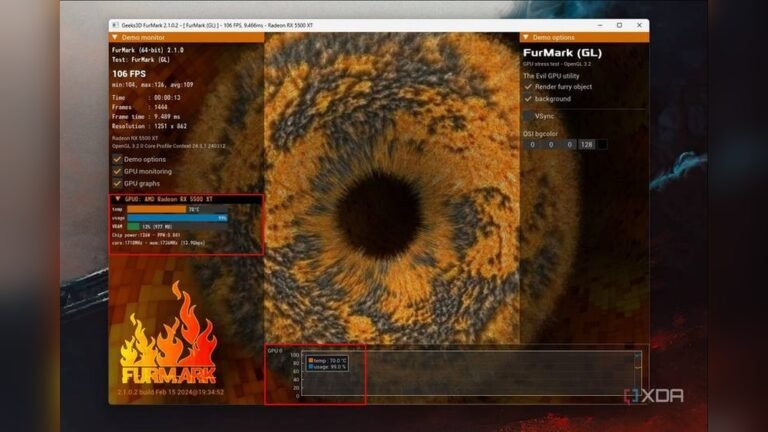
Several programs show real-time GPU temperature. These tools are easy to install and use. Popular options include MSI Afterburner, HWMonitor, and GPU-Z. They display temperature, fan speed, and load. Some software also lets you set alerts for high temperature. Regular checks help maintain your GPU’s health.
Safe Temperature Ranges
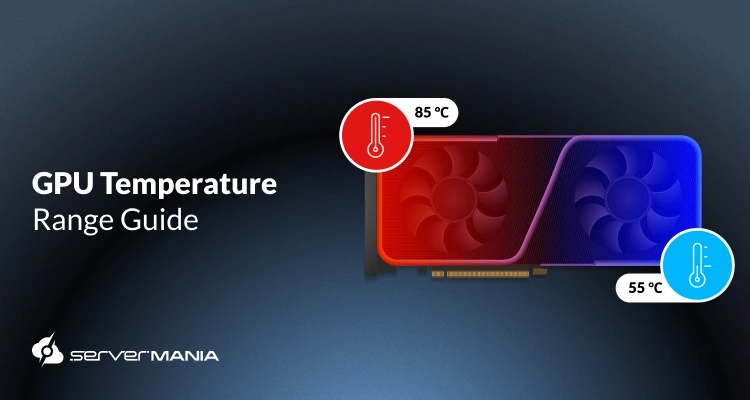
Most GPUs work well below 85°C (185°F). Temperatures above 90°C (194°F) can cause problems. Keeping your GPU between 60°C and 80°C is ideal. At rest, temperatures usually stay around 30°C to 40°C. Staying in safe ranges prevents performance drops and hardware damage.
Improving Airflow In Your Pc
Improving airflow in your PC is a key step to lower GPU temperature. Good airflow moves hot air out and brings cool air in. This helps your GPU run cooler and last longer. Small changes inside your PC case can make a big difference. Focus on fan placement, cable management, and case choice to improve airflow effectively.
Optimizing Fan Placement
Place intake fans at the front or bottom of the case. These fans pull cool air into the PC. Exhaust fans go at the back or top to push hot air out. Balance the number of intake and exhaust fans. Avoid blocking fans with large components. Proper fan placement keeps air moving across your GPU.
Cable Management Tips
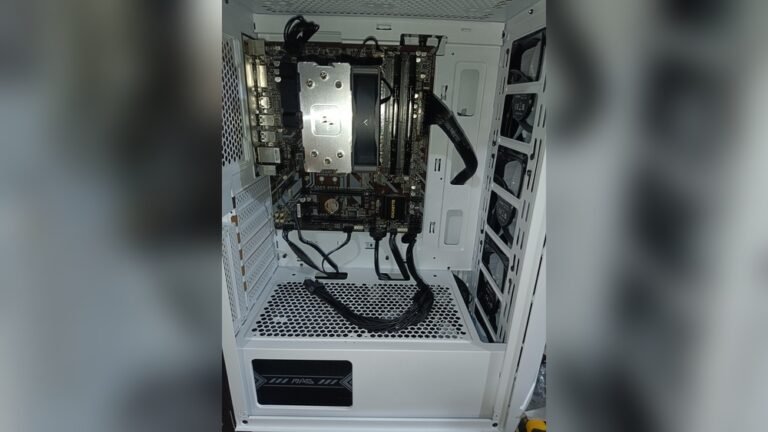
Keep cables neat and out of airflow paths. Use zip ties or Velcro straps to bundle cables. Tuck cables behind the motherboard tray if possible. Messy cables block airflow and trap heat around the GPU. Good cable management creates clear air channels inside the case.
Case Selection For Cooling
Choose a case with good ventilation and fan mounting options. Mesh front panels allow more air intake than solid panels. Look for cases with multiple fan slots and dust filters. Bigger cases usually offer better airflow and space for fans. A well-ventilated case helps keep your GPU temperature low.
Cleaning And Maintenance
Keeping your GPU clean and well-maintained helps lower its temperature. Dust and dirt block airflow and trap heat. Regular cleaning and maintenance improve cooling and extend your GPU’s life. Follow simple steps to keep your GPU running cool and smooth.
Removing Dust Safely
Turn off your computer and unplug it. Open the case carefully. Use a can of compressed air to blow dust off the GPU and fans. Hold the fan blades still to stop spinning. Avoid using a vacuum, as it can cause static damage. Clean dust from vents and other parts too.
Replacing Thermal Paste
Thermal paste helps transfer heat from the GPU chip to the cooler. Over time, it dries out and loses effectiveness. Remove the GPU cooler gently. Clean old thermal paste with isopropyl alcohol and a soft cloth. Apply a small amount of new thermal paste evenly on the chip. Reattach the cooler firmly but not too tight.
Checking Fan Operation
Fans move air to cool the GPU. Check that all fans spin freely and quietly. Turn on your PC and watch the fans. Listen for strange noises or uneven spinning. Replace faulty fans quickly to avoid overheating. Keep fan blades clean for better airflow.
Adjusting Gpu Settings
Adjusting your GPU settings can help lower its temperature and improve performance. Small changes can make a big difference in cooling. It reduces heat and prevents damage. Focus on key settings to keep your GPU cool and stable.
Underclocking And Undervolting
Underclocking means lowering the GPU’s clock speed. It reduces power use and heat output. Undervolting lowers the voltage supplied to the GPU. This cuts heat without hurting performance much. Both methods help the GPU run cooler and last longer.
Fan Speed Customization
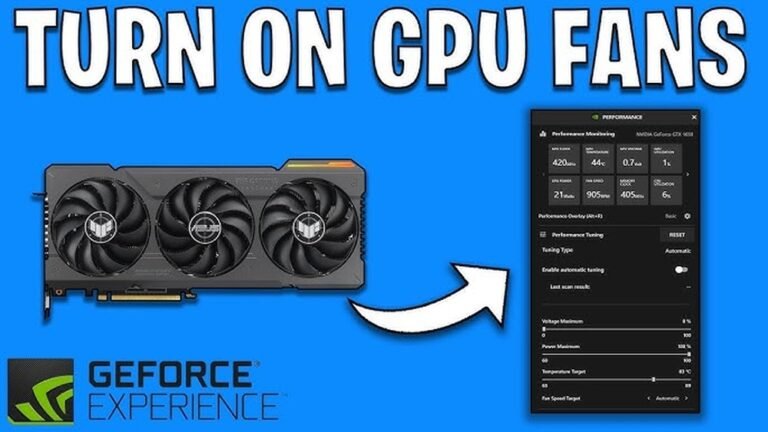
Increasing fan speed improves airflow and cools the GPU faster. You can set custom fan curves for better control. Fans spin faster during heavy use and slower when idle. This keeps noise down while managing temperatures well.
Using Gpu Control Software
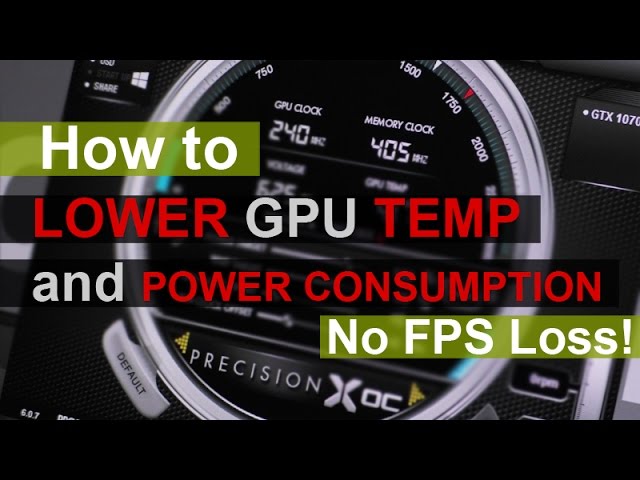
GPU control software lets you change settings easily. You can adjust clock speeds, voltages, and fan speeds in one place. Popular tools include MSI Afterburner and EVGA Precision X1. These programs help you monitor temps and tweak cooling quickly.

Credit: www.reddit.com
Upgrading Cooling Solutions
Upgrading cooling solutions helps lower GPU temperature effectively. Better cooling keeps your graphics card safe and improves its performance. It stops overheating that can cause crashes or slowdowns.
Different cooling options fit different budgets and skill levels. Some are easy to install, while others need more work but cool better. Choose what suits your setup and needs.
Aftermarket Gpu Coolers
Aftermarket GPU coolers replace the original fan and heatsink. They often have bigger fans or more heat pipes. This helps move heat away faster and cool the GPU better. Many come with quiet fans to reduce noise. Installing one improves cooling and may extend your GPU’s life.
Liquid Cooling Options
Liquid cooling uses water or coolant to move heat away from the GPU. It is more effective than air cooling in many cases. Liquid coolers keep temperatures low even during heavy use. These systems can be custom loops or all-in-one units. They need careful installation but offer strong cooling power.
Additional Case Fans
Adding more case fans improves airflow inside your PC. Good airflow helps cool the GPU and other parts. Place fans to bring in cool air and push out hot air. Balanced airflow stops heat from building inside the case. More fans can lower GPU temperature by several degrees.
Environmental Factors
Environmental factors play a big role in controlling GPU temperature. Simple changes in your room and PC setup can lower heat levels. These changes help the GPU run cooler and last longer. Understanding these factors helps keep your system safe and fast.
Room Temperature Impact
The temperature of the room affects your GPU’s heat. Hot rooms make it harder for the GPU to cool down. Cooler rooms help fans work better and lower GPU temperature. Keep your room well-ventilated and avoid direct sunlight on your PC. A cooler room means less heat inside your computer case.
Placement Of The Pc
Where you place your PC changes how well it cools. Avoid putting the PC in tight spaces or near heat sources. Give your PC room to breathe with space around it. Place it on a hard surface, not carpet or soft fabric. Proper placement helps air flow inside the case and cools the GPU effectively.
Credit: www.youtube.com
Performance Benefits Of Lower Gpu Temps
Lower GPU temperatures bring many performance benefits. They help your graphics card run smoothly and last longer. Cooler GPUs work better during intense tasks like gaming or video editing. Keeping your GPU cool ensures it performs at its best without problems.
Enhanced Stability
High GPU temperatures can cause crashes and freezes. Lower temps reduce the chance of these issues. Your system stays stable, even under heavy loads. This means fewer interruptions and smoother operation.
Extended Hardware Lifespan
Heat damages electronic components over time. Cooler GPU temps help prevent this damage. Your graphics card lasts longer and stays reliable. This saves money by delaying the need for replacements.
Improved Gaming Experience
Games run better with a cool GPU. Lower temps allow higher frame rates and less lag. Your gameplay feels smoother and more responsive. This makes gaming more enjoyable and immersive.
Frequently Asked Questions
How Can I Quickly Lower My Gpu Temperature?
To quickly lower GPU temperature, close unnecessary apps and improve airflow around your PC. Clean dust from fans and ensure proper ventilation.
What Is The Ideal Gpu Temperature For Gaming?
Ideal GPU temperature for gaming ranges between 65°C and 85°C. Temperatures above 85°C may cause performance issues or damage.
Does Updating Gpu Drivers Reduce Its Temperature?
Yes, updating GPU drivers can optimize performance and improve cooling efficiency, which may help lower GPU temperature.
How Does Thermal Paste Affect Gpu Temperature?
Thermal paste improves heat transfer between GPU and cooler. Reapplying it can significantly reduce GPU temperature.
Conclusion
Keeping your GPU cool helps your computer run better and last longer. Clean fans and good airflow reduce heat quickly. Lowering settings in games can also ease the load. Using extra cooling tools keeps temperatures safe during heavy use. Check your GPU temperature often to avoid damage.
Small steps make a big difference in performance. Stay mindful of heat to enjoy smooth, worry-free gaming or work. Simple care leads to a cooler, happier GPU every day.