How to Clear Gpu Memory: Quick Tips to Boost Performance
Are you noticing your computer slowing down during gaming or heavy graphic work? One common culprit is a full GPU memory, which can seriously affect your system’s performance.
Knowing how to clear GPU memory can make your device run smoother and faster, giving you a better experience whether you’re gaming, editing videos, or running complex applications. You’ll discover simple and effective ways to free up your GPU memory quickly.
Keep reading, because mastering this can save you time, frustration, and even improve your hardware’s lifespan.
Signs Of Gpu Memory Overload
GPU memory overload happens when your graphics card runs out of space to store data. This causes slowdowns and errors in your programs. Recognizing the signs early helps you fix the problem fast. Watch for changes in performance, crashes, and strange visuals on your screen.
Performance Drops
Your computer might slow down during games or design work. Frames per second (FPS) drop sharply. Tasks take longer to complete. This lag means the GPU memory is full and struggling to keep up.
Application Crashes
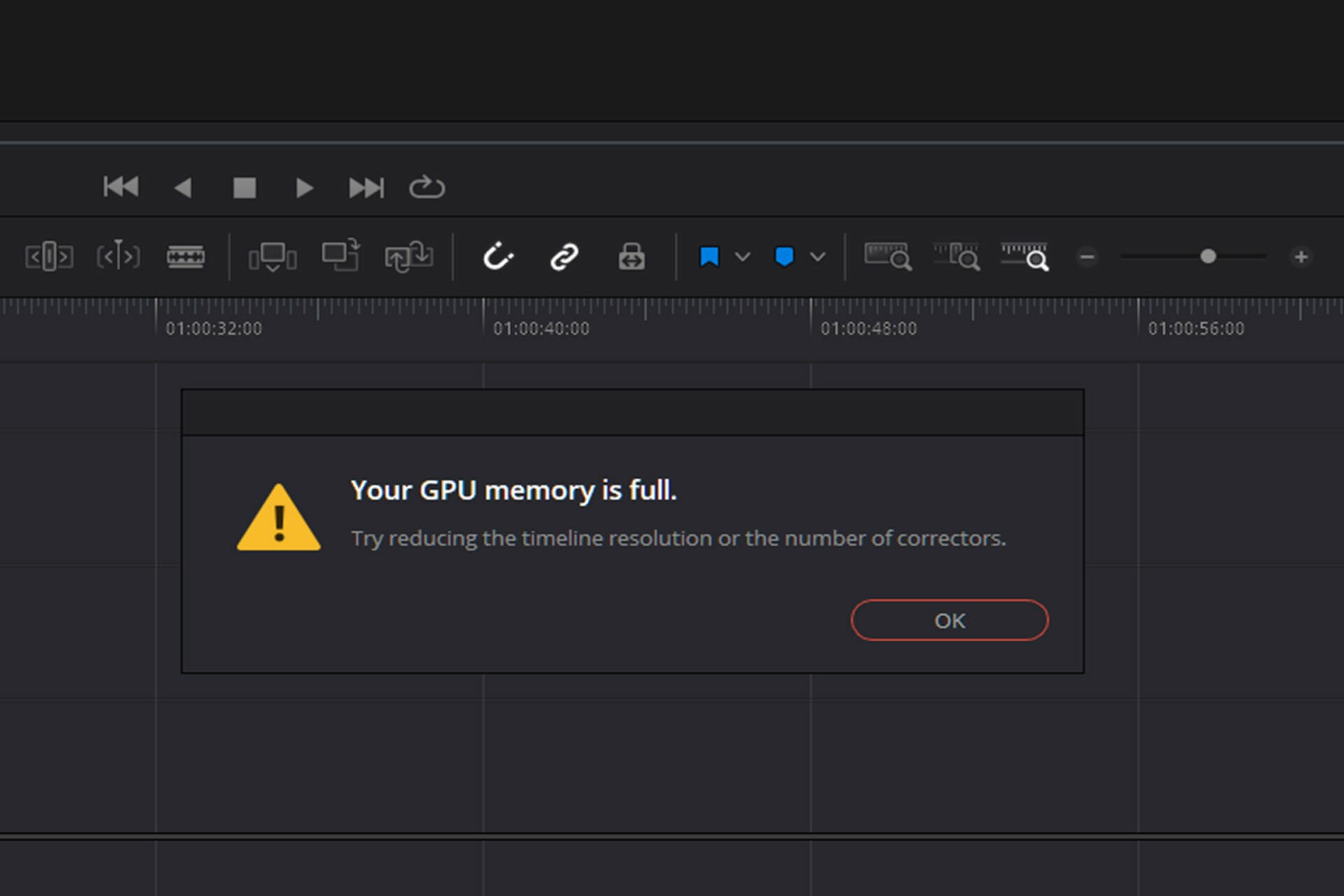
Programs using the GPU may close without warning. You could see error messages about memory. Crashes happen more often when the GPU memory is overloaded. This interrupts your work and causes data loss.
Visual Artifacts
Strange lines, dots, or colors appear on your screen. These visual glitches are signs of memory problems. The GPU cannot load images correctly. This often happens during heavy graphics use or gaming.

Credit: www.youtube.com
Simple Steps To Clear Gpu Memory
Clearing GPU memory can improve your computer’s performance. It stops slowdowns during gaming or heavy tasks. Simple steps can free up this memory fast. These easy methods help your system run smoothly again.
Restarting The System
Restarting your computer clears the GPU memory instantly. It closes all programs and resets temporary data. This step refreshes the graphics card’s memory. A quick reboot often solves many GPU issues.
Closing Background Applications
Many apps run quietly in the background. These apps use GPU memory without notice. Close unnecessary programs to free up space. Use the task manager to see what is running. Stopping these apps helps your GPU work better.
Updating Graphics Drivers
Old drivers can cause memory problems. Updating drivers improves GPU performance and stability. Visit the official website of your GPU brand. Download the latest driver version for your device. Updated drivers manage memory more efficiently.
Using Software Tools
Clearing GPU memory is essential for better graphics performance and stability. Software tools offer an easy way to check and free up GPU memory. These tools help track memory use and release unused space.
Gpu Monitoring Utilities
GPU monitoring utilities show real-time memory usage. Tools like MSI Afterburner and GPU-Z provide detailed stats. You can see which apps use the most GPU memory. Monitoring helps decide when to clear memory.
Memory Management Apps
Memory management apps free up GPU memory by closing unused processes. Apps such as CleanMem and Razer Cortex help clear space quickly. They optimize memory without needing manual steps. This makes your GPU work smoother.
Command-line Options
Command-line tools offer direct control over GPU memory. Nvidia’s nvidia-smi lets users reset GPU memory via commands. It is useful for developers and advanced users. Commands clear memory without restarting the system.
Credit: cuthbertsonlaw.com
Optimizing Gpu Settings
Optimizing your GPU settings helps clear GPU memory and improve performance. Proper settings reduce memory load and prevent slowdowns. Small changes can make a big difference in how your GPU handles tasks.
Adjusting Graphics Quality
Lower the graphics quality in games or apps to save GPU memory. Choose medium or low settings for textures and shadows. This reduces the amount of data the GPU processes at once. It frees up memory for smoother performance.
Managing Vram Usage
Monitor your GPU’s VRAM to avoid overload. Close programs that use high VRAM before running new tasks. Use tools like Task Manager or GPU software to check usage. Keeping VRAM below maximum helps clear memory faster.
Disabling Unnecessary Features
Turn off GPU features you do not need. Disable options like anti-aliasing, motion blur, and V-Sync in settings. These features consume extra GPU memory and processing power. Removing them frees memory and speeds up your system.
Advanced Techniques
Advanced techniques for clearing GPU memory can help improve system performance. These methods go beyond simple restarts or basic commands. They require careful handling and some technical knowledge. Using these methods can help free up GPU resources efficiently.
Overclocking And Its Effects
Overclocking increases the GPU clock speed beyond default settings. It can improve performance but may cause memory instability. This instability sometimes leads to memory not clearing properly. Resetting the GPU after overclocking can help clear stuck memory. Always monitor temperatures and system stability during overclocking.
Custom Scripts For Memory Flush
Custom scripts can automate GPU memory clearing tasks. These scripts often use commands to reset GPU processes. They can free memory without restarting the whole system. Some scripts target specific apps or drivers to clear memory leaks. Basic knowledge of scripting languages like Bash or PowerShell is helpful.
Reinstalling Gpu Drivers
Reinstalling GPU drivers resets the software controlling the GPU. It removes corrupted files that may cause memory issues. This process often clears memory leaks and improves GPU stability. Use the official driver from the GPU manufacturer website. Always uninstall old drivers completely before reinstalling new ones.

Credit: stackoverflow.com
Preventive Measures
Preventive measures help keep your GPU memory clear and your system running smoothly. Taking small steps regularly avoids major issues later. These actions save time and improve performance.
Regular Maintenance
Clean your computer’s hardware often. Dust can block airflow and cause overheating. Overheating affects GPU memory and speed. Restart your computer daily to reset memory. Close unused programs to free up space.
Monitoring Usage Patterns
Watch how your GPU is used over time. Track which apps use the most memory. Spot unusual spikes or drops early. This helps prevent memory overload or leaks. Use simple tools to check your GPU’s health.
Keeping Software Updated
Update your GPU drivers regularly. New drivers fix bugs that use extra memory. Keep your operating system current for better compatibility. Updated software runs smoother and uses less memory. Set updates to automatic for convenience.
Frequently Asked Questions
How Do I Clear Gpu Memory On Windows?
To clear GPU memory on Windows, close graphics-heavy applications. Restarting your computer also frees up GPU resources effectively. You can use Task Manager to end processes using GPU memory.
Can Restarting The Gpu Driver Help Clear Memory?
Yes, restarting the GPU driver can clear memory. Use “Device Manager” to disable and enable your GPU. This resets GPU memory without a full system reboot.
What Software Tools Clear Gpu Memory Efficiently?
Tools like NVIDIA’s Nsight and AMD’s Radeon Software help monitor and manage GPU memory. They assist in clearing memory by closing unused processes and optimizing GPU usage.
Does Clearing Gpu Memory Improve Gaming Performance?
Clearing GPU memory can improve gaming performance by freeing resources. It reduces lag and prevents crashes caused by memory overload during gameplay.
Conclusion
Clearing GPU memory helps your computer run smoother and faster. You can avoid crashes and slowdowns by freeing up space regularly. Simple steps, like closing unused programs or restarting your system, make a big difference. Keep an eye on your GPU’s memory use to stay ahead of problems.
This keeps your device ready for work or play without interruptions. Try these tips often to maintain good performance. Your GPU will thank you with better speed and stability.