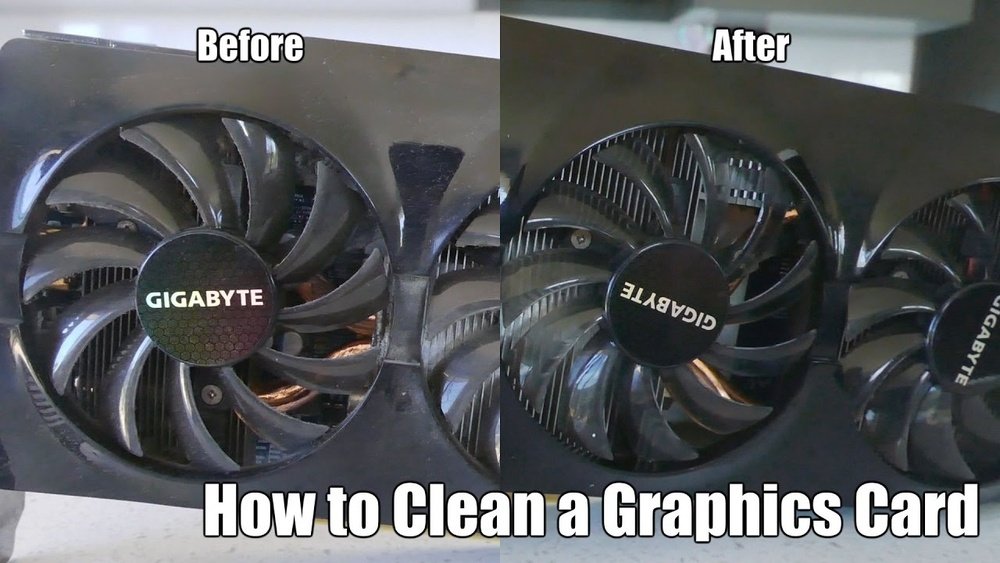
How to Clean Gpu: Easy Steps for Safe and Effective Maintenance
Is your GPU running hotter than usual or making strange noises? It might be time for a good cleaning.
Dust and dirt can build up quickly, slowing down your graphics card and causing performance drops. But don’t worry—cleaning your GPU is easier than you think. In this guide, you’ll learn simple, effective steps to safely clean your GPU and keep it running smoothly.
Stick with me, and by the end, you’ll know exactly how to give your GPU the care it needs to boost your gaming or work performance.

Credit: www.reddit.com
Tools Needed
Cleaning your GPU is important to keep it running cool and fast. Having the right tools makes the job easier and safer. Use tools that do not damage the delicate parts of your GPU.
Essential Cleaning Supplies
Start with a soft brush to remove dust gently. A can of compressed air helps blow away dirt from tight spots. Use a microfiber cloth to wipe surfaces without scratching. Isopropyl alcohol, at least 90%, cleans thermal paste and stubborn grime. A small screwdriver may be needed to open your GPU case carefully.
Optional Accessories
Anti-static wristbands prevent static electricity from harming your GPU. Cotton swabs are handy for cleaning small corners and crevices. Thermal paste can be replaced if your GPU is overheating. A small vacuum designed for electronics can help remove dust safely. Using these tools can make your cleaning more thorough and effective.

Credit: www.youtube.com
Preparing Your Workspace
Preparing your workspace is the first step in cleaning your GPU safely and effectively. A clean and organized area helps avoid mistakes and protects your hardware from damage. Taking time to set up a good workspace makes the whole process easier and faster.
Choosing A Clean Area
Select a flat surface with plenty of space to work. Make sure the area is free from dust and dirt. A well-lit place helps you see small parts clearly. Avoid carpeted rooms to reduce static electricity risk. Use a desk or table with a smooth surface. Keep pets and children away to prevent accidents.
Safety Precautions
Turn off your computer and unplug all cables before cleaning. Ground yourself to avoid static electricity damage. Use an anti-static wrist strap or touch a metal object often. Handle the GPU by its edges, not the circuit board. Keep liquids away from your workspace to prevent spills. Use compressed air cans carefully, following instructions. Work slowly and gently to avoid breaking any parts.
Removing The Gpu
Removing the GPU is the first step in cleaning it properly. This process needs care to avoid damage to your computer or the graphics card. Follow the steps below to remove your GPU safely and prepare it for cleaning.
Powering Down The System
Turn off your computer completely. Unplug the power cable from the wall socket. Press the power button for a few seconds to drain leftover electricity. This step prevents electric shocks and hardware damage. Wait a few minutes before opening the case.
Detaching The Gpu Safely
Open the computer case carefully. Find the GPU, usually the largest card on the motherboard. Unscrew the bracket holding the GPU in place. Release the PCIe slot latch gently to unlock the card. Pull the GPU out slowly and straight to avoid bending. Place it on a clean, static-free surface for cleaning.
Cleaning The Exterior
Cleaning the exterior of your GPU is important. Dust and dirt can build up on the surface. This buildup can affect the GPU’s cooling and performance. A clean GPU looks better and works more efficiently. Take care to clean it gently. Avoid damaging delicate parts.
Start by removing loose dust. Then, wipe the surface carefully. These steps keep your GPU in good condition. Here are simple ways to clean your GPU’s outside.
Dust Removal Techniques
Use a soft brush or compressed air to remove dust. Hold the GPU steady while cleaning. Blow air in short bursts to avoid damage. Focus on vents and fan areas. Dust blocks airflow and causes overheating. Do this cleaning in a well-ventilated space. Avoid using a vacuum, as it can create static. Keep the GPU unplugged during cleaning.
Wiping The Surface
Use a soft, lint-free cloth for wiping. Slightly dampen the cloth with water if needed. Avoid using strong cleaners or solvents. Gently wipe the GPU’s outer parts. Clean metal and plastic surfaces carefully. Avoid touching electronic components directly. Dry the surface fully before reinstalling the GPU. This prevents moisture damage and keeps your GPU safe.
Cleaning The Fans
Cleaning the fans of your GPU is important for keeping it cool and working well. Dust and dirt can build up on the fan blades. This buildup can make the fans work harder and make your GPU hotter. Regular cleaning helps the fans spin smoothly and stops your GPU from overheating.
Accessing The Fan Blades
First, turn off your computer and unplug it. Open the case carefully to reach the GPU. Some GPUs have a fan cover or shroud that you need to remove. Use a screwdriver if needed, but be gentle. Once the cover is off, you can see the fan blades clearly.
Removing Dust And Debris
Use a soft brush or compressed air to clean the fan blades. Hold the fan still to stop it from spinning. Blow air or brush dust away from the blades and the fan hub. Do not use water or wet cloths. Clean both sides of the blades for best results. Repeat the process until no dust remains.
Cleaning The Heatsink
Cleaning the heatsink is important to keep your GPU cool. Dust and dirt block airflow. This makes the GPU hotter and slower. Regular cleaning helps your GPU work well for a long time.
Using Compressed Air
Use compressed air to blow dust out of the heatsink. Hold the can upright. Short bursts work best. Avoid spinning the fan too fast with air.
Keep the GPU steady while cleaning. Blow air from different angles. This removes dust from tight spaces. Do it gently to avoid damage.
Deep Cleaning Tips
For deep cleaning, remove the heatsink from the GPU. Check for thermal paste and old dust. Clean the fins with a soft brush.
Replace the thermal paste before putting the heatsink back. This improves heat transfer. Use a small amount and spread it evenly.
Make sure everything is dry and clean before reassembling. Tighten screws carefully. Proper cleaning helps your GPU stay cool and last longer.
Thermal Paste Maintenance
Thermal paste plays a key role in keeping your GPU cool. It sits between the GPU chip and the heat sink. This paste helps move heat away from the GPU. Over time, thermal paste dries out and loses its effect. Proper maintenance improves GPU performance and prevents overheating.
When To Replace Thermal Paste
Replace thermal paste every 2 to 3 years for best results. Check if your GPU temperature is higher than usual. If the fan runs louder or more often, consider changing the paste. Remove the heat sink to see if the paste is dry or cracked. Old paste loses its ability to transfer heat.
Applying New Thermal Paste
Clean the old paste off the GPU chip and heat sink. Use isopropyl alcohol and a soft cloth for cleaning. Apply a small pea-sized drop of new thermal paste in the center of the GPU chip. Spread it evenly with a plastic card or let the heat sink spread it. Reattach the heat sink carefully to avoid air bubbles.
Reinstalling The Gpu
Reinstalling the GPU is a key step after cleaning. It ensures your graphics card works properly and stays safe. Handle the card gently to avoid damage. Follow clear steps to fit it back into your computer.
Securing The Gpu Back In Place
First, align the GPU with the PCIe slot carefully. Push it down firmly but gently until it clicks. Check that it sits evenly and does not wiggle. Use screws to secure the card to the case. Tighten them just enough to hold the card steady.
Reconnecting Power Cables
Locate the power connectors on the GPU. Plug in the correct cables from your power supply. Make sure each connector fits snugly without force. Loose connections can cause errors or crashes. Double-check all cables before closing the case.
Post-cleaning Checks
After cleaning your GPU, it is crucial to perform some checks. These steps ensure your graphics card works well and stays safe. Skipping these checks might cause issues or damage.
Testing The Gpu Performance
Turn on your computer and run a game or a benchmark tool. Watch for any crashes or errors. Check if the graphics look normal without glitches. This test confirms the GPU runs smoothly after cleaning.
Monitoring Temperatures
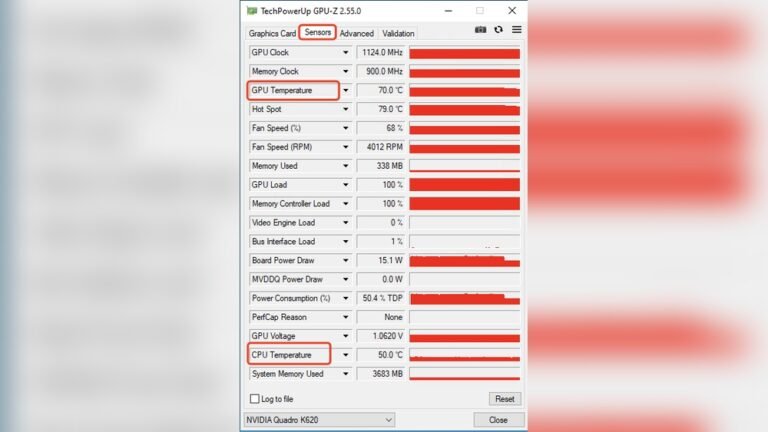
Use software to check your GPU temperature while in use. The temperature should stay within safe limits, usually under 85°C. High temperatures may mean dust remains or the fan is not working. Keeping the GPU cool helps it last longer and perform better.
Credit: www.reddit.com
Preventive Tips
Cleaning your GPU regularly helps keep it working well and lasts longer. Dust and dirt can block airflow and cause overheating. Follow simple preventive tips to avoid these problems. Small actions can make a big difference in your PC’s health.
Regular Cleaning Schedule
Create a cleaning routine for your GPU. Check it every month for dust build-up. Use a soft brush or compressed air to clear dirt from the fans and heatsinks. Avoid using wet cloths or liquids on the GPU. Stick to dry cleaning tools to prevent damage.
Set reminders to clean your GPU often. This keeps it cool and running smoothly. A clean GPU uses less power and works faster. Regular care prevents crashes and slowdowns.
Keeping Your Pc Dust-free
Dust inside your PC can harm all parts, not just the GPU. Keep your PC in a clean room and off the floor. Use dust filters on air vents to stop dust entry. Clean these filters every few weeks.
Close your PC case properly to avoid dust entering. Avoid smoking or eating near your PC. These habits help reduce dust and dirt inside the case. A dust-free PC means a longer life for your GPU and other parts.
Frequently Asked Questions
How Often Should I Clean My Gpu?
Cleaning your GPU every 3 to 6 months keeps it running efficiently. Dust buildup can cause overheating and reduce performance. Regular cleaning prevents hardware damage and maintains optimal cooling.
What Tools Do I Need To Clean A Gpu?
You need a soft brush, compressed air can, microfiber cloth, and thermal paste. Avoid using vacuum cleaners as they can generate static electricity. These tools safely remove dust and debris without damaging components.
Can I Use Water To Clean My Gpu?
No, avoid using water or liquid cleaners on your GPU. Moisture can cause electrical shorts and permanent damage. Use dry methods like compressed air and brushes for safe cleaning.
How Do I Safely Remove Dust From Gpu Fans?
Hold the fan blades to prevent spinning and use compressed air to blow dust away. Use a soft brush for stubborn dirt. Avoid spinning fans forcibly to prevent motor damage.
Conclusion
Cleaning your GPU helps keep your computer cool and running well. Dust and dirt can block airflow and cause overheating. Regular cleaning prevents damage and improves performance. Always handle your GPU gently and follow safety steps. A clean GPU lasts longer and works better.
Take a little time to clean it often. Your computer will thank you. Simple care goes a long way.