How to Undervolt Gpu Msi Afterburner: Boost Performance & Efficiency
If you want your GPU to run cooler, quieter, and more efficiently, undervolting with MSI Afterburner is the key. You might think pushing your graphics card to its limits means more heat and noise, but that’s not always true.
By tweaking the voltage, you can reduce power consumption without losing performance. In this guide, you’ll learn exactly how to undervolt your GPU safely and easily. Stick with me, and you’ll unlock a smoother gaming experience while protecting your hardware for the long haul.
Ready to get started? Let’s dive in!
Why Undervolt Your Gpu
Undervolting your GPU means lowering the voltage it uses to run. This process can make your graphics card cooler and quieter. It also helps save power. Many people do not know about undervolting. Yet, it is a useful way to improve their computer’s performance and lifespan.
Benefits Of Undervolting
Undervolting reduces heat output from your GPU. Cooler temperatures mean less fan noise. Your computer runs quieter and feels smoother. Lower power use also saves energy. This can reduce your electricity bill. It also helps the environment by using less power. Undervolting can extend the life of your GPU. Less heat and stress mean parts last longer.
Impact On Performance And Efficiency
Good undervolting keeps the GPU stable. It does not lower the speed or power much. Your games and apps still run well. The GPU works more efficiently with less power. This means it uses energy smarter. You get similar performance but with lower heat and noise. It is a balance between power and performance.
Risks And Precautions
Undervolting is safe if done carefully. Too low voltage can cause crashes or freezes. Your computer may restart or show errors. Always test settings step by step. Use small changes and check stability. Backup important files before starting. Follow guides and advice from trusted sources. Stop if you see problems. Safety first to protect your hardware.
Preparing For Undervolting
Preparing to undervolt your GPU with MSI Afterburner is an important first step. It helps ensure a safe and smooth process. You need to gather the right tools, know your GPU details, and save your current settings. This preparation reduces risks and saves time.
Undervolting can improve your GPU’s power efficiency and temperature. But it requires careful steps. Following the preparation steps below will help you start with confidence.
Required Tools And Software
Download MSI Afterburner from the official website. This tool lets you adjust voltage and clock speeds easily. Also, get a GPU monitoring tool like GPU-Z or HWMonitor. These programs show your GPU’s temperature and power use. Keep your GPU drivers up to date. Updated drivers improve compatibility and stability.
Checking Your Gpu Specs
Know your GPU model and its default clock speeds. Find the maximum power limit and voltage range. Use MSI Afterburner or GPU-Z to check this info. Understanding your GPU specs helps avoid setting unsafe values. Safe limits protect your hardware during undervolting.
Backing Up Settings
Save your current MSI Afterburner profile before changes. This backup lets you restore default settings if needed. Also, take note of your GPU’s default voltage and clock speeds. Keep this information in a safe place. It helps fix issues if undervolting causes problems.
Using Msi Afterburner
Using MSI Afterburner helps you control your GPU’s performance and temperature. It is a popular tool for undervolting, which reduces power use and heat. This section guides you on using MSI Afterburner to undervolt your GPU safely and easily.
Installing And Setting Up
Download MSI Afterburner from the official website. The installer is simple and quick. Follow the steps to install it on your computer.
After installation, open the program. It will detect your GPU automatically. Allow the program to access your hardware if asked.
Set MSI Afterburner to start with Windows. This ensures your settings apply every time you turn on your PC.
Navigating The Interface
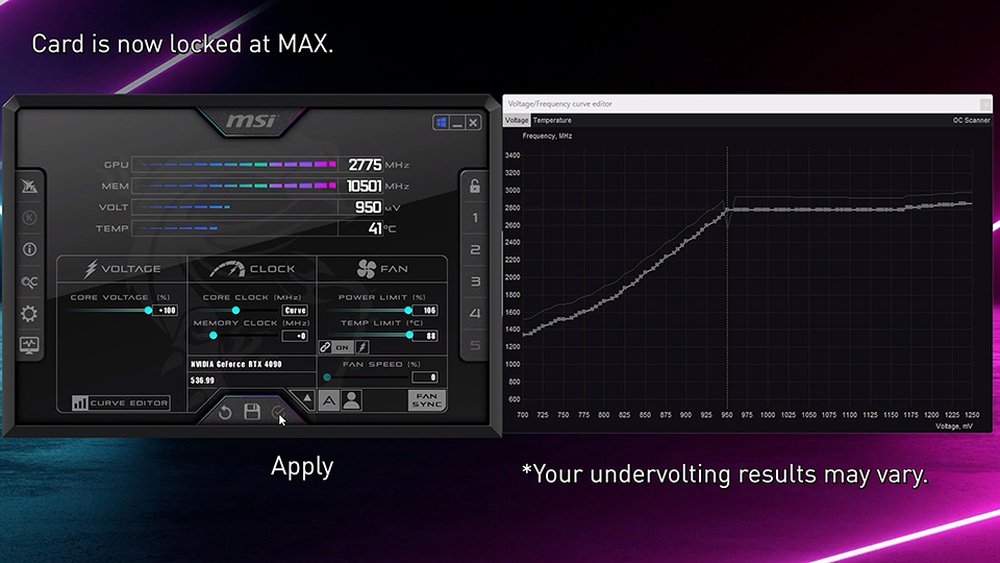
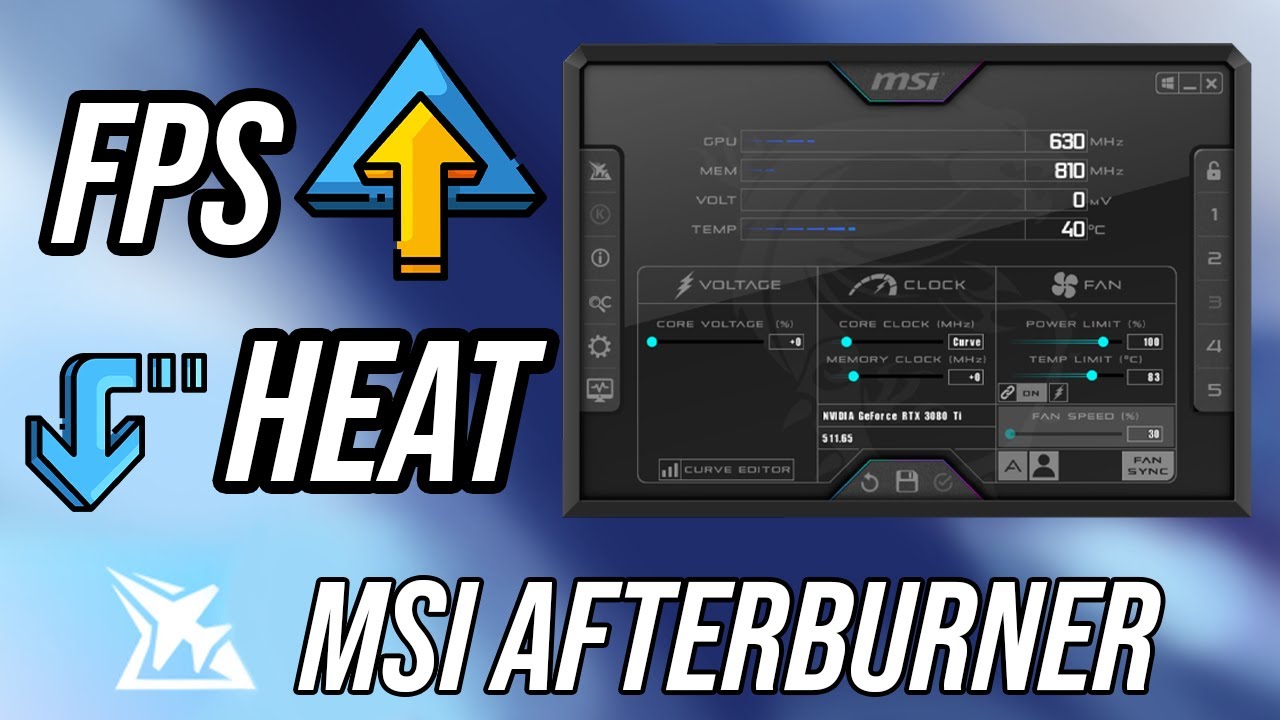
The main window shows sliders for core voltage, power limit, core clock, and memory clock. These controls help adjust your GPU’s performance.
Look for the “Fan Speed” section. It lets you set a manual fan curve to keep your GPU cool.
The interface also displays real-time GPU temperature and usage data. This helps you monitor changes as you adjust settings.
Key Features For Undervolting
The core voltage slider is essential for undervolting. Lowering this value reduces power consumption and heat.
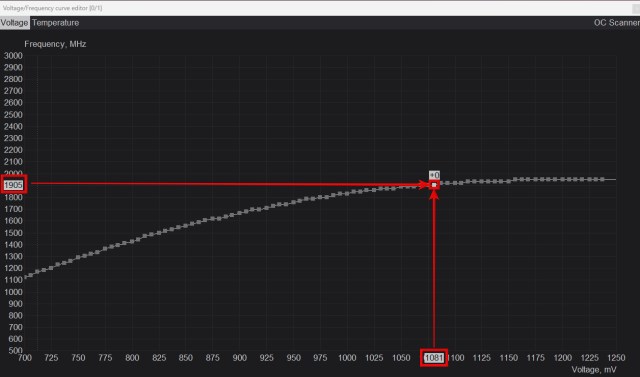
Use the voltage/frequency curve editor to fine-tune your GPU’s voltage at different clock speeds. This tool provides precise control.
Adjust the power limit if needed. Reducing it can improve efficiency but may limit peak performance.
Save your undervolt profile in MSI Afterburner. This allows easy switching between default and undervolted settings.

Credit: www.msi.com
Step-by-step Undervolting Process
Undervolting your GPU with MSI Afterburner can reduce heat and power use. This process helps your graphics card run cooler and quieter. Follow these clear steps to undervolt safely and effectively. Start slow and check each change carefully.
Accessing Voltage/frequency Curve Editor
Open MSI Afterburner. Click the settings gear icon. Go to the “General” tab. Enable “Unlock voltage control” and “Unlock voltage monitoring”. Save and close settings. Press Ctrl + F to open the Voltage/Frequency Curve Editor. This tool shows your GPU’s voltage and clock speeds on a graph.
Finding Stable Voltage Points
Look for points where the GPU voltage is high but stable. Identify lower voltage levels with good clock speeds. Drag the points down to reduce voltage. Avoid dropping voltage too low to prevent crashes. Choose values that balance power saving and performance.
Adjusting Clock Speeds
After setting voltage points, adjust clock speeds. Lower clock speeds slightly to match reduced voltage. Use small steps, around 10-20 MHz. This helps keep the GPU stable. Save the new curve once adjusted. This step fine-tunes performance with less power.
Testing Stability
Run a stress test using a benchmarking tool or game. Watch for crashes, freezes, or artifacts. If issues appear, increase voltage or lower clock speeds. Repeat testing until stable. Stability ensures your GPU works well under load. Keep monitoring temperature and performance during tests.
Monitoring Performance And Temperature
Monitoring performance and temperature is key to safe GPU undervolting. It helps you see how your changes affect the graphics card. You can avoid overheating and check if performance stays stable. Keeping an eye on these factors makes undervolting a smooth process.
Using Msi Afterburner Monitoring Tools
MSI Afterburner has built-in tools to watch your GPU’s stats. You can see temperature, clock speed, and voltage in real time. The on-screen display shows this data while you use your PC. Set alerts for high temperatures to protect your hardware.
Benchmarking Before And After
Run benchmarks before undervolting to get baseline scores. After you adjust voltage, run the same tests again. Compare results to spot any changes in speed or stability. This helps confirm if undervolting improves efficiency without losing power.
Identifying Issues
Watch for crashes, freezes, or artifacting during tests. These signs mean your voltage is too low or unstable. Check if temperatures rise unexpectedly. If problems appear, increase voltage slightly and test again. Fixing issues early keeps your GPU safe and reliable.
Advanced Tips For Efficiency
Advanced tips help you get the most from your MSI Afterburner GPU undervolting. These steps improve efficiency and keep your GPU cool. Small changes can lower power use and noise while keeping performance steady.
Focus on fine-tuning settings beyond basic undervolting. This approach makes your GPU run smoother and last longer. Use these tips to find the right balance for your setup.
Custom Fan Curves
Set custom fan curves to control cooling better. Adjust fan speed based on GPU temperature. This keeps your GPU cooler without running fans at full speed all the time. A gentle curve can reduce noise and save power. Test different speeds to find what works best for your card.
Power Limit Adjustments
Lower the power limit to reduce energy use. This limits how much power the GPU can draw. It can keep temperatures down and improve efficiency. Start by reducing power in small steps. Watch for any drops in performance. Stop lowering when you see noticeable slowdowns.
Optimizing For Different Workloads
Not all tasks need the same GPU power. Adjust undervolt settings based on what you do. Use lower power for simple tasks like browsing. Increase power slightly for gaming or editing. This saves energy and keeps your system responsive. Switch profiles in MSI Afterburner to match your workload quickly.
Troubleshooting Common Problems
Undervolting your GPU with MSI Afterburner can boost performance and reduce heat. But problems may happen during the process. Knowing how to fix common issues helps you keep your system stable and safe. This section covers easy ways to handle crashes, reset settings, and know when to stop undervolting.
Handling Crashes And Instability
Crashes often happen if the voltage drops too low. Your screen may freeze or games may close suddenly. Lower your undervolt step by step. Test your system after each change. Use stress tests or play games to check stability. If crashes continue, raise the voltage slightly. Avoid big voltage changes at once.
Reverting To Default Settings
Sometimes you must go back to your original GPU settings. Open MSI Afterburner. Click the reset button to restore default values. This stops all undervolting changes immediately. Restart your computer to ensure settings apply. Reverting helps if crashes or errors persist. It also protects your GPU from damage.
When To Stop Undervolting
Stop undervolting when your GPU becomes unstable. If crashes or artifacts happen often, voltage is too low. Also stop if performance drops below normal. A slight undervolt is good, but too much harms your system. Keep a balance between lower voltage and stable power. Your goal is smooth performance without risks.
Credit: www.youtube.com
Credit: beebom.com
Frequently Asked Questions
What Is Gpu Undervolting In Msi Afterburner?
GPU undervolting reduces voltage supplied to the GPU using MSI Afterburner. It lowers power consumption and heat, improving efficiency and stability during gaming or workloads.
How Does Undervolting Benefit Gpu Performance?
Undervolting decreases GPU temperature and power draw, which leads to quieter operation. It can increase lifespan and maintain stable performance without sacrificing speed.
Is Undervolting Safe For My Gpu?
Yes, undervolting is safe when done correctly. It reduces stress on components, but improper settings may cause instability. Always test stability after changes.
Can Msi Afterburner Undervolt All Gpu Models?
MSI Afterburner supports most modern GPUs, but compatibility varies. Check your GPU model and driver version before undervolting to ensure proper functionality.
Conclusion
Undervolting your GPU with MSI Afterburner helps reduce heat and save power. It can also make your computer quieter during use. Small changes bring better performance and longer hardware life. Always test settings carefully to keep your system stable. Start slow and watch how your GPU reacts.
This simple process improves your PC without extra cost or parts. Give it a try and enjoy a cooler, smoother experience.