How to Monitor Gpu Temperature: Essential Tips for Optimal Performance
Are you worried that your GPU might be running too hot? Keeping an eye on your GPU temperature is crucial to prevent crashes, slowdowns, or even permanent damage.
But how do you do that without complicated tools or confusing steps? This guide will show you simple, effective ways to monitor your GPU temperature right now. By the end, you’ll know exactly how to protect your hardware and keep your system running smoothly.
Let’s dive in and make sure your GPU stays cool and healthy.
Credit: www.howtogeek.com
Why Monitor Gpu Temperature
Monitoring GPU temperature is important for anyone using a computer. It helps keep the GPU working well and avoids problems. Knowing the temperature can stop damage and keep the GPU lasting longer.
Impact On Performance
High GPU temperature slows down the system. The GPU reduces speed to cool down. This causes lag and poor graphics quality. Keeping temperature low keeps performance steady. It helps games and programs run smoothly.
Preventing Hardware Damage
Too much heat can break the GPU parts. Heat damages circuits and chips inside the GPU. This can cause permanent failure or crashes. Watching temperature helps catch heat spikes early. It lets you cool down the GPU in time.
Extending Gpu Lifespan
Cool GPUs last longer than hot ones. Heat wears down parts over time. Lower temperature means less wear and tear. Monitoring temperature helps protect your investment. It keeps the GPU working well for years.
Tools For Monitoring Gpu Temperature
Monitoring your GPU temperature is essential to keep your computer safe. It helps prevent overheating and maintains smooth performance. Various tools can help you check your GPU temperature quickly and easily.
These tools range from software built into your system to external devices. Each option has different features and ease of use. Choose the one that fits your needs best.
Built-in Software Options
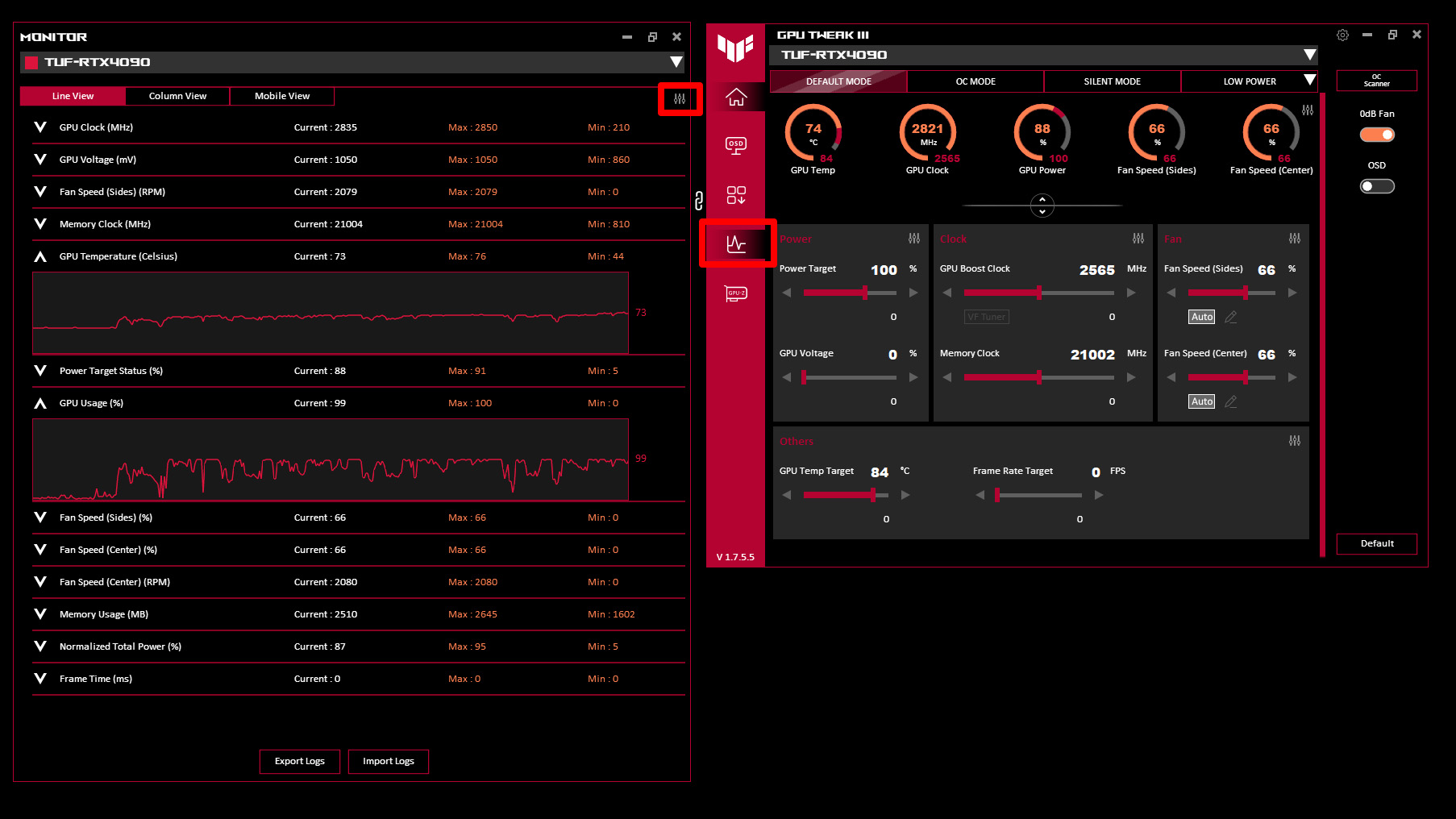
Many GPUs come with built-in software to monitor temperature. NVIDIA users can use NVIDIA GeForce Experience. AMD users have Radeon Software. These programs show temperature and other details.
They are easy to use and update automatically. No extra downloads are needed. These tools also provide options to control fan speed and optimize performance.
Third-party Applications
Third-party apps offer detailed information about GPU temperature. Popular options include MSI Afterburner and HWMonitor. They work with most GPU brands.
These apps display temperature trends over time. Some show additional data like GPU usage and voltage. They help users spot problems early and avoid damage.
Hardware Monitoring Devices
Hardware devices measure GPU temperature outside your computer. These gadgets connect to your system and show real-time data on a small screen.
They are useful for users who want constant monitoring without opening software. These devices can be handy during long gaming or work sessions.
Ideal Gpu Temperature Ranges
Knowing the ideal GPU temperature helps keep your graphics card safe. It also improves performance and avoids damage. Every GPU has a range of safe temperatures. Monitoring these helps you find problems early.
Idle Temperatures
Idle temperature is when your GPU is not working hard. It should stay between 30°C and 45°C. Lower idle temps mean your cooling system works well. Higher temps might show dust or poor airflow.
Under Load Temperatures
Under load means when your GPU runs games or heavy apps. Temperatures between 65°C and 85°C are normal. Some GPUs can handle up to 90°C safely. Watch out if temps stay high for long periods.
Temperature Thresholds To Avoid
Temperatures above 90°C can harm your GPU. It may cause crashes or shorten the card’s life. Consistent temps over 95°C are dangerous. Act fast if your GPU reaches these levels.
Common Causes Of High Gpu Temperature
High GPU temperature can harm your computer’s performance. It may cause crashes or shorten your GPU’s life. Knowing what causes these high temperatures helps keep your system cool and safe.
Poor Airflow And Cooling
Poor airflow stops hot air from leaving the case. This makes the GPU get hotter than normal. Small computer cases or blocked vents can cause poor airflow. Cooling fans not working well also raise temperatures.
Overclocking Risks
Overclocking pushes the GPU to run faster than its default speed. This creates extra heat that the cooling system might not handle. Without proper cooling, overclocking can quickly increase GPU temperature.
Dust And Dirt Buildup
Dust and dirt can cover the GPU and fans. This layer blocks heat from escaping. Dust also slows down fan movement. Both effects make the GPU work harder and get hotter.
Tips To Lower Gpu Temperature
Keeping your GPU cool is important for better performance and longer lifespan. High temperatures can cause slowdowns and damage parts. Simple steps help reduce heat and keep your system safe.
Improving Case Ventilation
Good airflow inside the case moves hot air out quickly. Use extra fans to push air through the case. Make sure cables do not block airflow paths. Place your computer where air flows freely around it.
Adjusting Fan Speeds
Faster fans cool your GPU better. Use software to increase fan speed when temperature rises. Set fan curves to speed up fans at higher temperatures. Keep noise levels in mind when adjusting speeds.
Applying Thermal Paste
Thermal paste helps transfer heat from the GPU chip to the cooler. Old paste dries out and loses effectiveness. Carefully remove old paste and apply a new thin layer. This improves heat flow and lowers temperature.
Cleaning The Gpu And Case
Dust blocks airflow and traps heat inside the case. Use compressed air to clean dust from fans and heatsinks. Clean your case regularly to keep vents open. A clean GPU runs cooler and lasts longer.
Setting Up Alerts For Temperature Spikes
Setting up alerts for GPU temperature spikes helps protect your hardware. You get instant warnings when the GPU gets too hot. This lets you act fast and avoid damage. Alerts improve your system’s safety and performance.
Configuring Software Notifications
Many GPU monitoring tools offer notification settings. You can set a temperature limit for alerts. When the GPU reaches this limit, the software sends a warning. Notifications can appear as pop-ups or emails. Choose the type that works best for you. Check your monitoring tool’s settings to enable alerts.
Automated Cooling Responses
Some programs allow automatic cooling actions. When the GPU temperature spikes, the software can increase fan speed. This helps cool the GPU without your input. You can set the temperature threshold for these actions. Automated cooling keeps your GPU safe and stable. It reduces the risk of overheating quickly.
Safe Shutdown Settings
Safe shutdown protects your GPU from severe damage. You can configure your system to shut down if temperatures get very high. This stops the GPU before it overheats. Set a shutdown temperature limit in your monitoring software. This feature acts as the last line of defense for your hardware.
Optimizing Gpu Performance Through Temperature Control
Keeping your GPU cool helps it run smoothly and last longer. High temperatures can slow down your graphics card. Controlling heat means better performance and fewer crashes. Monitoring and managing temperature is key for every user.
Balancing Performance And Heat
Running your GPU at full power creates heat. Too much heat can cause damage or slow your system. Find a balance between speed and temperature. Lower settings may keep your GPU cooler. Higher settings push your GPU harder but raise heat. Adjust settings to fit your needs and keep the card safe.
Using Custom Fan Curves
Fan curves control how fast your GPU fans spin. Set fans to run faster at higher temperatures. This cools the card before it gets too hot. Custom fan curves can reduce noise when the GPU is cool. Use software tools to create your own fan profiles. This gives better temperature control and quieter operation.
Regular Maintenance Schedule
Dust and dirt block airflow and raise GPU temperature. Clean your computer and GPU fans regularly. Check for dust buildup every few months. Replace old thermal paste to improve heat transfer. Keep vents clear to ensure good airflow. Regular care helps your GPU stay cool and perform well.
Credit: www.liftingitalia.com
Credit: rog.asus.com
Frequently Asked Questions
How Can I Check My Gpu Temperature On Windows?
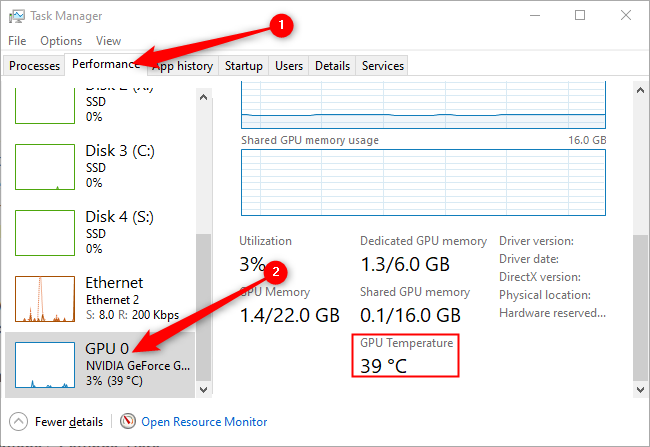
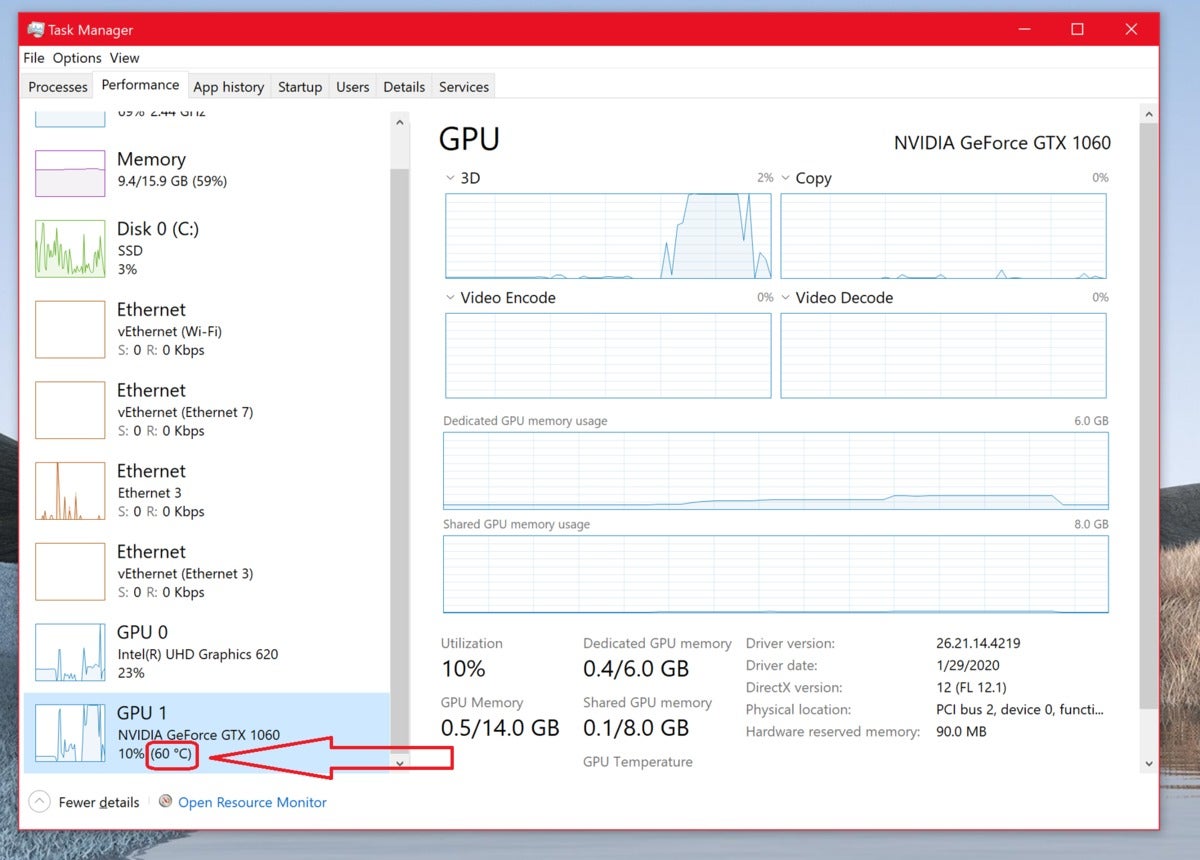
You can monitor GPU temperature using built-in tools like Task Manager or third-party apps such as MSI Afterburner. These tools provide real-time temperature data and help prevent overheating by alerting you when temperatures rise too high.
What Is The Safe Temperature Range For A Gpu?
A safe GPU temperature generally ranges between 30°C and 85°C. Temperatures above 85°C can cause performance issues or damage. Always keep your GPU cool by ensuring proper ventilation and cleaning dust from your PC regularly.
Can High Gpu Temperature Damage My Hardware?
Yes, consistently high GPU temperatures can reduce lifespan and cause hardware failure. Overheating may lead to crashes or reduced performance. Monitoring temperatures helps maintain optimal function and protects your GPU from permanent damage.
Which Software Is Best For Monitoring Gpu Temperature?
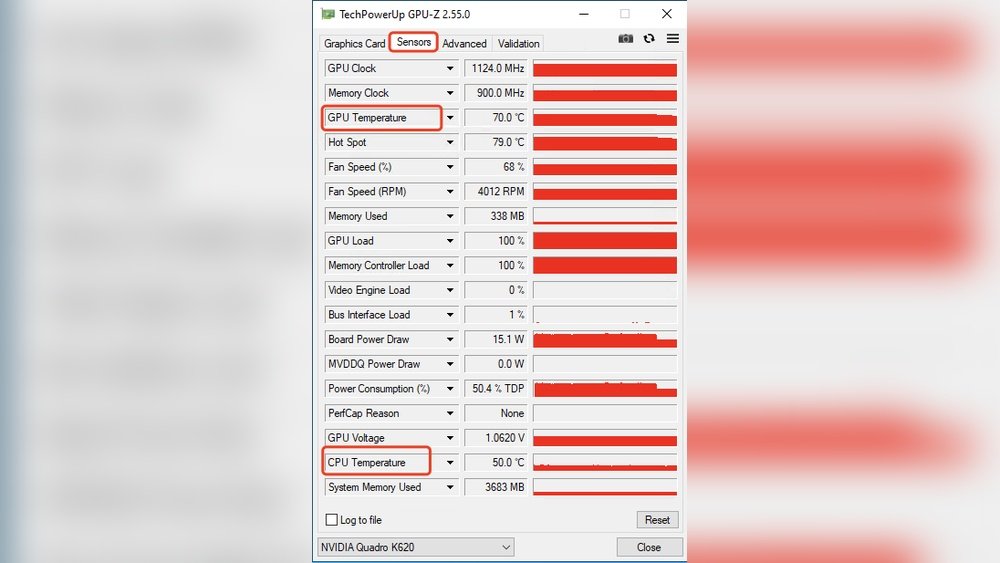
Popular software options include MSI Afterburner, HWMonitor, and GPU-Z. These tools offer accurate temperature readings, customizable alerts, and detailed hardware info. Choose one based on your needs for ease of use and features.
Conclusion
Monitoring GPU temperature helps keep your computer safe and fast. It stops your device from overheating and slowing down. Simple tools make checking temperatures easy and quick. Regular checks can save you from costly repairs later. Stay aware of your GPU’s heat for better performance.
Keep your system cool and enjoy smoother use every day. Small steps lead to long-term computer health. Don’t wait for problems—watch your GPU temperature now.