How to Increase Dedicated Gpu Memory: Boost Performance Fast
Are you tired of slow graphics and laggy games? Increasing your dedicated GPU memory can make a huge difference in your computer’s performance.
But how do you do it without buying new hardware? You’ll discover simple and effective ways to boost your GPU memory. Whether you want smoother gameplay or better video editing, these tips will help you get the most out of your system.
Keep reading to unlock your PC’s true potential!

Credit: www.reddit.com
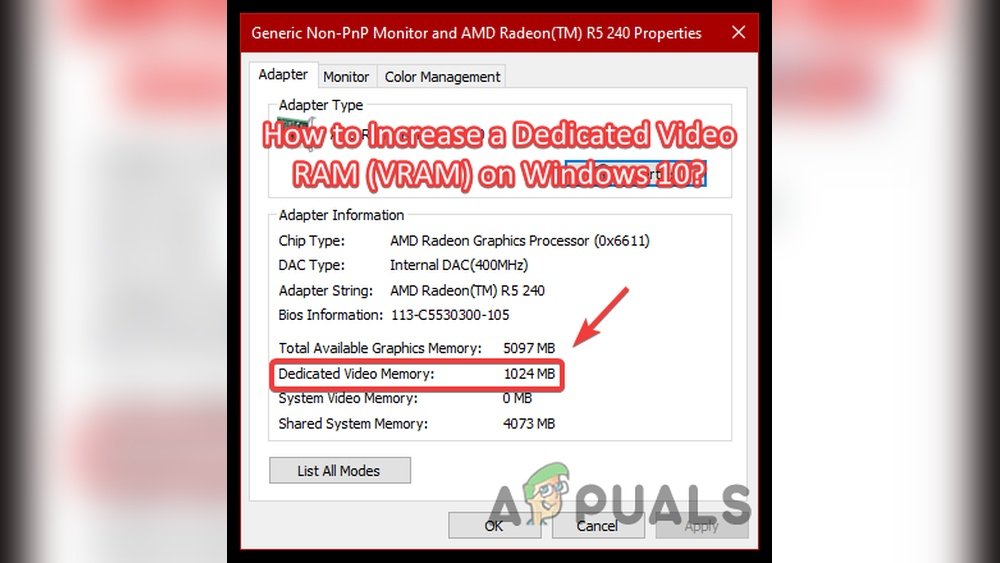
Check Current Gpu Memory
Checking your current GPU memory is the first step to increasing dedicated GPU memory. Knowing how much memory your graphics card uses helps you understand its limits.
This information guides you in making changes to improve performance. It also helps avoid issues caused by overloading your GPU.
How To Check Gpu Memory On Windows
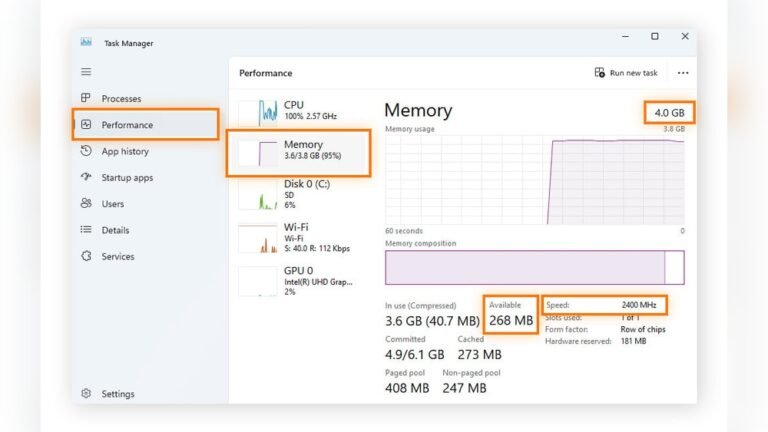
Open the Task Manager by pressing Ctrl + Shift + Esc. Click the Performance tab. Select GPU from the left menu. You will see the dedicated GPU memory listed there.
How To Check Gpu Memory On Macos
Click the Apple menu and select About This Mac. Click the System Report button. Choose Graphics/Displays from the sidebar. The GPU memory appears under the VRAM section.
Using Third-party Software To Check Gpu Memory
Download a tool like GPU-Z or Speccy. Install and open the software. It shows detailed information about your GPU memory and other specs.
Update Graphics Drivers
Updating graphics drivers is key to improving your dedicated GPU memory use. Drivers control how your computer talks to the graphics card. Old drivers can cause slow performance and limit memory use.
New driver updates often fix bugs and improve memory handling. Keeping them current helps your GPU work better and faster. This simple step can boost your graphics quality without extra hardware.
Check Current Driver Version
First, find out which driver version you have. On Windows, open Device Manager, then select Display Adapters. Right-click your GPU and choose Properties. Under the Driver tab, see the driver version and date.
Download Latest Drivers
Go to your GPU maker’s official website. Look for the latest driver for your card model. Download the correct driver for your operating system. Avoid third-party sites to prevent malware risks.
Install The Driver Update
Run the downloaded file and follow the setup instructions. Close other programs before installing. Restart your computer after the installation finishes to apply changes.
Use Automatic Update Tools
Many GPU brands offer software that updates drivers automatically. Examples include NVIDIA GeForce Experience and AMD Radeon Software. These tools simplify updates and notify you when new drivers arrive.
Adjust Bios Settings
Adjusting BIOS settings can help increase your dedicated GPU memory. The BIOS controls hardware settings, including memory allocation. Changing these settings can boost your graphics performance.
This method works mainly for integrated graphics that share system RAM. Dedicated GPUs usually have fixed memory, but integrated GPUs rely on system memory. Increasing shared memory in BIOS gives your GPU more memory to use.
Access Bios Menu
Restart your computer and press the BIOS key during startup. Common keys are F2, Delete, or Esc. The exact key depends on your motherboard or laptop brand.
Inside BIOS, use arrow keys to navigate menus. Look for settings related to Advanced, Chipset, or Video Configuration. Be careful when changing BIOS settings to avoid errors.
Increase Shared Memory Allocation
Find the option for Video Memory or Shared Memory Size. It may also appear as Integrated Graphics Share Memory.
Select a higher value to increase memory allocated to the GPU. Typical values range from 64MB to 512MB or more. Choose a value that balances your system needs.
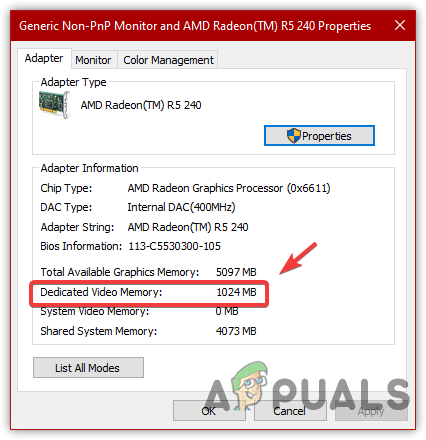
Save changes and exit BIOS. Your computer will restart with the new settings. Check if your GPU memory has increased in the system info.
Credit: www.esseg.eu
Optimize Windows Settings
Optimizing Windows settings can help increase your dedicated GPU memory. Adjusting a few key settings allows your system to allocate resources more efficiently. This can improve graphics performance, especially on computers with limited hardware. Follow these simple steps to optimize your Windows environment for better GPU memory usage.
Modify Virtual Memory
Virtual memory acts as extra RAM for your system. Increasing it can free up physical memory for your GPU. To change virtual memory, open System Properties and find Performance settings. Select Advanced, then click Change under Virtual Memory. Uncheck “Automatically manage paging file size.” Choose a custom size and set both Initial and Maximum values higher than before. Restart your computer to apply changes. This helps Windows manage memory better and supports your GPU needs.
Disable Background Apps
Background apps consume memory and processing power. Stopping unnecessary apps can free resources for your GPU. Open Settings and go to Privacy, then Background apps. Turn off apps that do not need to run in the background. This reduces memory usage and boosts system speed. Less memory taken by apps means more available for graphics tasks. Keep only essential apps running to maximize your GPU memory.
Use Third-party Tools
Third-party tools can help increase dedicated GPU memory. They offer ways to optimize and manage your graphics settings. These tools often provide options not found in standard system settings. Using them can improve your GPU’s performance and allocate memory more efficiently.
Many third-party apps allow you to tweak GPU memory allocation. They also let you monitor GPU usage in real time. This helps you understand how your GPU memory is being used. You can adjust settings based on your needs and the tool’s recommendations.
How Third-party Tools Adjust Gpu Memory
These tools change memory allocation by modifying system settings. They can increase the amount of memory reserved for your GPU. Some tools adjust shared memory between the GPU and system RAM. This frees up more dedicated memory for graphics tasks.
Popular Third-party Tools For Gpu Memory Management
Tools like MSI Afterburner and EVGA Precision X1 are widely used. They offer easy-to-use interfaces for memory tweaks. They also provide monitoring features to track GPU performance. These apps support many GPU models and brands.
Steps To Use Third-party Tools Safely
Download tools only from official websites. Read instructions carefully before making changes. Start with small adjustments to avoid system instability. Monitor GPU temperatures and performance after each change. Restore original settings if you face issues.

Credit: www.youtube.com
Upgrade Hardware Components
Upgrading hardware components can help increase your dedicated GPU memory. This step improves your computer’s ability to handle graphics and video tasks. Better hardware means smoother performance and faster processing. Focus on key parts like the GPU and RAM for the best results.
Install Dedicated Gpu
Installing a dedicated GPU is the most direct way to increase dedicated GPU memory. A dedicated GPU has its own memory, separate from the system RAM. This allows better handling of graphics-heavy tasks like gaming and video editing. Choose a GPU that fits your computer and budget. Make sure your power supply can support the new GPU. Install it carefully following the manufacturer’s guide.
Add More Ram
Adding more RAM can also improve overall system performance. While it does not increase dedicated GPU memory directly, more RAM allows the system to allocate more memory for graphics tasks. This helps integrated graphics run better. Check your motherboard’s RAM capacity before buying. Adding RAM is usually simple and affordable. It boosts your computer’s speed and multitasking ability.
Monitor Performance Improvements
Monitoring performance improvements helps you see how changes affect your GPU memory. Tracking results guides you to better tweaks and settings. It shows if your efforts to increase dedicated GPU memory are effective. Understanding these details can prevent damage and keep your system stable.
Use Benchmarking Software
Benchmarking tools test your GPU’s performance under different settings. They provide scores and data to compare before and after changes. Popular programs include 3DMark, Heaven Benchmark, and FurMark. Run tests multiple times for accurate results. Note the frame rates, memory usage, and graphical details. These numbers reveal how much memory your GPU uses.
Track Temperature And Usage
Watching your GPU temperature is vital. High heat can reduce performance and damage parts. Use tools like MSI Afterburner or HWMonitor to track temperature and usage in real time. Check how memory usage changes with different tasks or games. Lower temperatures and stable usage mean your settings work well. Adjust cooling or settings if temperatures rise too high.
Frequently Asked Questions
How Can I Increase Dedicated Gpu Memory On Windows?
You can increase GPU memory by adjusting BIOS settings or increasing VRAM allocation. Some systems allow manual VRAM adjustments via BIOS. Alternatively, update your GPU drivers and optimize system settings for better performance.
Does Increasing Dedicated Gpu Memory Improve Gaming Performance?
Yes, increasing dedicated GPU memory can enhance gaming performance by allowing better texture handling and smoother frame rates. However, real improvement depends on your GPU model and system compatibility.
Can I Increase Dedicated Gpu Memory Without Bios Access?
If BIOS access is unavailable, you can optimize virtual memory settings in Windows to indirectly improve GPU memory usage. However, direct VRAM increase typically requires BIOS changes.
What Are The Risks Of Increasing Dedicated Gpu Memory?
Increasing dedicated GPU memory improperly may cause system instability or overheating. Always ensure your hardware supports changes and update drivers to prevent issues.
Conclusion
Increasing dedicated GPU memory can improve your computer’s graphics performance. Adjust settings carefully to avoid system issues. Check your BIOS or system settings to allocate more memory. Keep your drivers updated for better compatibility and speed. Remember, more GPU memory helps with games and graphic tasks.
Small changes can make a big difference. Stay patient and try different methods to find what works best. Your computer will run smoother with the right GPU memory settings.