How to Get Rid of Gpu Stats on Screen: Easy Fixes Today
Are those GPU stats cluttering your screen and distracting you from your game or work? You’re not alone.
Seeing those numbers pop up can be annoying, and sometimes they even slow down your experience. But don’t worry—getting rid of GPU stats on your screen is easier than you think. You’ll discover simple steps to clear your display and enjoy a clean, uninterrupted view.
Keep reading to take back control of your screen and boost your focus.
Common Causes Of On-screen Gpu Stats
Seeing GPU stats on your screen can be helpful for some. But for many, it becomes annoying and distracting. These stats usually appear due to certain software or settings active on your computer. Understanding common causes helps you remove these overlays easily.
Many tools and applications show GPU stats by default. Knowing where they come from narrows down your options to fix the issue fast. Below are the most frequent reasons for on-screen GPU stats.
Built-in Gpu Software Overlays
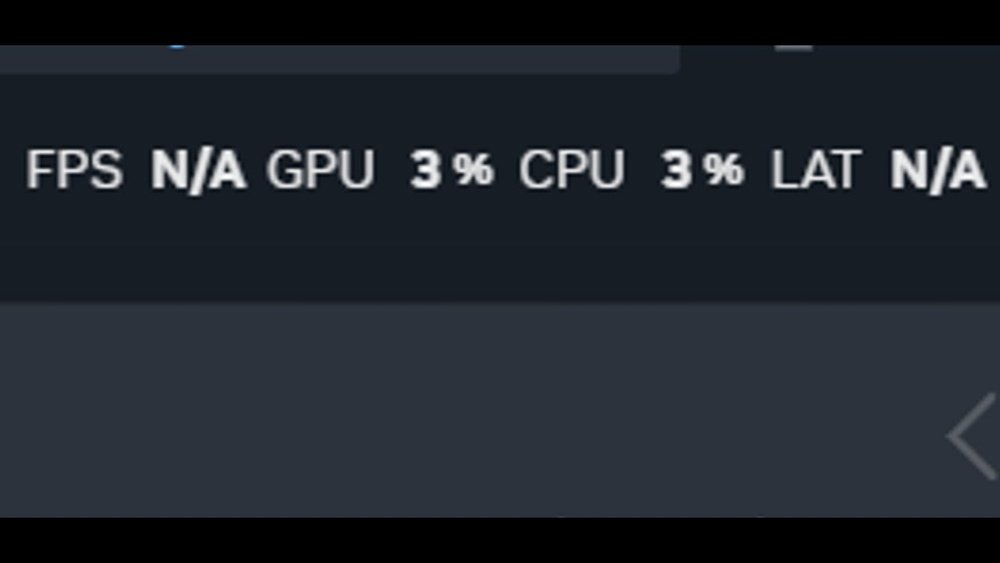
Most graphics cards come with software that can display GPU stats. Examples include NVIDIA’s GeForce Experience and AMD’s Radeon Software. These tools have built-in overlays showing usage, temperature, and frame rates. They turn on automatically during games or heavy tasks. Users often forget to disable them after use.
Game Or Application Overlays
Many games and apps show performance stats on screen. Developers add this feature to help players monitor hardware use. Sometimes, these overlays stay visible even after closing the game. Game launchers like Steam or Epic Games can also activate overlays with GPU info.
Third-party Monitoring Tools
Some users install extra software to track GPU performance. Programs like MSI Afterburner or RivaTuner display stats on screen by default. These tools offer customization but require manual turning off of overlays. Forgetting to close these apps causes persistent on-screen GPU stats.
Disabling Gpu Overlays In Graphics Drivers
GPU overlays show real-time stats like temperature, usage, and frame rate. They can help monitor performance but sometimes clutter the screen. Disabling these overlays cleans up your display for a better experience. Each graphics driver has its own method to turn off these overlays.
This section covers how to disable GPU overlays in popular graphics drivers. Follow the steps below to remove GPU stats from your screen.
Turning Off Nvidia Geforce Experience Overlay
Open NVIDIA GeForce Experience from the system tray or Start menu. Click the gear icon to open Settings. Find the “In-Game Overlay” option. Toggle it off to disable the overlay completely. This stops the GPU stats from showing during games or apps.
Disabling Amd Radeon Overlay
Launch AMD Radeon Software from your desktop or Start menu. Click the gear icon to access Settings. Select the “Graphics” tab and locate the “Radeon Overlay” option. Switch the overlay off to hide all on-screen stats. This prevents the GPU information from appearing on your display.
Managing Intel Graphics Command Center
Open Intel Graphics Command Center from the system tray or Start menu. Go to the “System” section and choose “Preferences.” Find the “Performance Overlay” setting. Turn this off to stop Intel’s GPU stats from showing. This clears the screen of any performance data during use.
Removing Game And Application Overlays
Many games and apps show overlays that display GPU stats on your screen. These overlays help monitor performance but can be distracting. Removing them improves your gaming or app experience. You can turn off overlays from Steam, Xbox, and Discord easily. This section explains how to disable each overlay step by step.
Disabling Steam Overlay
Steam overlay often shows GPU stats or other info. To turn it off, open Steam and go to Settings. Click on the “In-Game” tab. Uncheck the box that says “Enable the Steam Overlay while in-game.” This stops Steam from showing any overlay. Restart your game to see the change.
Turning Off Xbox Game Bar
Xbox Game Bar can display performance stats on Windows. Open the Windows Settings app. Select “Gaming,” then choose “Xbox Game Bar.” Toggle off the switch for “Enable Xbox Game Bar for things like recording game clips.” This removes the overlay from your screen.
Managing Discord Overlay Settings
Discord often shows overlays during games or apps. Open Discord and go to User Settings. Find the “Overlay” tab under App Settings. Turn off the option “Enable in-game overlay.” You can also disable it for specific games under the “Game Activity” tab. This stops Discord from showing GPU stats.

Credit: www.youtube.com
Closing Or Uninstalling Third-party Monitoring Apps
Many users see GPU stats on their screen due to third-party monitoring apps. These apps show real-time data like temperature, usage, and frame rates. Sometimes, this information can be distracting. Closing or uninstalling these apps removes the on-screen display quickly. This section explains how to do that step-by-step.
Identifying Active Monitoring Software
First, find which app shows the GPU stats. Common apps include MSI Afterburner, RivaTuner, and EVGA Precision. Check your system tray near the clock for icons. Right-click each icon to see its name. Open the Task Manager by pressing Ctrl + Shift + Esc. Look for any monitoring apps running in the background. Note all active monitoring software.
Steps To Close Or Exit Overlays
Open the monitoring app from the system tray or start menu. Look for options like “Exit,” “Close,” or “Disable Overlay.” Click the option to stop the on-screen display. Some apps show settings inside their menu to toggle the GPU stats. Save changes and close the app window. Check the screen to confirm the overlay is gone. If it stays, try restarting your computer.
Uninstalling Unnecessary Tools
Open the Control Panel or Windows Settings. Navigate to “Apps” or “Programs and Features.” Find the monitoring software in the list. Select the app and click “Uninstall.” Follow the prompts to remove the tool from your PC. Restart your computer after uninstalling. This stops the app from running and showing GPU stats. Keep only the tools you need for your system.
Using Keyboard Shortcuts To Toggle Gpu Stats
Using keyboard shortcuts to toggle GPU stats on screen is quick and easy. This method saves time and avoids navigating through menus. You can turn the GPU stats display on or off with just a few keys. This helps keep your screen clean and focused on your work or game.
Common Shortcut Keys For Popular Tools
Different tools use different shortcut keys to show or hide GPU stats. For example, Nvidia’s GeForce Experience uses Alt + R to toggle the overlay. MSI Afterburner often uses Ctrl + F12 to show or hide the stats. AMD Radeon Software users can press Alt + R as well. Knowing these shortcuts helps you quickly control what you see on screen.
Customizing Shortcuts For Convenience
Most GPU monitoring tools let you change the default shortcut keys. Go to the tool’s settings or preferences menu. Find the hotkey section to assign keys that suit you best. Choose keys that are easy to remember and do not conflict with other shortcuts. Custom shortcuts make toggling GPU stats faster and smoother.

Credit: www.reddit.com
Preventing Gpu Stats From Reappearing
Preventing GPU stats from reappearing on your screen helps keep your display clean. This makes gaming and work less distracting. Taking steps to stop these stats from auto-starting is key. Follow simple tips to control these settings and maintain a smooth experience.
Disabling Auto-start Programs
Some programs show GPU stats automatically when your PC starts. Disable these programs to stop the stats from appearing. Open the Task Manager by pressing Ctrl + Shift + Esc. Go to the Startup tab. Find apps related to GPU monitoring. Right-click and select Disable. This stops them from running at startup.
Adjusting Startup Settings
Windows has settings that control what runs at startup. Open Settings and click on Apps. Select Startup from the side menu. Look for GPU-related apps and toggle them off. This prevents the GPU stats from loading each time you start your PC. It keeps your screen clear without extra effort.
Regular Maintenance Tips
Keep your system clean by checking startup programs regularly. Update your GPU drivers to avoid glitches. Scan for malware that might trigger unwanted apps. Restart your computer after making changes to ensure they take effect. These small steps help keep GPU stats from coming back.
Credit: hognerdobrasil.com.br
Frequently Asked Questions
How Do I Remove Gpu Stats Overlay From My Screen?
To remove GPU stats, open your GPU software or game overlay settings. Disable the performance monitoring or overlay feature. This stops GPU stats from displaying on your screen. Restart your game or application to confirm the overlay is gone.
Why Is Gpu Stats Overlay Showing On My Screen?
GPU stats overlay appears when performance monitoring is enabled in GPU or game software. It helps track GPU usage but can be distracting. You might have accidentally enabled it or a program turned it on by default.
Can I Disable Gpu Stats Without Uninstalling Software?
Yes, you can disable GPU stats in the overlay or monitoring settings without uninstalling software. Simply turn off the performance overlay or hardware monitoring feature in your GPU utility or game client. This keeps the software intact but hides the stats.
Which Software Commonly Shows Gpu Stats Overlay?
Popular software showing GPU stats includes NVIDIA GeForce Experience, MSI Afterburner, AMD Radeon Software, and Steam Overlay. These tools offer performance tracking and can display GPU data on your screen during gameplay or usage.
Conclusion
Getting rid of GPU stats on screen is simple with the right steps. Most tools let you toggle the display off quickly. Check your software settings and disable the overlay option. This clears your view and helps you focus on your game or work.
Keep your drivers and programs updated to avoid glitches. Now, your screen stays clean and distraction-free. Enjoy a smoother experience without extra info blocking your view.