

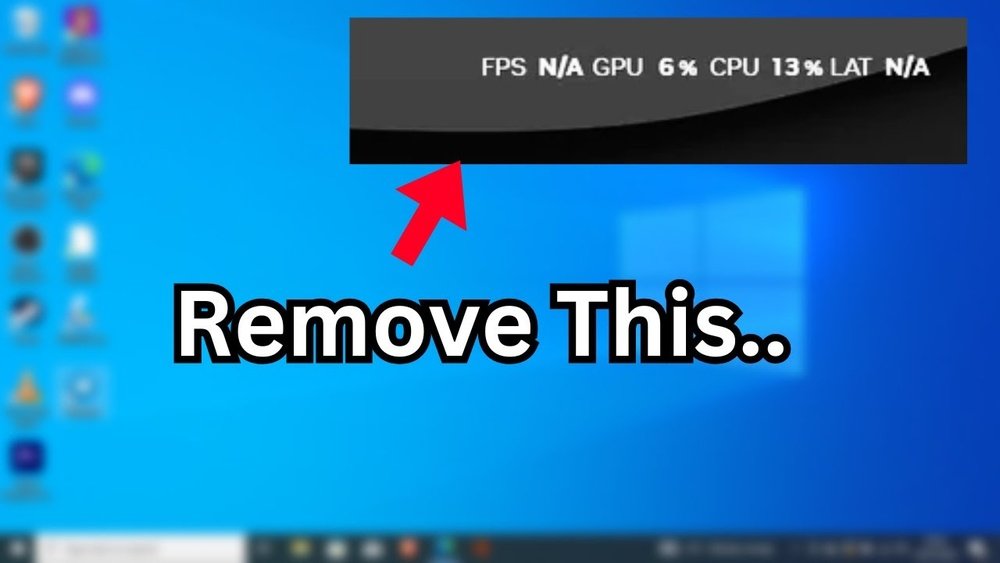
Are you tired of that distracting GPU CPU overlay popping up on your screen? It can block important parts of your game or work, making it hard to focus.
Luckily, turning it off is easier than you think. You’ll discover simple steps to get rid of the overlay for good. Keep reading, and you’ll regain full control of your screen in no time.
Gpu Cpu Overlay Basics
Gpu CPU overlays show real-time data about your computer’s performance. They display useful info while you play games or use heavy software. This helps users track how well their system runs.
Understanding these overlays is key before turning them off. Some users find overlays distracting or want to save system resources. Knowing their purpose and features makes managing them easier.
Purpose Of Overlays
Overlays help monitor system health and performance. They show data like CPU and GPU usage, temperature, and frame rate. This info helps spot problems like overheating or slowdowns quickly.
Many gamers use overlays to improve gameplay. Seeing frame rates helps adjust game settings for smoother play. Developers and tech enthusiasts also use overlays to test hardware limits.
Common Overlay Features
Most overlays show CPU and GPU load percentages. Temperature readings appear to warn of overheating risks. Frame rate counters show how smoothly games run.
Some overlays include network speed and memory use. Customization options let users pick which stats to see. These features make overlays flexible for different needs.
Reasons To Disable Overlays
Overlays for GPU and CPU show real-time data on your screen. These can be helpful but sometimes distracting. Many users choose to disable overlays for several practical reasons. Below are key points why turning off overlays can improve your experience.
Performance Improvement
Overlays use some of your system’s resources. This can slow down games or apps. Turning off overlays frees up CPU and GPU power. Your system runs smoother with better speed. It helps especially on older or low-end devices.
Reducing Screen Clutter
Overlays add extra information on your display. This can cover important parts of your screen. It makes the view busy and confusing. Disabling overlays clears your screen. You see only what matters without distractions.
Troubleshooting Issues
Sometimes overlays cause conflicts with software or games. This leads to crashes or freezes. Turning off overlays helps find the problem quickly. It also makes apps more stable and reliable. A simple step to fix many common issues.
Disable Overlays Via Software Settings
Disabling GPU and CPU overlays through software settings is a quick way to reduce screen clutter. Overlays often show performance data like temperatures and frame rates. Turning them off helps improve focus and can enhance game or app performance.
Each graphics card brand has its own software to manage overlays. You can disable overlays from Nvidia, AMD, or Intel software. This section explains how to do that step-by-step.
Using Nvidia Geforce Experience
Open Nvidia GeForce Experience on your PC. Click the gear icon to open Settings. Find the “In-Game Overlay” option. Toggle it off to disable the overlay completely. This stops all performance stats from showing during gameplay.
Using Amd Radeon Software
Launch the AMD Radeon Software on your computer. Go to the “Performance” tab at the top. Select “Overlay” from the sidebar menu. Switch the overlay toggle to the off position. This will remove all AMD overlay features from your screen.
Using Intel Graphics Command Center
Open Intel Graphics Command Center on your device. Click on the “System” section. Locate the “Overlay” or “Performance Overlay” settings. Turn off the toggle to disable the overlay display. This prevents Intel from showing system stats over your apps.

Credit: www.reddit.com
Turn Off Overlays In Game Clients
Game clients often come with built-in overlays. These overlays can show notifications, chat windows, or performance stats. Sometimes, they cause lag or interfere with gameplay. Turning off these overlays can improve game performance and reduce distractions. Below are simple steps to disable overlays in popular game clients.
Steam Overlay Settings
Open the Steam app and go to the top menu. Click on “Steam” and select “Settings.” Choose the “In-Game” tab. Uncheck the box labeled “Enable the Steam Overlay while in-game.” Click “OK” to save changes. Restart your game to apply the new setting.
Discord Overlay Options
Launch Discord and click the gear icon for User Settings. Scroll down to “Game Overlay” under the “Activity Settings.” Toggle off the “Enable in-game overlay” option. You can also disable overlay for specific games from the “Registered Games” list. Close settings and restart your game to see the effect.
Origin And Epic Games Launchers
For Origin, open the client and click on the Origin menu. Select “Application Settings” and then “Origin In-Game.” Turn off the “Enable Origin In-Game” option. For Epic Games Launcher, open the launcher and click your profile icon. Choose “Settings” and scroll to “Manage Games.” Find your game and uncheck “Enable Overlay.” Restart the launcher after changes.
Using Task Manager And System Tools
Using Task Manager and system tools is a simple way to turn off GPU or CPU overlay. These tools help you find and stop the programs causing the overlay. They also let you control which programs start with your computer. This method works well for most Windows users.
Task Manager shows all running processes. You can easily end the overlay process here. System tools let you manage startup programs. Stopping overlay programs from starting keeps your system clean.
Ending Overlay Processes
Open Task Manager by pressing Ctrl + Shift + Esc. Look for the overlay program in the list. It may have names like “GPU Overlay” or the software brand. Select the process and click “End Task.” This stops the overlay immediately. Check if the overlay disappears from your screen. Repeat if needed for other overlay processes.
Disabling Startup Programs
In Task Manager, switch to the Startup tab. This shows all programs that start with your computer. Find the overlay program in the list. Select it and click “Disable.” This prevents the overlay program from running on boot. Restart your computer to apply changes. The overlay should no longer appear after startup.
Registry And Advanced Methods
Disabling the GPU and CPU overlay can improve your system’s performance and reduce distractions. Advanced users can turn off these overlays by changing system settings directly. Two main methods are editing the Windows Registry and using the Group Policy Editor.
These methods offer more control but require caution. Making incorrect changes may cause system problems. Always back up important data before proceeding.
Editing Windows Registry
The Windows Registry stores many system settings. You can disable the overlay by changing specific keys here.
Press Win + R, type regedit, and press Enter. Navigate to the overlay settings path. Look for keys related to GPU or CPU overlays. Change their values to 0 or Disable.
After editing, restart your computer. This disables the overlay at the system level.
Using Group Policy Editor
The Group Policy Editor controls many Windows functions. It is useful for managing overlays on professional or enterprise versions.
Press Win + R, type gpedit.msc, and hit Enter. Go to Computer Configuration > Administrative Templates. Find settings related to performance or overlays.
Set the overlay option to Disabled. Save changes and reboot your system. This method disables overlays without registry changes.
Tips To Avoid Overlay Conflicts
Overlay conflicts can cause your GPU or CPU overlay to behave oddly or crash. These conflicts happen when two or more programs try to show their overlays at the same time. Avoiding these conflicts helps keep your computer running smoothly. Here are some useful tips to prevent overlay issues.
Keeping Software Updated
Software updates fix bugs and improve performance. Outdated drivers or programs often cause overlay conflicts. Check for updates regularly for your GPU drivers and overlay software. Updated software works better with other apps. It reduces the chance of crashes or freezes.
Managing Multiple Overlay Programs
Running many overlay programs at once can create conflicts. Only use the overlays you need. Turn off others to avoid clashes. Look for settings inside each app to disable their overlays. This keeps your screen clear and prevents errors. Managing overlays carefully saves system resources and improves stability.

Credit: www.youtube.com

Credit: www.reddit.com
Frequently Asked Questions
How Do I Disable Gpu Cpu Overlay Quickly?
To disable GPU CPU overlay, open your graphics software settings. Locate the overlay or monitoring section and turn off the display option. This stops the overlay from showing real-time hardware usage on your screen.
Can I Turn Off Gpu Cpu Overlay In Windows 10?
Yes, you can disable the GPU CPU overlay in Windows 10. Use the Task Manager or your graphics card software to find and turn off the overlay feature. This helps improve screen clarity and performance.
Does Turning Off Gpu Cpu Overlay Improve Game Performance?
Turning off the overlay can slightly improve game performance. Overlays consume system resources which may affect frame rates. Disabling them frees up GPU and CPU power for better gameplay experience.
Where To Find Gpu Cpu Overlay Settings?
GPU CPU overlay settings are usually found in your graphics card software like NVIDIA GeForce Experience or AMD Radeon Settings. Check the in-game or system monitoring sections to disable the overlay easily.
Conclusion
Turning off the GPU CPU overlay can improve your computer’s performance. It also helps reduce screen clutter while gaming or working. The steps are simple and quick to follow. Keep these instructions handy for future use. Enjoy a cleaner display and smoother experience.
Try it today and see the difference yourself.
