How to Replace the CPU: Step-by-Step Guide for Beginners
Thinking about upgrading your computer’s performance? Replacing the CPU can be a game-changer, but it might seem tricky if you’ve never done it before.
Don’t worry—you’re in the right place. This guide will walk you through every step, making the process simple and stress-free. By the end, you’ll have the confidence to swap out your old processor and give your PC a powerful boost.
Ready to get started? Let’s dive in!
Preparing For Cpu Replacement
Preparing for a CPU replacement takes careful steps. It helps avoid damage and saves time. Follow each part to get ready safely and correctly.
Gathering Necessary Tools
Start by collecting all tools needed for the job. A screwdriver, thermal paste, and an anti-static wrist strap are essential. Have a clean workspace to keep parts organized. These tools help you work safely and avoid mistakes.
Choosing The Right Cpu
Pick a CPU that fits your motherboard socket type. Check your motherboard manual or website for compatibility. Consider your computer’s needs, like speed and cores. The right CPU ensures your system runs smoothly.
Backing Up Important Data
Save your important files before starting. Use an external drive or cloud storage. Backups protect your data if something goes wrong. It is a simple step that prevents big problems.
Powering Down And Unplugging
Turn off your computer fully before opening the case. Unplug all cables, including power and peripherals. This stops electric shocks and hardware damage. Wait a few minutes for the system to cool down.
Credit: www.kaz-metiz.com
Removing The Old Cpu
Removing the old CPU is the first step in upgrading your computer’s processor. Handle all parts carefully to avoid damage. Follow each step to remove the CPU safely and cleanly.
Opening The Computer Case
Turn off the computer and unplug all cables. Place the computer on a flat surface. Use a screwdriver to remove screws holding the case cover. Slide or lift the cover off to expose the inside.
Locating The Cpu Socket
Look for a large square chip on the motherboard. This is the CPU socket. It usually has a lever or latch on one side. The cooling system will be mounted on top of it.
Removing The Cooling System
Unplug the fan cable connected to the motherboard. Unscrew or unclip the cooler from the CPU socket. Gently lift the cooler straight up. Avoid twisting to prevent damage.
Unlocking The Cpu Socket
Find the lever or latch next to the CPU socket. Push or lift it carefully to release the CPU. Do not force it. The CPU should now be free to remove.
Taking Out The Old Cpu
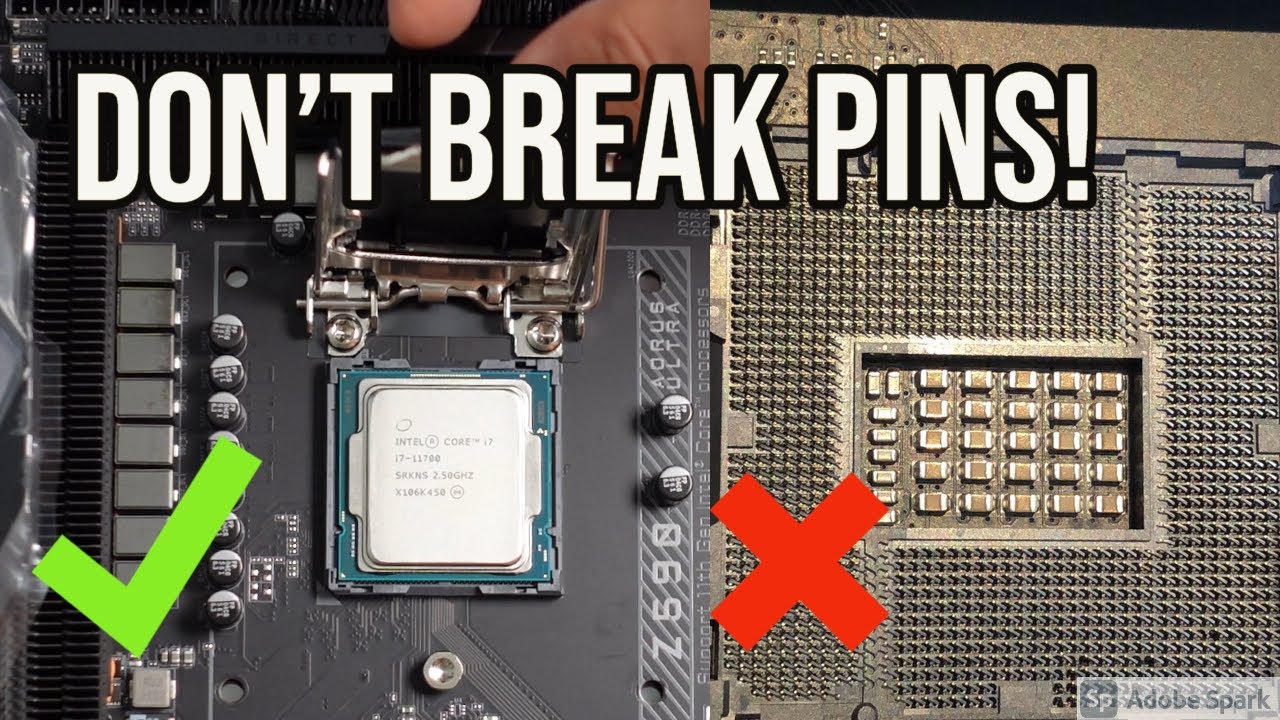
Hold the CPU by its edges only. Avoid touching the pins or contacts. Lift the CPU straight up and out of the socket. Place it on an anti-static surface or bag.
Installing The New Cpu
Installing the new CPU is a key step in upgrading your computer. It needs care and attention to avoid damage. Follow each step carefully to ensure the CPU fits well and works properly.
Handling The Cpu Safely
Hold the CPU by its edges only. Avoid touching the pins or contacts. Keep the CPU on an anti-static surface. Use an anti-static wrist strap if available. This prevents damage from static electricity.
Aligning The Cpu Correctly
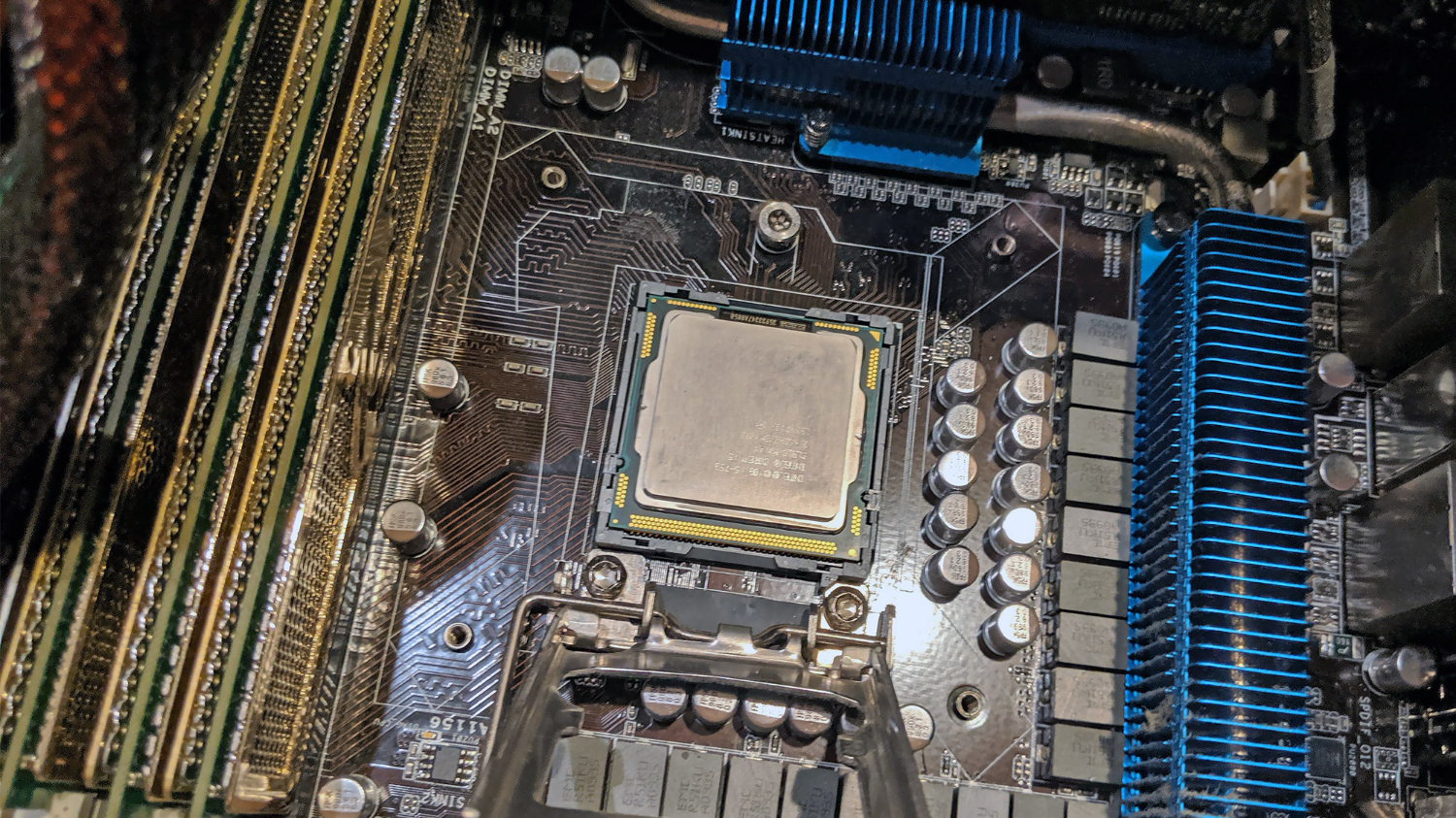
Look for the small triangle on one corner of the CPU. Match it with the triangle on the socket. The CPU will fit in only one direction. Do not force it into place.
Securing The Cpu In Socket
Place the CPU gently into the socket. Lower the locking lever to secure it. The lever should click or feel firm. Make sure the CPU does not move once locked.
Applying Thermal Paste
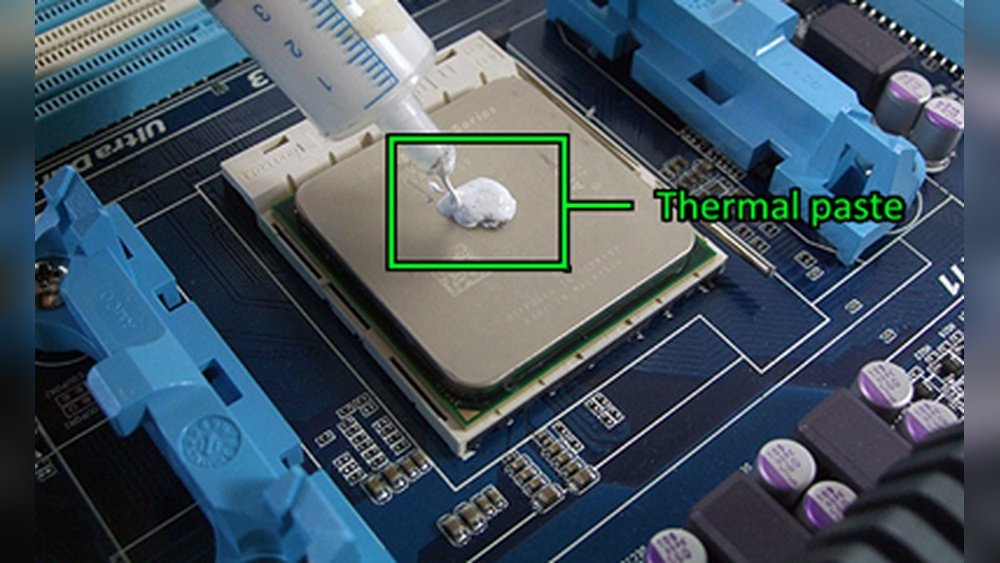
Apply a small pea-sized dot of thermal paste to the CPU center. This helps transfer heat to the cooler. Do not spread it yourself; the cooler will do that. Too much paste can cause overheating.
Reattaching The Cooling System
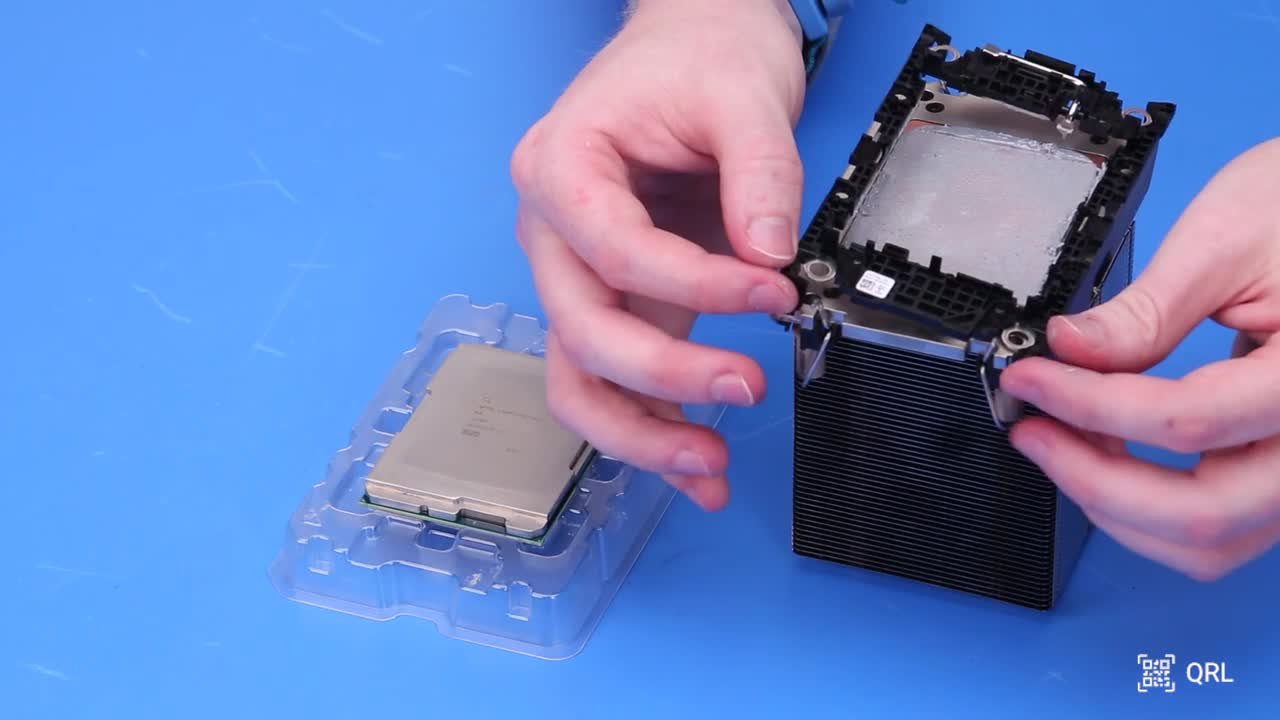
Carefully place the cooler back on the CPU. Align it with the mounting points. Tighten the screws evenly and firmly. Reconnect the fan cable to the motherboard. Check that the cooler is stable and secure.
Credit: www.dell.com
Post-installation Steps
After installing the new CPU, several important steps follow. These steps ensure your computer runs smoothly and safely. Taking time now avoids problems later. Each step checks the system and completes the installation process.
Closing The Computer Case
Secure the side panel of your computer case. Make sure no cables or parts are in the way. Use screws or clips to fasten the panel tightly. A closed case protects internal parts from dust and damage.
Reconnecting Power And Peripherals
Plug the power cable back into the computer. Reconnect your monitor, keyboard, mouse, and other devices. Check all connections are firm and correct. Loose cables can stop your computer from starting properly.
Booting Up The Computer
Turn on the power switch and press the power button. Watch the screen for startup messages. The system should begin loading the operating system. If it does not start, check all connections again.
Checking Bios For Cpu Recognition
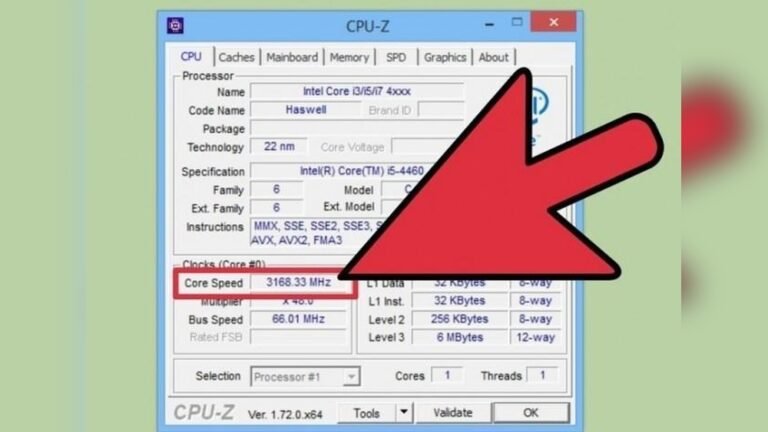
Enter the BIOS setup during startup by pressing the correct key. Look for CPU information on the main screen. Confirm the new CPU model and speed appear here. This confirms the system recognizes the new processor.
Monitoring System Performance
Run basic programs and observe computer speed and stability. Use software tools to check CPU temperature and usage. Normal temperatures show good cooling and installation. Watch for crashes or slowdowns as signs of issues.
Troubleshooting Common Issues
Troubleshooting common issues after replacing a CPU is important to get your computer running smoothly. Problems can happen, but most have simple fixes. Checking these issues step-by-step saves time and stress. Here are some common problems and how to solve them.
Dealing With No Power Or Boot
First, check if the CPU is seated correctly on the motherboard. A loose CPU can stop the computer from powering on. Make sure the power cables to the motherboard are connected tightly. Clear the CMOS by removing the battery for a few minutes to reset settings. Inspect the RAM sticks to ensure they are firmly installed. Sometimes, the system needs a moment to detect the new CPU.
Handling Overheating Problems
Overheating can cause the computer to shut down unexpectedly. Confirm the CPU cooler is properly attached and the thermal paste is applied evenly. Check the fan connections and clean any dust blocking airflow. Use software tools to monitor CPU temperatures. If the temperature stays high, consider improving case ventilation or upgrading the cooling system.
Fixing Compatibility Errors
Compatibility errors often occur if the CPU does not match the motherboard socket. Verify the CPU model fits your motherboard’s socket type. Check the motherboard manual or website for supported CPU lists. Some CPUs need specific BIOS versions to work correctly. Using incompatible parts can prevent the system from booting or cause crashes.
Updating Bios If Needed
A BIOS update can resolve many issues with new CPUs. Download the latest BIOS version from the motherboard manufacturer’s website. Follow their instructions carefully to update the BIOS. Do not turn off the computer during the update. After updating, the system should support the new CPU and run more stable.
Credit: www.ecoparkcampogrande.com.br
Frequently Asked Questions
What Tools Do I Need To Replace A Cpu?
You need a screwdriver, thermal paste, and an anti-static wrist strap. These tools help safely remove and install the CPU without damage.
How Do I Safely Remove The Old Cpu?
Power off and unplug your PC. Ground yourself to avoid static. Unlock the CPU socket and gently lift the CPU out.
How Do I Apply Thermal Paste Correctly?
Apply a small pea-sized amount on the CPU center. Spread evenly by placing the cooler on top. Avoid excess paste for better heat transfer.
Can I Replace A Cpu Without Reapplying Thermal Paste?
No, always clean off old paste and apply new thermal paste. This ensures proper heat dissipation and prevents overheating.
Conclusion
Replacing a CPU can seem hard at first. Step-by-step, it becomes clear and doable. Take your time and follow each instruction carefully. Double-check connections and avoid rushing the process. A new CPU can boost your computer’s speed and performance. With patience and care, you will succeed.
Keep your workspace clean and organized for best results. Soon, your computer will run smoother than before. Don’t hesitate to ask for help if needed. Enjoy the upgrade and the better experience it brings.