How to Check If My CPU is Working Properly: Easy Steps to Diagnose
Is your computer acting slower than usual? Are you worried that your CPU might not be working properly?
Your CPU is the brain of your computer, and if it’s not running as it should, everything else can slow down or freeze. But how can you be sure your CPU is healthy? You’ll discover simple and effective ways to check your CPU’s performance.
By the end, you’ll know exactly how to spot problems early and keep your computer running smoothly. Keep reading to find out how to protect your device and avoid costly repairs.
Signs Of Cpu Issues
Signs of CPU issues can reveal problems with your computer’s core. The CPU controls most tasks. If it has faults, your whole system may act strange. Watching for these signs helps you find problems early.
Performance Slowdowns
One common sign is slow performance. Programs take longer to open or respond. Simple tasks become frustratingly slow. This lag can mean the CPU is struggling. It might be overloaded or failing.
Unexpected Shutdowns
Your computer may shut down without warning. This can happen during normal use or heavy tasks. Sudden shutdowns often point to CPU problems. The processor might overheat or have hardware faults.
Overheating Symptoms
Heat is dangerous for a CPU. If your computer feels very hot, the CPU might be overheating. Fans running loudly or constantly can also mean heat issues. Overheating can cause damage and reduce performance.
Error Messages And Crashes
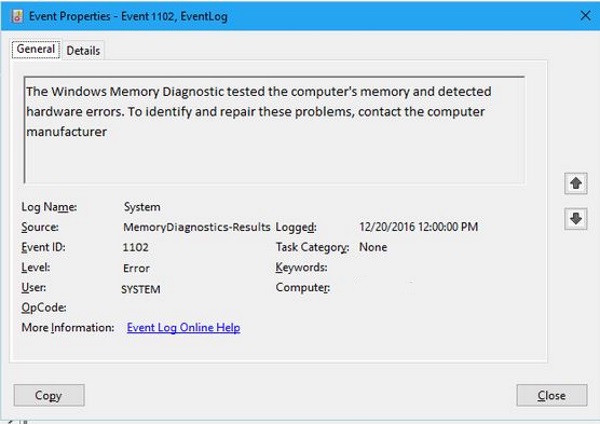
Error messages often appear when the CPU has issues. Frequent crashes or blue screens are red flags. These problems show the CPU is not working correctly. They need attention to avoid bigger failures.
Monitoring Cpu Health
Monitoring CPU health is key to keeping your computer running well. A healthy CPU means smooth performance and fewer crashes. Checking your CPU regularly helps spot problems early. It also prevents damage from overheating or overload. You can use simple tools and software to watch your CPU’s status.
This section explains easy ways to check if your CPU is working properly. These methods suit beginners and do not need special skills.
Using Task Manager
Task Manager shows how your CPU works in real time. Open it by pressing Ctrl + Shift + Esc. Click the “Performance” tab to see CPU usage. High usage for a long time can slow your PC down. Look for unusual spikes or constant 100% usage. This may mean a program is using too much power. You can also check CPU speed and number of cores here.
Checking Cpu Temperature
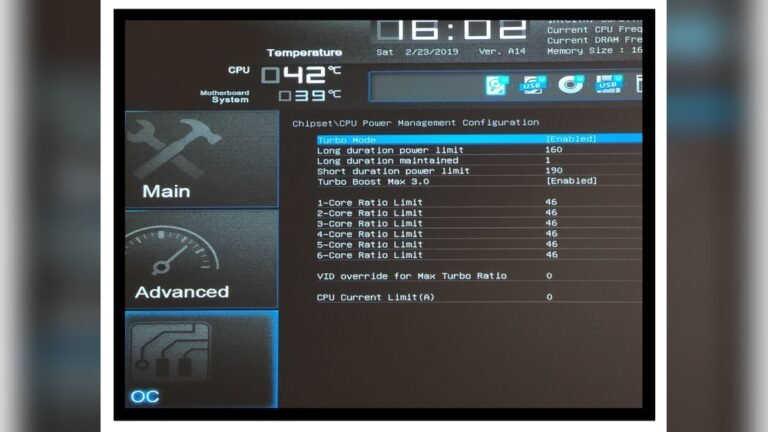
Temperature is a vital sign of CPU health. Overheating can cause crashes or damage. You need special software to check this. A safe CPU temperature usually stays below 80°C. If it goes higher, your cooling system may not work well. Keep your computer clean and ventilated to avoid heat issues. Regular temperature checks help catch problems early.
Utilizing Diagnostic Software
Diagnostic tools test your CPU for errors and performance. Popular free software includes CPU-Z and HWMonitor. These programs give detailed info about CPU health. Some can stress-test your CPU to check stability. Running these tests helps find hidden faults. Use them regularly to keep your CPU in good shape.
Stress Testing The Cpu
Stress testing the CPU helps check if it works well under heavy use. It pushes the processor to its limits. This shows how the CPU handles heat and load over time. Stress tests reveal any weaknesses or problems early. They also help verify cooling systems and stability. Running these tests is a key step in CPU maintenance.
Popular Stress Test Tools
Several tools can stress test your CPU easily. Prime95 is a favorite for many users. It uses intense math calculations to load the CPU fully. Another tool is AIDA64, which offers detailed system checks. IntelBurnTest is quick and stresses the CPU hard. These tools are free or have free versions. Choose one based on your computer and needs.
Interpreting Test Results
Watch the CPU temperature during stress tests. Temperatures above 85°C may indicate cooling issues. Check for system crashes or freezes during testing. These can mean instability or hardware problems. A smooth test with steady temperatures means the CPU is healthy. Note any error messages or warnings from the software. They help identify potential faults early.
Precautions During Stress Tests
Run stress tests in a cool, ventilated area. Avoid running other heavy programs at the same time. Monitor CPU temperatures closely to prevent overheating. Stop the test immediately if the system shuts down or freezes. Make sure your cooling system works well before testing. Stress tests can strain hardware, so use them wisely.
Checking Cpu Usage Patterns
Checking CPU usage patterns helps you understand how your processor works. It shows how much of your CPU’s power is being used at any time. Watching these patterns can reveal if your CPU is working well or facing issues.
CPU usage should be steady during normal tasks. Sudden jumps or constant high usage might mean a problem. Regular checks help keep your computer running smoothly and avoid slowdowns.
Identifying Unusual Spikes
Unusual spikes in CPU usage happen when the processor suddenly works harder than normal. These spikes can slow down your computer and cause overheating. Check for spikes by opening Task Manager or Activity Monitor. Look for sudden rises that last more than a few seconds. Note which programs cause these spikes. This helps find apps or processes that may be causing trouble.
Background Process Impact
Background processes run without your direct input. They can use CPU power quietly. Sometimes, these processes take more CPU than needed. This reduces performance for your main tasks. Open your system’s task manager to see these processes. Identify any that use a lot of CPU. Consider stopping or disabling unnecessary background apps to free up CPU.
Managing Resource-heavy Applications
Some applications need more CPU power than others. Video editors, games, and browsers with many tabs can use a lot. Running many heavy apps at once can overload your CPU. Close apps you do not need. Run resource-heavy programs one at a time if possible. This keeps CPU usage balanced and prevents slowdowns.
Physical Inspection
Physical inspection is a simple way to check if your CPU works well. It helps find visible problems that might affect performance. Basic checks can prevent bigger issues later.
Start by opening your computer case carefully. Look inside for any dust, dirt, or signs of damage. A clean and well-kept CPU usually runs better and lasts longer.
Cleaning Dust And Debris
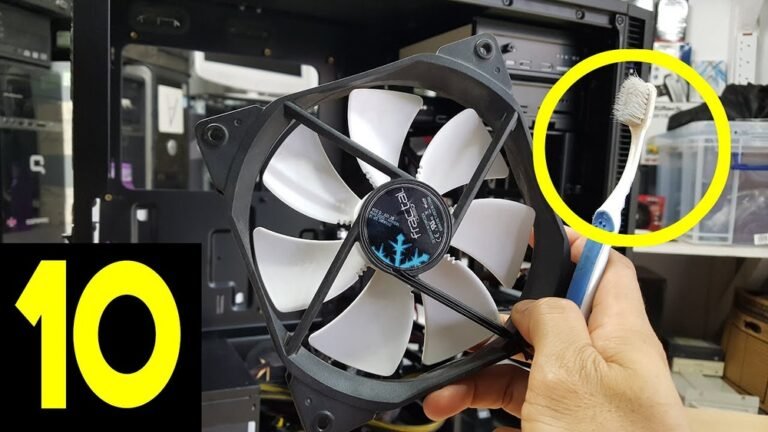
Dust can block airflow and make the CPU heat up. Use a soft brush or compressed air to remove dust. Clean gently to avoid damaging parts. Keep your workspace static-free to protect components.
Verifying Proper Cooling
Check the CPU fan and heat sink. They should be firmly in place and free of dust. Fans must spin without noise or wobbling. Good cooling stops the CPU from overheating and crashing.
Checking For Physical Damage
Look for cracks, burns, or bent pins on the CPU and motherboard. Damaged parts can cause errors or no power. Handle the CPU with care and avoid touching the pins directly. Replace any damaged parts promptly.
Credit: www.esseg.eu
Updating Drivers And Bios
Updating your CPU drivers and BIOS is important for your computer’s health. These updates help your CPU run smoothly and fix problems. They also improve performance and add new features. Regular updates keep your system safe and stable.
Finding The Right Updates
Start by visiting your computer or motherboard maker’s website. Look for the support or downloads section. Enter your model number to find the correct drivers and BIOS updates. Avoid downloading from unknown sites to prevent risks.
Safe Installation Practices
Before installing updates, back up important files. Close all running programs to avoid conflicts. Follow the instructions on the update page carefully. Restart your computer after installation to apply changes properly.
Benefits Of Keeping Software Current
Updating drivers and BIOS improves CPU speed and stability. It fixes bugs that cause crashes or slowdowns. Updates also protect against security threats. Your system runs better and lasts longer with current software.
When To Seek Professional Help
Knowing when to get professional help for your CPU is important. Some problems need expert skills. Trying to fix these on your own might cause more damage. Professionals have the right tools and knowledge to handle tough CPU issues safely.
Identifying Complex Issues
Simple problems like overheating can be fixed at home. But strange noises or frequent crashes need a technician’s attention. If your CPU won’t start or shows error codes, it signals deeper issues. Hardware failures and motherboard problems often require expert diagnosis. Recognizing these signs early saves time and money.
Choosing A Reliable Technician
Pick a technician with good reviews and experience. Ask for recommendations from friends or online forums. Check if they specialize in CPU repairs. Avoid cheap services that promise fast fixes. Reliable technicians ensure proper repairs and protect your device’s warranty.
Backup Strategies Before Repairs
Always save your important files before repair. Use an external drive or cloud storage. Backups prevent data loss during CPU repairs. Make sure backups are complete and up-to-date. This step protects your work and personal information.

Credit: recoverit.wondershare.com

Credit: softwareg.com.au
Frequently Asked Questions
How Can I Test If My Cpu Is Working Properly?
You can test your CPU using stress test tools like Prime95 or IntelBurnTest. These tools check stability and performance under heavy load, helping identify overheating or errors.
What Symptoms Indicate A Failing Cpu?
Common symptoms include random crashes, blue screens, slow performance, and overheating. If these occur frequently, your CPU might be malfunctioning or overheating.
Can Software Monitor Cpu Health Effectively?
Yes, software like HWMonitor or Core Temp monitors CPU temperature, voltage, and usage. These tools help detect abnormal behavior early and maintain CPU health.
How Often Should I Check My Cpu’s Performance?
Regular checks every few months help maintain optimal CPU function. Frequent monitoring prevents issues and improves your computer’s reliability and speed.
Conclusion
Checking your CPU’s health helps keep your computer running well. Regular tests catch problems early. Watch for unusual slowdowns or crashes. Use simple tools to measure temperature and speed. Stay alert to any odd noises or errors. Taking small steps often prevents big issues.
Keep your system clean and updated. A healthy CPU means a smoother experience every day. Don’t wait for trouble—check your CPU now. Easy checks save time and money later.