How to See How Much Ram You Have: Quick & Easy Guide
Wondering how much RAM your computer has? Knowing this simple detail can make a big difference in how well your device runs.
Whether you’re trying to speed up your laptop, install new software, or just curious, finding out your RAM size is easier than you think. Keep reading, and you’ll learn quick and clear steps to check your RAM right now—no tech skills needed.
This will help you make smarter decisions about your computer’s performance and upgrades. Ready to find out? Let’s dive in!
Check Ram On Windows
Knowing how much RAM your Windows computer has helps you understand its speed and performance. RAM, or Random Access Memory, stores data your system uses right now. More RAM means your computer can handle more tasks at once. Checking RAM on Windows is easy and takes just a few steps.
Using System Settings
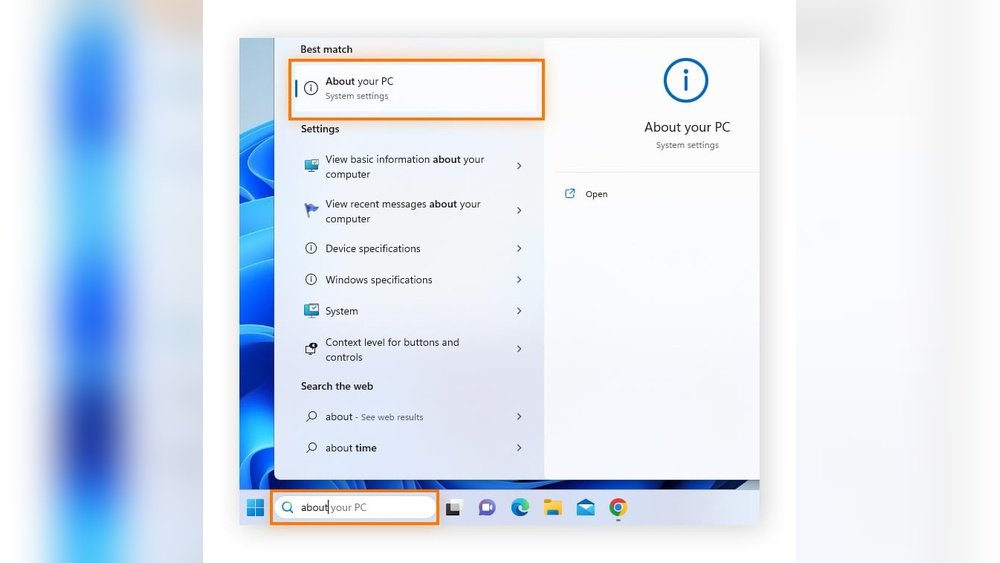
Open the Start menu and click on Settings.
Choose System, then click About at the bottom of the left panel.
Look for the “Installed RAM” section under Device specifications. It shows your total RAM size.
Through Task Manager
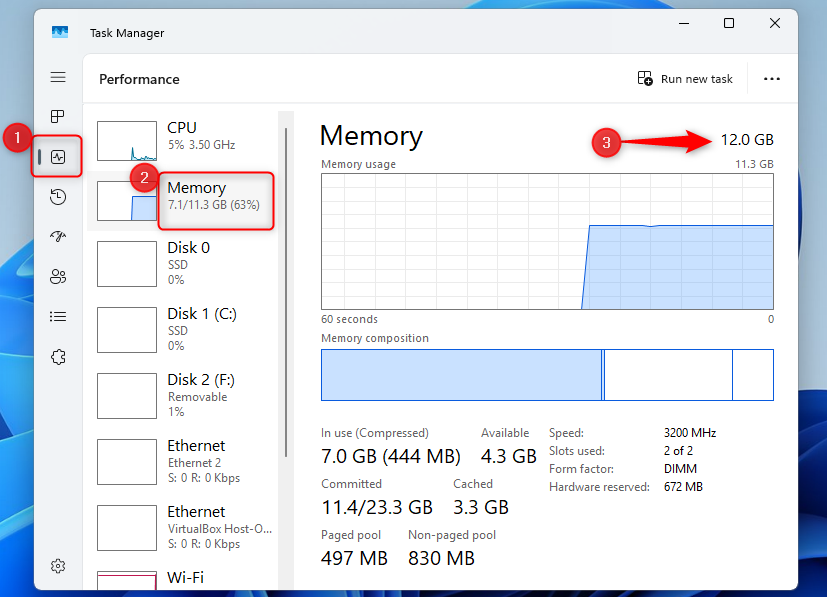
Right-click the taskbar and select Task Manager.
Click the Performance tab at the top.
Select Memory from the left menu.
Here, you see your total RAM, used RAM, and speed.
Via Command Prompt
Open the Start menu and type “cmd”.
Press Enter to open Command Prompt.
Type wmic MEMORYCHIP get Capacity and press Enter.
The output shows RAM size in bytes for each memory stick.
Add the numbers to find your total RAM.
Check Ram On Mac
Checking the RAM on your Mac helps you understand your computer’s memory capacity. This information is useful when running apps or upgrading your system. Two simple methods show your Mac’s RAM quickly and clearly.
About This Mac
Click the Apple icon in the top-left corner of your screen. Select “About This Mac” from the menu. A window opens with an overview of your Mac. Look for the “Memory” or “RAM” section. It shows the total amount of RAM installed. This method works on all recent Mac models. You see details like memory speed and type too.
Using Activity Monitor
Open the Activity Monitor app from the Utilities folder. Click the “Memory” tab at the top. Here, you find real-time memory usage. Check the “Memory Used” and “Cached Files” for details. The bottom of the window shows “Physical Memory.” This number is your total RAM. Activity Monitor helps track memory while apps run.
Check Ram On Linux
Checking RAM on Linux is simple and quick. It helps you know your computer’s memory capacity. This information is useful for managing apps and improving performance.
You can check RAM using commands in the terminal or with a graphical system monitor. Both methods give clear details about your memory.
Using Terminal Commands
Open the terminal to start. Type free -h and press enter. This command shows total, used, and free RAM in a human-readable format.
Another command is cat /proc/meminfo. It provides detailed memory info, including RAM and swap usage. Look for the line starting with “MemTotal” to see total RAM.
You can also use htop if installed. It is an interactive tool displaying real-time RAM use and other system info.
Graphical System Monitor
Open your Linux system monitor app. Usually, it is found in the system menu or settings.
Look for the “Resources” or “Memory” tab. It shows RAM usage with graphs and numbers.
This method is easy for users who prefer visual info over text commands. It updates in real time and helps track memory use clearly.
Credit: www.rgvelectricalsupply.com
Third-party Tools
Third-party tools offer a simple way to check your computer’s RAM. These apps provide detailed information about memory size and usage. They work on many devices and systems. Using such tools can save time and avoid complex steps.
Popular Ram Check Apps
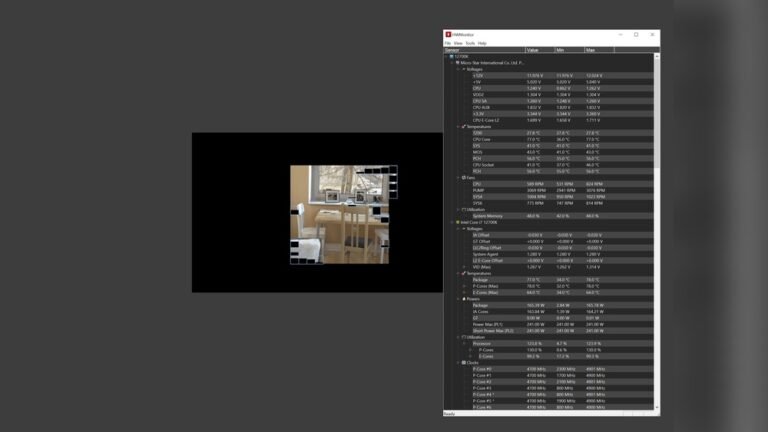
CPU-Z is a popular tool that shows RAM type, size, and speed. It is easy to use and free. Speccy gives a full report on your system’s hardware, including RAM details. It also shows temperature and health of components. Another option is HWiNFO, which provides in-depth memory analysis and real-time monitoring. These apps work well for both beginners and advanced users.
Benefits Of Using Tools
Third-party apps give accurate RAM information quickly. They display data in clear, simple formats. These tools can also show how much RAM is currently in use. Some apps help identify memory problems. They let you monitor RAM performance over time. Using them helps make better decisions about upgrades.
Tips For Ram Management
Managing your RAM well helps your computer run faster and smoother. It stops slowdowns and crashes. Good RAM management is key to better performance.
This section gives simple tips to manage your RAM. Learn when to upgrade and how to use RAM smartly.
When To Upgrade Ram
Check your RAM if your computer feels slow. Opening many apps at once can cause delays. If programs freeze often, your RAM might be too small.
More RAM helps with heavy tasks like video editing or gaming. Older computers may need an upgrade to handle new software. Upgrading RAM is a quick way to improve speed.
Optimizing Ram Usage
Close apps you do not use. Running many apps wastes RAM. Restart your computer regularly to clear memory.
Use built-in tools to check which programs use the most RAM. Disable unnecessary startup programs. This frees RAM for tasks you need.

Credit: www.pcmag.com

Credit: www.scala-santa.com
Frequently Asked Questions
How Do I Check Ram On Windows 10?
Open Settings, go to System > About. Check “Installed RAM” under Device specifications. It shows total RAM in GB.
Can I See Ram Size On Mac Easily?
Click Apple menu > About This Mac. The Memory tab displays total RAM and type installed on your Mac.
What’s The Quickest Way To Find Ram On Linux?
Use the command free -h in Terminal. It shows total, used, and free RAM in a human-readable format.
How Much Ram Do I Have On My Chromebook?
Click status area > Settings > About Chrome OS > Detailed build info. RAM info is listed under System section.
Conclusion
Knowing how much RAM you have helps improve your computer use. It shows if your device runs fast or slow. You can check RAM on Windows, Mac, or other devices easily. This simple step guides you to manage your apps better.
Keep your system running smoothly by knowing your memory size. Try these methods anytime to stay informed about your device. Understanding RAM is a small step with big benefits. Keep it simple, and your computer will thank you.