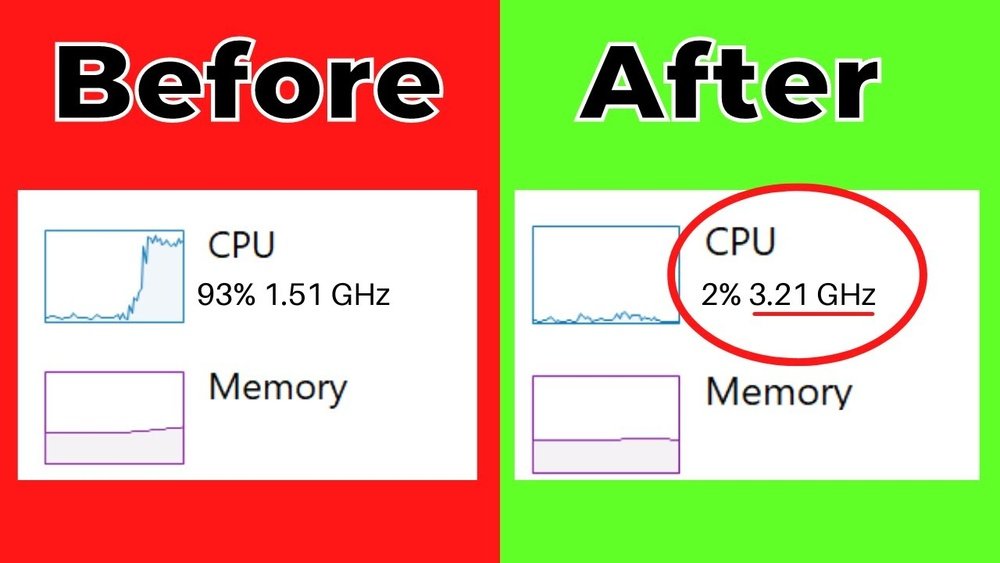
How to Improve Cpu: Ultimate Tips to Boost Performance Fast
Is your computer running slower than it should? You might be wondering how to improve your CPU’s performance without spending a fortune.
The good news is, there are simple and effective ways you can boost your CPU right now. Whether you use your computer for work, gaming, or browsing, a faster CPU means smoother and more enjoyable experiences. Keep reading to discover easy steps you can take today to unlock your CPU’s full potential.
Optimize Bios Settings
Optimizing BIOS settings can boost your CPU’s performance without extra cost. The BIOS controls many hardware functions on your computer. Tweaking these settings helps your CPU run smoother and faster. It also improves system stability and power use. Small changes in BIOS can make a big difference in how your CPU works.
Adjust Cpu Clock Speed
Increasing the CPU clock speed raises its processing power. The BIOS lets you change this setting easily. Start by entering the BIOS menu during startup. Find the CPU clock speed or multiplier option. Increase the speed slowly and test your system each time. Watch for overheating or crashes. Adjusting clock speed can speed up tasks, but be careful to avoid damage.
Enable Xmp Profiles
XMP profiles optimize your RAM speed automatically. Many motherboards support this feature in BIOS. Enabling XMP makes memory run at faster, stable speeds. It helps the CPU access data quicker. This setting is simple to enable and can improve overall system speed. Check your RAM specs to choose the correct XMP profile.
Manage Power Settings
Power settings in BIOS affect CPU energy use and performance. Look for options like Intel SpeedStep or AMD Cool’n’Quiet. Enable these to let the CPU adjust its speed based on workload. This saves energy and reduces heat. You can also set the CPU to run at maximum performance. This uses more power but gives full speed for demanding tasks.

Credit: www.youtube.com
Upgrade Cooling Solutions
Upgrading your CPU cooling solutions helps keep your processor cool and stable. A cooler CPU runs faster and lasts longer. Overheating causes slowdowns and crashes. Effective cooling reduces these risks and improves performance.
Choose Efficient Cpu Coolers
Pick a cooler that fits your CPU socket and case size. Air coolers with large heat sinks and fans work well. Liquid coolers can handle higher heat loads. Check the cooler’s noise level and cooling power. Quality coolers maintain lower temperatures under load.
Apply Quality Thermal Paste
Thermal paste fills gaps between the CPU and cooler base. Use a small, pea-sized amount for best results. Spread it evenly or let pressure do the job. High-quality thermal paste transfers heat better than cheap types. Replace old or dried paste for improved heat flow.
Improve Case Airflow
Good airflow moves heat away from your CPU and components. Install intake fans at the front and exhaust fans at the back. Keep cables tidy to avoid blocking airflow paths. Use dust filters to keep air clean. Cooler air inside the case lowers CPU temperature effectively.
Perform Regular Maintenance
Performing regular maintenance on your CPU helps keep it running smoothly. It prevents slowdowns and unexpected crashes. Small tasks done often can extend your CPU’s life.
Regular care avoids overheating and hardware problems. It also ensures your CPU works at its best speed. Follow these simple steps to maintain your CPU effectively.
Clean Dust And Debris
Dust buildup blocks airflow and causes heat. Use a soft brush or compressed air to clean vents and fans. Turn off your computer before cleaning. Avoid touching sensitive parts inside. Cleaning helps your CPU cool properly and run faster.
Monitor Cpu Temperatures
High temperatures damage your CPU over time. Use software tools to check CPU heat levels regularly. Keep temperatures within safe limits suggested by the manufacturer. If the CPU gets too hot, it may slow down or shut off. Monitoring helps you spot problems early.
Update Drivers And Firmware
Drivers and firmware control how your CPU works with other hardware. Check for updates from your CPU or motherboard maker. Updated software fixes bugs and improves performance. Install updates carefully to avoid errors. Regular updates keep your CPU stable and efficient.
Manage Software And Processes
Managing software and processes is a key step to improve your CPU performance. Your computer runs many programs at once. Some of these use a lot of CPU power without you noticing. Controlling these apps and processes helps your CPU work better and faster.
Close Unnecessary Background Apps
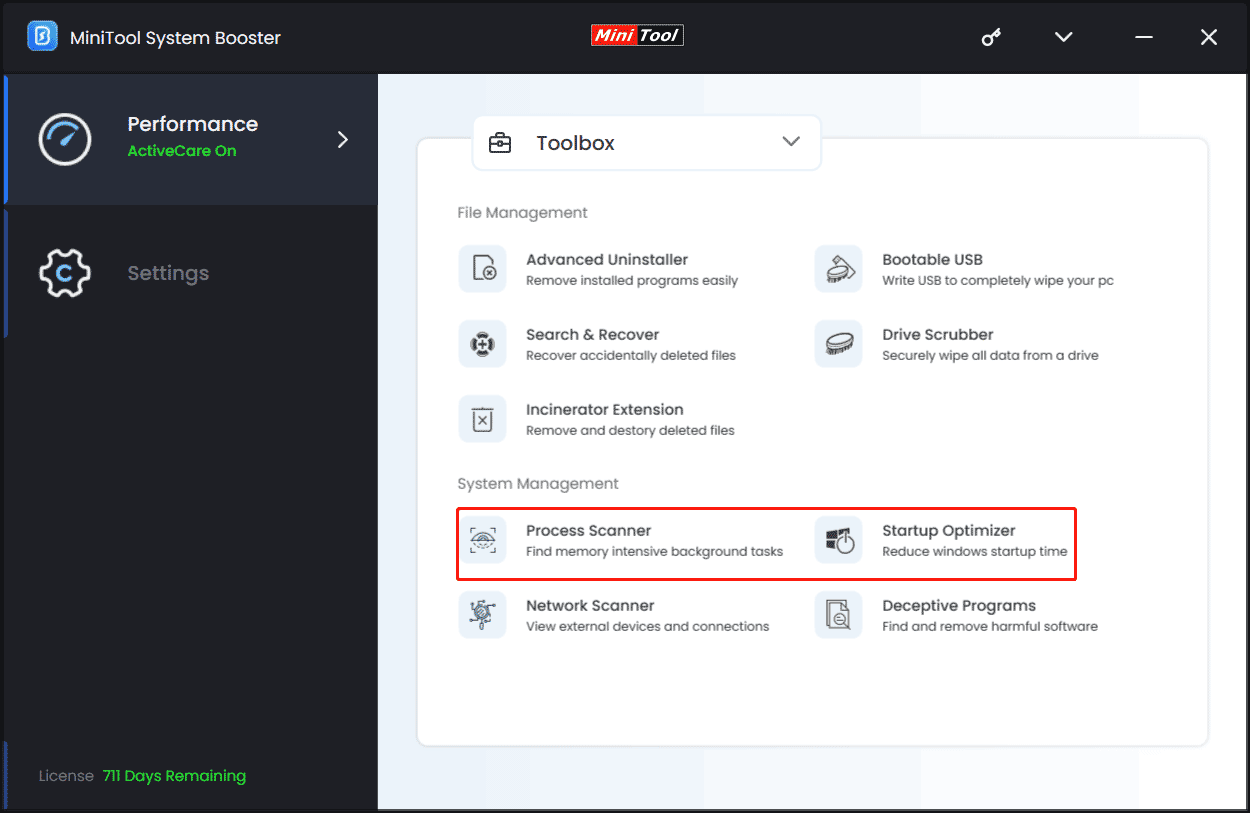
Many apps run in the background even when not in use. These apps consume CPU resources quietly. Check your task manager or system monitor to see active apps. Close those you do not need. This frees up CPU power for important tasks.
Optimize Startup Programs
Some programs start automatically when your computer boots. Too many startup apps slow down your CPU from the start. Disable programs that are not essential at startup. This speeds up boot time and reduces CPU load early on.
Use Lightweight Software
Heavy software uses more CPU power. Choose lightweight or simpler versions of apps. These programs run faster and use less CPU. This change can make a big difference in overall system speed.
Overclocking Techniques
Overclocking techniques help improve CPU speed beyond its default settings. This boosts performance for tasks like gaming and video editing. Overclocking requires care to avoid damage and keep the system stable.
Understand Overclocking Basics
Overclocking means running the CPU faster than its factory speed. This increases the clock rate and improves processing power. It can cause more heat and power use. Learning your CPU limits is important before starting.
Check the CPU model and motherboard support. Know the difference between base clock and multiplier settings. Start with small increases to avoid crashes or overheating. Cooling solutions like fans or liquid coolers help manage extra heat.
Use Reliable Overclocking Tools
Overclocking tools help adjust CPU settings safely. Many motherboards include software for easy tuning. Popular tools include BIOS settings, CPU-Z, and MSI Afterburner.
These tools show real-time data like temperature and clock speed. They allow users to change voltage and frequency. Using trusted tools reduces the risk of errors and damage.
Test Stability And Performance
Testing is key after each overclock step. Stability tests check if the CPU runs smoothly. Use programs like Prime95 or AIDA64 to stress the CPU.
Monitor temperatures during tests to avoid overheating. Watch for crashes or freezes as signs of instability. Adjust settings if problems appear. Repeat tests until the system is stable and fast.
Credit: www.tomsguide.com
Upgrade Hardware Components
Upgrading hardware components is a direct way to improve your CPU’s performance. It helps your computer run faster and handle tasks better. Simple changes can make a big difference in speed and efficiency.
Increase Ram Capacity
More RAM means your computer can work on more tasks at once. It reduces slowdowns caused by running many programs. Upgrading RAM is often easy and affordable. Choose compatible memory for your system to avoid issues.
Switch To Ssd Storage
Replacing a hard drive with an SSD speeds up data access. Your system boots faster and programs load quicker. SSDs are more reliable and use less power. This upgrade improves overall system responsiveness.
Consider A New Cpu
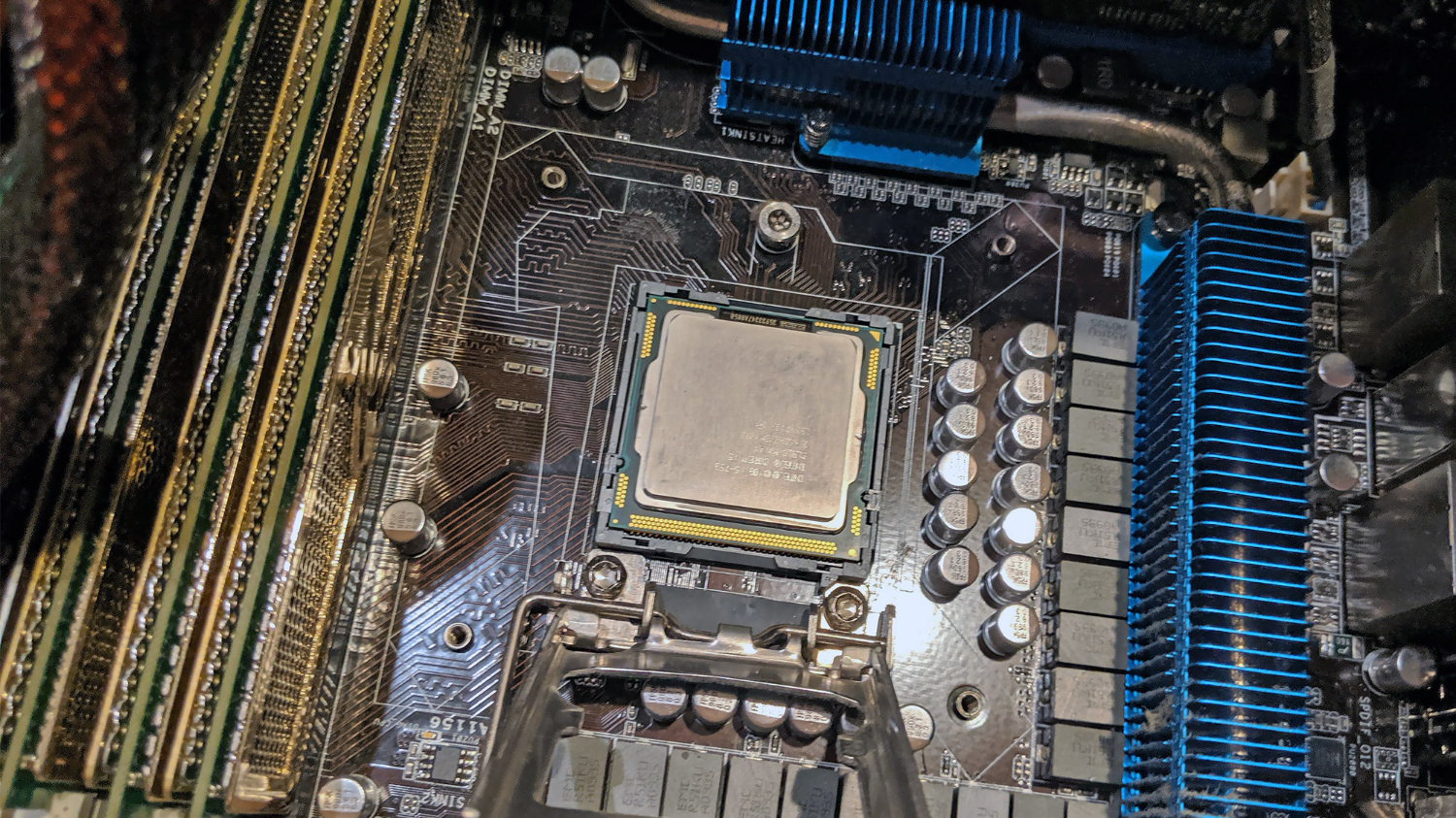
A newer CPU offers better speed and efficiency. It handles modern software and multitasking well. Check your motherboard compatibility before buying a new processor. Upgrading the CPU can extend your computer’s life.
Adjust Power Management Settings
Adjusting your computer’s power management settings can boost CPU performance. These settings control how your CPU uses power and manages speed. By changing them, you allow your CPU to work faster and more efficiently. This improves overall system speed and responsiveness.
Power plans balance performance and energy use. Choosing the right plan is key to better CPU output. Also, some built-in features slow down the CPU to save power. Disabling these features can help maintain steady high performance.
Select High-performance Power Plan
Choose the High-Performance plan from your system’s power options. This plan lets your CPU run at full speed all the time. It reduces delays caused by power-saving modes. To select it, open Control Panel and go to Power Options.
Pick High-Performance from the list. This change uses more energy but boosts CPU speed. It works best on desktops or laptops plugged into power.
Disable Cpu Throttling Features
CPU throttling lowers processor speed to save energy and reduce heat. Disabling throttling stops your CPU from slowing down under load. This keeps performance steady during demanding tasks.
Look for settings like Intel SpeedStep or AMD Cool’n’Quiet in BIOS or power options. Turn these off to prevent automatic speed reduction. This step may increase power use but improves CPU responsiveness.
Utilize Performance Monitoring Tools
Utilizing performance monitoring tools can greatly enhance your CPU’s efficiency. These tools provide real-time data on how your CPU works. This helps to spot problems early. You can make changes based on actual performance, not guesswork. Monitoring tools are easy to use and offer clear insights. They help keep your CPU running smoothly and fast.
Track Cpu Usage
Start by tracking CPU usage regularly. This shows how much work your CPU is doing. High usage for long times can slow down your computer. Look for programs that use too much CPU. Closing or updating them can improve speed. Tracking usage helps keep your system balanced and stable.
Analyze Bottlenecks
Performance monitoring tools also help find bottlenecks. Bottlenecks are parts of the system that slow everything down. Your CPU might wait for other components, like memory or disk. Identifying these slow points lets you fix or upgrade them. This leads to smoother and faster CPU performance overall.
Set Alerts For Overheating
Overheating damages your CPU and reduces its lifespan. Use monitoring tools to set alerts for high temperatures. This way, you know immediately if your CPU gets too hot. Cooling your system or stopping heavy tasks can prevent damage. Alerts keep your CPU safe and working well longer.
Credit: systembooster.minitool.com
Frequently Asked Questions
How Can I Speed Up My Cpu Performance?
To speed up CPU performance, close unnecessary programs and update your software regularly. Cleaning dust from your CPU cooler also helps maintain optimal temperatures and prevent overheating.
Does Upgrading Cpu Cooling Improve Its Efficiency?
Yes, upgrading CPU cooling improves efficiency by reducing heat. Cooler CPUs run faster and more reliably, preventing thermal throttling that slows down performance during heavy tasks.
Can Overclocking Improve Cpu Speed Safely?
Overclocking can boost CPU speed but requires caution. Ensure proper cooling and stable power supply to avoid damage. Always monitor temperatures to maintain safe operating conditions.
How Does Updating Bios Affect Cpu Performance?
Updating BIOS can enhance CPU compatibility and fix bugs. It may improve stability and unlock new features, leading to better overall CPU performance and system efficiency.
Conclusion
Improving your CPU can make your computer faster and smoother. Small changes, like cleaning dust or updating software, help a lot. You can also check your settings to boost speed. Regular care keeps your CPU working well longer. Try simple steps first and see the difference.
Stay patient and keep learning about your device. A better CPU means better work and fun on your computer.