
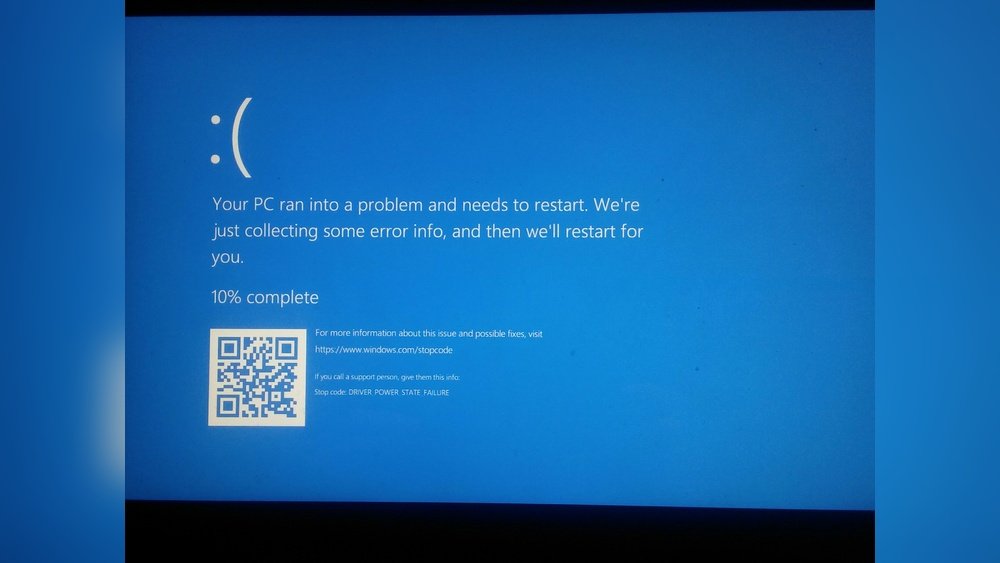
Have you ever updated a driver, only to have your Windows crash right after? It’s frustrating, and you might feel stuck wondering how to fix it.
But don’t worry—this problem is more common than you think, and there are simple steps you can take to get your system running smoothly again. Keep reading, and you’ll discover easy, effective fixes that will save you time and stress.
Your computer’s stability is just a few clicks away.
Common Causes Of Crashes After Driver Updates
Windows crashes after a driver update can frustrate anyone. Understanding why these crashes happen helps fix the problem faster. Several common causes lead to system instability after installing new drivers. Knowing these can prevent future issues and keep your PC stable.
Incompatible Drivers
Sometimes, the updated driver is not compatible with your Windows version. This mismatch causes errors and crashes. Devices may fail to work properly or cause the system to freeze. Checking driver compatibility before updating avoids this problem.
Corrupted Driver Files
Driver files can get corrupted during download or installation. Corruption leads to missing or broken files needed for hardware to work. This causes Windows to crash or display error messages. Reinstalling the driver from a trusted source often solves this issue.
Conflicts With Existing Software
New drivers may clash with software already on your computer. Such conflicts disrupt normal operations and cause crashes. Antivirus programs or system tools often interfere with driver updates. Temporarily disabling conflicting software during updates can help prevent crashes.
Hardware Issues
Faulty or failing hardware may struggle with new drivers. The driver tries to communicate but hardware cannot respond correctly. This mismatch can cause Windows to crash or freeze. Testing hardware health and replacing damaged parts may be necessary.
Safe Mode Access For Troubleshooting
Safe Mode is a special way to start your Windows computer. It loads only the basic drivers and programs. This helps you find and fix problems caused by new driver updates. Safe Mode stops many usual programs from running. This makes it easier to see what is causing the crash.
Using Safe Mode can save time and avoid more damage. It lets you work on your PC without interruptions. Troubleshooting in Safe Mode is a key step after driver updates cause crashes.
Entering Safe Mode
First, restart your PC. As it boots, press the F8 key repeatedly. This opens the Advanced Boot Options menu. Use the arrow keys to select Safe Mode. Press Enter to start Windows in Safe Mode.
On Windows 10 or 11, press Shift while clicking Restart. Choose Troubleshoot, then Advanced options. Select Startup Settings, then Restart. After reboot, pick Safe Mode from the list.
Using Safe Mode To Diagnose Problems
In Safe Mode, check if the crashes still happen. If the PC runs fine, the driver update likely caused the issue. You can uninstall the faulty driver here. Open Device Manager, find the driver, and choose Uninstall.
Run system scans or use tools to fix errors. Safe Mode also lets you restore your system to an earlier point. This can undo recent changes causing trouble.
Rolling Back To Previous Drivers
Sometimes, a new driver update causes Windows to crash or act strangely. Rolling back to previous drivers can fix these problems. This method restores your system to the last working version of the driver. It is a safe way to undo changes without losing other system settings.
Rolling back drivers is simple and can save you time. It helps your computer run smoothly again. This process works well for many hardware types, including graphics cards and network adapters.
Steps To Roll Back Drivers
Open the Device Manager by typing “Device Manager” in the search box. Find the device with the problematic driver. Right-click on it and select “Properties.” Go to the “Driver” tab and click “Roll Back Driver.” Follow the instructions on the screen. Restart your computer after the rollback completes.
When To Use Driver Rollback
Use driver rollback if your system crashes after an update. It works well if hardware stops working correctly. If your computer shows error messages linked to a new driver, try rollback. Avoid using this method unless you face issues after updating. It is best for quick fixes without reinstalling Windows.
Credit: blog.avast.com
Updating Or Reinstalling Drivers
Updating or reinstalling drivers can fix many Windows crash problems after a driver update. Drivers control how your hardware and software communicate. Sometimes, a bad update causes system crashes or freezes. Fixing drivers can make your PC stable again. This process is simple and can be done in different ways.
Manual Driver Update Methods
One way to update drivers is manually downloading from the manufacturer’s website. Find the exact model of your device. Download the latest driver version. Run the installer and follow the steps. This method ensures you get the correct and newest driver. It takes time but helps avoid wrong driver issues.
Using Device Manager For Reinstallation
Device Manager is a built-in Windows tool. Open it by typing “Device Manager” in the search bar. Find the device causing problems. Right-click and choose “Uninstall device.” Restart your computer. Windows will try to reinstall the driver automatically. This can fix corrupt or missing driver files.
Third-party Driver Update Tools
Some tools scan your PC for outdated drivers. They find the best driver versions for your hardware. These tools save time by updating many drivers at once. Use trusted tools to avoid malware risks. They simplify the update process, especially for less tech-savvy users.
System Restore And Recovery Options
System Restore and recovery options help fix Windows crashes after a driver update. These tools let you undo changes that caused problems. They restore your system to a stable state without affecting your files. Using these options can save time and avoid data loss.
Using System Restore Points
System Restore points save your system settings at specific times. Windows creates these points before major changes, like driver updates. You can use them to go back to a time before the crash occurred.
To use System Restore, open the Control Panel and find Recovery. Click “Open System Restore” and choose a restore point from the list. Follow the steps to start the process. Your PC will restart and apply the changes. This often fixes crashes caused by faulty drivers.
Performing A System Reset
A System Reset reinstalls Windows while keeping your files safe. This option removes apps and drivers that cause problems. It gives your computer a fresh start without deleting personal data.
To perform a reset, go to Settings > Update & Security > Recovery. Click “Get started” under Reset this PC. Choose “Keep my files” and follow the instructions. The reset process may take some time. After it finishes, your system should work smoothly again.

Credit: www.drivereasy.com
Preventing Future Driver-related Crashes
Preventing future driver-related crashes is key to keeping your Windows system stable. Drivers link hardware and software. Faulty or outdated drivers often cause crashes. Taking simple steps can reduce these problems significantly.
Regular care helps avoid unexpected errors and downtime. It saves time and frustration later. Here are practical tips to keep your drivers safe and your PC running smoothly.
Creating Backup Points
Backup points let you save your system state before changes. If a driver update causes trouble, you can restore your computer easily. Windows has a built-in tool called System Restore. Use it to create restore points before installing new drivers. This step acts as a safety net, preventing data loss and saving hours of fixes.
Choosing Reliable Drivers
Always download drivers from official or trusted sources. Fake or modified drivers often lead to crashes. Check the hardware maker’s website first. Avoid third-party sites that may host unsafe files. Also, match the driver version to your Windows edition and hardware model. This prevents compatibility issues that cause system failures.
Regular System Maintenance
Keep your system clean and updated. Remove unused programs and files that slow down your PC. Run disk cleanup and check for malware regularly. Use Windows Update to get the latest security patches and driver fixes. Regular restarts also help clear temporary glitches. These habits improve overall performance and lower crash risks.

Credit: www.reddit.com
Frequently Asked Questions
Why Does Windows Crash After A Driver Update?
Windows may crash if the new driver is incompatible or corrupt. Conflicts with existing software or hardware can also cause crashes. Rolling back or updating the driver often resolves these issues quickly.
How Can I Fix Windows Crashes After Updating Drivers?
To fix crashes, try rolling back the driver in Device Manager. You can also update the driver from the manufacturer’s website or use System Restore to revert changes.
Can Outdated Drivers Cause Windows To Crash?
Yes, outdated drivers can cause system instability and crashes. Keeping drivers updated ensures compatibility and smooth operation of hardware and Windows.
What Tools Help Fix Driver-related Windows Crashes?
Windows has built-in tools like Device Manager, System Restore, and Troubleshooter. Third-party driver update tools can also help resolve driver conflicts and crashes efficiently.
Conclusion
Windows crashes after a driver update can be frustrating. Fixing this issue helps your computer run smoothly again. Always keep your drivers updated carefully and back up important files. Use trusted tools and follow clear steps to avoid problems. Staying patient and calm makes troubleshooting easier.
Now, your PC should work without sudden crashes or errors. Keep these tips in mind for future driver updates. Safe computing starts with smart updates and good habits.
