

Are you wondering why your PC feels hotter than it should or why your games sometimes lag? The answer might be simpler than you think: your PC fans may not be in the right spots.
Where you place your PC fans can make a huge difference in keeping your system cool and running smoothly. You’ll discover the best spots to put your fans so your computer stays cool, quiet, and powerful. Keep reading, and you’ll learn easy tips to improve your PC’s performance without spending a dime on extra hardware.
Airflow Basics
Good airflow in your PC keeps it cool and running well. Fans move air through the case. This helps stop parts from getting too hot. Understanding airflow basics helps place fans the right way. It improves cooling and lowers noise.
Intake Vs Exhaust Fans
Intake fans pull cool air into the case. They usually sit at the front or bottom. Exhaust fans push hot air out. These fans are often at the back or top. Both types work together to move air smoothly. Proper balance between intake and exhaust is key.
Positive And Negative Pressure
Positive pressure means more air enters than leaves. This keeps dust out because air flows outward. Negative pressure means more air leaves than enters. It can pull dust inside through gaps. Most builds aim for slight positive pressure. This helps keep the PC cleaner and cooler.
Airflow Paths
Air should flow in one clear path. Cool air enters from the front or bottom. It moves over key parts like CPU and GPU. Warm air exits from the top or rear. Avoid blocking airflow with cables or parts. A clean path helps fans work well and lowers temperature.

Credit: www.reddit.com
Common Fan Positions
PC fans help move air through the computer case. Proper fan placement keeps the PC cool and parts safe. Fans work best when they create a clear airflow path. Common fan positions guide cool air in and push hot air out.
Each position plays a unique role in cooling. Knowing where to place fans improves PC performance and lifespan.
Front Panel Fans
Front panel fans pull cool air into the case. They bring fresh air to the main components. These fans often work as intake fans. Intake fans prevent heat build-up inside the case.
Rear Panel Fans
Rear panel fans push hot air out of the case. They help remove warm air produced by the CPU and GPU. These fans usually act as exhaust fans. Exhaust fans keep the case temperature low.
Top Panel Fans
Top panel fans remove hot air rising inside the case. Heat naturally moves upward, so these fans help airflow. They usually serve as exhaust fans. This position helps keep the PC cool during heavy use.
Bottom Panel Fans
Bottom panel fans pull cool air from below the case. They help cool parts near the bottom, like the power supply. These fans often work as intake fans. Intake from the bottom increases airflow inside the case.
Side Panel Fans
Side panel fans blow air directly onto components. They improve cooling for the GPU and CPU area. These fans can be intake or exhaust. Side fans boost airflow where it is most needed.
Fan Placement Strategies
Choosing the right fan placement in your PC case affects cooling and noise levels. Each setup aims for specific goals like balanced airflow, high cooling power, or quiet operation. Understanding these fan placement strategies helps you build a better PC environment. The right setup keeps your components cool and working well.
Balanced Airflow Setup
Balanced airflow means equal air intake and exhaust. Place intake fans at the front to pull cool air inside. Exhaust fans go at the rear and top to push hot air out. This setup prevents hot air pockets inside your case. It keeps temperature stable for all parts. It works well for most standard PCs.
High-performance Cooling Setup
This setup favors cooling power over quiet operation. Add more intake fans at the front and bottom. Increase exhaust fans at the top and rear. This creates strong airflow through the case. It quickly removes heat from powerful CPUs and GPUs. Use this setup for gaming or heavy tasks. It helps avoid overheating during long use.
Silent Operation Setup
For quiet PCs, fewer fans run at low speeds. Use larger fans to move more air with less noise. Place intake fans at the front with dust filters. Exhaust fans stay at the top or rear. Use fan speed controls to lower noise when possible. This setup keeps noise low while maintaining decent airflow. Ideal for home or office use.

Credit: www.youtube.com
Component-specific Cooling
Component-specific cooling targets the parts inside your PC that produce the most heat. Each component needs airflow to stay cool and work well. Placing fans near these parts helps prevent overheating. It also keeps your PC running smoothly and extends its life.
Cpu Cooling Fans
The CPU is the brain of your computer and gets very hot. Fans placed directly on or near the CPU cooler help remove this heat. Usually, a fan is attached to a heat sink on top of the CPU. This setup pushes hot air away quickly.
Gpu Cooling Fans
The GPU handles graphics and can get very warm during use. Most graphics cards come with built-in fans to cool themselves. Adding extra case fans near the GPU area improves airflow. This keeps the graphics card temperature lower for better performance.
Power Supply Cooling
The power supply generates heat while providing power to the PC. It usually has its own fan inside the case. Make sure the power supply fan is not blocked. Proper airflow around it is important to avoid overheating.
Storage Drive Cooling
Hard drives and SSDs produce heat, especially when used heavily. Fans placed near storage drives help keep them cool. This reduces the risk of data loss and improves drive lifespan. Small case fans or vents work well for this purpose.
Fan Size And Speed
Fan size and speed are key factors for PC cooling. They affect airflow, noise, and overall system temperature. Choosing the right combination helps keep your PC cool and quiet.
Effects Of Fan Size
Larger fans move more air at lower speeds. This means better cooling with less noise. Smaller fans spin faster to push the same air volume. They can be louder but fit in tight spaces. Size impacts how much air reaches your components.
Fan Speed And Noise Levels
Faster fans increase airflow but also noise. Slower fans are quieter but may not cool well enough. Speed is measured in RPM (revolutions per minute). Finding a balance between speed and noise is important for comfort.
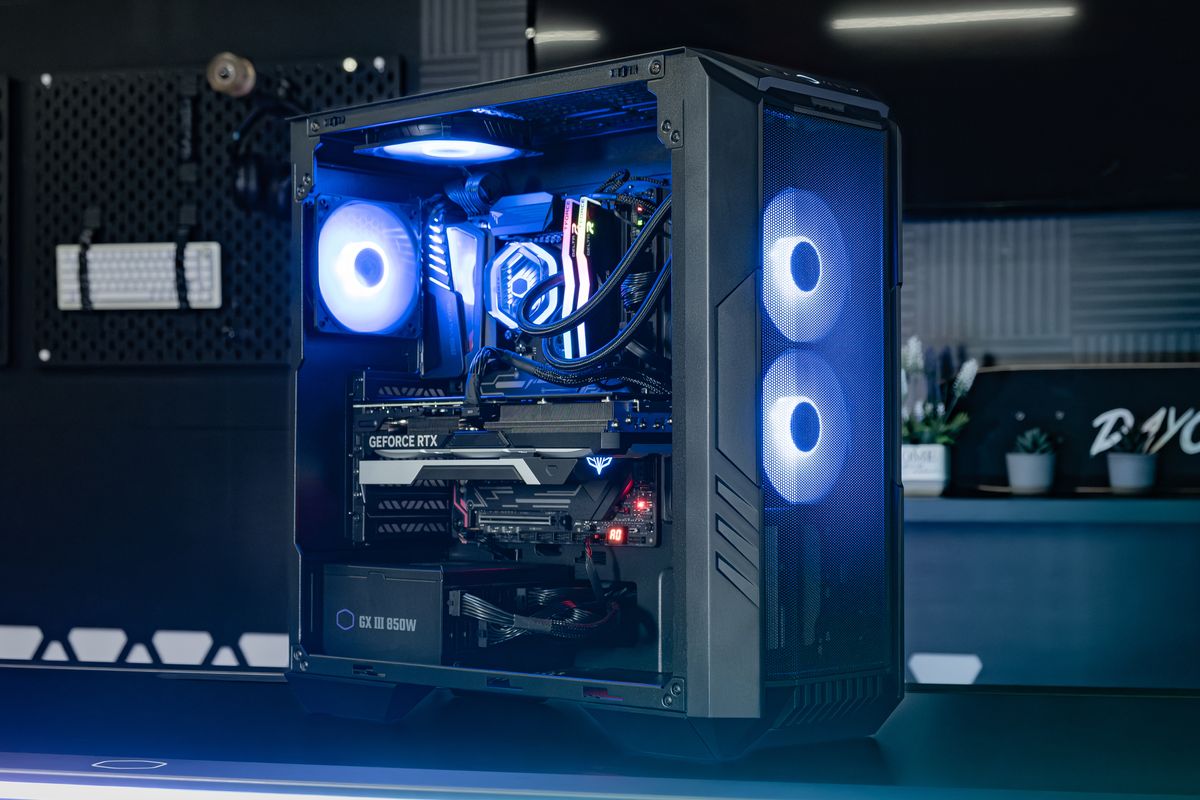
Choosing The Right Fan
Consider your PC case size and airflow needs. Larger cases benefit from bigger fans. Small cases may require compact fans with higher speeds. Check fan specifications for noise ratings and airflow capacity. Quality fans last longer and perform better.
Credit: www.coolermaster.com
Common Mistakes To Avoid
Placing PC fans correctly is key to keeping your computer cool. Many people make common mistakes that hurt airflow and performance. These errors can cause overheating and noise. Avoid these pitfalls to get the best from your PC fans.
Blocking Airflow
Never block the path of air inside your PC case. Fans need clear space to push or pull air. Cables, large components, or dust filters can block airflow. Keep cables tidy and use cable management tools. Make sure fans have room to breathe and move air freely.
Mismatched Fan Directions
Fans must face the right way to create good airflow. Some fans push air inside, others pull air out. Mixing these directions causes poor ventilation. Arrange intake fans at the front and bottom, exhaust fans at the back and top. This setup moves hot air out and brings cool air in.
Ignoring Dust Management
Dust clogs fans and blocks airflow. It causes your PC to run hotter. Clean your fans and filters regularly. Use dust filters on intake fans to reduce buildup. A clean system runs cooler and lasts longer.
Additional Cooling Tips
Proper PC fan placement is key for good airflow. Cooling your PC well can stop parts from heating up. Fans help, but extra steps improve cooling more. Follow these tips to keep your PC cool and running smoothly.
Cable Management
Keep cables tidy and out of airflow paths. Messy cables block air and make fans work harder. Use zip ties or clips to bundle cables. A clean inside helps air move freely and cool parts better.
Using Fan Controllers
Fan controllers let you adjust fan speed easily. Slower speeds reduce noise when full power isn’t needed. Faster speeds boost cooling during heavy use. Control fans to balance quiet and cool performance.
Regular Maintenance
Dust buildup reduces fan efficiency and airflow. Clean fans and vents often with compressed air or a soft brush. Check fan blades for dust and dirt. Regular cleaning keeps fans spinning well and your PC cool.
Frequently Asked Questions
Where Should Intake Pc Fans Be Placed?
Intake fans should be placed at the front or bottom of the case. This location allows cool air to enter and circulate efficiently, keeping internal components at optimal temperatures. Proper intake placement prevents hot air buildup and maintains steady airflow.
Where To Position Exhaust Pc Fans?
Exhaust fans belong at the rear or top of the PC case. These fans expel hot air from inside, preventing heat accumulation. Proper exhaust placement ensures effective airflow balance and helps maintain lower overall system temperatures.
How Many Fans Does A Pc Typically Need?
Most PCs require two to four fans for optimal airflow. Typically, two intake fans and one or two exhaust fans create efficient cooling. The exact number depends on the case size, hardware, and thermal demands.
Should Pc Fans Push Or Pull Air?
PC fans should push cool air in and pull hot air out. Intake fans push fresh air inside, while exhaust fans pull warm air outside. This push-pull setup maximizes airflow and cooling efficiency.
Conclusion
Placing PC fans correctly keeps your system cool and running well. Fans should bring fresh air in from the front and push hot air out the back or top. Avoid blocking airflow with cables or parts inside the case. Good airflow stops overheating and helps your PC last longer.
Small changes in fan placement make a big difference. Keep these tips in mind for better cooling and quieter operation. Your PC will thank you with better performance every time you use it.
