
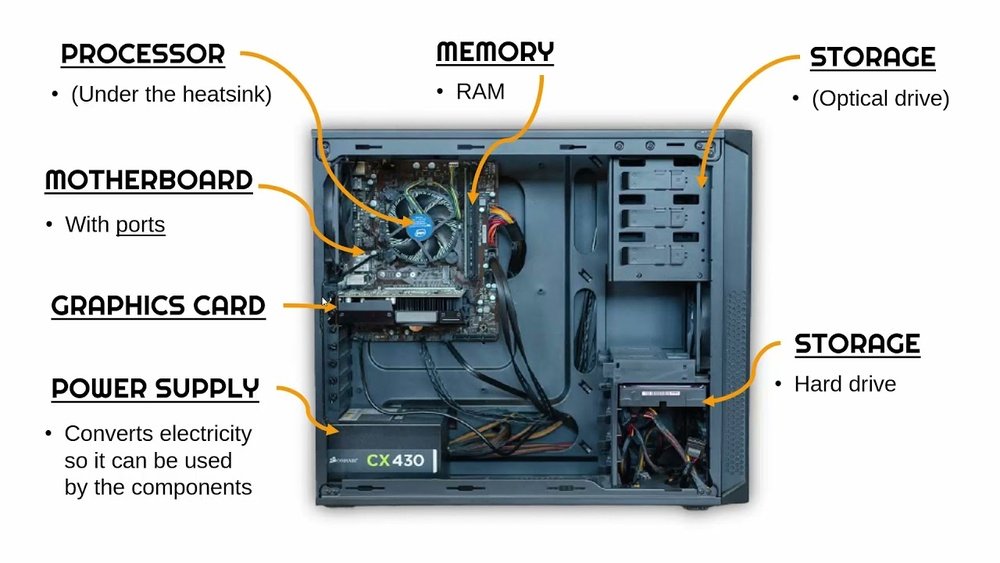
Have you ever wondered what makes your desktop PC tick? Inside that sleek case lies a world of parts working together to bring your computer to life.
Understanding these internal components can help you troubleshoot problems, upgrade your system, or simply satisfy your curiosity. You’ll discover the essential parts inside your desktop PC and learn how each one plays a vital role. Keep reading, and you’ll soon see your computer in a whole new light.
Motherboard
The motherboard is the main circuit board inside a desktop PC. It connects all the parts and allows them to work together. Think of it as the central hub. Without it, the computer cannot function.
Every component inside the PC plugs into the motherboard. It controls communication between the processor, memory, storage, and other devices. The motherboard also supplies power to these parts. It plays a key role in the computer’s overall performance.
Role And Importance
The motherboard acts as the backbone of the desktop PC. It links the CPU, RAM, and other components. This connection allows data to travel smoothly inside the computer. The speed and quality of this link affect how fast the PC runs.
It also manages power distribution to various parts. A good motherboard supports upgrades and expansions. This means users can add more memory or better graphics cards. The motherboard controls basic functions and keeps the system stable.
Key Components On The Motherboard
The central processing unit (CPU) socket holds the computer’s brain. RAM slots are where memory sticks fit to store temporary data. Expansion slots allow extra cards like graphics or sound cards.
Power connectors bring electricity from the power supply. Storage connectors link hard drives or SSDs to the system. Chipsets help manage data flow between components. BIOS chips store basic instructions to start the PC.
Ports on the motherboard connect external devices like keyboards and mice. Together, these parts create a platform for the entire desktop PC to operate smoothly.
Central Processing Unit (cpu)
The Central Processing Unit (CPU) is the brain of a desktop PC. It processes instructions and carries out tasks. Every action on your computer depends on the CPU. It controls all the other parts to work together smoothly.
Function And Types
The CPU reads and executes commands from programs. It performs calculations and manages data flow. The speed of a CPU affects how fast your computer runs.
There are different types of CPUs. Some have more cores, which help run many tasks at once. Others focus on high speed for single tasks. Common CPU brands include Intel and AMD. Each has models for basic use or powerful computing.
Cooling Solutions
CPUs generate heat while working. Too much heat can cause damage or slow down the PC. Cooling solutions keep the CPU at safe temperatures.
Most PCs use a fan and heat sink combination. The heat sink absorbs heat, and the fan blows it away. Some advanced systems use liquid cooling. This method moves heat faster and quieter than fans.
Random Access Memory (ram)
Random Access Memory, or RAM, is a key part inside a desktop PC. It acts like short-term memory for your computer. RAM stores data that the CPU needs fast access to. This helps programs run quickly and smoothly.
The more RAM your PC has, the more tasks it can handle at once. Without enough RAM, your computer slows down and struggles with multiple programs. Understanding RAM helps you know how your PC manages data.
Purpose And Capacity
RAM holds data that your PC uses right now. It works faster than hard drives or SSDs. This speed helps your computer run applications and load files quickly.
The capacity of RAM is measured in gigabytes (GB). More gigabytes mean more data can be stored temporarily. For simple tasks, 4GB may be enough. For better performance, 8GB or 16GB is common.
Types Of Ram
Several types of RAM exist for desktop PCs. The most common type today is DDR4. It is faster and uses less power than older types like DDR3.
Newer computers may use DDR5, which offers even higher speeds. Each RAM type fits specific motherboard slots. This means your PC must support the RAM type you choose.
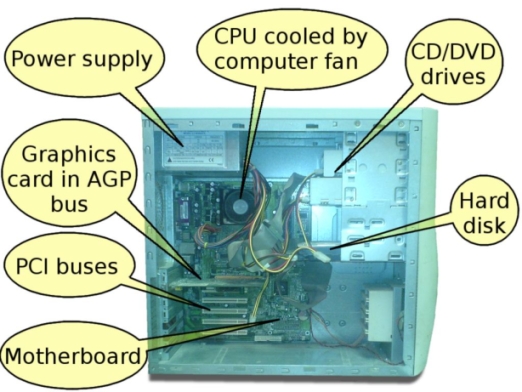
Credit: openbookproject.net
Storage Devices
Storage devices hold all your data inside a desktop PC. They save files, programs, and the operating system. Choosing the right storage affects speed and capacity. Different storage devices offer varied benefits and costs.
Hard Disk Drives (hdd)
Hard disk drives use spinning disks to store data. They offer large storage space at a low price. HDDs are slower than newer storage types. They work well for storing lots of files and backups.
Solid State Drives (ssd)
Solid state drives use flash memory to store data. SSDs are much faster than HDDs. They improve boot time and app loading speed. They cost more but provide better performance. SSDs have no moving parts, so they are quieter and more durable.
Hybrid Drives
Hybrid drives combine HDD and SSD technologies. They store often-used data on the SSD part. Less-used data stays on the larger HDD. This mix offers a balance of speed and storage. Hybrid drives are a middle ground in price and performance.
Power Supply Unit (psu)
The Power Supply Unit (PSU) is a vital part inside a desktop PC. It gives power to all other components. Without the PSU, the computer cannot work. It changes the electricity from the wall outlet into a form the PC can use. This process is called power conversion.
The PSU also protects the PC from power surges. It keeps the voltage steady and safe. A good PSU ensures the computer runs smoothly and lasts longer.
Power Delivery
The PSU sends power through different cables to parts like the motherboard, CPU, and hard drives. It must supply the right voltage and current to each part. Too much or too little power can cause damage or errors. The PSU also helps the PC start up by providing an initial surge of power.
Wattage And Efficiency
Wattage shows how much power the PSU can give. Higher wattage means it can support more or stronger parts. Efficiency means how well the PSU uses electricity without wasting it. A high-efficiency PSU saves energy and creates less heat. Look for PSUs with 80 Plus ratings for better efficiency.
Graphics Processing Unit (gpu)
The Graphics Processing Unit (GPU) is a key part inside a desktop PC. It handles images and videos. It makes the screen display smooth and clear. The GPU helps run games, videos, and graphic design programs. It works alongside the main processor but focuses on visuals. A strong GPU improves the overall computer experience.
Integrated Vs Dedicated
Integrated GPUs are built into the computer’s main processor. They share memory with the CPU. This type uses less power and space. It suits basic tasks like browsing or office work.
Dedicated GPUs are separate cards installed inside the PC. They have their own memory and power. Dedicated GPUs handle heavy tasks better. They provide faster and sharper graphics. Many gamers and designers prefer dedicated GPUs.
Gaming And Professional Use
Gaming needs high frame rates and detailed graphics. A powerful dedicated GPU meets these needs. It keeps games running smoothly without lag.
Professionals in video editing or 3D modeling need reliable GPUs. Dedicated GPUs speed up rendering and complex tasks. Integrated GPUs usually do not perform well here.
Choosing the right GPU depends on what you do. Basic users may only need integrated graphics. Gamers and professionals benefit from dedicated GPUs.
Cooling Systems
Cooling systems play a vital role inside a desktop PC. They keep the parts from getting too hot. Heat can slow down or damage the computer. Good cooling helps the PC run smoothly and last longer. Two main types of cooling systems exist: air cooling and liquid cooling. Each works in a different way to control heat.
Air Cooling
Air cooling uses fans to move air inside the PC case. The fans push hot air out and bring cool air in. Most desktop PCs come with air cooling by default. A heat sink, made of metal, sits on top of the CPU. It absorbs heat and passes it to the air. The fans then blow the heat away. This method is simple, cost-effective, and easy to maintain.
Liquid Cooling
Liquid cooling moves heat using a liquid, often water mixed with other substances. The liquid flows through tubes connected to the CPU or GPU. It carries heat away from the parts to a radiator. The radiator cools the liquid using fans. This method is more efficient than air cooling. It keeps the PC cooler and quieter. Liquid cooling suits powerful computers that generate a lot of heat.
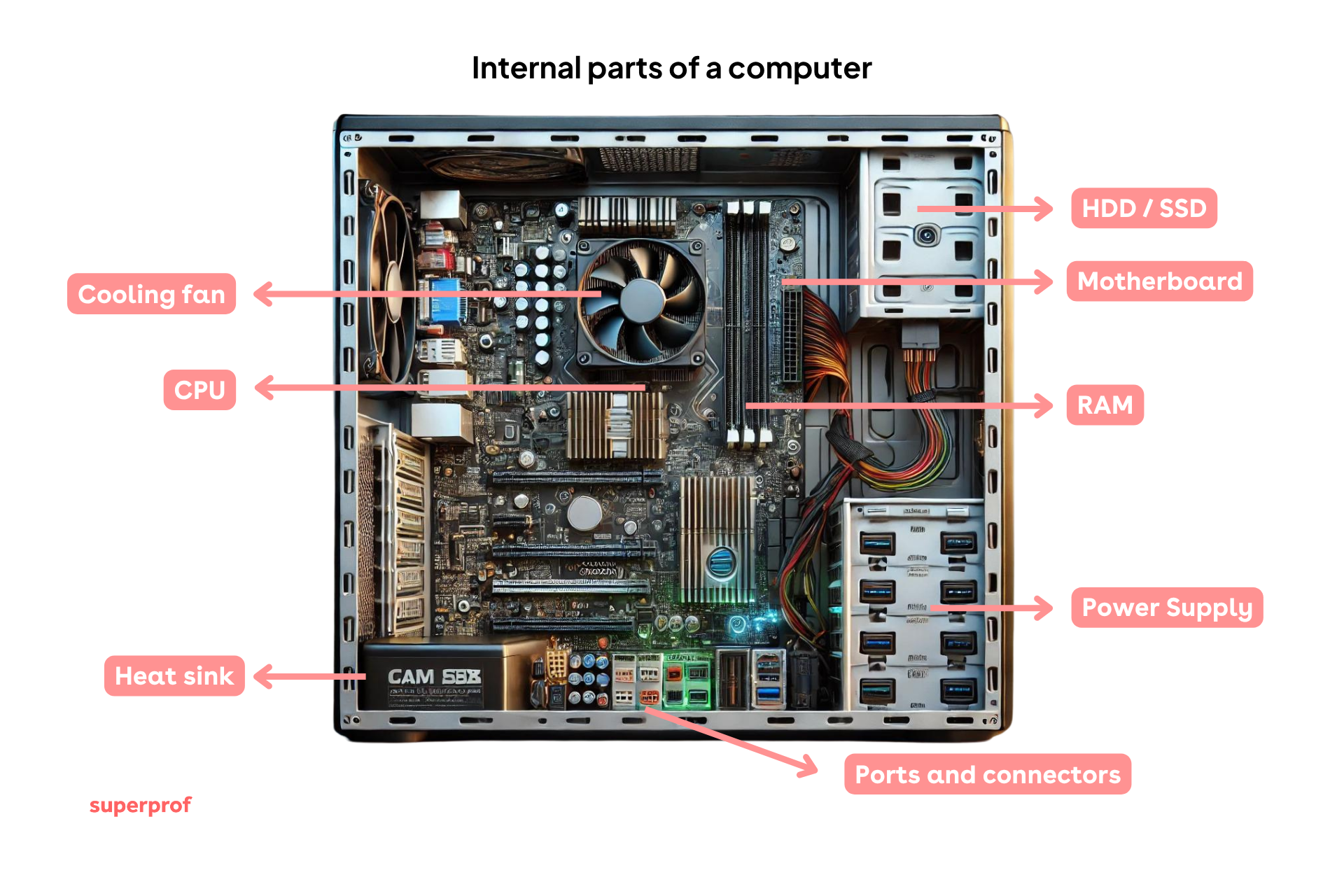
Credit: www.superprof.ca
Optical Drives
Optical drives are hardware components inside a desktop PC. They read and write data on discs like CDs, DVDs, and Blu-ray discs. These drives allow you to play movies, install software, or back up data. Though less common now, optical drives still hold a place in many computers.
Types And Uses
There are several types of optical drives. CD drives read and write compact discs for music and data. DVD drives handle DVDs, used for movies and larger software. Blu-ray drives read high-definition movies and store large files. These drives help with media playback, data storage, and software installation.
Relevance Today
Optical drives are less used today than before. Many people use USB drives or cloud storage instead. Streaming services reduce the need for physical discs. Still, optical drives are useful for older software or media. Some users prefer physical backups for important data. They remain part of many desktop PCs for these reasons.
Expansion Cards
Expansion cards are important parts inside a desktop PC. They help add new features or improve the computer’s performance. These cards fit into special slots on the motherboard. They connect directly to the system, allowing new hardware options.
Users often add expansion cards to get better graphics, sound, or network functions. They can also add extra ports or storage options. These cards make a PC more flexible and powerful. Understanding their types and how to install them helps users upgrade their machines easily.
Common Types
Graphics cards improve the display quality and speed for videos and games. Sound cards offer better audio quality than built-in sound. Network cards connect the PC to wired or wireless internet. Storage controller cards add extra hard drives or SSDs. Capture cards let users record video from other devices. Each card serves a specific function to meet user needs.
Installation And Compatibility
Expansion cards fit into PCI or PCIe slots on the motherboard. Check the motherboard manual to find the right slot type. Ensure the card size fits inside your PC case. Power supply must support the card’s energy needs. Drivers are needed for the operating system to recognize the card. Proper installation keeps the PC stable and secure. Always turn off the computer before adding or removing cards.
Cables And Connectors
Cables and connectors are the hidden heroes inside a desktop PC. They link all parts, allowing the computer to work properly. Without these connections, the PC cannot send power or data. Understanding these cables helps in building or fixing a computer. Let’s explore the main types of cables and connectors inside a desktop PC.
Power Cables
Power cables bring electricity from the power supply to each component. They connect to the motherboard, hard drives, and graphics card. These cables have different shapes and sizes to fit each part. A loose or broken power cable can stop the PC from turning on. Proper connection ensures all parts get the right power safely.
Data Cables
Data cables carry information between parts like the hard drive and motherboard. SATA cables are common for connecting storage devices. They transfer data quickly and reliably. Other data cables include ribbon cables for older drives. These cables help the computer read and write files fast.
Peripheral Connectors
Peripheral connectors link external devices like keyboards, mice, and printers. USB cables are the most popular type. They connect to ports on the motherboard or case. These connectors allow you to add many devices easily. Good connectors ensure steady communication between your PC and peripherals.
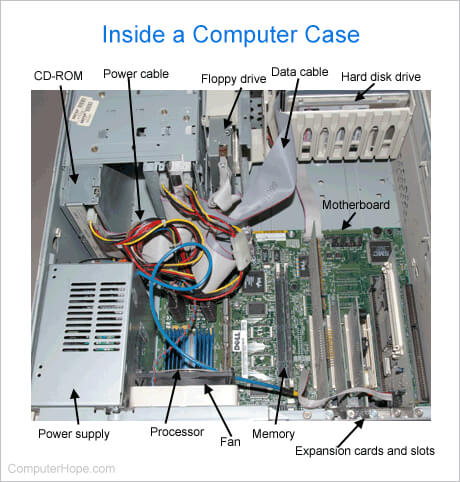
Credit: www.computerhope.com
Frequently Asked Questions
What Are The Main Internal Parts Of A Desktop Pc?
The main internal parts include the motherboard, CPU, RAM, power supply, storage drives, and GPU. These components work together to ensure the PC functions efficiently and handles various tasks.
How Does The Motherboard Support Desktop Pc Functions?
The motherboard connects all internal parts, allowing communication between the CPU, RAM, storage, and peripherals. It distributes power and data signals, enabling the PC to operate smoothly.
Why Is The Cpu Important Inside A Desktop Pc?
The CPU acts as the brain of the desktop PC. It processes instructions, runs applications, and manages system operations, directly impacting the computer’s performance and speed.
What Role Does Ram Play In A Desktop Pc?
RAM temporarily stores data for quick access by the CPU. It improves multitasking and overall system responsiveness by holding active programs and files during use.
Conclusion
Understanding the internal parts of a desktop PC helps you know how it works. Each part plays a clear role, from the motherboard to the hard drive. Knowing these pieces makes it easier to fix or upgrade your computer. This knowledge also helps you choose the right parts when buying.
A desktop PC is more than just a box; it’s a team of parts working together. Keep learning about these components to feel more confident with your computer. Simple steps make technology less confusing and more useful.
