
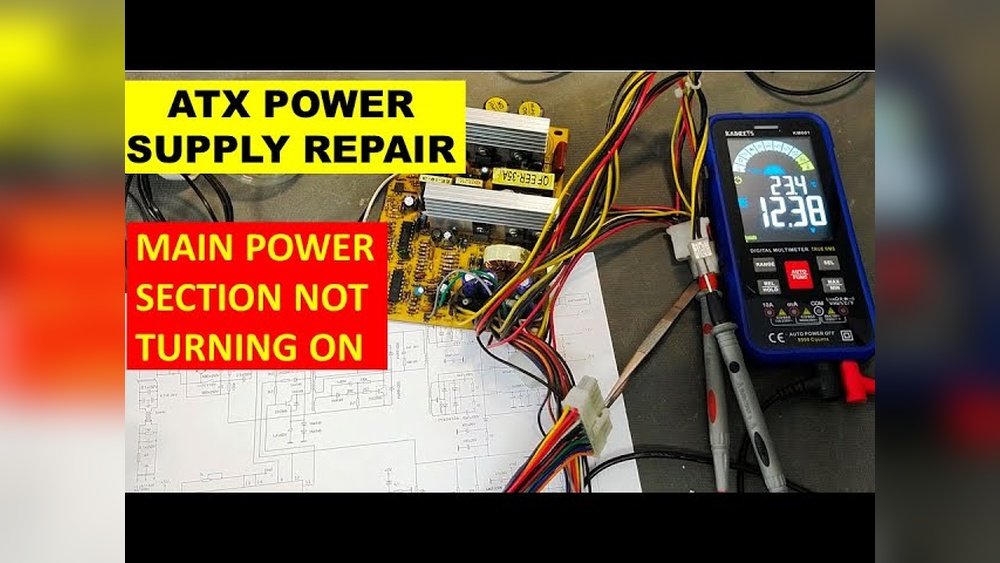
Is your PC refusing to start, leaving you frustrated and stuck? One common culprit could be your power supply not turning on.
Without power, your computer won’t boot, and you can’t get anything done. But don’t worry—this problem is often easier to fix than you think. You’ll discover simple steps to diagnose and solve your power supply issues quickly. Keep reading, and you’ll have your PC up and running in no time.
Common Power Supply Issues
Power supply problems are a common cause when a PC does not turn on. The power supply unit (PSU) sends electricity to all parts of your computer. If it fails, your PC may not start or might shut down unexpectedly.
Identifying the issue early can save time and money. Recognizing common power supply problems helps to fix the PC quickly. Below are signs and causes of power supply failure.
Signs Of A Faulty Power Supply
Your computer may show clear signs if the power supply is faulty. One sign is the PC not turning on at all. Another sign is sudden shutdowns during use. You might also hear strange noises from the PSU. Burning smells or visible smoke indicate serious trouble. The PC might restart without warning or fail to boot properly.
Causes Of Power Supply Failure
Power supplies can fail due to several reasons. Overheating is a common cause, often from dust blocking vents. Using a low-quality or old PSU increases failure risk. Power surges or electrical spikes can damage the unit. Poor ventilation inside the PC case also causes heat build-up. Loose or damaged cables prevent proper power flow. Knowing these causes helps in preventing future failures.
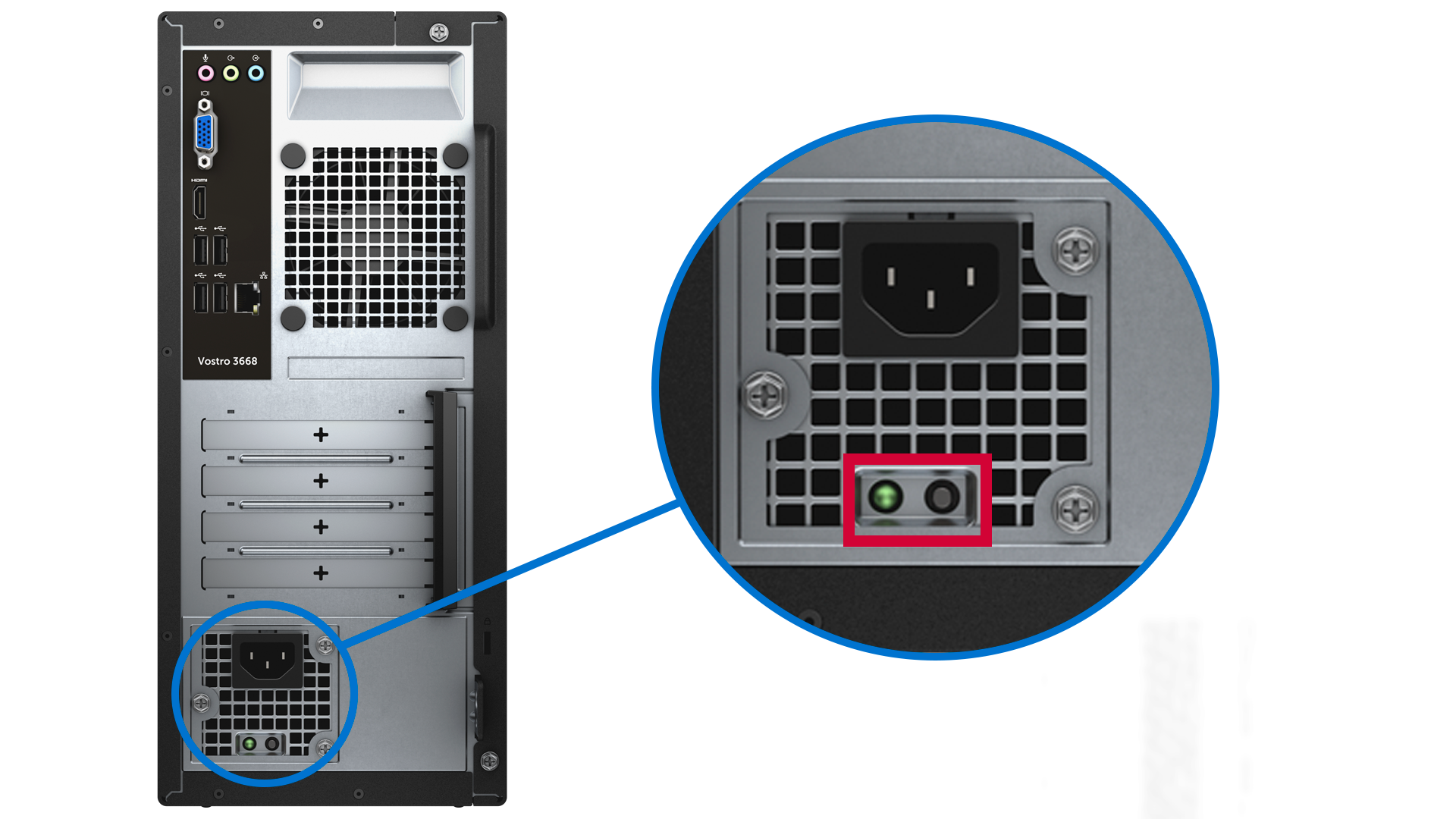
Credit: www.dell.com
Initial Troubleshooting Steps
When your PC does not turn on, start with basic checks. These simple steps save time and effort. They help find easy fixes before deeper troubleshooting.
Follow these initial steps carefully. They cover the most common causes of power issues.
Check Power Connections
Make sure the power cable is firmly plugged into the PC and wall socket. Loose connections often stop power flow. Look at both ends of the cable. Confirm the cable has no visible damage. If possible, use a different power cord to test.
Test The Power Outlet
Verify the outlet works by plugging in another device. A lamp or phone charger works well. If the other device does not power on, the outlet may be faulty. Try a different outlet in the room. Avoid using power strips or extension cords for testing.
Inspect The Power Button
Press the PC’s power button firmly and hold for a few seconds. Sometimes, dust or debris causes it to stick. Check if the button feels loose or stuck. Clean around the button with a soft brush. If the button does not click or feels broken, it may need repair.
Testing The Power Supply Unit
Testing the power supply unit (PSU) helps find out if it works well. This step is important when your PC does not turn on. A faulty PSU stops power from reaching the computer parts.
There are simple ways to check the PSU. Each method uses different tools. These tests show if the PSU can provide power safely.
Using A Paperclip Test
The paperclip test is a quick way to check the PSU. Unplug the PSU from the computer. Find the 24-pin connector that plugs into the motherboard.
Bend a paperclip into a U shape. Insert one end into the green wire pin. Put the other end into any black wire pin. This connects the PSU to power on without the motherboard.
Turn on the PSU switch. The PSU fan should start spinning. If the fan moves, the PSU gets power. If not, the PSU may be broken.
Employing A Multimeter
A multimeter measures the voltage output from the PSU. Set the multimeter to DC voltage mode. Connect the PSU to power but keep it unplugged from the PC.
Touch the red probe to the yellow wire pin on the 24-pin connector. Touch the black probe to any black wire pin. The multimeter should show about 12 volts.
Check the red wires for 5 volts and orange wires for 3.3 volts. These readings tell if the PSU supplies correct power levels.
Using A Psu Tester
A PSU tester is a tool made for testing power supplies. Connect the PSU cables to the tester slots. Turn on the PSU and the tester.
The tester shows if all voltages are within safe ranges. It also alerts for short circuits or bad connections.
This method is easy and safe for beginners. PSU testers give clear results fast.
Fixing Common Power Supply Problems
Power supply issues are a common reason for a PC not turning on. Many problems come from simple mistakes or dirt. Fixing these issues can save money and time. It helps to know the easy steps to check and fix power supply problems. These steps cover checking cables and cleaning inside the PC.
Reseating Power Cables
Loose cables stop power from reaching the PC. Unplug each cable from the power supply and motherboard. Then, push them back in firmly. Check the main power cable from the wall to the power supply. Make sure all plugs fit tightly. This simple step often solves the problem.
Replacing Faulty Cables
Power cables can get damaged or broken over time. Look for cuts, bends, or worn spots on the cables. Replace any cable that looks bad. Use cables that match your power supply’s specifications. Using the right cables keeps your PC safe and working well.
Cleaning Dust And Debris
Dust blocks airflow and causes overheating. Open the PC case carefully. Use a soft brush or compressed air to clean dust from the power supply and fan. Do not touch the inside parts with bare hands. Clean parts help the power supply work better and last longer.
When To Replace The Power Supply
Knowing when to replace your power supply is key to keeping your PC running. A faulty power supply can stop your computer from turning on. This causes frustration and delays in your work or play. Recognizing the right time for a replacement saves you from bigger problems later.
Power supplies do not last forever. Over time, they wear out or fail due to age or electrical issues. Early signs of trouble can help you act before your PC stops working completely. Being aware of these signs and choosing the right replacement is important.
Signs Replacement Is Needed
Your PC may show signs if the power supply is failing. The computer might not start or shut down randomly. You could hear strange noises like buzzing or clicking from inside the case. The PC may also restart by itself or freeze during use.
Another sign is overheating. If your power supply feels very hot, it may be near the end of its life. Burning smells or visible damage on the power supply also mean it needs replacing. These signs should not be ignored.
Choosing A Compatible Psu
Choosing the right power supply unit (PSU) is crucial for your PC’s health. Check the wattage your computer parts need. A power supply with too little power will cause problems. Too much power is not efficient and costs more.
Look at the connectors needed for your motherboard and other parts. The PSU must match these connectors to work properly. Also, pick a power supply from a trusted brand. Quality matters for safety and long-term use.
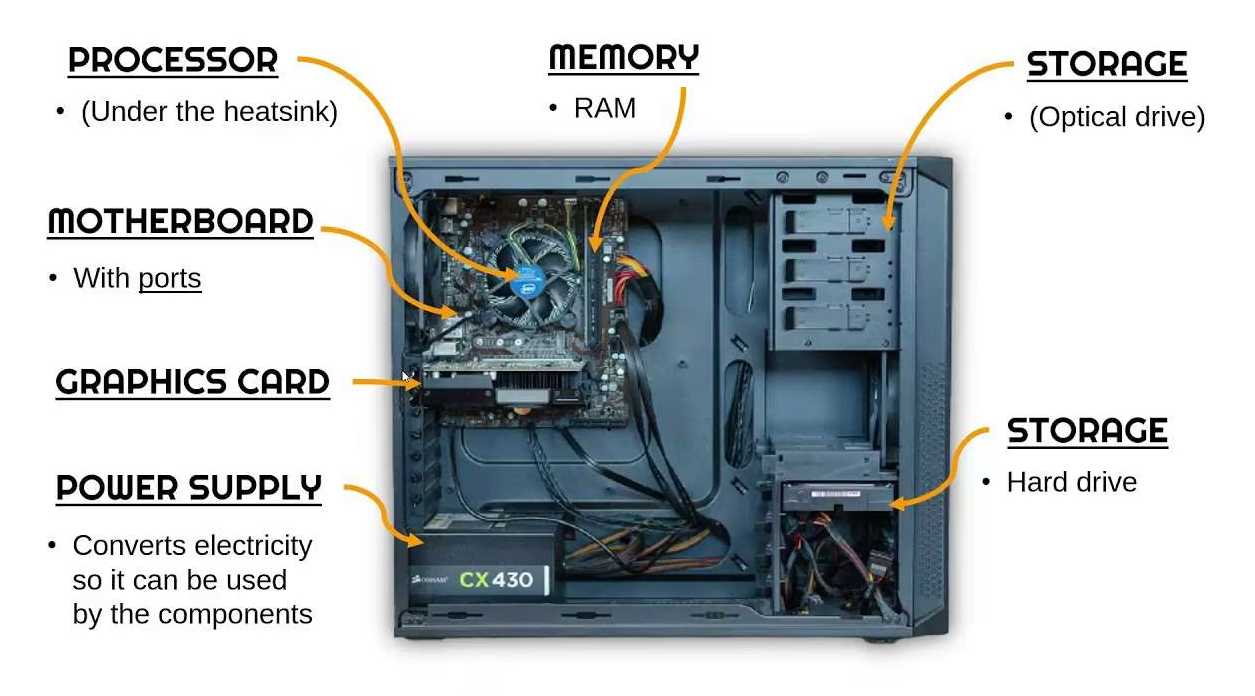
Credit: gamemaxpc.com
Preventive Measures
Preventive measures help keep your PC’s power supply safe and working well. Small steps can stop big problems. Taking care of your power supply can extend your PC’s life. Avoid stress and costly repairs by being careful today.
Using Surge Protectors
Surge protectors stop sudden power spikes from damaging your PC. They act like a shield between your power source and computer. Plug your PC into a good surge protector to avoid power surges. This simple tool can save your power supply and other parts. Choose surge protectors with enough joules rating for better protection.
Regular Maintenance Tips
Clean your PC regularly to keep the power supply cool. Dust and dirt block airflow and cause overheating. Use a soft brush or compressed air to remove dust from vents and fans. Check power cables for damage or loose connections often. Replace any worn cables to avoid shorts or power loss. Keep your PC in a dry, cool place to prevent moisture damage.

Credit: www.oceantele.com
Frequently Asked Questions
Why Is My Power Supply Not Turning On My Pc?
Your power supply may be faulty, unplugged, or the power switch is off. Check connections and test the PSU.
How To Test If Power Supply Is Working?
Use a PSU tester or paperclip method to check power output. If no fan or lights, PSU may be dead.
Can A Faulty Power Supply Damage Pc Components?
Yes, a bad PSU can harm your motherboard, CPU, and storage devices. Replace it promptly to avoid damage.
What Are Common Signs Of A Bad Power Supply?
PC won’t start, random shutdowns, burning smell, or no fan noise indicate PSU issues. Troubleshoot or replace it.
Conclusion
Fixing a power supply that won’t turn on can save time and money. Check all cables and connections carefully. Test the power button and internal parts step by step. Sometimes, a simple reset or replacement solves the problem. Staying patient helps you find the exact issue.
Keep safety in mind while working inside your PC. With these tips, your computer can start running again soon. Don’t give up—small fixes often make a big difference.
