
Your PC turns on, but the screen stays black. It’s frustrating, confusing, and can make you feel stuck.
You wonder if your computer is broken or if there’s a simple fix. The good news? Most of the time, this problem isn’t as serious as it seems. You’ll discover easy steps to bring your display back to life. Keep reading, and you’ll learn how to solve the “no display” issue quickly—without needing to be a tech expert.
Don’t let a blank screen stop you from using your PC. Let’s get it working again!
Check Power And Connections
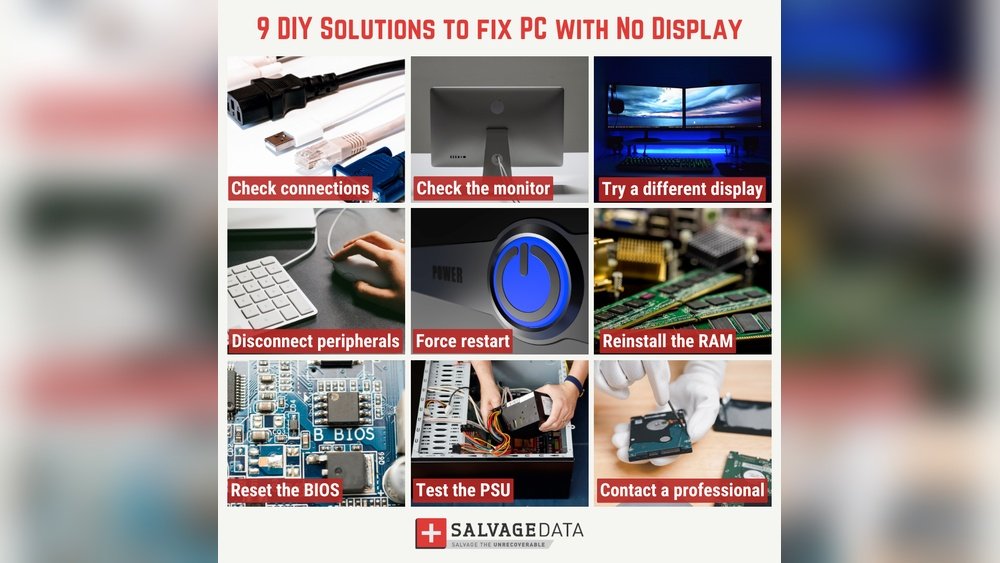
When a PC turns on but shows no display, the first step is to check power and connections. This is a common cause of display issues. Ensuring everything is properly connected and powered can solve the problem quickly.
Loose cables or power problems often stop the monitor from showing anything. You can fix many issues by verifying power and checking all connections carefully.
Verify Power Supply
Check if the power cable is plugged into the PC and the wall socket. Make sure the socket has power by testing with another device. Confirm the power button on the PC is pressed firmly. Also, look for any lights on the PC indicating it gets power. No lights might mean a power supply problem.
Inspect Monitor Connections
Look closely at the cable connecting the monitor to the PC. The cable should be fully inserted into both the monitor and the PC ports. Remove and reinsert the cable to ensure a solid connection. Check the monitor’s power cable and power button too. A monitor without power will not display anything.
Test Different Cables
Try using a different video cable to rule out a faulty cable. Swap HDMI with DisplayPort or VGA if available. Use a known working cable from another device if possible. Different cables help identify if the problem lies in the connection or hardware.

Credit: www.wikihow.com
Diagnose Hardware Issues
Diagnosing hardware issues is a key step when your PC turns on but shows no display. It helps find the exact problem inside the computer. This way, you avoid guessing and wasting time. Simple checks often solve the issue quickly. Follow these steps to inspect your PC parts safely and effectively.
Reseat Ram And Components
RAM and other parts can loosen over time. This causes your PC to power on without a display. Turn off your PC and unplug it. Open the case carefully. Remove the RAM sticks by unlocking the side clips. Clean the RAM contacts gently with a soft cloth. Insert them back firmly until the clips click. Check other components like the CPU cooler and cables too. Make sure everything fits tightly in its slot.
Check Graphics Card
The graphics card might be the reason for no display. Ensure it is seated properly in its slot. Remove it and check for dust or dirt. Clean the card and the slot with compressed air. Reinstall the card securely. Also, check if the power cable connects to the graphics card. A loose or missing cable can stop the display from working.
Listen For Beep Codes
Beep codes are sounds your PC makes to signal hardware problems. If your PC has a speaker, listen carefully after turning it on. Different beep patterns mean different issues. For example, one beep usually means everything is okay. Multiple beeps can indicate RAM or graphics card problems. Check your motherboard manual or website for beep code meanings. This helps identify the faulty part fast.
Reset Bios And Cmos
Resetting the BIOS and CMOS can fix many display issues. These settings control how your PC starts and works. Sometimes, wrong settings stop the screen from showing anything. Resetting them clears errors and returns the system to default. This step is easy and safe. It often solves the problem of no display after turning on the PC.
Clear Cmos Battery
Locate the CMOS battery on your motherboard. It looks like a small, silver coin. Turn off the PC and unplug it first. Remove the battery carefully using your fingers or a small tool. Wait for about five minutes to clear the stored data. Put the battery back in its place. Plug in the PC and turn it on. This clears old settings and can fix the no display issue.
Use Bios Reset Jumper
Find the BIOS reset jumper on the motherboard. It is a small set of pins labeled CLEAR, CLR CMOS, or JBAT1. Turn off and unplug your PC. Move the jumper from its default position to the reset position. Hold it there for a few seconds. Then, return it to the original spot. Plug in and power on the PC. This method resets BIOS settings and may restore the display.
Credit: www.securedatarecovery.com
Test With External Display
Testing your PC with an external display helps find the cause of no display issues. This step shows if the problem is with your monitor or the computer’s graphics. Connecting to another screen can quickly tell if the PC’s video output works correctly. It is an easy test you can do at home without special tools.
Connect To Another Monitor
Use a different monitor or TV to check your PC’s display. Plug the PC into this new screen and turn it on. If the external display shows the desktop, your original monitor might be faulty. This test helps separate monitor problems from PC issues.
Use Hdmi Or Vga Alternatives
Try different cables like HDMI or VGA to connect the PC to the monitor. Sometimes, the cable or port is the cause of no display. Swap the cable and test again. Using another video output option can fix the display problem quickly.
Update Or Reinstall Drivers
Updating or reinstalling drivers can solve the problem of your PC turning on but showing no display. Drivers help your computer communicate with hardware like the graphics card. Outdated or corrupted drivers may stop the display from working. Fixing this issue often requires updating or reinstalling these drivers. Follow the steps below carefully to restore your display.
Boot In Safe Mode
Safe Mode starts your PC with only basic drivers. This mode helps fix driver issues without interference. To enter Safe Mode, restart your PC and press the F8 key repeatedly. Choose “Safe Mode” from the menu. Once in Safe Mode, you can update or reinstall drivers safely. This prevents conflicts with faulty drivers during normal startup.
Install Latest Graphics Drivers
Old or damaged graphics drivers can cause no display problems. Visit the official website of your graphics card maker. Download the latest drivers that match your card model and Windows version. Run the installer and follow on-screen instructions. Restart your PC after installation. This often restores your display and improves performance.

Credit: www.youtube.com
Check For Software Conflicts
Software conflicts can cause your PC to turn on but show no display. This problem often happens when programs or updates clash with your system. Checking for these conflicts helps find the root cause. Fixing them can restore your screen quickly.
Scan For Malware
Malware can stop your display from working properly. Run a full scan using trusted antivirus software. Remove any detected threats immediately. Malware might block essential system files or drivers. This can cause the screen to remain blank even though the PC powers on.
Remove Recent Updates
Sometimes, new updates cause display issues. Uninstall recent Windows or driver updates one by one. Restart your PC after each removal. This helps identify if an update caused the problem. Rollback to a previous stable version if needed.
Seek Professional Help
Sometimes, fixing a PC with no display requires expert help. Professionals have the right tools and knowledge. They can find problems that are hard to see. This saves time and avoids more damage. Seeking professional help ensures your PC gets proper care.
Contact Support Services
Many PC makers offer support by phone or online chat. Support staff guide you through simple checks. They help decide if the issue needs repair. Keep your PC details ready for faster service. Support services can save you from unnecessary costs.
Visit Repair Center
Taking your PC to a repair center is a smart choice. Technicians inspect hardware and software closely. They use special tools to find hidden faults. Repair centers offer quick fixes and part replacements. Trusting experts helps bring your PC back to life safely.
Frequently Asked Questions
Why Does My Pc Turn On But Show No Display?
This usually happens due to loose cables, faulty GPU, or RAM issues. Check connections, reseat components, and test with another monitor to diagnose.
How Can I Fix No Display After Powering Pc On?
Start by resetting the RAM and GPU. Ensure the monitor is correctly connected and powered. Update BIOS if needed and test hardware individually.
Can A Faulty Graphics Card Cause No Display On Startup?
Yes, a malfunctioning graphics card often causes no display. Try reseating or replacing the GPU to see if that resolves the issue.
Does Ram Failure Lead To Pc Turning On With No Display?
Faulty or improperly seated RAM can cause no display. Remove and reinstall RAM sticks or test with one stick to identify problems.
Conclusion
A PC that turns on but shows no display can be fixed. Check cables and connections first. Test the monitor with another device. Reset or replace hardware parts if needed. Keep calm and follow each step carefully. Small issues often cause big problems.
Troubleshooting helps avoid costly repairs. Stay patient and try again. Your screen should work soon.
