

Is your PC taking forever to start up? It’s frustrating when you just want to get things done, but your computer keeps slowing you down.
You’re not alone, and the good news is, you don’t have to live with this problem. In this post, you’ll discover simple, effective fixes that can speed up your boot time and get your PC running smoothly again. Keep reading, because your frustration ends here.
Common Causes Of Slow Boot
Slow boot times can frustrate many PC users. Understanding the common causes helps fix the problem faster. Several factors, from hardware to software, may delay your PC’s startup. Identifying these issues is the first step toward a quicker boot.
Hardware Issues
Old or failing hardware often slows down boot times. A worn-out hard drive can delay loading your operating system. Insufficient RAM makes the system struggle during startup. Dust and overheating may also affect hardware performance.
Software Conflicts
Conflicts between programs can cause slow boot. Some software may not work well together. Outdated drivers or system files can trigger errors. These issues make Windows take longer to load properly.
Startup Program Overload
Many programs set themselves to start with Windows. Too many startup apps use system resources at boot. This overload slows down the process significantly. Managing startup programs can improve boot speed.
Malware And Viruses
Malware or viruses harm your PC’s performance. They run hidden tasks during startup. These malicious programs consume CPU and memory. Scanning and removing malware can speed up boot times.
Check And Update Bios
Checking and updating your BIOS can help fix a slow booting PC. BIOS controls the basic functions of your computer. An outdated BIOS may cause delays during startup. Updating it can improve speed and system stability. This process needs care, but it can be done easily by following clear steps.
Accessing Bios Settings
To access BIOS, restart your computer. Press the BIOS key during startup. Common keys are F2, Delete, or Esc. Your screen may show which key to press. Enter the BIOS menu carefully. Use arrow keys to navigate options. Avoid changing settings without knowing their purpose. Find the BIOS version on the main screen. Note this version to check if an update is needed.
Updating Bios Firmware
Visit the motherboard or PC maker’s website. Search for your model and BIOS updates. Download the latest BIOS file carefully. Read instructions from the manufacturer before proceeding. Use a USB drive to copy the update file. Restart your PC and enter BIOS again. Find the update or flash BIOS option. Follow on-screen steps to complete the update. Do not turn off your PC during the update. After the update, your PC will restart. Check if the boot time improves after updating.
Manage Startup Programs
Managing startup programs is a key step to speed up your PC boot time. Many programs launch automatically when you turn on your computer. These programs consume system resources and slow down the startup process. Controlling which programs start with your PC can make it boot faster and run smoother.
Identifying Unnecessary Programs
Some programs start automatically but are not needed right away. These programs run in the background and use memory and CPU power. Look for apps you rarely use or do not need at startup. Examples include chat apps, update checkers, or software that runs only sometimes. Identifying these helps you decide which programs to disable.
Disabling Startup Items
Disabling unnecessary startup programs is simple and effective. Open the Task Manager by pressing Ctrl + Shift + Esc. Click the Startup tab to see all programs that run at boot. Select programs you identified as unnecessary. Click Disable to stop them from launching automatically. This action frees up resources and speeds up your PC boot time.
Optimize Hard Drive
Optimizing your hard drive helps speed up your PC’s boot time. A cluttered or slow hard drive can delay startup. Simple steps can make your drive work better and faster. This section covers easy ways to optimize your hard drive.
Disk Cleanup
Disk Cleanup removes old files and frees up space on your drive. Temporary files, system cache, and recycle bin items slow down your PC. Running Disk Cleanup clears these unnecessary files. This makes your hard drive lighter and quicker to access data.
Defragmentation
Defragmentation rearranges scattered data on your hard drive. Over time, files get broken into pieces and stored in different places. Defragmenting puts these pieces back together. This reduces the time your PC takes to find files during boot. It works best on traditional hard drives, not SSDs.
Switching To Ssd
Switching from a hard disk drive (HDD) to a solid-state drive (SSD) greatly improves boot speed. SSDs have no moving parts and access data much faster. Your PC starts in seconds instead of minutes. Installing your operating system on an SSD provides the biggest boost to boot times.
Scan For Malware
Malware can slow down your PC and make it take a long time to boot. Scanning for malware helps find hidden threats that affect system speed. Removing these threats can improve boot time and overall performance.
Using Antivirus Software
Choose reliable antivirus software to scan your PC. Install the software and update it to the latest version. Run a full system scan to check all files and programs. The scan will find viruses, spyware, and other malware. Wait for the scan to finish without stopping it.
Removing Detected Threats
After the scan, review the list of detected threats. Follow the antivirus instructions to remove or quarantine them. Restart your PC to complete the cleaning process. This step helps your computer boot faster and run smoothly.

Credit: www.youtube.com
Update Operating System And Drivers
Updating your operating system and drivers is important to fix slow PC boot times. New updates often improve system speed and fix bugs. Keeping your software current helps your computer run smoothly. It also protects your PC from security risks.
Checking For Windows Updates
Start by checking for Windows updates. Open the Settings app and select “Update & Security.” Click on “Check for updates.” Windows will find and download new updates automatically. Install all available updates to improve system performance. Restart your PC after installing updates to apply changes.
Updating Device Drivers
Device drivers control hardware functions. Outdated drivers can slow your computer. Use Device Manager to update drivers. Right-click the Start button and choose “Device Manager.” Find the device with old drivers. Right-click it and select “Update driver.” Choose “Search automatically for updated driver software.” Windows will find and install the latest drivers. Restart your PC after updating drivers for best results.
Adjust Power Settings
Adjusting power settings can speed up your PC’s boot time. Many computers use balanced power plans to save energy. These plans can slow startup by limiting resources. Changing these settings helps your PC start faster and run smoother.
Choosing High Performance Mode
High Performance mode uses more power but boosts speed. It keeps your CPU running at full power. This reduces delays during startup. To select it, open Control Panel and find Power Options. Choose High Performance to improve boot time.
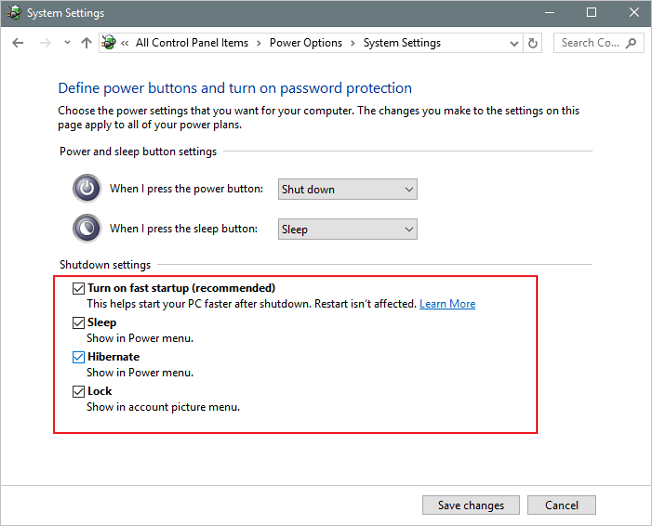
Configuring Sleep And Hibernate
Sleep and Hibernate save power but may slow startup. Sleep keeps data in memory but uses some power. Hibernate saves data to disk and fully powers off. Disabling or adjusting these can help your PC boot faster. Set longer timers or turn them off in Power Options.
Credit: www.easeus.com
Perform System File Check
Performing a system file check helps fix slow PC boot problems. It scans your computer for damaged or missing system files. These files control many parts of Windows, including startup processes. If they are corrupted, your PC may take longer to start. Running a system file check finds these errors and repairs them. This step often speeds up boot time and improves overall system stability.
Running Sfc Scan
Start by opening the Command Prompt as an administrator. Type sfc /scannow and press Enter. The scan will check all protected system files. It may take some time to finish. Do not close the window while scanning. The tool will list any problems found during the scan.
Repairing Corrupted Files
If the scan finds corrupted files, it will try to fix them automatically. The repair process replaces bad files with good copies. Sometimes, a restart is needed to complete the repair. After the fix, your PC should boot faster. Running this check regularly keeps your system healthy and smooth.
Reset Or Reinstall Windows
Resetting or reinstalling Windows can help fix a slow booting PC. Over time, your system accumulates files and settings that can slow it down. A reset or clean installation gives your computer a fresh start.
This method removes errors and unwanted programs. It often improves boot time significantly. Choose the right option based on your situation.
When To Reset
Reset Windows if your PC boots slowly but still works. This option keeps your personal files. It removes apps and settings that may cause problems.
Use reset if you want to fix issues without losing data. It saves time compared to a full reinstall. Try reset before choosing a clean installation.
Clean Installation Steps
Perform a clean installation when reset does not help. This removes everything from your drive. It installs a fresh copy of Windows.
First, back up all important files. Next, create a Windows installation USB drive using Microsoft’s tool. Insert the USB and restart your PC.
Enter the BIOS menu and set USB as the first boot device. Save changes and restart again. Follow the on-screen instructions to install Windows.
Choose “Custom Install” and delete old partitions. Then select unallocated space to install Windows. Wait for the process to finish and set up your PC.
Credit: www.youtube.com
Frequently Asked Questions
Why Does My Pc Take Long To Boot?
A slow boot can result from too many startup programs, outdated drivers, or fragmented files. Malware and insufficient RAM also cause delays. Cleaning startup items and updating software often speeds up boot time significantly.
How To Fix Slow Pc Boot Times Effectively?
To fix slow boot, disable unnecessary startup programs via Task Manager. Run disk cleanup and update drivers. Scan for malware and consider upgrading hardware like SSD or RAM for a faster boot experience.
Can Malware Cause My Pc To Boot Slowly?
Yes, malware can consume resources and slow down boot time. Running a full antivirus scan helps detect and remove malicious software, improving startup speed and overall system performance.
Does Upgrading To Ssd Improve Boot Speed?
Upgrading to an SSD significantly improves boot times. SSDs have faster read/write speeds compared to HDDs, reducing the time your PC takes to load the operating system and applications on startup.
Conclusion
A slow PC boot can waste your time every day. Fixing it helps your computer start faster and work better. Simple steps like cleaning startup programs or checking your hardware make a big difference. Regular care keeps your PC running smooth and quick.
Don’t ignore the signs of a slow boot. Act now to enjoy a faster, more reliable computer experience. Small fixes bring big improvements. Your PC will thank you.
