
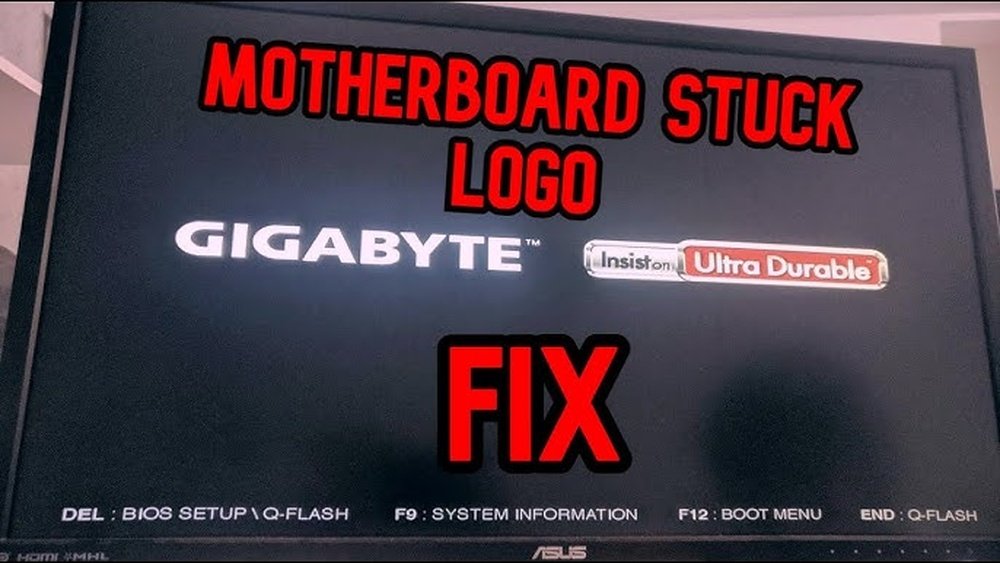
Is your PC stuck on the motherboard logo screen? It’s frustrating when your computer won’t move past this simple image, leaving you stuck and unsure what to do next.
But don’t worry—you’re not alone, and there are clear steps you can take to fix this issue. You’ll discover easy solutions to get your PC running smoothly again. Keep reading, because the fix might be simpler than you think.
Common Causes Of Boot Freeze
When your PC gets stuck on the motherboard logo, it means the boot process is freezing early. This issue stops your computer from starting up normally. Several common causes can lead to this problem. Understanding these causes helps you fix the freeze faster and get your PC running again.
Hardware Issues
Hardware problems often cause boot freezes. Faulty RAM or a damaged hard drive can stop the system from loading. Loose cables and poorly connected components also create issues. Overheating parts or a failing power supply can interrupt startup. Checking all hardware connections and running diagnostic tests helps find the problem.
Bios Settings
Incorrect BIOS settings can block the boot process. Wrong boot order or disabled devices can cause the freeze. An outdated BIOS version may not support new hardware. Resetting BIOS to default settings often fixes the issue. Updating BIOS can improve compatibility and solve startup problems.
Peripheral Conflicts
Connected devices like USB drives or external keyboards may cause conflicts. Some peripherals might not work well during startup. Disconnecting all external devices helps identify the faulty one. Removing or replacing problem peripherals can clear the freeze and allow booting.
Corrupted System Files
System files are crucial for Windows to start. Corruption or missing files stop the boot process. Malware, abrupt shutdowns, or bad updates cause file damage. Repairing system files using built-in tools like SFC or DISM can fix the problem. Sometimes, a clean install of Windows is needed.

Credit: www.reddit.com
Basic Troubleshooting Steps
When a PC gets stuck on the motherboard logo, basic troubleshooting is the first step. These simple actions can help identify and fix common issues. Start with these easy checks before moving to advanced solutions.
Power Cycle The Pc
Turn off your PC completely. Unplug it from the power source. Wait for about one minute. Press and hold the power button for 10 seconds to drain leftover power. Plug the PC back in and turn it on. This can clear temporary hardware glitches.
Disconnect External Devices
Remove all USB devices, printers, and other peripherals. Sometimes, external devices cause startup conflicts. After disconnecting, restart your PC. If it boots normally, one device might be causing the problem. Reconnect devices one by one to find the faulty one.
Check Hardware Connections
Open the PC case carefully. Check if the RAM sticks are firmly in their slots. Make sure the graphics card and other components are seated properly. Look for loose cables or connectors on the motherboard. Secure all connections before closing the case and restarting.
Resetting Bios To Default
Resetting the BIOS to default settings often solves the problem of a PC stuck on the motherboard logo. BIOS controls the basic functions of your computer. Sometimes, incorrect settings cause the PC to freeze during startup.
Resetting BIOS clears these settings and restores factory defaults. This process can fix boot issues without needing to replace hardware. There are three common ways to reset BIOS to default.
Accessing Bios Menu
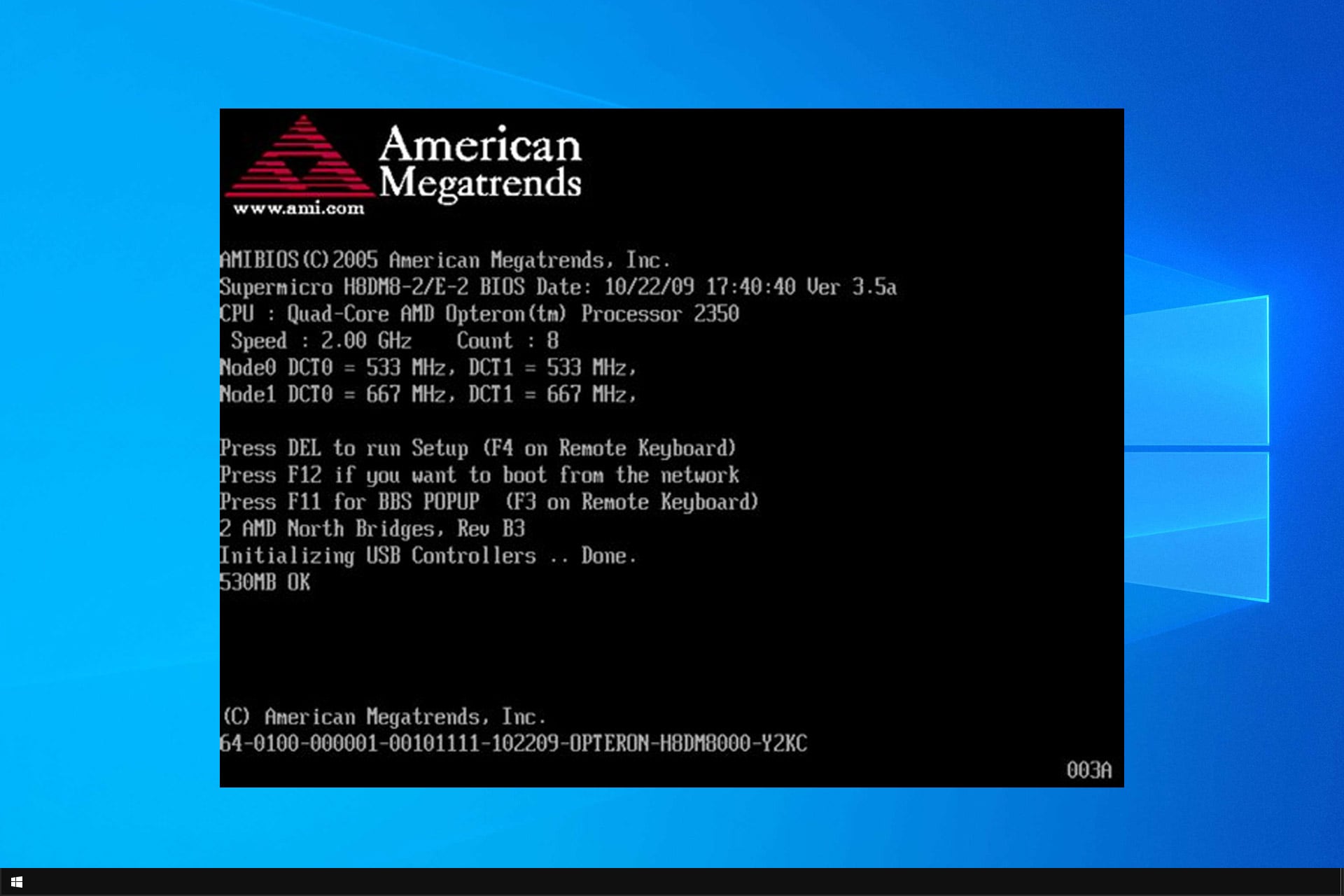
Turn off your PC and turn it back on. Press the BIOS key repeatedly. Common keys are Delete, F2, or F10. The screen will show the BIOS setup menu.
Look for an option like “Load Default Settings” or “Restore Defaults.” Select this option and confirm your choice. Save changes and exit BIOS. Your PC will restart with default settings.
Using Cmos Battery Removal
Turn off your PC and unplug it from power. Open the case to access the motherboard. Find the small, round CMOS battery. It looks like a coin.
Carefully remove the battery. Wait for about 5 minutes. This will clear the BIOS settings. Place the battery back into its slot. Close the case and power on your PC.
Using Jumper Reset Method
Turn off the PC and unplug it. Open the case to find the motherboard jumper. It is near the CMOS battery and labeled “CLR_CMOS” or “RESET.”
Move the jumper from the default pins to the reset pins. Wait 10-15 seconds. Move the jumper back to the original position. Close the case and turn on the PC.
Updating Or Reflashing Bios
Updating or reflashing the BIOS can fix a PC stuck on the motherboard logo. BIOS controls basic hardware settings needed for the PC to start. An outdated or corrupted BIOS may cause startup problems. Reflashing BIOS means rewriting the BIOS software to fix bugs or add support for new hardware.
Checking Current Bios Version
First, find the current BIOS version on your PC. Restart the computer and enter BIOS setup by pressing a key like F2, DEL, or ESC. The BIOS version is usually shown on the main screen or under system information. Write down the version number to compare with the latest update available.
Downloading Bios Update
Visit the motherboard manufacturer’s official website. Search for your motherboard model in the support or downloads section. Download the latest BIOS update file carefully. Check the release notes to see if the update fixes your issue. Always download updates from trusted sources only.
Safe Bios Update Procedures
Backup important files before starting the update. Use a reliable power source to avoid shutdowns during updating. Follow the manufacturer’s guide step-by-step. Some BIOS updates run from USB drives, others from Windows software. Do not turn off the PC or interrupt the process. Wait until the update finishes and the PC restarts automatically.
Testing And Reseating Hardware
Testing and reseating hardware can fix a PC stuck on the motherboard logo. Loose or faulty parts often cause this problem. Checking each component helps find the issue quickly. Simple steps can solve hardware connection problems.
Removing And Reinstalling Ram
Start by turning off the PC and unplugging it. Open the case carefully to access the RAM slots. Press the clips on each side of the RAM stick to release it. Gently pull the RAM out without touching the gold connectors. Reinsert the RAM firmly until the clips lock it in place. This ensures a good connection. Try to boot the PC again.
Checking Graphics Card
Power down the computer and unplug all cables. Open the case and find the graphics card. Remove the screws holding it in place. Gently pull the card out of the slot. Clean the slot and card contacts with a soft brush. Reinstall the card firmly and secure it with screws. A loose graphics card can stop the boot process.
Inspecting Storage Drives
Turn off the PC and disconnect power. Locate the hard drive or SSD inside the case. Check the cables connecting the drive to the motherboard. Remove and reseat both power and data cables. Make sure cables are not damaged or loose. Secure the drive back in its bay. Faulty connections here may cause boot issues.
Credit: windowsreport.com
Using Safe Mode And Recovery Options
When a PC gets stuck on the motherboard logo, using Safe Mode and recovery options helps fix the issue. These tools allow access to the system with limited functions. You can repair problems without fully booting into Windows. They are essential steps before more complex fixes.
Booting Into Safe Mode
Safe Mode starts Windows with only basic drivers and services. This mode helps find and fix software conflicts causing the stuck screen. To enter Safe Mode, restart the PC and press the F8 key repeatedly. Select “Safe Mode” from the menu that appears. In Safe Mode, uninstall recent updates or drivers that might cause the problem.
Running Startup Repair
Startup Repair scans the PC for errors that stop Windows from starting. Access it through the Advanced Startup Options menu. Choose “Troubleshoot,” then “Advanced options,” and click “Startup Repair.” The tool will attempt to fix corrupted files or boot issues automatically. This process saves time and often solves the stuck logo problem.
System Restore Points
System Restore rolls back your PC to a previous working state. It uses saved restore points created before problems began. Open the Advanced Startup Options and select “System Restore.” Pick a restore point dated before the issue started. This step helps undo recent changes causing the boot failure. No personal files get deleted during this process.
When To Seek Professional Help
Knowing when to seek professional help is key to fixing a PC stuck on the motherboard logo. Some issues need expert tools and skills. Trying to fix these problems alone might cause more damage. Recognizing the signs can save time and money.
Persistent Hardware Failures
If your PC keeps showing the motherboard logo without starting, hardware might be failing. Problems like a bad RAM stick or a faulty hard drive need careful testing. Professionals have the right tools to check and replace these parts safely.
Complex Bios Issues
BIOS errors can stop your PC from booting. Fixing BIOS problems can be tricky and risky. Wrong steps might make the motherboard unusable. Experts know how to reset or update BIOS without harm.
Data Recovery Concerns
Important files on your PC may be at risk during repair. If you cannot access data, specialists can recover it safely. They use special software to avoid losing valuable information.
Credit: www.youtube.com
Frequently Asked Questions
Why Is My Pc Stuck On Motherboard Logo Screen?
This issue often occurs due to hardware conflicts or corrupted BIOS settings. Check hardware connections and reset BIOS to default. Update BIOS firmware if necessary to resolve compatibility problems causing the PC to freeze at the motherboard logo.
How To Fix Motherboard Logo Freeze On Startup?
Start by disconnecting external devices and resetting BIOS settings to default. Test RAM and storage drives for errors. Update BIOS to the latest version to fix bugs. These steps usually resolve freezing during motherboard logo display.
Can Faulty Ram Cause Motherboard Logo Hang?
Yes, faulty or improperly seated RAM can cause the system to freeze on the motherboard logo. Reseat RAM sticks, test them individually, and replace defective modules to fix startup hangs related to memory issues.
Does Bios Update Help If Pc Is Stuck On Logo?
Updating BIOS can solve compatibility and boot issues causing the freeze. However, ensure to follow manufacturer instructions carefully. A proper BIOS update often restores normal boot functionality when stuck on the motherboard logo screen.
Conclusion
Fixing a PC stuck on the motherboard logo takes patience and care. Check your hardware connections carefully and reset BIOS settings if needed. Removing extra devices can help the system start properly. Sometimes, updating or reinstalling firmware solves the issue.
Keep calm and try these steps one by one. Most problems clear up with simple fixes. Your computer will boot normally again soon. Don’t give up — small changes make a big difference.
