
Is your PC shutting down instead of going to sleep? This sudden shutdown can be frustrating, especially when you just want to pause your work and pick it up later.
You’re not alone—many users face this problem, and it can disrupt your workflow and even cause data loss. But don’t worry, fixing this issue is easier than you might think. You’ll discover simple and effective steps to stop your PC from shutting down and get it back to sleep mode smoothly.
Keep reading to regain control over your computer’s power settings and protect your work.
Credit: www.guidingtech.com
Reasons For Shutdown Instead Of Sleep
Sometimes, a PC shuts down instead of going to sleep. This can confuse many users. Understanding the reasons helps fix the problem quickly. Several common issues cause this behavior.
Power Settings Misconfiguration
Power settings control how your PC sleeps or shuts down. Incorrect settings may cause the PC to turn off. For example, the sleep mode timer might be set to shut down instead. Checking and adjusting power options can help.
Driver Conflicts
Drivers help hardware communicate with the system. Outdated or faulty drivers may disrupt sleep mode. Conflicts between drivers can cause shutdowns. Updating or reinstalling drivers often solves this issue.
Hardware Issues
Hardware problems can trigger shutdowns instead of sleep. Faulty power buttons or overheating parts may cause this. Loose cables or damaged components also affect power management. Inspecting hardware is important for a proper fix.
Software Interference
Some software can interfere with the sleep function. Background apps or system processes may force shutdowns. Antivirus or security programs sometimes block sleep mode. Closing unnecessary apps or adjusting software settings might help.
Check And Adjust Power Settings
Power settings control how your PC behaves when it tries to sleep. Sometimes, incorrect settings cause the PC to shut down instead of sleeping. Checking and adjusting these settings can fix the problem. This step helps your computer rest without turning off completely.
Follow these simple changes to make your PC sleep properly. These fixes are easy and do not need special skills.
Modify Sleep And Shutdown Options
Open the Control Panel and go to Power Options. Click on “Change plan settings” next to your active power plan. Choose “Change advanced power settings.” Find the Sleep section and check “Sleep after” time. Make sure it is set to a proper time, not zero or never.
Look for “Hibernate after” and set a time too. Check “Allow hybrid sleep” and try turning it off. This stops confusion between sleep and hibernate modes. Save changes and restart your PC. This may stop shutdowns during sleep.
Disable Fast Startup
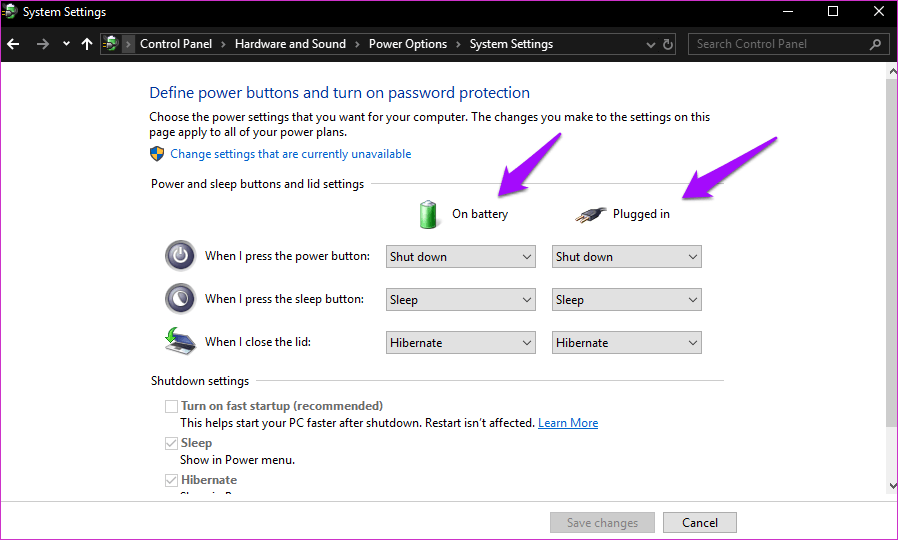
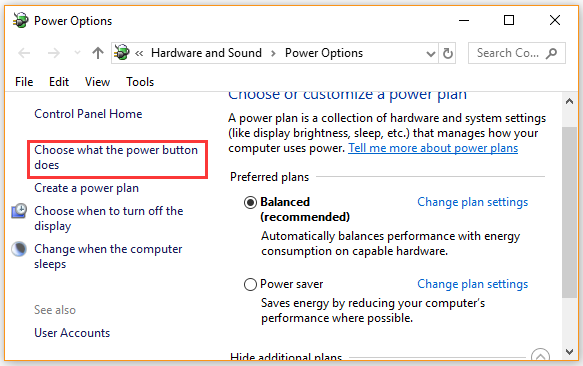
Fast Startup can cause shutdowns instead of sleep. To disable it, open Control Panel, then Power Options. Click “Choose what the power buttons do” on the left. Select “Change settings that are currently unavailable.” Scroll down and uncheck “Turn on fast startup.”
Save your changes and reboot the system. Disabling Fast Startup helps the computer enter sleep mode correctly. This fix is common and works well for many users.
Reset Power Plans To Default
Sometimes, power plans get corrupted or changed wrongly. Resetting them to default can help. Open Command Prompt as administrator. Type the command: powercfg -restoredefaultschemes and press Enter.
This action resets all power settings to their original state. Restart your PC afterward. Your sleep and shutdown behavior should return to normal. This method is quick and safe for all Windows versions.
Update And Roll Back Drivers
Updating and rolling back drivers can solve the issue of a PC shutting down instead of going to sleep. Drivers control how your hardware works with Windows. Sometimes, outdated or faulty drivers cause sleep mode problems. Fixing these drivers helps your PC sleep properly.
Identify Problematic Drivers
Start by finding which drivers cause the problem. Open Device Manager on your PC. Look for any devices with a yellow warning icon. These devices may have driver issues. Note down the names of these devices for the next steps.
Update Device Drivers
Updating drivers often fixes bugs and improves performance. In Device Manager, right-click the problem device. Select “Update driver” from the menu. Choose to search automatically for updated driver software. Let Windows find and install the best driver. Restart your PC to apply changes.
Roll Back Recent Driver Updates
New driver updates can sometimes cause new problems. If your PC started shutting down after an update, try rolling back the driver. In Device Manager, right-click the device. Select “Properties” and go to the Driver tab. Click “Roll Back Driver” to restore the previous version. Restart your PC and check if sleep mode works.
Credit: www.partitionwizard.com
Inspect Hardware Components
Hardware problems often cause a PC to shut down instead of going to sleep. Checking your hardware parts can help find the cause. This step is key to fixing the sleep issue. Start by testing important components like RAM and hard drives.
Next, check the power supply unit. It supplies power to your PC and may cause shutdowns. Lastly, look at any external devices connected to the computer. They might interfere with the sleep mode.
Test Ram And Hard Drive
RAM errors can stop your PC from entering sleep mode. Run a memory test to find issues. Use tools like Windows Memory Diagnostic or MemTest86. Also, check your hard drive for errors. Corrupted files or bad sectors can cause shutdowns. Use software like CHKDSK to scan the drive. Fixing these problems helps the PC sleep properly.
Check Power Supply Unit
The power supply unit (PSU) provides power to all parts. A weak or faulty PSU can cause sudden shutdowns. Make sure the PSU wattage fits your system needs. Listen for unusual noises or smell burning. Test the PSU with a power supply tester or replace it temporarily. This step ensures steady power delivery for sleep mode.
Examine External Devices
External devices can block the PC from sleeping. USB drives, printers, or other accessories might cause conflicts. Unplug all external devices and try sleep mode again. If the PC sleeps well, reconnect devices one by one. Identify the device that stops sleep. Update drivers or replace faulty peripherals to fix the issue.
Manage Software And Background Processes
Managing software and background processes is key to fixing your PC shutting down instead of sleeping. Some apps and programs can stop your computer from entering sleep mode properly. Controlling these helps your PC rest as expected.
Background processes use system resources even when you are not aware. These processes might cause conflicts that force the PC to shut down. Managing software and startup programs can solve this issue quickly.
Close Conflicting Applications
Some applications stop your PC from sleeping. Check for apps that run heavy tasks or use network connections. Close these apps before putting your PC to sleep. This action frees up resources and avoids shutdowns.
Use Task Manager to see running applications. End tasks that you do not need. This simple step can prevent conflicts and help your PC sleep correctly.
Disable Startup Programs
Startup programs run automatically when your PC boots up. Many of these programs run in the background and use resources. Disable unnecessary startup programs to reduce conflicts.
Open Task Manager and go to the Startup tab. Disable programs that are not essential. This helps your PC start clean and sleep without issues.
Scan For Malware
Malware can interfere with sleep mode and cause shutdowns. Run a full system scan using trusted antivirus software. Remove any detected threats immediately.
Regular malware scans keep your PC safe and stable. This practice ensures background processes do not disrupt sleep mode.

Credit: www.youtube.com
Use Command Prompt For Troubleshooting
Using Command Prompt for troubleshooting helps fix PC sleep issues quickly. It lets you run specific commands to identify and solve power problems. This method works without extra software. It is useful for users who want direct control over their PC settings.
Run Power Troubleshooter
Open Command Prompt as an administrator. Type msdt.exe /id PowerDiagnostic and press Enter. This command runs the power troubleshooter tool. Follow the on-screen steps to detect and fix power settings that may cause shutdowns instead of sleep.
Check Sleep States
In Command Prompt, enter powercfg /a. This shows available sleep states on your PC. If some sleep modes are missing, your system may shut down instead of sleeping. Note which states are supported and adjust settings accordingly in Control Panel.
Reset System Configurations
Type powercfg -restoredefaultschemes and press Enter. This command resets power plans to default settings. It removes custom settings that might cause shutdown issues. After resetting, test if your PC now sleeps correctly instead of shutting down.
Bios And Firmware Adjustments
BIOS and firmware control how your PC manages power and sleep modes. Adjusting these settings can stop your PC from shutting down instead of sleeping. These changes are simple and can fix many sleep-related problems.
Start with updating your BIOS. This step often solves bugs and improves hardware compatibility. Next, check the sleep settings inside the BIOS. Sometimes, these options are set incorrectly and cause shutdowns. Finally, restoring BIOS defaults can undo any wrong changes you or software made. This resets your PC’s power management to a stable state.
Update Bios
Updating the BIOS installs the latest fixes from your PC maker. Visit the official website and download the newest BIOS version. Follow the instructions carefully to avoid errors. A fresh BIOS version can fix sleep mode bugs and improve stability.
Configure Sleep Settings In Bios
Enter BIOS setup during startup by pressing a key like F2 or Delete. Find power or sleep options in the menu. Enable the correct sleep mode, usually called “S3” or “Suspend to RAM.” Save changes and exit. This ensures your PC uses proper sleep mode instead of shutting down.
Restore Bios Defaults
Open BIOS and look for “Load Setup Defaults” or “Reset to Default.” Select this option to clear all custom settings. Save and exit BIOS afterward. This step fixes wrong power settings that may cause shutdowns instead of sleep.
Frequently Asked Questions
Why Does My Pc Shut Down Instead Of Sleeping?
Your PC may shut down due to power settings or driver issues. Check power options and update drivers to fix this. Faulty hardware or BIOS settings can also cause shutdowns instead of sleep mode.
How Can I Fix Pc Shutting Down, Not Sleeping?
Adjust power settings to enable sleep mode properly. Update device drivers and BIOS firmware. Disable fast startup in Windows settings. Run a power troubleshooter to detect and resolve issues causing shutdowns.
Does Outdated Driver Cause Pc To Shut Down Instead Of Sleep?
Yes, outdated or corrupted drivers often cause shutdowns. Update all device drivers, especially graphics and chipset drivers. This ensures proper communication between hardware and the operating system during sleep mode.
Can Bios Settings Cause Shutdown Instead Of Sleep?
Incorrect BIOS settings can trigger shutdowns. Reset BIOS to default or update it to the latest version. Check sleep-related options in BIOS to ensure they are enabled correctly for your system.
Conclusion
Fixing your PC’s sleep mode issue can save time and effort. Check your power settings and update drivers regularly. Small changes often solve the shutdown problem. Keep your system clean and avoid unnecessary software conflicts. With patience, your PC will enter sleep mode smoothly.
Stay consistent with maintenance to prevent future troubles. Enjoy a better computer experience without unexpected shutdowns. Simple steps can make a big difference.
