
Are you frustrated because your PC suddenly stops working right, showing errors or freezing? Your computer’s hardware might be clashing behind the scenes, causing what’s known as a hardware conflict.
These conflicts can slow you down, interrupt your work, and leave you feeling stuck. But don’t worry—fixing hardware conflicts is easier than you think. You’ll discover simple steps to identify and solve these problems quickly. Keep reading, and you’ll get your PC running smoothly again in no time.
Common Hardware Conflicts
Hardware conflicts occur when two or more devices in a PC try to use the same resources. This overlap causes errors and stops the hardware from working properly. Common hardware conflicts can slow your computer or make some parts stop working. Identifying these issues early helps keep your PC running smoothly.
Symptoms Of Hardware Conflicts
Hardware conflicts show up in different ways. Your computer might freeze or restart without warning. Devices may fail to start or appear with error messages in Device Manager. Sound or video cards might stop working or produce strange noises. Sometimes, your PC runs very slow or crashes often. These signs indicate a hardware conflict could be the cause.
Frequent Culprits In Pcs
Some devices cause conflicts more than others. Graphics cards often clash with other add-ons. Network adapters may compete for resources with sound cards. USB devices can also cause conflicts, especially if many are connected. Older hardware parts tend to have more conflicts due to outdated drivers. Checking these common culprits can help find the problem fast.

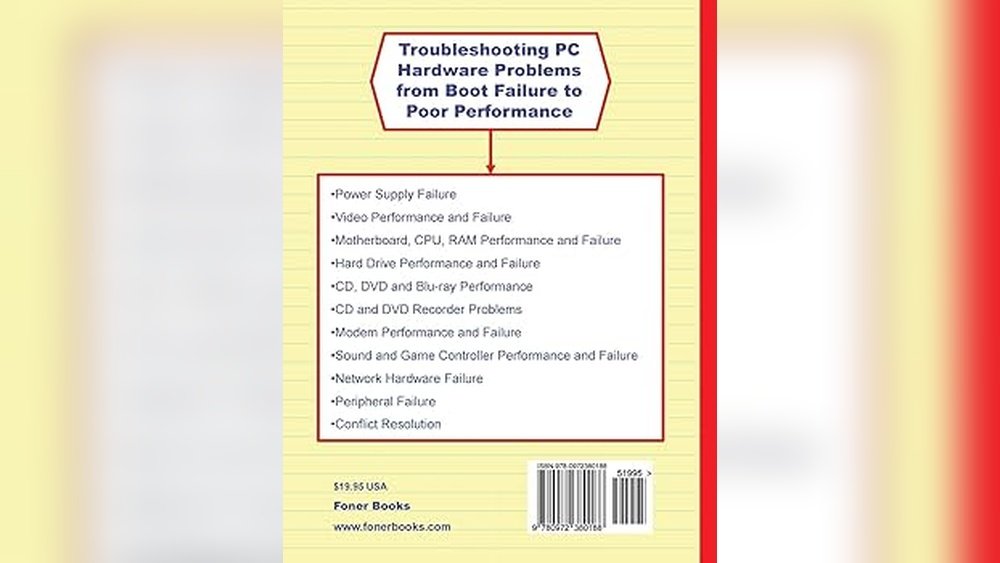
Credit: www.babelgum.com
Diagnosing Hardware Issues
Diagnosing hardware issues is the first step in fixing PC hardware conflicts. It helps identify the exact problem causing system errors or crashes. Early diagnosis saves time and avoids unnecessary repairs. Knowing the tools and methods for diagnosis makes the process easier and more effective.
Using Device Manager
Device Manager shows all hardware connected to your PC. It displays errors with yellow warning signs. Right-clicking a device lets you update or disable it. This tool helps spot driver conflicts and missing drivers. It is simple and built into Windows, making it easy to use.
Checking System Logs
System logs record hardware and software events. Use the Event Viewer to check these logs. Look for error messages related to hardware failures. Logs give clues about what caused the problem. Regularly checking logs helps find recurring issues early.
Running Hardware Diagnostics
Hardware diagnostics test the physical parts of your PC. Many PCs have built-in diagnostic tools accessible at startup. Third-party tools can also check memory, hard drives, and other components. Running these tests can reveal faulty hardware causing conflicts. This step confirms if hardware needs repair or replacement.
Resolving Driver Conflicts
Driver conflicts cause many PC hardware problems. These conflicts happen when two drivers try to control the same hardware or when a driver is outdated or corrupted. Fixing these driver issues helps your computer run smoothly and avoids crashes or freezes. Here are simple steps to resolve driver conflicts.
Updating Drivers
Updating drivers fixes bugs and improves hardware performance. Visit the device manufacturer’s website to download the latest driver. Use Windows Device Manager to check for updates automatically. Updated drivers often solve conflicts and prevent errors.
Rolling Back Problematic Drivers
Sometimes new drivers cause issues. Rolling back restores the previous version of the driver. Open Device Manager, find the device, and select “Roll Back Driver.” This step removes the problematic update and returns your system to a stable state.
Using Driver Verifier Tool
Driver Verifier is a Windows tool that finds bad drivers. Run it by typing “verifier” in the Start menu. It tests drivers and shows which ones cause problems. Use this tool to spot and fix driver conflicts quickly.

Credit: www.amazon.com
Managing Resource Conflicts
Managing resource conflicts is key to solving PC hardware issues. These conflicts happen when devices try to use the same system resources. This causes errors and stops devices from working right. Fixing these conflicts helps your computer run smoothly.
Resource conflicts mainly involve IRQs, I/O ports, and DMA channels. Adjusting these settings can clear problems fast. This section explains how to manage each resource to fix conflicts and improve PC performance.
Adjusting Irq Settings
IRQ stands for Interrupt Request. It signals the CPU to stop and handle a device’s task. Devices need unique IRQ numbers. If two devices share one IRQ, conflicts happen.
Open your Device Manager to check IRQs. Find devices using the same IRQ number. Change the IRQ of one device in its properties. Choose a free IRQ number to avoid conflict.
Reassigning I/o Ports
I/O ports let devices send data to the CPU. Each device needs its own port range. Overlapping I/O ports cause resource conflicts.
Access device settings to view current I/O ports. Change the port range to a free set. Save changes and restart your computer. This clears port conflicts and improves device function.
Configuring Dma Channels
DMA channels allow devices to transfer data without CPU help. Devices must have separate DMA channels. Shared channels lead to errors and slowdowns.
Check DMA channel assignments in device properties. Assign a free channel if you find overlaps. Restart your PC to apply new settings. This boosts data transfer and fixes hardware issues.
Bios And Firmware Fixes
BIOS and firmware play a key role in how your PC hardware works together. Conflicts often arise from outdated or incorrect BIOS settings. Fixing these issues can improve system stability and hardware compatibility. Understanding BIOS updates and settings can help solve many common hardware problems.
Updating Bios
Updating the BIOS can fix bugs and improve hardware support. Check your motherboard manufacturer’s website for the latest BIOS version. Download the update carefully and follow the instructions exactly. A failed update may cause serious problems, so proceed with caution. This update can resolve conflicts caused by outdated firmware.
Resetting Bios To Defaults
Resetting BIOS to factory defaults clears any incorrect settings. This step can fix conflicts caused by wrong configurations. Enter the BIOS setup during startup and find the reset option. Choose “Load Default Settings” or “Load Optimized Defaults.” Save changes and restart your PC. Resetting often restores proper hardware communication.
Configuring Bios Settings
Adjusting BIOS settings can solve hardware conflicts without updates. Disable unused devices or ports to avoid resource clashes. Set correct boot order and enable necessary hardware features. Check settings related to memory, CPU, and peripherals. Save changes and reboot to test if the problem ends. Proper BIOS configuration ensures smooth hardware interaction.
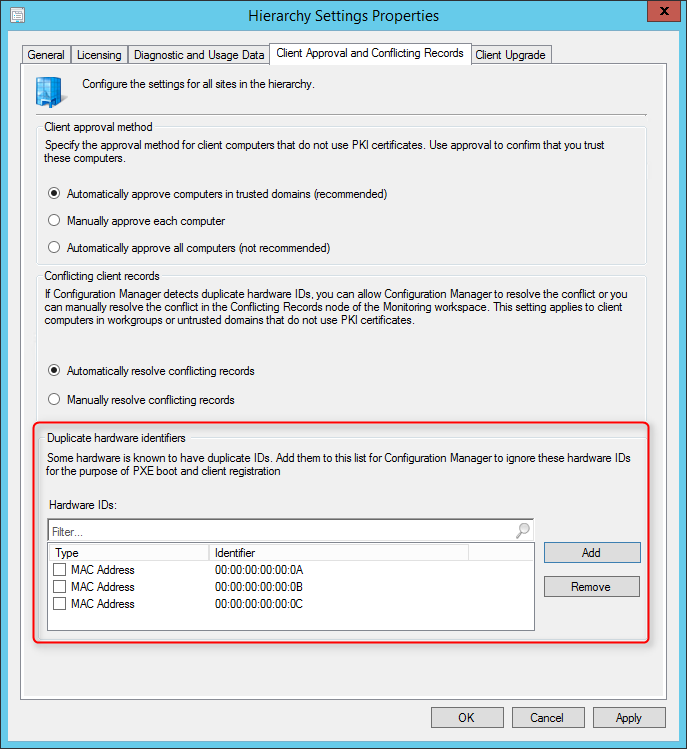
Credit: www.systemcenterdudes.com
Hardware Replacement And Testing
Hardware replacement and testing are crucial steps in fixing PC hardware conflicts. They help find and solve problems caused by faulty parts. Swapping out components and testing them ensures your PC runs smoothly again.
Identifying Faulty Components
Start by checking which part causes the problem. Look for signs like unusual noises or error messages. Use diagnostic tools to test hardware health. Focus on parts often causing issues, like RAM, hard drives, and graphics cards.
Using Spare Parts For Testing
Use spare parts to replace suspected faulty components temporarily. This helps confirm which part is broken. Test the PC after each swap to see if the problem stops. Keep spare parts organized and clean for quick testing.
Best Practices For Hardware Swaps
Turn off the PC and unplug it before swapping parts. Handle components carefully to avoid static damage. Use proper tools and keep screws safe. Test each new part thoroughly before full reassembly. Document changes to track troubleshooting steps.
Tools And Software For Troubleshooting
Troubleshooting PC hardware conflicts requires the right tools and software. These tools help identify issues and guide you to fix problems quickly. They range from third-party programs to built-in Windows utilities and bootable repair disks.
Each tool type serves a unique purpose. Some scan hardware for errors. Others repair damaged files or drivers. Choosing the right tool saves time and prevents frustration.
Third-party Diagnostic Tools
Third-party diagnostic tools offer detailed hardware analysis. Programs like HWMonitor and CPU-Z check your CPU, memory, and sensors. They provide real-time data on temperature and voltage. These tools can detect overheating or power issues causing conflicts.
Other software, such as Driver Booster, scans for outdated or corrupt drivers. It helps update drivers to ensure smooth hardware communication. Many third-party tools are free or have trial versions for basic use.
Built-in Windows Utilities
Windows has several built-in tools for hardware troubleshooting. Device Manager lists all connected hardware and shows conflict warnings. You can update or disable devices from here.
Windows Memory Diagnostic checks RAM for errors. It runs tests during system reboot. Another tool, System File Checker, scans for corrupted system files affecting hardware functions. These utilities are easy to access and use without extra downloads.
Using Bootable Repair Disks
Bootable repair disks help fix severe hardware conflicts. They load outside the Windows system, avoiding software interference. Tools like Hiren’s BootCD offer multiple diagnostic programs on one disk.
You can create bootable USB drives with Windows Recovery Environment. It allows repairing startup issues and restoring system files. Bootable disks are useful when Windows fails to start or hardware problems block normal operation.
Preventing Future Conflicts
Preventing future PC hardware conflicts keeps your system running smoothly. It saves time and avoids frustration. Simple steps can reduce the chance of problems. Staying proactive helps maintain your computer’s health.
Regular System Updates
System updates fix bugs and improve device compatibility. They often include new drivers for hardware. Install updates as soon as they become available. This reduces the risk of conflicts caused by outdated software.
Proper Installation Techniques
Careful hardware installation prevents many issues. Follow manufacturer instructions strictly. Avoid forcing parts into place. Ensure all connections are secure and correct. Double-check settings after installation for better results.
Maintaining Compatible Hardware
Use hardware parts that work well together. Check compatibility before buying new components. Mixing old and new devices can cause conflicts. Stick to recommended hardware combinations. This keeps your system stable and reliable.
Frequently Asked Questions
What Causes Pc Hardware Conflict Problems?
PC hardware conflicts usually arise from resource overlaps like IRQ, DMA, or I/O address. Outdated drivers or incompatible devices also trigger these issues. Identifying the conflicting hardware in Device Manager helps resolve the problem quickly and effectively.
How To Identify Hardware Conflicts On Windows Pc?
Open Device Manager and look for yellow warning icons on devices. These icons indicate resource conflicts or driver issues. Checking device properties reveals detailed conflict information, aiding in troubleshooting and resolution.
Can Updating Drivers Fix Hardware Conflict Errors?
Yes, updating drivers often resolves hardware conflicts by ensuring compatibility. Download the latest drivers from the manufacturer’s website or use Windows Update. Properly updated drivers reduce conflicts and improve overall system stability.
What Steps Fix Pc Hardware Conflict Problems?
Restart your PC, update device drivers, and uninstall conflicting devices. Use Device Manager to change resource settings if needed. Running Windows Troubleshooter can also automatically detect and fix conflicts efficiently.
Conclusion
Fixing PC hardware conflicts can improve your computer’s performance. Start by checking device manager for errors. Update or reinstall drivers to solve many problems. Remove or disable devices that cause conflicts. Restart your PC after making changes. Small steps can prevent big headaches later.
Stay patient and follow clear instructions. Your computer will run smoother and more stable. Keep your system updated to avoid future conflicts. Simple fixes often bring quick results. Take control of your PC hardware issues today.
