
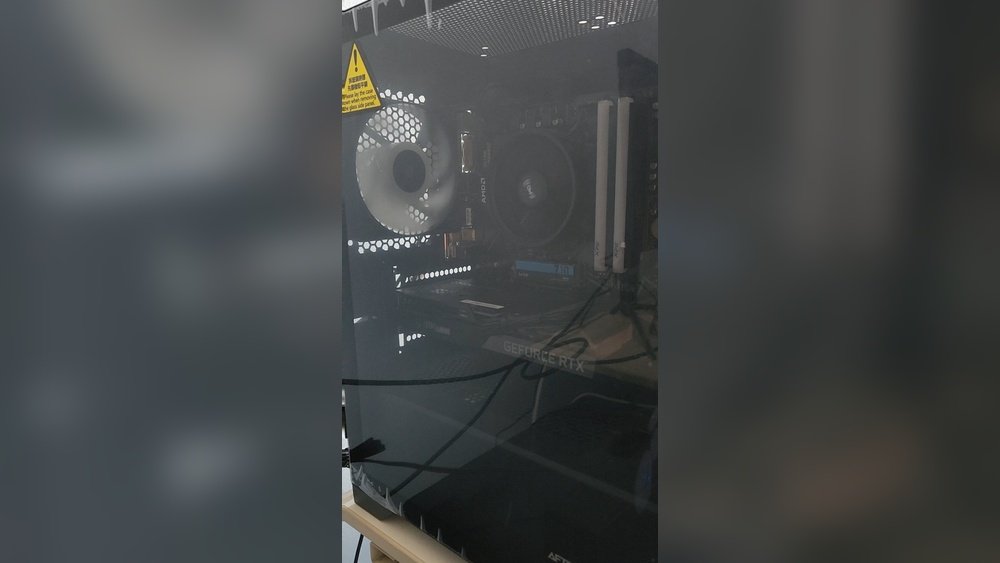
Have you ever shut down your PC, only to hear the fans keep running? It’s frustrating and can make you wonder if something is wrong with your computer.
If you want to fix this annoying problem quickly and easily, you’re in the right place. You’ll discover simple steps to stop your PC fans from running after shutdown. Keep reading to get your system back to normal and enjoy a quieter, cooler experience.
Why Fans Keep Running
PC fans running after shutdown can be confusing and annoying. This issue may point to deeper problems with your computer. Knowing why fans keep running helps you fix the problem fast. Below are common reasons behind this behavior.
Power Supply Behavior
The power supply unit (PSU) sometimes keeps sending power after shutdown. Some PSUs have a feature that cools down components. This causes fans to run briefly even when the PC is off. In some cases, a faulty PSU can cause fans to run endlessly. Checking the PSU is important for this issue.
Bios And Firmware Settings
BIOS controls many hardware functions, including fans. Certain BIOS settings keep fans on after shutdown. Features like “ERP” or “ErP Ready” affect power usage and fan behavior. Firmware updates can also change how fans react. Resetting BIOS to default or updating firmware may stop fans from running.
Hardware And Software Causes
Hardware issues like stuck fan sensors cause fans to run nonstop. Loose cables or damaged fan controllers also create problems. Some software or drivers keep the system in a low-power state. This state can keep fans running. Checking hardware connections and updating drivers helps solve this.
Credit: support.cyberpowerpc.com
Check Bios Fan Settings
PC fans running after shutdown can be annoying and drain power. Checking BIOS fan settings helps fix this issue. The BIOS controls hardware functions, including fan behavior. Adjusting these settings can stop fans from running unnecessarily.
BIOS fan controls often have options to manage fan speed and when fans turn off. Sometimes, wrong settings cause fans to keep spinning even after shutdown. You can access the BIOS to review and change these settings. Resetting to default can also solve fan problems.
Accessing Bios
Turn off your PC completely. Press the power button to start it. Immediately press the BIOS key repeatedly. Common keys are Del, F2, or Esc. The screen will show the BIOS menu. Use arrow keys to navigate through options.
Adjusting Fan Control Options
Find the “Hardware Monitor” or “Fan Control” section in BIOS. Check fan speed settings for CPU and case fans. Set fan mode to “Auto” or “Smart” if available. Adjust temperature thresholds to control when fans turn on or off. Save changes before exiting BIOS.
Resetting To Default
Enter BIOS setup menu. Look for “Load Setup Defaults” or “Reset to Default” option. Confirm the action to reset all BIOS settings. This can fix incorrect fan settings causing fans to run after shutdown. Save and exit BIOS. Restart your PC to check if fans stop running.
Update Bios And Drivers
Updating the BIOS and drivers can fix PC fans running after shutdown. These updates help your computer manage hardware better. Old BIOS or drivers may cause fans to keep spinning. Keeping them current can solve this issue and improve system stability.
Finding The Latest Bios Version
Check your motherboard model first. Visit the official website of your motherboard brand. Look for the support or download section. Find the BIOS updates available for your model. Compare your current BIOS version with the latest one online. Download the newest version if yours is older.
Installing Motherboard Drivers
Motherboard drivers control hardware parts. Download drivers from the official site only. Choose drivers matching your operating system. Run the installer and follow on-screen instructions. Restart your PC after installation completes. Updated drivers can stop the fans from running unnecessarily.
Role Of Firmware Updates
Firmware controls hardware behavior at a low level. BIOS is a type of firmware. Firmware updates fix bugs and improve hardware communication. They can resolve fan control problems after shutdown. Always read update notes before installing. This ensures the update addresses your issue.
Change Power Settings
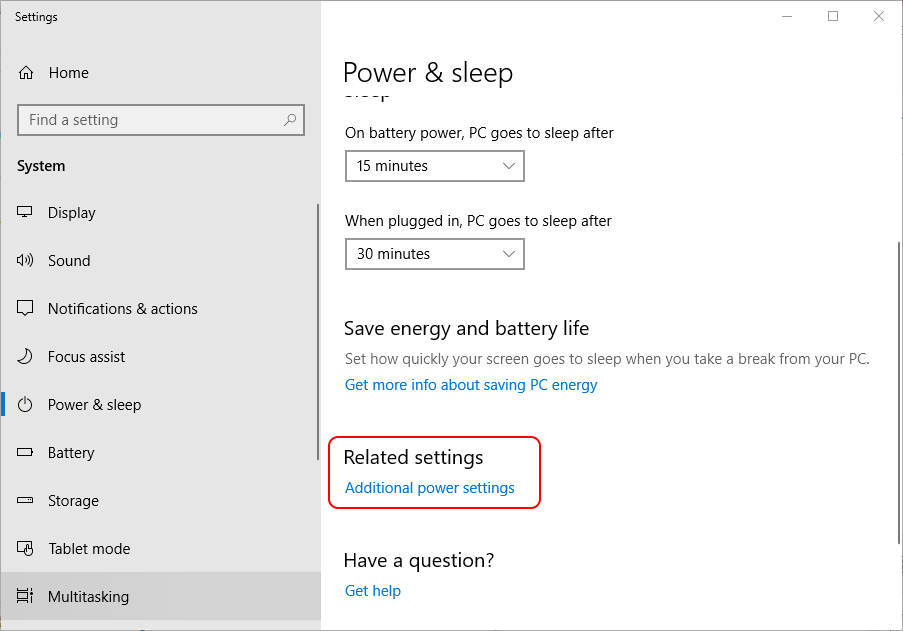
Power settings control how your PC behaves after shutdown. Sometimes, fans keep running because of these settings. Changing them can stop this issue. Small tweaks can save energy and extend your PC’s life. Let’s explore some key changes you can make.
Disabling Fast Startup
Fast Startup helps your PC boot quickly. It saves some system information to a file. This can keep fans running after shutdown. Disable Fast Startup to fix this. Open Control Panel, then go to Power Options. Click “Choose what the power buttons do.” Select “Change settings that are currently unavailable.” Uncheck “Turn on fast startup.” Save changes and restart your PC.
Adjusting Sleep And Hibernate Options
Sleep and Hibernate modes control how your PC saves power. Improper settings can cause fans to run longer. Open Power Options and click “Change plan settings.” Choose “Change advanced power settings.” Expand “Sleep” and set “Sleep after” to a reasonable time. Disable “Allow hybrid sleep.” Set “Hibernate after” to a time that suits you. These adjustments help your PC fully power down.
Managing Usb Power
USB devices may keep your PC awake. This keeps the fans running after shutdown. Manage USB power to fix this. Open Device Manager and find USB Root Hub. Right-click and select Properties. Go to the Power Management tab. Uncheck “Allow the computer to turn off this device to save power.” Do this for all USB Root Hubs. This stops USB devices from keeping the PC active.
Inspect Hardware Connections
Inspecting hardware connections is a key step to fix PC fans running after shutdown. Loose or faulty cables can cause the fans to keep spinning. Checking these connections helps find the root of the problem quickly. It also prevents damage to other components inside the PC.
Focus on the fan power cables and their connection to the motherboard or power supply. Dirt and dust can create resistance or short circuits. Testing with different fans can isolate if the issue is with the fan or the PC itself. Follow these simple checks to ensure your PC fans stop running after shutdown.
Checking Fan Power Cables
Start by unplugging the PC from power. Open the case carefully. Look at the cables connecting the fans to the motherboard or power supply. Make sure each cable is firmly plugged in. Loose cables can send wrong signals to the fans. Secure any loose connections by pushing them in gently. Check for any visible damage or fraying on the wires. Replace damaged cables to avoid further issues.
Cleaning Dust And Debris
Dust and debris build up inside the PC over time. This can block fan sensors or cause shorts. Use compressed air to blow dust off the fans and connectors. Clean the motherboard area around the fan headers. Avoid touching delicate parts with your hands. Regular cleaning keeps connections clear and helps fans work properly. Dust-free hardware reduces overheating and fan errors.
Testing With Different Fans
Try swapping the problematic fan with a known working one. Connect the new fan to the same header on the motherboard. Shut down the PC and observe if the new fan stops running. If it stops, the original fan is likely faulty. If the new fan also runs after shutdown, the issue may be with the motherboard or power supply. This test narrows down where the problem lies.
Credit: forums.truenas.com
Use Software Tools
Using software tools can help fix PC fans running after shutdown. These tools give control over fan behavior. They allow monitoring and adjusting settings to stop fans from spinning unnecessarily. Software makes the process easier and more precise.
Fan Control Applications
Fan control applications let you manage fan speed directly from your PC. You can slow down or stop fans after shutdown. Popular apps include SpeedFan and Argus Monitor. These programs work with most PC hardware. They offer simple interfaces to change fan settings.
Monitoring Temperatures
Temperature monitoring helps prevent overheating and fan issues. Software shows real-time CPU and GPU temperatures. High temperatures can cause fans to run longer. Watching these numbers helps you understand fan activity. Adjusting cooling based on temperature improves PC health.
Customizing Fan Curves
Fan curves control how fast fans spin at certain temperatures. Customizing these curves helps keep fans quiet after shutdown. You can set fans to stop running below a specific temperature. This reduces noise and power use. Many fan control apps offer easy curve customization.
When To Seek Professional Help
Sometimes, fixing PC fans running after shutdown is not simple. The issue may be complex or signal a bigger problem. Knowing when to get expert help saves time and prevents damage.
Signs Of Hardware Failure
Fans that keep running can mean hardware issues. Strange noises or constant spinning are warning signs. Overheating or sudden shutdowns may happen too. If you see these signs, stop trying fixes yourself. Hardware failure needs a professional’s attention to avoid worsening the problem.
Warranty And Support Options
Check if your PC is under warranty before opening it. Many manufacturers offer free repair or replacement. Contact customer support for advice or authorized service centers. Using warranty services ensures safe and correct repairs. This helps keep your PC in good condition without extra cost.

Credit: www.youtube.com
Frequently Asked Questions
Why Do Pc Fans Run After Shutdown?
PC fans may run after shutdown due to power settings or BIOS configurations. Sometimes, Fast Startup or Wake-on-LAN features keep fans powered briefly. It helps cool residual heat or maintain system readiness. Checking BIOS and power options can resolve this issue.
How To Stop Pc Fans Running After Shutdown?
To stop fans running after shutdown, disable Fast Startup in Windows Power Options. Also, check BIOS settings for fan control or Wake-on-LAN and disable them. Updating BIOS and drivers can help. Proper shutdown procedures usually prevent fans from running post-shutdown.
Is It Normal For Pc Fans To Run After Shutdown?
It’s not typical but can occur due to hardware or software settings. Residual power might keep fans running to cool components. If fans run too long or loudly, it may indicate a hardware or firmware problem needing attention.
Can Bios Updates Fix Fans Running After Shutdown?
Yes, BIOS updates often fix hardware control issues, including fan behavior. Manufacturers release updates to improve system stability and power management. Always download BIOS updates from official sources and follow update instructions carefully.
Conclusion
PC fans running after shutdown can drain power and make noise. Fixing this issue keeps your computer quiet and saves energy. Check your settings and hardware to find the cause. Simple steps like updating drivers or adjusting BIOS help a lot.
Taking care of this problem improves your PC’s lifespan. A smooth shutdown means peace and less stress. Keep your system healthy by fixing fan issues early. Your computer will thank you with better performance and quiet operation.
