
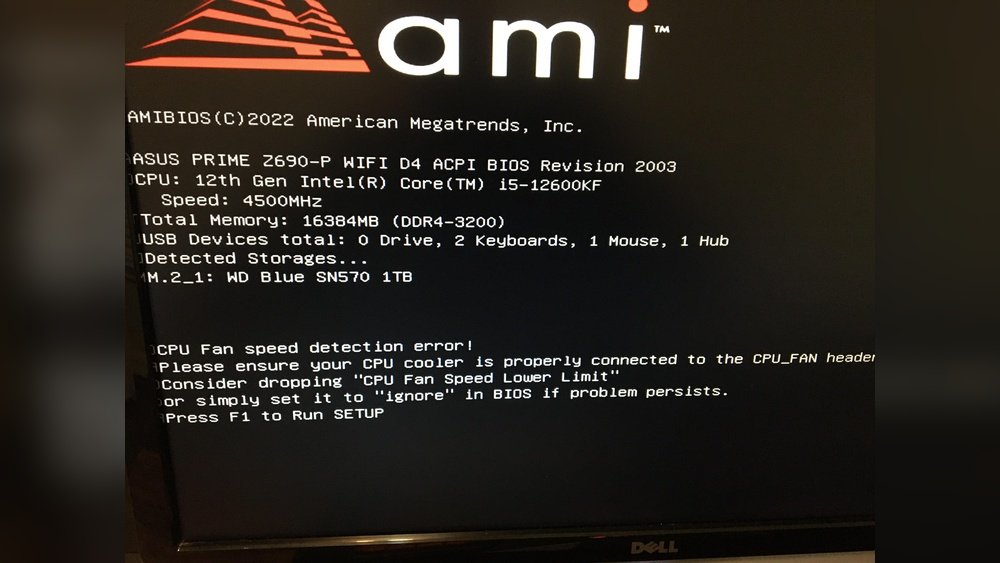
Is your motherboard not detecting your CPU? This problem can stop your computer from starting and leave you frustrated.
But don’t worry—you’re not alone, and there are simple steps you can take to fix it. You’ll learn easy-to-follow solutions that can get your system up and running again. Keep reading, because the answer might be just a few clicks away.
Your computer’s full power is waiting—let’s unlock it together.

Credit: appuals.com
Common Causes Of Cpu Detection Issues
Motherboard not detecting the CPU is a common problem. It stops the computer from starting. Several causes can lead to this issue. Knowing these helps you fix the problem fast. Here are the common causes of CPU detection issues.
Incorrect Cpu Installation
Installing the CPU wrongly is a top cause. The CPU might not fit properly in the socket. Bent pins or loose placement can block detection. Always align the CPU with the socket marks. Use gentle pressure to avoid damage.
Bios Compatibility Problems
BIOS might not support your CPU model. This happens if the BIOS is outdated. The motherboard cannot recognize new CPUs without updates. Check your motherboard’s website for BIOS updates. Update the BIOS carefully to fix this.
Power Supply Issues
The CPU needs proper power to work. Faulty or weak power supply can cause detection failure. Check the power connectors to the motherboard. Use a reliable power supply with enough wattage. Poor power can stop the CPU from starting.
Damaged Cpu Or Motherboard
Physical damage affects CPU detection too. Damaged pins on the CPU or socket cause problems. Motherboard faults, like broken circuits, also block detection. Inspect both the CPU and motherboard for damage. Replace any broken parts to restore function.
Preparing For Troubleshooting
Preparing to fix a motherboard that does not detect the CPU takes careful steps. Getting ready helps avoid mistakes during troubleshooting. It protects both you and your computer parts. This section guides you through the basic preparations.
Gathering Necessary Tools
Start by collecting all the tools you need. A screwdriver set is essential for opening your PC case. Have a flashlight ready to see inside clearly. Use a pair of tweezers to handle small parts. Keep a thermal paste tube nearby for reapplying on the CPU. Also, have a clean cloth to wipe surfaces gently.
Ensuring Static-free Environment
Static electricity can damage computer parts easily. Create a static-free workspace to protect your motherboard and CPU. Work on a wooden or plastic table, not carpet or metal. Wear an anti-static wrist strap connected to a grounded object. Touch a metal part of the PC case before handling components. Avoid moving too much to reduce static build-up.
Step-by-step Fixes
When a motherboard does not detect the CPU, it stops the entire system from working. Fixing this issue requires careful steps. Each step checks a possible cause and helps find the problem.
Follow these step-by-step fixes to get your motherboard and CPU working again. These actions are simple and safe to do at home.
Reseating The Cpu
Turn off the computer and unplug all cables. Open the case to access the CPU socket. Carefully remove the CPU by lifting the socket lever. Check the CPU pins for any dirt or damage. Place the CPU back in the socket, making sure it fits perfectly. Close the lever to secure the CPU. This step often solves detection problems caused by poor contact.
Updating The Bios
The BIOS controls hardware detection. An outdated BIOS may not recognize new CPUs. Find your motherboard model and visit the manufacturer’s website. Download the latest BIOS update file. Follow the instructions carefully to update the BIOS. Do not turn off the computer during the update. After updating, restart your system to see if the CPU is detected.
Checking Power Connections
Power supply issues can prevent CPU detection. Make sure the main power cable is firmly connected to the motherboard. Check the CPU power connector near the CPU socket. It should be fully plugged in. Loose or missing connections stop the CPU from receiving power. Secure all cables and try turning on the computer again.
Inspecting For Physical Damage
Look closely at the CPU socket and the CPU itself. Bent pins on the CPU or socket can cause detection failure. Also, check for burnt or damaged parts on the motherboard. Use a magnifying glass if needed. Physical damage may require professional repair or replacement. Avoid forcing any parts during inspection.
Testing And Verification
Testing and verification are key steps to fix a motherboard not detecting the CPU. These steps help find the exact problem. You check if the CPU and motherboard work together. They also confirm if connections are correct. This part of troubleshooting saves time and effort. It avoids guessing or replacing parts blindly.
Booting The System
Start by turning on your computer. Watch if it powers up and shows anything on the screen. If the screen stays blank, the motherboard might not see the CPU. Listen for fans or lights. These signs mean power is on. No power means check power supply and cables.
Try resetting the BIOS by removing the CMOS battery for a minute. Put it back and boot again. This can clear errors and help the CPU be detected.
Using Diagnostic Leds And Beeps
Many motherboards have LEDs or beep codes to show problems. Check your motherboard manual for what each light or beep means. A blinking LED or series of beeps can point to CPU issues. These signals help find if the CPU is faulty or not seated well.
Note the pattern carefully. Different patterns mean different problems. Use this info to know the next fix step.
Running Hardware Tests
Use hardware testing tools if possible. Some software can check CPU health and motherboard status. Run these tests from a bootable USB drive or external device. They give detailed info about CPU detection and performance.
You can also swap the CPU with a known working one. This test shows if the motherboard or CPU causes the problem. Testing parts one by one narrows down the issue clearly.
When To Seek Professional Help
Sometimes, fixing a motherboard not detecting the CPU is too hard to do alone. Knowing when to ask for expert help saves time and prevents more damage. Professionals have tools and skills to find and fix problems safely.
Signs Of Hardware Failure
Look for clear signs of hardware failure. The computer may not turn on at all. Fans might run, but the screen stays black. You may hear beeps from the motherboard. These beeps are error codes. They tell what part is broken. Other signs include burning smells or visible damage on parts.
Warranty And Repair Options
Check if your motherboard or CPU still has a warranty. A warranty means free repair or replacement. Contact the store or manufacturer for help. Avoid opening or fixing hardware yourself if it is under warranty. Doing so may void the warranty. Professional repair shops offer service outside warranty too. They can test parts and replace broken ones correctly.

Credit: www.youtube.com
Preventive Measures
Preventive measures help avoid the motherboard not detecting the CPU. Careful actions keep your computer parts safe and working well. These steps reduce errors and improve system stability. Follow simple rules to protect your hardware and save time fixing problems.
Proper Handling Of Components
Always handle the CPU and motherboard with clean, dry hands. Avoid touching the pins or contacts on the CPU. Use an anti-static wristband to stop static damage. Place components on a soft, non-conductive surface during installation. Do not force parts into slots; align them carefully. Proper handling prevents physical damage and connection issues.
Regular Bios Updates
Check for motherboard BIOS updates regularly. Updates fix bugs and improve CPU compatibility. Download BIOS from the official motherboard website only. Follow update instructions step-by-step without interruption. Keeping BIOS current avoids detection problems and system crashes. A stable BIOS helps your CPU work correctly.
Maintaining Clean Hardware Environment
Keep your PC area clean and dust-free. Dust blocks airflow and causes overheating. Clean the motherboard and CPU fan often with compressed air. Avoid smoking or eating near the computer. Store the PC in a dry, cool place. A clean environment extends hardware life and prevents faults.
Credit: www.reddit.com
Frequently Asked Questions
Why Is My Motherboard Not Detecting The Cpu?
Your motherboard may not detect the CPU due to improper installation, incompatible CPU, or outdated BIOS. Check CPU seating, confirm compatibility, and update BIOS firmware to fix detection issues effectively.
How To Check Cpu Compatibility With Motherboard?
Visit the motherboard manufacturer’s website and check the CPU support list. Ensure your CPU model matches the supported processors for proper detection and performance.
Can Bios Update Fix Cpu Detection Issues?
Yes, updating BIOS can resolve CPU detection problems. BIOS updates improve hardware compatibility and fix bugs. Always follow official instructions to avoid update failures.
What Causes Cpu Not Seated Properly On Motherboard?
Improper CPU installation can cause detection failure. Ensure the CPU aligns with socket pins and is firmly seated. Avoid bending pins or using excessive force.
Conclusion
Fixing a motherboard that does not detect the CPU can be simple. Start by checking the CPU seating and power connections. Clean any dust and make sure the BIOS is updated. Test with another CPU or motherboard if possible. These steps often solve the issue quickly.
Stay patient and follow each step carefully. Your computer will likely start working again soon. Troubleshooting is not hard with clear instructions. Keep your system clean and check parts regularly. This helps avoid future detection problems.
