
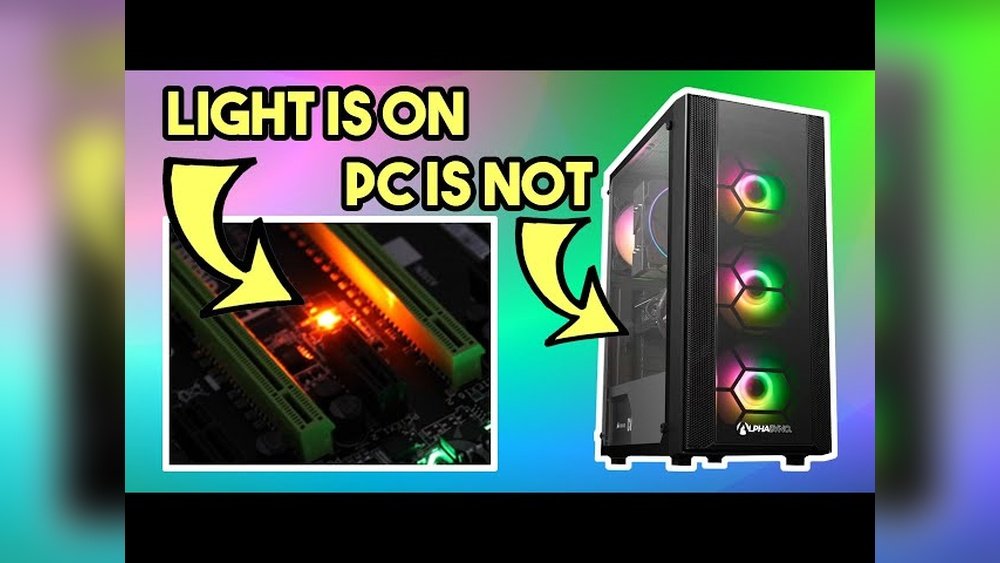
You power on your PC, and the motherboard lights glow—but nothing else happens. Frustrating, isn’t it?
When your computer won’t start even though the motherboard shows signs of life, it can leave you stuck and unsure what to do next. But don’t worry—you’re not alone, and this problem often has simple fixes. You’ll discover easy steps to identify why your PC isn’t booting and how to get it back up and running fast.
Keep reading, because your solution is closer than you think.
Common Causes Of No Boot
Motherboard lights on but the PC does not start is a common issue. Many users face this problem and find it confusing. The motherboard shows power, but the system stays off. Several hardware problems cause this no boot condition. Identifying these issues helps fix the problem quickly.
Power Supply Issues
The power supply unit (PSU) gives energy to all PC parts. If the PSU is faulty, the PC may not start. Loose cables or bad connectors can stop power flow. A weak or dead PSU is often the cause of no boot. Test the PSU or replace it if needed.
Faulty Ram
RAM stores data temporarily for the CPU. Broken or poorly seated RAM can stop the computer from booting. Remove and reinsert RAM sticks to check connection. Try one stick at a time to find the bad module. Replace faulty RAM to restore normal startup.
Cpu Problems
The CPU processes all tasks in the PC. Overheating or incorrect installation may cause startup failure. Bent pins on the CPU or socket can block booting. Ensure the CPU is clean, properly seated, and cooled. Sometimes, a damaged CPU needs replacement.
Graphics Card Failures
The graphics card shows images on the monitor. A damaged or loose graphics card can stop the PC from booting. Remove and reseat the card to fix connection issues. Test with another card if possible. Without a working GPU, the system may not display anything.
Motherboard Errors
The motherboard connects all PC components. Faulty circuits or damaged parts cause no boot problems. Look for burnt marks or swollen capacitors on the board. BIOS corruption can also prevent startup. Resetting BIOS or replacing the motherboard may be necessary.

Credit: www.youtube.com
Initial Checks Before Troubleshooting
Before starting any complex fixes, perform some basic checks. These steps help find simple problems fast. They save time and avoid unnecessary work. Checking power, cables, and devices is important. These areas often cause motherboard lights to turn on without the PC starting. Follow these initial checks carefully to spot easy issues.
Verify Power Connections
Ensure the power cable is firmly plugged into the power supply. Check the outlet for electricity by testing with another device. Confirm the power supply switch is on. Look for any loose or disconnected cables inside the case. The motherboard needs power from the 24-pin and 8-pin connectors. Both must be tightly connected for the PC to start.
Inspect Internal Cables
Open the PC case and examine all internal cables. Check data cables connected to the hard drive and SSD. Make sure SATA cables are secure and undamaged. Inspect the RAM sticks; they should sit firmly in their slots. Loose RAM can cause startup failure. Also, verify that the CPU fan cable is plugged into the right header on the motherboard.
Check Peripheral Devices
Disconnect all external devices like USB drives, printers, and extra monitors. Sometimes peripherals cause startup conflicts. Try starting the PC with only the keyboard, mouse, and monitor connected. Remove any newly added hardware temporarily. If the PC starts, add devices back one by one to find the problem source.
Resetting Hardware Components
Resetting hardware components can fix many PC startup problems. Sometimes, parts inside the computer lose connection or have minor errors. Resetting these parts often clears these issues and helps the PC start properly. This process is simple and does not need special tools. It involves carefully removing and reinstalling key components inside the computer.
Reseat Ram Modules
RAM modules can get loose or dusty. Turn off the PC and unplug it. Open the case carefully. Find the RAM sticks on the motherboard. Push the clips on each side to release them. Remove the RAM sticks gently. Check for dust or dirt on the contacts. Clean with a soft brush if needed. Reinsert the RAM sticks firmly until clips snap back. Close the case and try to start the PC again.
Reinstall Graphics Card
The graphics card may not sit properly in its slot. Power down and unplug the PC. Open the case to access the card. Unscrew and carefully pull out the graphics card. Look for dust on the card and slot. Clean with a soft brush if needed. Push the card back firmly into its slot. Screw it back to secure. Close the case and power on the PC to test.
Reset Cmos Battery
The CMOS battery keeps system settings. A weak battery can cause startup issues. Switch off and unplug the PC. Open the case to find the small round battery on the motherboard. Gently remove it using a non-metal tool. Wait for about five minutes to clear settings. Place the battery back in its holder. Close the case and power on the PC. The system will reset BIOS settings to default.
:max_bytes(150000):strip_icc()/technology-1396677_1280-5c4263c2c9e77c0001be18e4.jpg)
Credit: www.lifewire.com
Testing Power Supply Unit
Testing the power supply unit (PSU) is a key step when your motherboard lights up but the PC does not start. The PSU provides power to all computer parts. A faulty PSU can cause power issues and stop the PC from turning on. Checking the PSU can save time and avoid unnecessary repairs.
Using A Psu Tester
A PSU tester is a small tool that checks the power supply’s output. It shows if the PSU delivers the right voltage to the computer. Connect the PSU cables to the tester and turn it on. The tester will display readings for each voltage line. Green lights or a stable reading means the PSU is working. If the readings are off or no lights appear, the PSU may be faulty.
Swap With A Known Good Psu
Swapping the PSU with a known good one is a simple way to test power issues. Remove the current PSU and connect another working PSU to your PC. If the PC starts, the original PSU is the problem. If it still does not start, the issue lies elsewhere. This method confirms PSU problems without special tools.
Diagnosing Motherboard Indicators
Motherboard lights can give clues about why a PC fails to start. These small indicators help find the problem fast. Understanding what these lights mean saves time and stress. This guide explains how to diagnose motherboard signals clearly.
Checking these signs is a good first step before opening the case or replacing parts. It can show if the issue is with power, memory, or other components.
Interpreting Led Codes
Motherboards use LED lights to show error codes. Each light or pattern means something specific. Some boards have separate lights for CPU, RAM, VGA, and boot devices. A steady or blinking light can point to a fault.
Look at your motherboard manual for exact LED meanings. This guide helps you know what each color or blink pattern means. It narrows down the problem area quickly.
Listening For Beep Codes
Beep codes are sound signals from the motherboard speaker. They alert you to hardware errors during startup. Different beep patterns mean different issues.
One long beep with two short beeps might mean a graphics card problem. Continuous beeping often shows memory or power errors. Check your motherboard’s beep code list to understand the sounds.
Beep codes help find problems when lights are unclear or missing. They add another layer of information to fix your PC.
Clearing Cmos For Bios Reset
Clearing the CMOS resets the BIOS settings to default. This step helps fix motherboard lights on but PC not starting issues. BIOS reset clears errors caused by wrong settings or failed updates. It is a simple and effective way to troubleshoot startup problems.
Two common ways exist to clear CMOS: using the jumper method and removing the battery method. Both methods reset the BIOS but differ in process and tools needed. Choose the one that fits your motherboard and comfort level.
Using Jumper Method
Locate the CMOS jumper on your motherboard. It is a small three-pin connector labeled “CLR_CMOS” or similar. Power off the PC and unplug it from the power source. Move the jumper from the default position to the clear position for a few seconds. Return the jumper to the original pins. Plug in and power on the PC to check if the issue is fixed.
Removing Battery Method
Turn off the PC and unplug it completely. Find the round, silver CMOS battery on the motherboard. Carefully remove the battery using a non-metal tool or your fingers. Wait for 5 to 10 minutes to ensure the settings clear. Reinsert the battery in the same position. Power on the PC and see if it starts normally.
When To Seek Professional Help
Knowing when to seek professional help is important. Some PC problems need expert skills. Trying to fix serious issues alone can cause more damage. Recognizing the signs saves time and money. Below are key situations where calling a technician makes sense.
Persistent No Boot Issues
Your PC shows motherboard lights but won’t start. You try basic fixes with no success. The problem stays even after checking cables and components. The system does not pass the initial boot checks. This indicates deeper technical faults. Professionals have tools to diagnose and repair complex boot failures. They can test the motherboard and power supply properly.
Suspected Hardware Damage
Physical damage to parts needs expert attention. Signs include burnt smells, visible damage, or strange noises. Faulty hardware can cause the motherboard to light up but not boot. Handling damaged components without skills risks electric shock or further harm. Professionals can safely replace or repair damaged parts. They ensure your PC runs smoothly again.

Credit: centuryitc.com.au
Frequently Asked Questions
Why Does Motherboard Light Up But Pc Won’t Start?
This usually means the power supply works but a hardware issue blocks startup. Check RAM, CPU, and power connections first.
How To Fix Pc Not Starting With Motherboard Lights On?
Reset the CMOS, reseat RAM and GPU, and check power cables. Replace faulty parts if problems persist.
Can Faulty Ram Cause Motherboard Lights But No Boot?
Yes, bad or improperly seated RAM often causes power but no boot. Try reinstalling or testing with known good RAM.
Is A Dead Cpu The Reason For Motherboard Lights But No Start?
A dead CPU can cause this issue. Test with a compatible CPU or check for bent pins on the socket.
Conclusion
A motherboard light on but no PC start can be frustrating. Check all cables and connections carefully. Test the power supply for proper function. Remove and reseat RAM and other components. Listen for any beep codes or signs of life.
Small fixes often solve the issue quickly. Take your time and stay patient during the process. A working PC will soon be ready to use again. Keep these simple steps handy for future troubleshooting.
