

Are you wondering if VLC media player uses your GPU to make videos run smoother? You’re not alone.
Many people want to know if VLC takes advantage of their computer’s graphics card to improve playback and reduce lag. Understanding whether VLC is GPU accelerated can help you get the best viewing experience and avoid frustrating buffering or choppy video.
Keep reading to discover how VLC works with your hardware, what GPU acceleration really means, and how you can optimize your setup for flawless video performance.
Vlc And Gpu Acceleration
VLC is a popular media player used worldwide. It plays many video formats smoothly. One reason for this smooth playback is GPU acceleration. This feature helps VLC use the computer’s graphics card. Using the GPU can make video playback faster and use less power.
GPU acceleration lets VLC handle high-definition videos better. It reduces lag and stuttering during playback. This is especially helpful for 4K or HD videos. Understanding how VLC uses GPU acceleration can improve your viewing experience.
How Gpu Acceleration Works
GPU acceleration means the graphics card does some video tasks. It takes work away from the computer’s main processor. The GPU processes video decoding and rendering faster. This helps videos play smoothly without pauses.
The GPU handles heavy video data. It breaks down complex video files quickly. This process reduces the load on the CPU. Less CPU use means the computer runs cooler and saves battery.
Vlc’s Support For Gpu Acceleration
VLC supports GPU acceleration on many systems. It uses technologies like DXVA2, VA-API, and VDPAU. These help VLC use the GPU for video decoding.
Users can enable GPU acceleration in VLC settings. This allows VLC to offload video tasks to the graphics card. Not all video formats support GPU acceleration yet. But popular formats like H.264 and HEVC do.
VLC keeps improving GPU support. This helps users enjoy better video playback on different devices. GPU acceleration is a key feature in modern VLC versions.
Benefits Of Gpu Acceleration In Vlc
GPU acceleration in VLC offers clear benefits for video playback. It uses the graphics card to handle video decoding. This reduces the load on the CPU and improves overall performance.
Using GPU acceleration helps VLC run videos more smoothly. It allows the software to process high-quality videos without lag. This makes watching videos more enjoyable, especially with HD content.
Improved Video Playback Smoothness
GPU acceleration lets VLC play videos without stuttering. The graphics card processes video data faster than the CPU alone. This leads to fewer interruptions during playback. Watching movies and shows becomes a smoother experience.
Reduced Cpu Usage
Offloading video tasks to the GPU lowers CPU work. This frees up the CPU for other tasks on your device. It helps keep your system responsive and fast. Reduced CPU usage also means less heat generation.
Enhanced Battery Life On Laptops
GPU acceleration makes laptops use less power during video playback. The graphics card handles videos more efficiently than the CPU. This efficiency helps conserve battery energy. Users can enjoy longer video sessions without charging.
Enabling Gpu Acceleration In Vlc
Enabling GPU acceleration in VLC helps your computer play videos smoother. It uses your graphics card to decode video files faster. This reduces the work on your CPU and can improve video quality. Setting it up is easy and can make a big difference when watching high-resolution videos.
Settings To Activate Hardware Decoding
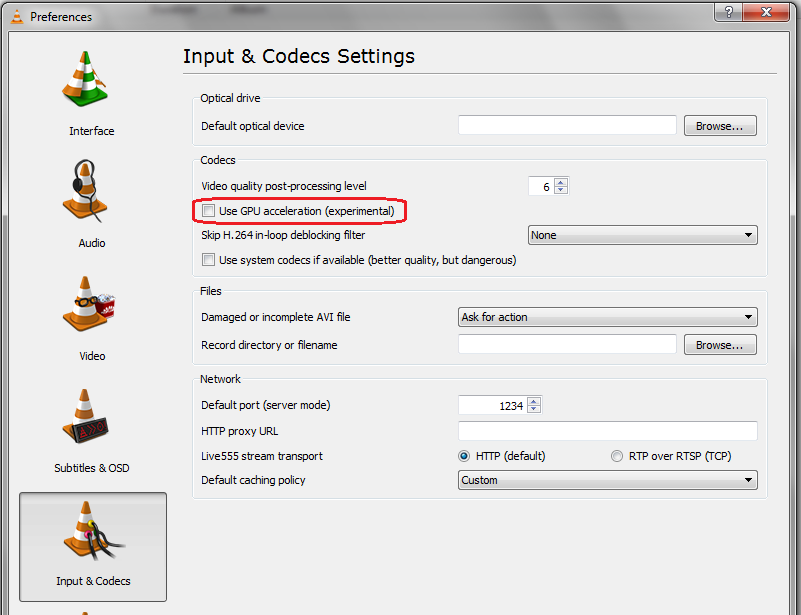
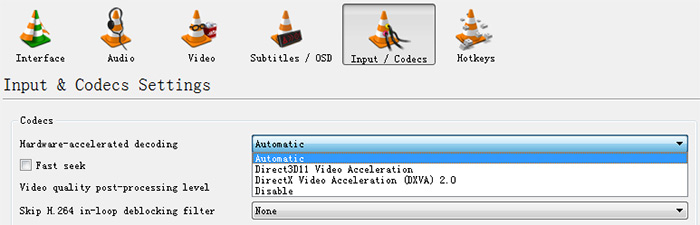
Open VLC and go to Tools in the menu bar. Select Preferences, then click on Input / Codecs. Find the option labeled “Hardware-accelerated decoding.” Choose the option that matches your system, usually “Automatic.” Save the settings and restart VLC to apply the changes. This will allow VLC to use your GPU for video playback.
Compatible Gpu Types
VLC supports most modern GPUs from NVIDIA, AMD, and Intel. NVIDIA’s CUDA and NVDEC are common options. AMD uses UVD and VCE technologies. Intel supports Quick Sync Video for hardware decoding. Make sure your GPU drivers are up to date for the best performance. Older GPUs may not support hardware acceleration fully.
Common Issues And Fixes
Sometimes hardware decoding can cause video glitches or crashes. Try disabling hardware acceleration in VLC if this happens. Update your GPU drivers to fix compatibility problems. Lower the video resolution or change the output module in VLC settings. Restarting your computer can also help resolve minor issues.
Credit: www.reddit.com
Comparing Vlc With Other Players
Comparing VLC with other media players reveals key differences in GPU acceleration and features. Many users want to know how well VLC uses the GPU. This affects video playback quality and system performance. Examining these points helps choose the best player for your needs.
Gpu Acceleration Performance
VLC supports GPU acceleration on most systems. It uses hardware decoding to ease the CPU load. This helps play high-resolution videos smoothly. Some players like MPC-HC or PotPlayer also offer strong GPU support. They may support more GPU models or newer technologies faster. VLC focuses on wide compatibility and stability.
In some cases, other players may perform better with certain GPUs. This depends on driver support and optimization. VLC’s acceleration works well for many users but may lag in ultra-high-definition playback. Testing different players on your system can show which suits you best.
Feature Differences
VLC stands out with its simple and clean interface. It supports almost every video and audio format. Other players may have more advanced features for power users. For example, PotPlayer offers detailed settings for video filters and subtitles. MPC-HC has more customization options and plugins.
VLC’s GPU acceleration settings are easy to access. Other players might require more technical knowledge. VLC also runs on many platforms like Windows, Mac, Linux, and mobile. This makes it very versatile. Some players focus only on Windows or specific devices.
Tips For Optimizing Video Performance
Optimizing video performance in VLC can improve your viewing experience. Small changes in settings can make a big difference. These tips help you use VLC more smoothly and reduce lag or stutter.
Updating Drivers
Keep your GPU drivers up to date. New drivers fix bugs and improve speed. Visit the official website of your graphics card to download the latest version. Updated drivers help VLC use GPU acceleration better and play videos without issues.
Adjusting Vlc Preferences
Open VLC preferences and go to the video section. Enable hardware-accelerated decoding. This setting lets VLC use your GPU to process videos faster. Lower buffering values to reduce delay. Save changes and restart VLC for the best results.
Choosing The Right Video Output Module
VLC offers different video output modules. Some work better with certain GPUs. Try changing the output to DirectX, OpenGL, or Vulkan. Test each option to find which one plays videos smoothly on your device. This step can fix playback problems and improve quality.

Credit: www.youtube.com
Credit: www.winxdvd.com
Frequently Asked Questions
Does Vlc Support Gpu Acceleration For Video Playback?
Yes, VLC supports GPU acceleration using hardware decoding. This reduces CPU load and improves video playback smoothness. It supports APIs like DXVA2, VDPAU, and VA-API depending on the platform.
How To Enable Gpu Acceleration In Vlc?
To enable GPU acceleration, go to Tools > Preferences > Input/Codecs. Under “Hardware-accelerated decoding,” select the appropriate option. Save and restart VLC to apply changes.
Which Gpus Are Compatible With Vlc Hardware Acceleration?
VLC supports most modern GPUs from NVIDIA, AMD, and Intel. Compatibility depends on drivers and operating system support for hardware decoding APIs.
Does Gpu Acceleration Improve Vlc Streaming Performance?
Yes, GPU acceleration offloads decoding tasks from CPU to GPU. This results in smoother streaming and lower CPU usage, especially for high-resolution videos.
Conclusion
VLC supports GPU acceleration to improve video playback. It helps reduce CPU load and makes videos smoother. Not all devices use it by default. Users can enable GPU acceleration in settings for better performance. This feature works well with many video formats.
It saves battery life on laptops and mobile devices. Keep VLC updated to get the latest improvements. Try enabling GPU acceleration to see if it works for you. Simple steps can make your video experience better.
