
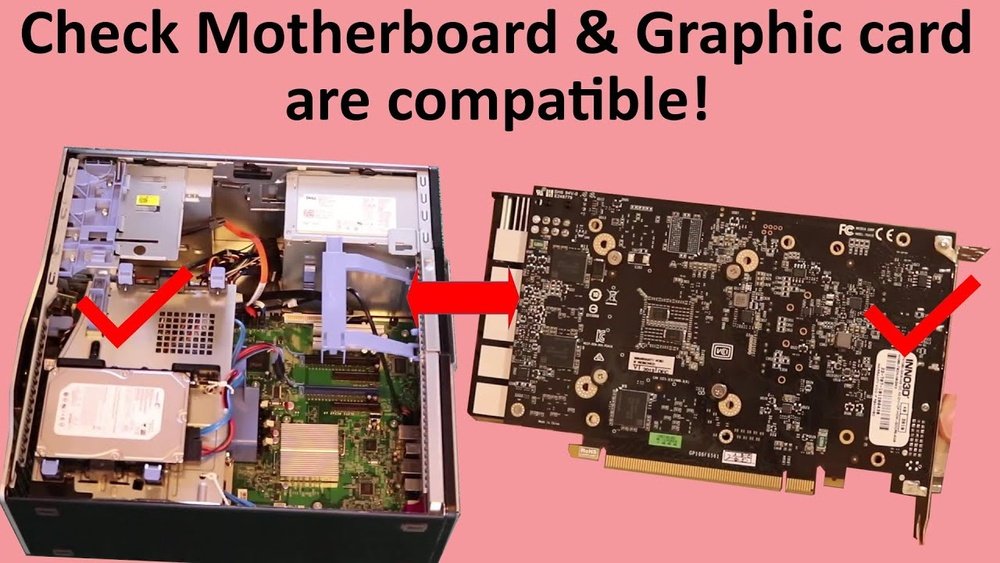
Are you wondering if your motherboard can handle a new GPU? It’s a question that can save you time, money, and frustration.
Choosing the right graphics card isn’t just about power—it’s about compatibility. If your motherboard and GPU don’t match, your system won’t perform the way you want it to. You’ll discover simple ways to check if your motherboard supports the GPU you have in mind.
Keep reading, and you’ll avoid costly mistakes and build a setup that works perfectly for you.

Credit: vixencomposites.com
Motherboard And Gpu Basics
Understanding the basics of motherboards and GPUs helps in choosing compatible parts. Both play key roles in a computer’s performance. The motherboard connects all components, while the GPU handles graphics and video tasks. Knowing their functions and types makes building or upgrading a PC easier.
Key Components Of A Motherboard
A motherboard has several important parts. The CPU socket holds the processor. RAM slots fit memory modules. PCIe slots allow expansion cards like GPUs. Power connectors supply electricity to components. Chipsets control data flow between parts. BIOS stores system settings. These components work together to run the computer.
Types Of Gpus
GPUs come in different forms. Integrated GPUs are built into the CPU or motherboard. They use shared memory and are less powerful. Dedicated GPUs are separate cards installed in PCIe slots. These have their own memory and processing power. Some GPUs focus on gaming, others on professional tasks. Choosing the right type depends on your needs.
How Motherboards And Gpus Interact
GPUs connect to motherboards through PCIe slots. The motherboard supplies power and data paths for the GPU. The BIOS must support the GPU for proper function. The PCIe version affects data speed between motherboard and GPU. Power connectors must match the GPU’s requirements. Compatibility depends on slot type, size, and power needs.
Credit: vixencomposites.com
Checking Physical Compatibility
Checking the physical compatibility between your motherboard and GPU is essential before any installation. This step ensures your new graphics card fits and works properly without issues. Several factors affect compatibility, including the slot type, card size, and power connectors. Understanding these details saves time and prevents damage to your components.
Pcie Slot Types And Sizes
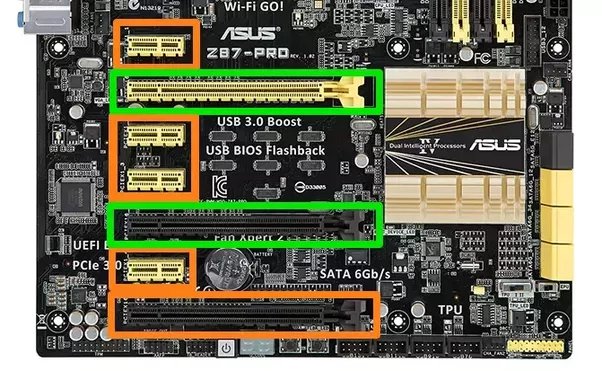
The PCIe slot is where the GPU connects to the motherboard. Most modern GPUs use a PCIe x16 slot for the best speed and performance. Motherboards may have different slot sizes like x1, x4, x8, and x16. Ensure your motherboard has a PCIe x16 slot that matches the GPU’s interface. Older motherboards might use PCI or AGP slots, which are not compatible with new GPUs.
Gpu Length And Clearance
GPU length matters because cases have limited space. Measure the distance from the PCIe slot to any obstruction inside your case. Some GPUs are long and need more room. Check your case specifications and compare them with the GPU’s length. Also, consider nearby components like hard drives or cables that might block the card.
Power Connector Requirements
Most GPUs need extra power connectors beyond the PCIe slot. These include 6-pin, 8-pin, or a combination of both. Check your GPU’s power needs on the product page or manual. Then, see if your power supply has the right connectors and enough wattage. Missing or inadequate power connectors can cause instability or failure to start.
Bios And Firmware Factors
The BIOS and firmware on your motherboard play a key role in GPU compatibility. They control how hardware parts communicate during startup. Without proper BIOS support, your GPU might not work correctly or at full speed.
Understanding BIOS and firmware factors helps avoid compatibility problems. It ensures your system recognizes and uses your GPU properly. Firmware updates can add support for newer GPUs and fix bugs that cause crashes or slowdowns.
Bios Updates For Gpu Support
Motherboard manufacturers release BIOS updates to support new GPUs. These updates improve system stability and add features for the latest graphics cards. Running an outdated BIOS can cause your GPU to be undetected or underperform.
Check your motherboard’s website for BIOS updates before installing a new GPU. Updating BIOS is usually simple but requires caution. Follow instructions carefully to avoid damaging your system.
Uefi Vs Legacy Bios
Modern motherboards use UEFI firmware instead of the older Legacy BIOS. UEFI offers better support for new hardware and faster boot times. Many new GPUs require UEFI to function properly.
Legacy BIOS may not recognize some modern GPUs. Switching to UEFI mode in your motherboard settings can fix detection issues. Confirm your motherboard supports UEFI before changing settings.
Common Firmware Issues
Firmware bugs can cause GPUs to freeze, crash, or not show video output. Improper BIOS settings may limit PCIe lane speeds, reducing GPU performance. Conflicts between firmware and GPU drivers also cause problems.
Resetting BIOS to default values can solve some issues. Updating firmware often resolves bugs and improves hardware compatibility. Regularly check for firmware updates to keep your system stable.
Power Supply Considerations
Power supply plays a key role in GPU and motherboard compatibility. It delivers the needed energy for smooth performance. Choosing the right power supply ensures your system runs stable and safe. Understanding power needs helps avoid crashes and hardware damage.
Wattage Requirements
The wattage must match or exceed GPU needs. Check GPU specifications for recommended power. Add the wattage of other components for total power. Too little wattage causes shutdowns or poor performance. A higher wattage supply gives room for upgrades.
Power Connectors And Cables
GPUs require specific power connectors from the supply. Common types are 6-pin and 8-pin connectors. Confirm your power supply has enough connectors for your GPU. Using adapters can work but is not ideal. Proper cables ensure stable power delivery and avoid damage.
Efficiency Ratings And Stability
Efficiency ratings show power supply quality. Look for 80 Plus certification for better efficiency. Higher efficiency means less heat and lower electricity bills. Stable power prevents crashes and hardware issues. Choose a reliable brand to ensure lasting performance.
Performance And Bottlenecks
Performance and bottlenecks affect how well your GPU works with your motherboard. The motherboard connects all parts of your computer. If some parts do not match well, they slow down the GPU. This section explains what causes these slowdowns and how to avoid them.
Cpu And Ram Impact
The CPU and RAM play a big role in GPU performance. A slow CPU can hold back the GPU. It cannot send data fast enough. RAM also matters. Not enough RAM or slow RAM can limit the GPU’s power. Make sure your CPU and RAM match your GPU’s speed.
Pcie Version And Bandwidth
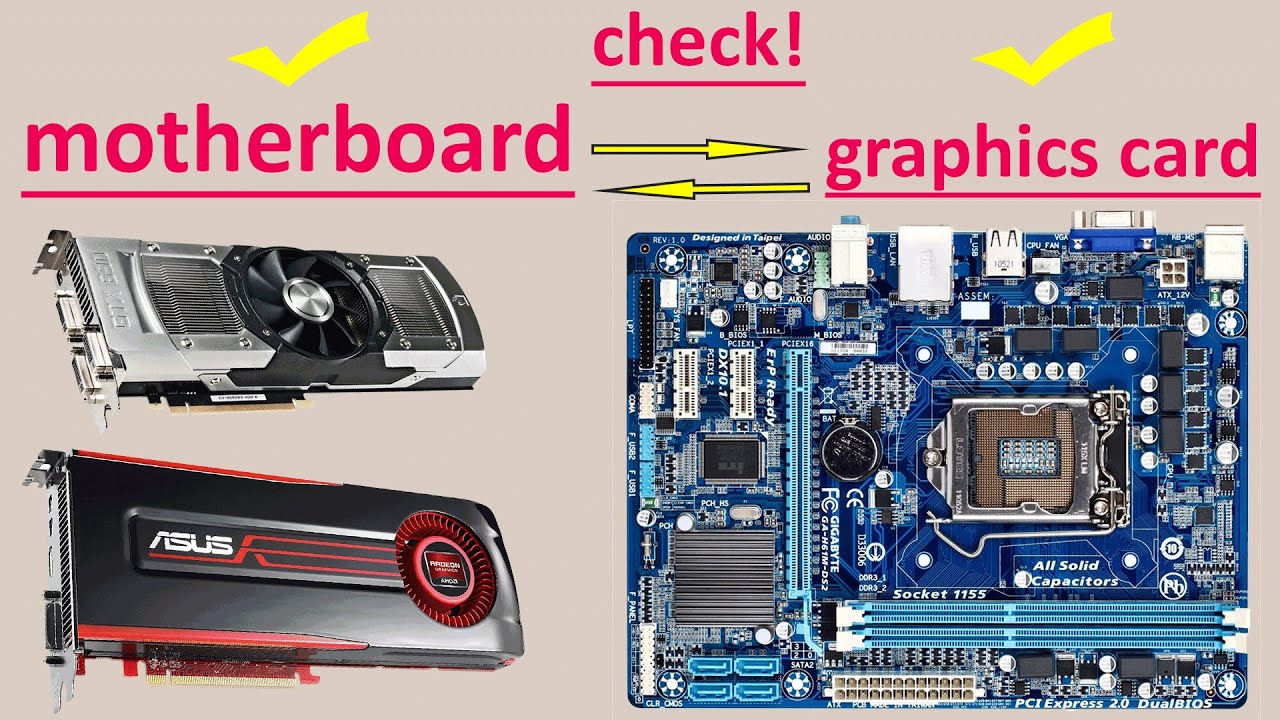
The PCIe slot connects the GPU to the motherboard. Different PCIe versions offer different speeds. Older versions have less bandwidth. This means data moves slower. Using a GPU with a PCIe slot that is too old can slow performance. Check that your motherboard supports the right PCIe version for your GPU.
Avoiding Bottlenecks
Bottlenecks happen when one part is much slower than others. This stops the GPU from working at full speed. Avoid bottlenecks by balancing your system. Choose a CPU, RAM, and motherboard that work well together. This keeps data flowing smoothly. Your GPU can then perform as expected without limits.
Credit: www.youtube.com
Compatibility Tools And Resources
Finding out if your motherboard works with a new GPU can be tricky. Many tools and resources exist to help. These tools make the check fast and simple. They save time and avoid buying parts that do not fit.
Manufacturer Compatibility Lists
Motherboard makers often share lists of supported GPUs. These lists show tested and approved models. Checking these lists helps confirm if a GPU fits your board. They provide details about slot type and power needs. Always check the latest list from the maker’s website.
Online Pc Builders And Forums
Online PC builders let you pick parts and test compatibility. They warn if parts might not work well together. Forums have real user experiences and advice. People share tips about which GPUs fit certain motherboards. These communities help solve common compatibility problems.
Testing And Troubleshooting
Testing your setup is useful before full assembly. Some software tools check hardware compatibility. They scan your system and report issues. Troubleshooting guides explain fixes for common problems. Testing avoids surprises and ensures smooth performance.
Frequently Asked Questions
How Do I Check Motherboard And Gpu Compatibility?
Check your motherboard’s PCIe slot version and GPU requirements. Ensure the slot supports your GPU’s interface and size. Also, verify the power supply can handle the GPU’s demands for smooth compatibility.
Can An Old Motherboard Support A New Gpu?
Older motherboards may support new GPUs if they have the correct PCIe slot. However, performance might be limited due to slower bus speeds or outdated BIOS. Always check compatibility before upgrading.
Does Motherboard Size Affect Gpu Installation?
Yes, motherboard size affects GPU installation. Larger GPUs may not fit smaller motherboards or cases. Confirm your case and motherboard dimensions support the GPU’s length and width for proper installation.
Is Bios Update Necessary For Gpu Compatibility?
Sometimes, a BIOS update is needed to support new GPUs. This update can improve hardware recognition and system stability. Check your motherboard manufacturer’s website for specific GPU-related BIOS updates.
Conclusion
Choosing the right GPU for your motherboard matters a lot. Check the slot type and size carefully. Power supply and BIOS updates also affect compatibility. Knowing these details helps avoid problems later. Your PC will run smoother and faster with the right match.
Take time to research before buying parts. This simple step saves money and frustration. Now, you can build or upgrade your computer with confidence.
