
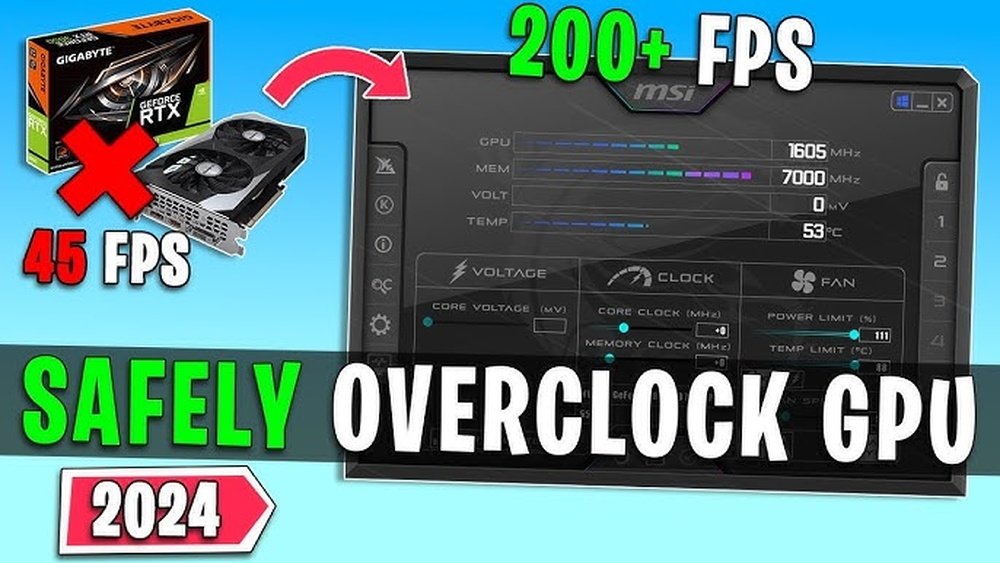
Are you thinking about overclocking your GPU to boost your gaming or creative work? It sounds exciting to get extra power without buying new hardware.
But is it really safe? You might worry about damaging your graphics card or shortening its life. You’ll discover what overclocking means for your GPU, the risks involved, and how to do it wisely if you choose to. Keep reading to make sure your upgrade doesn’t turn into a costly mistake.
What Is Gpu Overclocking
GPU overclocking means increasing the speed of your graphics card beyond its original settings. This makes the GPU run faster than the factory default. It can improve the performance of games and other graphics tasks.
Overclocking pushes the GPU to work harder. This creates more heat and uses more power. It requires careful adjustment to keep the hardware safe.
What Does Overclocking Do?
Overclocking raises the GPU’s core clock and memory clock speeds. This helps the GPU process graphics data faster. The result is smoother gameplay and quicker rendering times.
How Is Overclocking Done?
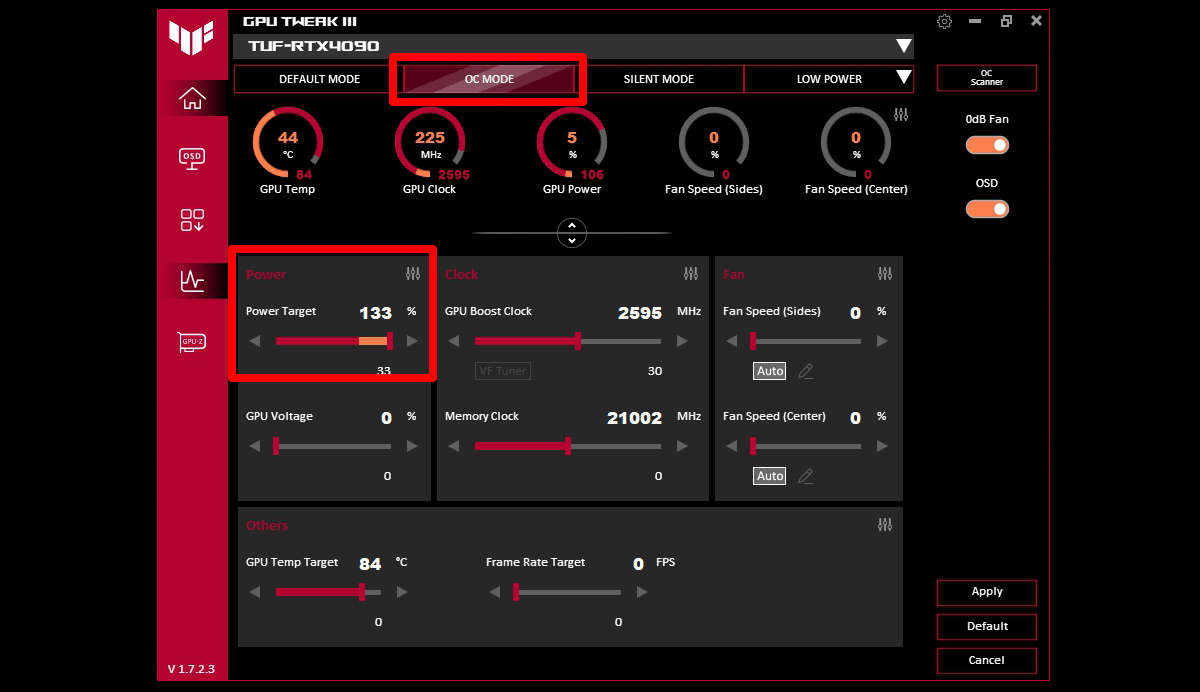
Users change settings through special software or BIOS tools. These tools allow fine control of clock speeds and voltages. Testing is needed to find stable and safe values.
Risks Of Overclocking
Higher speeds create more heat. Without proper cooling, the GPU may overheat. Overclocking can shorten the GPU’s lifespan or cause crashes.
Why Do People Overclock?
Many want better performance without buying new hardware. Overclocking can extend the life of an older GPU. It gives extra speed for demanding games or apps.

Credit: www.avg.com
Benefits Of Overclocking Your Gpu
Overclocking your GPU can improve its performance beyond factory settings. This means faster graphics and smoother gameplay in many applications. It lets you get more power from your current hardware without buying a new card.
Many users overclock to enjoy better visuals and quicker rendering times. It can also help with tasks like video editing or 3D modeling by speeding up processes. Overclocking offers a chance to push your GPU for extra value.
Improved Gaming Performance
Overclocking raises the GPU clock speed. This leads to higher frame rates and reduced lag. Games run smoother and look better. You can play new games on higher settings without upgrading your GPU.
Faster Video Rendering
Video editing takes less time with an overclocked GPU. The faster processing helps render videos quickly. It makes editing workflows more efficient and saves time on projects.
Cost-effective Hardware Boost
Overclocking is a budget-friendly way to enhance your GPU. It extends the life of your current graphics card. You avoid spending money on expensive new hardware for better performance.
Better Multitasking Ability
Higher GPU speeds help with running several applications. Overclocking supports smoother multitasking and less slowdowns. It is useful for users who work with many programs at once.
Potential Risks And Dangers
Overclocking a GPU can boost performance, but it carries risks. Understanding these dangers helps you make safer choices. Overclocking pushes the graphics card beyond its factory settings. This extra stress can cause problems over time. Knowing the potential risks keeps your hardware safe and working well.
Overheating and Thermal DamageOverclocking increases the GPU’s heat output. Too much heat can damage the chip and other parts. Cooling systems may not handle the extra heat well. This can lead to system crashes or permanent damage. Proper cooling is essential to reduce overheating risks.
Reduced Hardware LifespanRunning a GPU above its normal speed wears it out faster. Components like the GPU core and memory face more stress. This can shorten the card’s overall life. Overclocking may cause the card to fail earlier than expected.
System Instability and CrashesOverclocked GPUs may cause your system to freeze or crash. The GPU might not handle the higher speed well. This leads to errors during games or work. Stability issues can cause data loss and frustration.
Voiding Manufacturer WarrantyMany GPU makers do not cover damage from overclocking. If problems arise, you might lose warranty protection. Repairs or replacements could cost you money. Check your warranty terms before overclocking your GPU.
Signs Your Gpu Is Overheating
Overclocking a GPU pushes it beyond its normal limits. This can cause the GPU to heat up more than usual. Knowing the signs of overheating helps protect your hardware. It also keeps your computer running smoothly.
Overheating can damage your GPU if not noticed early. Watch for these signs to avoid serious problems. Acting quickly can save you from costly repairs or replacements.
High Fan Speeds And Loud Noise
Fans spin faster to cool a hot GPU. Loud noise from fans often means high temperatures. If your GPU fan sounds louder than usual, check the temperature. It may be working hard to cool down the chip.
Sudden System Crashes Or Freezes
Your computer may crash without warning. Games or apps might freeze or close randomly. Overheating causes instability in the GPU. This can make your system shut down to protect itself.
Screen Artifacts And Glitches
Visual errors like strange colors or lines appear on screen. These artifacts mean the GPU is struggling. Overheating can cause the graphics to display incorrectly. Watch for flickering, blocks, or odd patterns.
High Temperature Readings
Use software tools to check GPU temperature. Temperatures above 85°C are risky for many GPUs. Constant readings near or above this level show overheating. Lower the temperature to keep the GPU safe.
Reduced Performance And Fps Drops
Overheated GPUs often slow down to cool off. You may notice lower frame rates in games. Performance drops signal your GPU is under stress. Cooling the GPU helps restore normal speeds.
Essential Tools For Overclocking
Overclocking a GPU can boost performance but needs careful steps. Using the right tools is key to safe overclocking. These tools help monitor temperatures, adjust settings, and test stability. They make the process clear and controlled. Without proper tools, overclocking might harm your GPU or cause crashes.
Gpu Overclocking Software
Software like MSI Afterburner or EVGA Precision X lets you change clock speeds and voltages. They show real-time data on your GPU’s performance. These programs also allow you to create custom fan curves. This keeps your GPU cool during overclocking. Easy-to-use interfaces help beginners adjust settings safely.
Temperature Monitoring Tools
Monitoring temperature is vital. Tools such as HWMonitor or GPU-Z track GPU heat levels. Staying below safe temperatures prevents damage and slows wear. These tools alert you if your GPU gets too hot. Keeping an eye on heat means you can stop overclocking before problems start.
Stress Testing Programs
Stress tests check if your overclock is stable. Programs like FurMark or 3DMark push your GPU hard. They reveal crashes or glitches caused by overclocking. Running these tests helps you find the best balance between speed and stability. Only stable overclocks should be used for daily tasks.
Step-by-step Overclocking Process
Overclocking a GPU can improve performance but must be done carefully. Follow each step to keep your hardware safe. The process involves testing, adjusting, and monitoring to find the best balance.
Start slow and increase speeds little by little. Watch the temperature and stability closely. This way, you avoid damage and keep your PC running smooth.
Preparing Your System
Before overclocking, update your GPU drivers. Close all unnecessary programs. Make sure your PC is clean and well-ventilated. Download reliable overclocking software like MSI Afterburner.
Setting Baseline Benchmarks
Run a stress test to check your GPU’s current performance. Note the clock speeds, temperature, and frame rates. This baseline helps you compare changes after overclocking.
Increasing Clock Speeds Gradually
Raise the GPU core clock by small steps, about 10-20 MHz. Apply the changes and run a stress test. Look for crashes, glitches, or high temperatures.
Adjusting Memory Clock
After stabilizing the core clock, increase the memory clock slowly. Test again for stability and temperature. Stop increasing if you see errors or overheating.
Monitoring Temperatures And Stability
Keep GPU temperature below 85°C for safety. Use monitoring tools during gaming or heavy use. If the system crashes or freezes, reduce clock speeds.
Saving And Applying Your Settings
Once stable, save your settings in the overclocking tool. Set it to apply at startup if you want permanent overclocking. Always keep an eye on temperature and performance regularly.
How To Test Stability And Performance
Testing stability and performance is key after overclocking your GPU. It shows if the new settings work well and stay safe. You must check both how fast your GPU runs and if it stays stable without crashing.
Use specific tools and follow clear steps. This process helps avoid damage and keeps your system reliable. Here are some easy ways to test your GPU after overclocking.
Stress Testing Your Gpu
Stress tests push your GPU to its limits. They show if it can handle high loads without errors. Use programs like FurMark or 3DMark for this purpose. Run the test for at least 30 minutes. Watch for crashes, freezes, or strange artifacts on the screen.
Monitoring Temperatures
High temperatures can harm your GPU. Use software like MSI Afterburner or HWMonitor to check temps. Keep the GPU temperature below 85°C during stress tests. If it gets too hot, reduce your overclock settings or improve cooling.
Benchmarking Performance
Benchmarks measure how much faster your GPU runs after overclocking. Run tools like Unigine Heaven or 3DMark Time Spy. Compare scores before and after overclocking. This shows real gains in performance and helps you decide if overclocking is worth it.
Checking For Artifacts And Visual Glitches
Artifacts are visual errors caused by unstable overclocking. Look for strange lines, dots, or flickering during games or tests. These glitches mean your GPU is not stable. Lower your overclock settings to fix these problems.
Running Real-world Tests
Play your favorite games for a longer time. This shows how the GPU performs in real conditions. If the game runs smoothly without crashes, your overclock is stable. Watch for any sudden shutdowns or errors.
Cooling Solutions To Prevent Damage
Overclocking a GPU increases its speed but also raises its temperature. Keeping the GPU cool is very important to avoid damage. Good cooling helps the GPU run smoothly and last longer.
Choosing the right cooling solution can protect your hardware and improve performance. Several cooling methods work well for different needs and budgets.
Air Cooling With High-quality Fans
Air cooling uses fans to blow air over the GPU. High-quality fans move more air and lower temperatures better. Installing extra fans inside the case improves airflow. Keeping dust out helps fans work efficiently. Air cooling is simple and cost-effective for most users.
Liquid Cooling Systems
Liquid cooling uses water or coolant to carry heat away. It cools the GPU more effectively than air. Liquid coolers include pumps, tubes, and radiators. They keep temperatures lower during heavy use. Liquid cooling is quieter but costs more and needs maintenance.
Improving Case Ventilation
Good case ventilation helps hot air escape quickly. Use cases with mesh panels or vents. Place fans to create a steady airflow path. Avoid blocking vents with cables or objects. Cooler air inside the case helps all components stay safe.
Expert Tips For Safe Overclocking
Overclocking a GPU can boost its performance but carries risks. Experts suggest careful steps to keep your hardware safe. These tips help you improve speed without causing damage.
Start slow. Increase clock speeds in small steps. Test stability after each change. This helps avoid crashes and overheating. Patience is key.
Monitor Temperature Closely
Heat is the biggest threat to an overclocked GPU. Use software tools to track temperature constantly. Keep it below the safe limit set by the manufacturer. If the card gets too hot, lower the clock speed or improve cooling.
Adjust Voltage Carefully
Increasing voltage can help stability at higher speeds. But too much voltage damages the GPU. Raise voltage in tiny amounts only if needed. Watch temperatures closely as voltage affects heat.
Test Stability With Benchmarking Tools
Run stress tests to check if your GPU handles the new speeds. Use reliable benchmarking software. Look for crashes, artifacts, or performance drops. Stop overclocking if problems appear.
Improve Cooling Solutions
Better cooling supports higher overclocking safely. Use high-quality fans or liquid cooling systems. Clean dust from your PC regularly. Good airflow reduces heat buildup and prolongs GPU life.
Keep Drivers And Bios Updated
Updated drivers and BIOS improve compatibility and stability. Check for updates from your GPU maker. Install them before overclocking. This reduces bugs and improves performance during overclocking.

Credit: www.youtube.com
When To Avoid Overclocking
Overclocking a GPU can boost performance, but it is not always safe or wise. Sometimes, it can cause damage or reduce the life of your hardware. Knowing when to avoid overclocking helps protect your system and keeps it stable.
Not every user or situation suits overclocking. Some conditions make it risky. Learning these signs can save you time and money.
High GPU TemperatureOverclocking raises the GPU’s heat output. If your GPU already runs hot, avoid overclocking. High temperatures can cause crashes and permanent damage. Check your GPU temperature before trying any changes.
Insufficient Cooling SystemGood cooling is essential for overclocking. Without proper fans or liquid cooling, your GPU may overheat quickly. Basic or stock coolers often cannot handle extra heat. Upgrade cooling before considering overclocking.
Old or Low-Quality Power SupplyOverclocking increases power consumption. A weak or old power supply may fail to deliver enough stable power. This can cause system crashes or hardware damage. Use a reliable power supply that meets your GPU’s needs.
Lack of ExperienceOverclocking needs careful adjustments and testing. Beginners who do not understand risks may harm their GPU. It is better to avoid overclocking without proper knowledge. Learn and practice first, then try small changes.
Warranty and Manufacturer RestrictionsMany GPUs come with warranties that void if overclocked. Check your warranty terms before overclocking. Avoid it if you want to keep warranty coverage. Manufacturer restrictions may also limit safe overclocking options.
Credit: rog.asus.com
Frequently Asked Questions
Is Overclocking A Gpu Safe For Beginners?
Overclocking a GPU can be safe if done cautiously. Beginners should increase clock speeds gradually and monitor temperatures closely to avoid damage.
How Does Gpu Overclocking Affect Performance?
GPU overclocking boosts clock speeds, improving gaming and rendering performance. However, gains vary by GPU model and cooling efficiency.
What Risks Are Involved In Gpu Overclocking?
Overclocking risks include overheating, system instability, and reduced hardware lifespan. Proper cooling and voltage control minimize these risks effectively.
Can Overclocking Void My Gpu Warranty?
Yes, overclocking often voids the manufacturer’s warranty. Always check your GPU’s warranty terms before attempting to overclock.
Conclusion
Overclocking a GPU can boost performance but carries risks. It may cause overheating and shorten your GPU’s life. Proper cooling and careful settings help reduce these risks. Always watch your GPU’s temperature during overclocking. Know your limits and avoid pushing hardware too far.
Overclocking is not for everyone. Weigh the benefits against possible damage. Stay safe and enjoy your computer’s power wisely.
