

Are you wondering if you can boost your laptop’s gaming or graphic power without buying a new one? Upgrading your laptop GPU sounds like the perfect solution, but is it really possible?
You might be surprised by the answer. You’ll discover the truth about laptop GPU upgrades, what options you have, and how to make the best choice for your needs. Keep reading to find out if your laptop can get the boost you’re dreaming of.
Laptop Gpu Basics
A laptop GPU is an important part of your computer. It controls how images and videos appear on your screen. A good GPU helps you play games, edit videos, and run programs smoothly.
Understanding the basics of laptop GPUs helps you know if upgrading is possible. Let’s look at what a laptop GPU is and the difference between integrated and dedicated types.
What Is A Laptop Gpu
A laptop GPU stands for Graphics Processing Unit. It processes graphics and visuals for your laptop. It works alongside the CPU to show images clearly and quickly. Without a GPU, your laptop would struggle with videos and games.
Laptop GPUs are smaller and use less power than desktop GPUs. They are designed to fit inside the laptop’s slim body. This makes upgrading them more difficult compared to desktop computers.
Integrated Vs Dedicated Gpus
Integrated GPUs are built into the laptop’s main processor. They share memory with the CPU and use less power. These GPUs handle simple tasks like browsing and watching videos.
Dedicated GPUs are separate chips with their own memory. They provide better performance for gaming and graphic work. Dedicated GPUs run faster and handle more complex tasks than integrated ones.
Many laptops come with integrated GPUs only. Some have both, switching between them to save power or boost performance. Knowing the type of GPU helps decide if upgrading is possible.

Credit: www.reddit.com
Factors Affecting Gpu Upgrades
Upgrading a laptop GPU is not always easy. Several factors affect whether you can improve your laptop’s graphics. Understanding these factors helps you decide if an upgrade is possible.
Each laptop has limits on what parts can be changed. These limits depend on design, compatibility, power, and cooling. Let’s explore these factors in detail.
Laptop Design Constraints
Laptops are built with fixed space inside. Most GPUs are soldered onto the motherboard. This means you cannot remove or replace them easily. Some gaming laptops use modular GPUs, but these are rare.
The size and shape of the laptop also matter. A bigger GPU may not fit inside a slim laptop. The internal layout limits how much you can upgrade.
Gpu Compatibility Issues
Not all GPUs work with all laptops. The motherboard and BIOS must support the new GPU. Drivers must be available for the new hardware.
Using an incompatible GPU can cause errors or prevent the laptop from booting. Always check if the GPU matches your laptop’s model and chipset.
Power And Cooling Limitations
Upgrading a GPU means more power use. Laptops have limited power supplies. A stronger GPU may need more electricity than the laptop can provide.
Cooling is another challenge. Powerful GPUs generate more heat. Most laptops have cooling systems designed for their original GPU. Upgrading may cause overheating or damage.
Types Of Gpu Upgrades
Upgrading a laptop GPU can improve graphics performance. The type of upgrade depends on the laptop model and design. Some laptops allow internal GPU replacement. Others support external GPU options. Understanding these types helps choose the best upgrade for your needs.
Internal Gpu Replacement
Some laptops have removable GPUs inside. These are usually in high-end gaming or workstation models. Replacing the internal GPU means opening the laptop. You need technical skills and the right parts. Most laptops have GPUs soldered to the motherboard. In those cases, internal replacement is impossible.
External Gpu Solutions
External GPUs connect outside the laptop. They offer a simple way to boost graphics power. You plug the external GPU into a special port. This setup works well for laptops with weak or no upgrade options. External GPUs are usually bigger and need extra power.
Using Egpu Docks
eGPU docks are devices that hold external GPUs. They connect to your laptop via Thunderbolt or USB-C ports. eGPU docks allow easy GPU upgrades without opening the laptop. They also offer ports for monitors and accessories. This makes them ideal for gamers and creators needing better graphics.
Step-by-step Upgrade Process
Upgrading a laptop GPU is not always simple. It needs careful steps to avoid damage. This process helps improve your laptop’s graphic power. Follow these clear steps for a successful upgrade.
Checking Laptop Compatibility
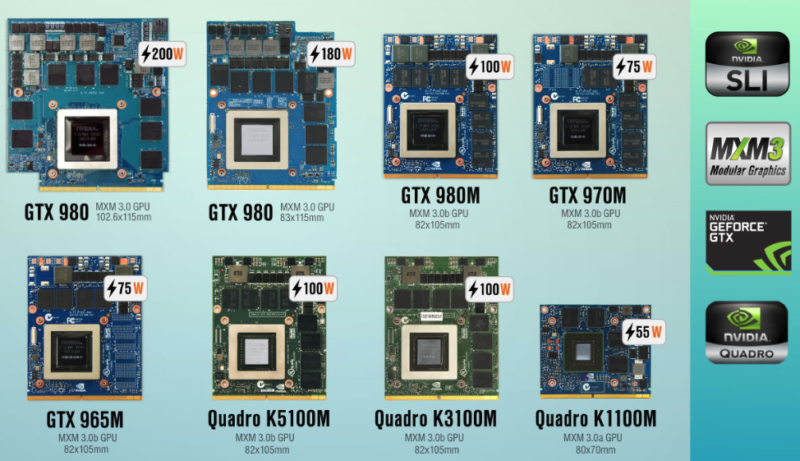
First, check if your laptop supports GPU upgrades. Many laptops have GPUs soldered to the motherboard. This means they cannot be replaced. Look for laptops with MXM slots or external GPU support. Verify the power supply can handle a new GPU. Also, check the cooling system for extra heat. This step prevents buying an incompatible GPU.
Choosing The Right Gpu
Pick a GPU that fits your laptop’s slot type. Choose one that matches your power and cooling capacity. Consider your laptop’s size and weight limits. Review the performance you need for your tasks. Balance price and GPU features for the best fit. Avoid GPUs that require more power than your laptop can provide.
Installation Tips And Tools
Turn off and unplug your laptop before starting. Use a small screwdriver to open the case. Ground yourself to avoid static damage to parts. Carefully remove the old GPU by loosening screws and connectors. Install the new GPU firmly in the slot. Reattach screws and connectors securely. Close the case and power on your laptop. Install or update GPU drivers for best results.
Potential Risks And Challenges
Upgrading a laptop GPU is not a simple task. It carries several risks and challenges. These can affect the laptop’s warranty, hardware health, and overall performance. Understanding these issues helps in making a better decision.
Warranty Voiding
Changing the GPU often breaks the laptop’s warranty terms. Manufacturers usually do not allow hardware changes. They can refuse service or repairs if they find modifications. This risk can lead to costly repairs later.
Hardware Damage Risks
Laptops are compact and delicate. Removing or installing a GPU can cause damage. Small parts may break, or connectors can bend. Overheating might happen if the new GPU is not compatible. Damage may result in expensive fixes or a useless laptop.
Performance Bottlenecks
A new GPU might not work well with old hardware. The processor or memory may slow down the GPU. This mismatch limits the expected speed increase. The laptop may run hotter and use more battery. The upgrade might not improve performance much.
Performance Gains To Expect
Upgrading a laptop GPU can change how your device performs. It affects gaming, creative work, and daily tasks. The level of improvement depends on the new GPU and your laptop’s setup. Expect some boost, but not all laptops support big changes.
Gaming Improvements
A better GPU can increase frame rates in games. Games run smoother with fewer lags and stutters. You may play at higher settings or resolutions. Older games will look sharper and run faster. Newer, demanding games might still struggle on laptops.
Creative Work Benefits
Tasks like video editing and 3D rendering speed up. Programs use the GPU to process images faster. You save time exporting videos or applying effects. Higher GPU power means smoother previews and better multitasking. Creative apps run without freezing or crashing.
Everyday Use Enhancements
Daily tasks feel quicker with a stronger GPU. Browsing, streaming videos, and using apps improve. High-resolution displays work better and look clearer. Battery life might change depending on power use. Overall, your laptop handles multitasking more easily.
Alternatives To Gpu Upgrades
Upgrading a laptop GPU is often not possible due to hardware limits. Many users want better graphics but must consider other options. Alternatives to GPU upgrades can improve performance or extend laptop life. These methods focus on making the most of current hardware or choosing new devices wisely.
Optimizing Current Gpu
Adjust laptop settings to help the GPU work better. Lower game or software graphics quality to improve speed. Close unused programs to free up memory and processing power. Keep GPU drivers up to date for best performance. Use cooling pads to prevent overheating, which slows down the GPU.
Upgrading Other Components
Boost laptop speed by upgrading RAM or storage. More RAM helps run programs smoothly alongside the GPU. Switching to a faster SSD reduces loading times significantly. A better CPU can improve overall system performance. These upgrades can help balance the laptop’s power without changing the GPU.
Buying A New Laptop
Sometimes, buying a new laptop is the best choice. Select a model with a better GPU that fits your needs. Look for laptops with good cooling systems and modern hardware. This option may cost more but ensures better graphics and future upgrades. Choose wisely to get the best value and performance.
Credit: www.esseg.eu

Credit: www.youtube.com
Frequently Asked Questions
Can You Upgrade A Laptop Gpu Easily?
Most laptops do not support easy GPU upgrades. Laptop GPUs are often soldered to the motherboard. Upgrading requires specific models with MXM slots. External GPU enclosures are an alternative for better graphics performance.
What Laptops Allow Gpu Upgrades?
Only a few high-end gaming or workstation laptops support GPU upgrades. These models use removable MXM modules. Always check the manufacturer’s specifications before buying. Most consumer laptops lack upgrade options for GPUs.
Are External Gpus A Good Laptop Gpu Upgrade?
Yes, external GPUs (eGPUs) offer a practical upgrade. They connect via Thunderbolt 3 or USB-C ports. EGPUs enhance graphics performance without internal modifications. They are ideal for gaming, video editing, and 3D rendering.
Will Upgrading A Laptop Gpu Improve Gaming Performance?
Upgrading or using an external GPU can boost gaming performance significantly. Better GPUs handle higher resolutions and detail settings smoothly. However, internal upgrades are rare, so external GPUs are often the best option.
Conclusion
Upgrading a laptop GPU is not always simple or possible. Most laptops have fixed graphics chips. Some gaming or high-end models allow upgrades but are rare. External GPU options exist but need extra hardware. Consider your laptop’s design and budget before deciding.
Sometimes buying a new laptop with a better GPU makes more sense. Know your needs and check compatibility carefully. This helps avoid frustration and wasted money. Choose the best option that fits your situation and goals.
