
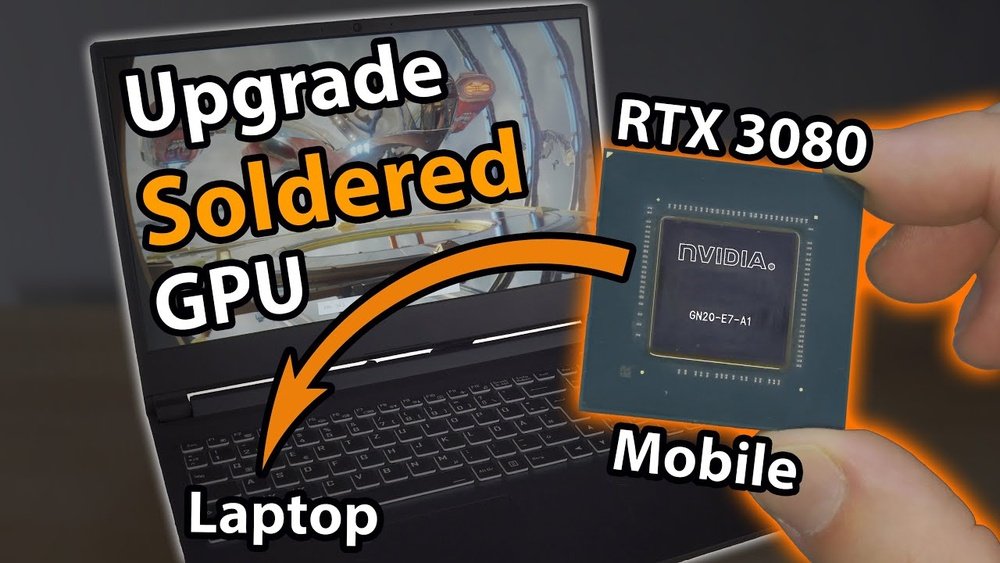
Are you tired of your laptop struggling with games or heavy graphics work? You might be wondering if upgrading your laptop’s GPU is the solution.
Imagine boosting your laptop’s performance without buying a whole new device. It sounds great, right? But is it really possible to upgrade a laptop GPU? Keep reading, because what you learn next could save you time, money, and frustration. Let’s dive in and find out what your options really are.
Credit: www.esseg.eu
Laptop Gpu Upgrade Basics
Upgrading a laptop GPU is a topic many users find confusing. Laptop GPUs are not as simple to swap as desktop ones. Understanding the basics helps set clear expectations. It also guides your decisions about upgrades and repairs.
This section explains how laptop GPUs differ from desktop GPUs. It covers common GPU types in laptops and the difference between integrated and dedicated GPUs. This knowledge is key to knowing what upgrades are possible.
How Laptop Gpus Differ
Laptop GPUs are often built directly into the motherboard. This design saves space but limits upgrade options. Many laptops use soldered GPUs, meaning they cannot be removed or replaced. Cooling systems for laptop GPUs are smaller and less powerful than desktops’. This limits the GPU’s performance and upgrade potential.
Common Gpu Types In Laptops
Laptops typically have two types of GPUs. Some use low-power models for basic tasks. Others include more powerful GPUs for gaming or design work. These powerful GPUs are still smaller and less flexible than desktop versions. Many laptops use mobile versions of popular GPU brands. These are designed to use less power and produce less heat.
Integrated Vs Dedicated Gpus
Integrated GPUs share the laptop’s main processor and memory. They are good for everyday tasks but not for heavy graphics work. Dedicated GPUs have their own memory and processor. They provide better graphics performance for games and software. Most laptops with dedicated GPUs offer better visuals and speed. Upgrading integrated GPUs is usually impossible. Dedicated GPUs in some high-end laptops may be upgradeable, but this is rare.

Credit: www.reddit.com
Factors Affecting Gpu Upgrades
Upgrading a laptop GPU is not as simple as upgrading a desktop graphics card. Several factors affect whether you can upgrade your laptop’s GPU. Understanding these factors helps set realistic expectations.
These factors include how the laptop is designed, compatibility of new parts, and the laptop’s power and cooling limits. Each one plays a crucial role in determining upgrade possibilities.
Laptop Design Constraints
Laptops are built with compact parts to save space. Most GPUs are soldered directly to the motherboard. This makes removing or replacing them very difficult. Some gaming laptops use modular GPUs, but these are rare and expensive.
The overall size and shape of the laptop also limit the GPU options. Larger GPUs may not fit inside smaller laptop cases. The design often prioritizes thinness over upgradeability.
Compatibility Issues
Not all GPUs work with every laptop. The new GPU must match the laptop’s motherboard and BIOS. The connector types must be compatible. Using the wrong GPU can cause boot failures or hardware damage.
Driver support is another concern. The laptop’s system may not support new GPU drivers fully. This can lead to poor performance or crashes. Checking compatibility is crucial before any upgrade.
Power And Cooling Limitations
Laptop GPUs need power and cooling to function well. Newer or stronger GPUs often require more electricity. The laptop’s power supply may not provide enough power for an upgraded GPU.
Cooling systems in laptops are designed for specific heat levels. A more powerful GPU creates more heat. Without adequate cooling, the laptop can overheat and slow down or shut off.
Upgrade Options Available
Upgrading a laptop GPU can improve gaming, video editing, and other tasks. Options depend on your laptop model and design. Some laptops offer easy ways to upgrade, while others have limits.
Understanding different upgrade paths helps you find the best choice. Here are common options for upgrading a laptop GPU.
External Gpu Solutions
External GPUs connect to a laptop through a special port, usually Thunderbolt 3. They let you use a desktop graphics card with your laptop. This option boosts graphics power without opening the laptop.
External GPUs need a separate box and power supply. They work well for gaming and heavy graphics work. Not all laptops support this, so check compatibility first.
Modular Laptop Gpus
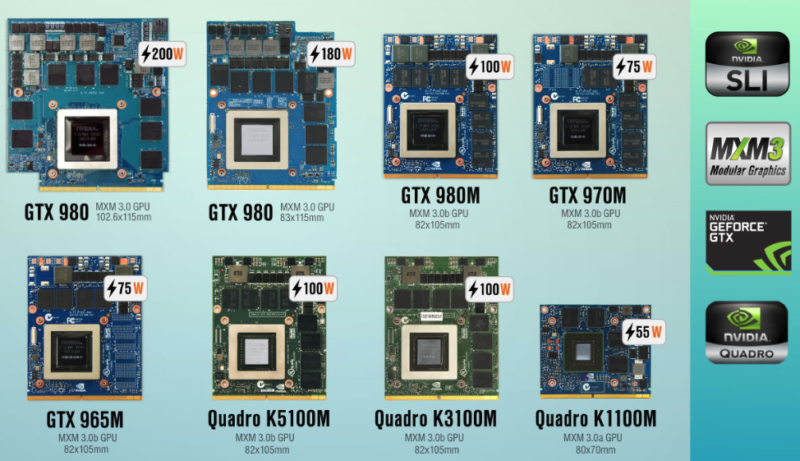
Some laptops have modular GPUs designed to be swapped out. This design is rare and mostly found in gaming laptops. The GPU is on a small card inside the laptop.
Modular GPUs allow upgrades without replacing the entire laptop. You must match the new GPU with your laptop’s slot and cooling system. This option is limited but effective if available.
Replacing The Internal Gpu
Most laptops have GPUs soldered to the motherboard. This makes internal GPU upgrades nearly impossible. Replacing an internal GPU often requires advanced skills and tools.
In some rare cases, technicians can replace the GPU chip. This process is costly and risky. Usually, upgrading means buying a new laptop with a better GPU.
Step-by-step Upgrade Process
Upgrading a laptop GPU is a detailed task. It requires careful steps to ensure success. This process can improve your laptop’s graphics performance.
Follow these steps to understand how to upgrade your laptop GPU safely and correctly.
Checking Laptop Compatibility
First, check if your laptop supports a GPU upgrade. Many laptops have integrated GPUs that cannot be changed. Look for a dedicated GPU slot, often called MXM. Consult your laptop manual or manufacturer website for details. Ensure your laptop’s power supply can handle a new GPU. Also, check the cooling system to avoid overheating problems.
Selecting The Right Gpu
Choose a GPU compatible with your laptop’s slot and power limits. Avoid GPUs that require more power than your laptop can provide. Pick a model that fits your laptop’s size and cooling capacity. Research GPUs with good performance for your needs. Remember, some GPUs may need specific drivers for your laptop.
Installation Procedures
Turn off your laptop and unplug it from power. Remove the battery if possible to avoid electric shocks. Open the laptop case carefully using the right tools. Locate the existing GPU and disconnect cables gently. Remove screws holding the GPU in place. Insert the new GPU into the slot firmly but carefully. Secure it with screws and reconnect cables. Close the laptop case and reattach the battery. Power on the laptop and install the necessary drivers for the new GPU.
Risks And Challenges
Upgrading a laptop GPU is not a simple task. Many risks and challenges come with it. These can cause serious problems for your device and your wallet. Understanding these issues helps you decide wisely.
Potential Hardware Damage
Laptop GPUs are often soldered directly to the motherboard. Removing or replacing them can damage tiny circuits. Even small mistakes might break your laptop permanently. The risk is high without proper tools or skills.
Heat and static electricity can harm components during the upgrade. Poor handling can lead to short circuits or broken parts. These damages are costly and sometimes impossible to fix.
Warranty Void Risks
Opening your laptop to upgrade the GPU usually voids the warranty. Manufacturers do not cover damages after unauthorized repairs. This means you lose free repair or replacement options. It is a serious risk for newer laptops.
Some brands have strict policies against hardware changes. They track if the device has been opened or altered. Losing warranty protection can cost more than the upgrade itself.
Performance Bottlenecks
Even if you upgrade the GPU, other parts may limit performance. Older CPUs or slow memory can hold back the new graphics card. This causes less improvement than expected.
Power and cooling systems in laptops are designed for specific GPUs. A more powerful GPU may overheat or cause power issues. This leads to crashes or reduced lifespan of your laptop.
Alternative Ways To Boost Graphics
Upgrading a laptop GPU is often difficult or impossible. Many laptops have GPUs soldered to the motherboard. This limits options for better graphics performance.
Still, you can improve your laptop’s graphics in other ways. These methods help boost visuals without changing the GPU itself. They work well for gaming, video editing, and daily use.
Optimizing Software Settings
Adjusting software settings can improve graphics performance. Lowering game or app resolution reduces the load on your GPU. Turning off extra effects like shadows and reflections helps too.
Updating graphics drivers ensures your GPU runs efficiently. Many manufacturers release updates to fix bugs and boost speed. Using built-in tools like Windows Graphics Settings can prioritize performance for specific apps.
Upgrading Other Components
Faster RAM can improve graphics performance by feeding data quicker. Increasing RAM size also helps if your laptop uses shared memory for graphics. Replacing a slow hard drive with a solid-state drive (SSD) can reduce loading times.
Better cooling can prevent your GPU from overheating and slowing down. External cooling pads or cleaning internal fans can keep temperatures low. These upgrades support smoother graphics without changing the GPU.
Using Cloud Gaming Services
Cloud gaming streams games from powerful servers to your laptop. It uses internet connection instead of your GPU for processing graphics. This lets you play high-end games on low-spec laptops.
Popular services include NVIDIA GeForce NOW, Xbox Cloud Gaming, and Google Stadia. A stable and fast internet connection is crucial for good performance. Cloud gaming is a smart choice for better graphics without hardware upgrades.

Credit: www.youtube.com
Frequently Asked Questions
Can You Upgrade A Laptop Gpu Easily?
Most laptops do not support easy GPU upgrades. The GPU is often soldered to the motherboard. Upgrading usually requires professional help or specialized hardware.
Which Laptops Allow Gpu Upgrades?
Some high-end gaming or workstation laptops with MXM slots allow GPU upgrades. These models are rare and expensive. Always check your laptop’s specifications before attempting an upgrade.
What Are Alternatives To Upgrading A Laptop Gpu?
Using an external GPU (eGPU) via Thunderbolt 3 or 4 is a popular alternative. It boosts graphics power without opening the laptop. This option requires compatible ports and additional hardware.
Does Upgrading A Laptop Gpu Improve Performance Significantly?
Upgrading or adding an eGPU can greatly enhance gaming and rendering performance. However, compatibility and power limitations might affect the final boost. Verify your laptop’s support before investing.
Conclusion
Upgrading a laptop GPU is not easy for most models. Many laptops have GPUs soldered to the motherboard. Some gaming or high-end laptops allow GPU upgrades, but they are rare. External GPU options exist but need extra hardware and cost.
Consider your laptop’s design before planning an upgrade. Sometimes, buying a new laptop makes more sense. Knowing your laptop’s limits helps avoid wasted time and money. Think carefully about your needs and options before deciding.
