
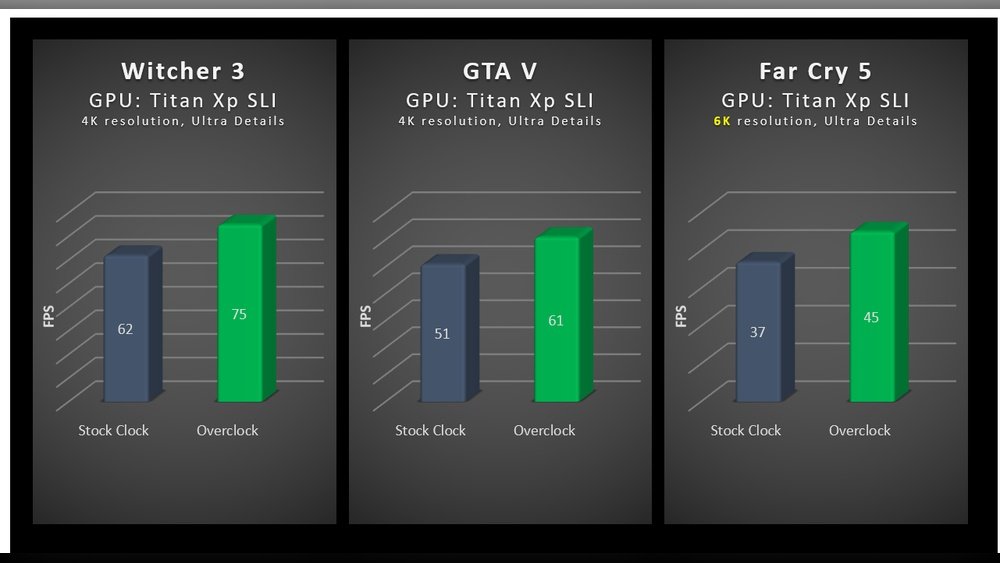
Are you thinking about pushing your GPU beyond its limits to get better gaming or creative performance? Overclocking your GPU sounds exciting and promising, but is it really okay to do it?
You might be wondering if it’s safe, if it will damage your hardware, or if the boost is even worth the risk. You’ll discover the truth about overclocking your GPU—what it can do for you, the potential dangers, and how to do it smartly if you decide to go for it.
Keep reading to find out everything you need before you take that powerful step.

Credit: www.youtube.com
Why Overclock A Gpu
Overclocking a GPU means making it run faster than the factory settings. Many users ask why they should overclock their graphics card. The reasons vary but often focus on getting more power and better results from the same hardware. Overclocking can help in different areas, from gaming to creative tasks, without spending more money on new parts.
Performance Gains
Overclocking boosts the GPU’s speed. This increase lets your computer handle more complex graphics smoothly. Games run with higher frame rates and less lag. Programs that use the GPU for calculations finish tasks faster. Even small speed increases can improve how your system feels and responds.
Cost Efficiency
Buying a new GPU can be expensive. Overclocking helps you get more from your current card. It delays the need to upgrade hardware. This saves money while extending the life of your GPU. Overclocking is a budget-friendly way to improve performance without extra costs.
Gaming And Creative Work
Gamers want smoother gameplay and better visuals. Overclocked GPUs can deliver these benefits. Creative professionals also gain faster rendering and editing times. Overclocking supports tasks like video editing, 3D modeling, and animation. It helps complete work quicker and with less waiting.
Potential Risks Of Overclocking
Overclocking a GPU can boost your computer’s performance. It pushes the hardware to run faster than its original speed. But this speed boost comes with risks. Understanding these risks helps you decide if overclocking is right for you.
Hardware Damage
Overclocking increases heat inside the GPU. More heat can wear out parts faster. This can cause permanent damage to the graphics card. Fans and cooling systems may not handle the extra heat well. Over time, the GPU may stop working properly or fail completely.
System Instability
Running a GPU beyond its limits may cause crashes. Your computer may freeze or restart without warning. Games and applications might close suddenly. Overclocked GPUs can cause visual glitches or errors. This instability disrupts your work or play sessions.
Warranty Concerns
Most GPU makers do not cover overclocking damage under warranty. If overclocking harms the card, repairs may not be free. You might lose the right to get help from the manufacturer. This can add extra cost if the GPU breaks.
Signs Your Gpu Needs Overclocking
Knowing when your GPU needs overclocking is key to better gaming and work performance. Overclocking can help your graphics card run faster and smoother. Some signs tell you it might be time to tweak your GPU settings.
Watch out for these signals. They show your GPU is not running at its best. Improving its speed could solve many performance problems.
Low Frame Rates
Low frame rates make games and videos look choppy and slow. If your GPU struggles to keep up with new games, it might need a boost. Overclocking can raise frame rates and make graphics smoother. This helps games run better on your screen.
Thermal Headroom
Thermal headroom means your GPU has extra cooling capacity. If your GPU stays cool under load, it can handle more power. Overclocking can use this extra cooling to increase speed safely. Check your GPU temperature during heavy use to see if it has room to grow.
Performance Bottlenecks
Performance bottlenecks happen when your GPU slows down the whole system. If other parts of your computer are fast but games still lag, your GPU might be the cause. Overclocking can help fix this by making the GPU work faster. This reduces delays and speeds up your system.
Safe Overclocking Practices
Overclocking a GPU can boost performance but carries risks. Safe overclocking means making changes carefully and checking results. It helps protect your hardware and keeps your system stable. Follow these key practices to overclock safely and avoid damage.
Incremental Adjustments
Make small changes to clock speeds. Increase by small steps, like 10-20 MHz at a time. Avoid big jumps in settings. Gradual adjustments help spot problems early. This way, you can find the best stable speed for your GPU.
Stress Testing
Run stress tests after every change. Use software that pushes your GPU hard for a while. Watch for crashes or errors. Stress tests show if the GPU handles new speeds well. Stop and lower speeds if your system fails the test.
Monitoring Temperatures
Keep an eye on GPU temperatures during use. High heat can damage your card. Use temperature monitoring tools to track heat levels. Aim to keep temperatures below 85°C. Good cooling helps keep your GPU safe while overclocking.
Tools For Gpu Overclocking
Overclocking a GPU means making it run faster than its normal speed. This can improve gaming and graphic tasks. To do this safely, certain tools are necessary. These tools help you control the GPU and check its performance. They also keep an eye on the temperature to avoid damage.
Software Options
Many software tools let you adjust GPU settings easily. Programs like MSI Afterburner and EVGA Precision X1 are popular choices. They allow changes to clock speeds, voltage, and fan speeds. These tools have user-friendly interfaces for beginners. They show real-time data while you overclock.
Benchmark Utilities
Benchmark utilities test your GPU’s power after overclocking. Tools like 3DMark and Unigine Heaven stress the GPU to measure performance. These tests show if your overclock is stable and effective. Running benchmarks helps avoid crashes and errors during use.
Temperature Monitors
Keeping track of temperature is vital during overclocking. High temperatures can harm your GPU permanently. Software such as HWMonitor and GPU-Z display detailed temperature data. They alert you if the GPU gets too hot. Using these monitors helps keep your hardware safe.

Credit: www.avira.com
Expert Tips For Longevity
Overclocking your GPU can boost performance but may shorten its life. Following expert tips helps keep your GPU healthy and lasting longer. Careful handling and smart settings prevent damage and improve stability. Let’s explore key ways to protect your GPU while overclocking.
Adequate Cooling Solutions
Cooling is vital for GPU health during overclocking. Use quality fans and heatsinks to keep temperatures low. Consider liquid cooling for better heat control. Avoid letting the GPU run too hot. Good airflow inside your PC case is essential. Cooler parts last longer and perform better.
Regular Maintenance
Clean your GPU and PC regularly to remove dust buildup. Dust blocks airflow and raises temperature. Check fan operation often to ensure proper cooling. Replace thermal paste every year or two for better heat transfer. Routine checks help catch issues before they cause damage.
Balanced Voltage Settings
Keep voltage settings stable and avoid pushing too high. Excess voltage causes extra heat and stress on components. Increase voltage only slightly and test stability carefully. Balanced settings reduce risks and extend GPU lifespan. Use reliable software to monitor voltage and temperature.
When To Avoid Overclocking
Overclocking a GPU can boost performance but it is not always safe. Some situations make overclocking risky. Knowing when to avoid it protects your hardware and data. Below are key cases to consider before pushing your GPU beyond its limits.
Older Gpus
Older GPUs have worn-out parts. They may not handle extra heat well. Overclocking can shorten their life span. These GPUs often lack modern safeguards. It is best to keep them at factory speeds.
Limited Cooling
Good cooling is essential for safe overclocking. Without enough airflow or quality fans, your GPU can overheat. High temperatures cause crashes and damage. Avoid overclocking if your cooling system is weak or basic.
Critical Workloads
Tasks like video editing or scientific computing need stability. Overclocking can cause errors or data loss. Avoid it if your work depends on consistent GPU performance. Stability is more important than extra speed in these cases.

Credit: www.avg.com
Frequently Asked Questions
Is Gpu Overclocking Safe For All Graphics Cards?
Overclocking safety depends on your GPU model and cooling system. Some GPUs handle overclocking well, others may overheat or fail. Always monitor temperatures closely and avoid pushing beyond recommended limits to prevent damage.
How Does Gpu Overclocking Affect Gaming Performance?
Overclocking can boost gaming performance by increasing frame rates and reducing lag. However, gains vary based on your GPU and game optimization. Proper cooling and stable settings ensure smooth gameplay without crashes or overheating.
What Risks Come With Overclocking A Gpu?
Risks include overheating, reduced hardware lifespan, system instability, and potential voiding of warranties. Improper overclocking can cause crashes or permanent damage. Always overclock cautiously and incrementally while monitoring temperatures and voltages.
Can All Gpus Be Overclocked Without Extra Cooling?
Not all GPUs manage overclocking without extra cooling. Stock coolers may struggle with increased heat. Upgrading to better cooling solutions like aftermarket fans or liquid cooling improves stability and prevents thermal throttling.
Conclusion
Overclocking a GPU can boost performance but comes with risks. It may cause overheating and shorten the GPU’s life. Proper cooling and careful settings help reduce these dangers. Watch your system closely for any signs of trouble. Decide based on your needs and comfort with potential issues.
Sometimes, keeping your GPU at normal speeds works best. Balance speed with safety to enjoy good performance without problems.
