
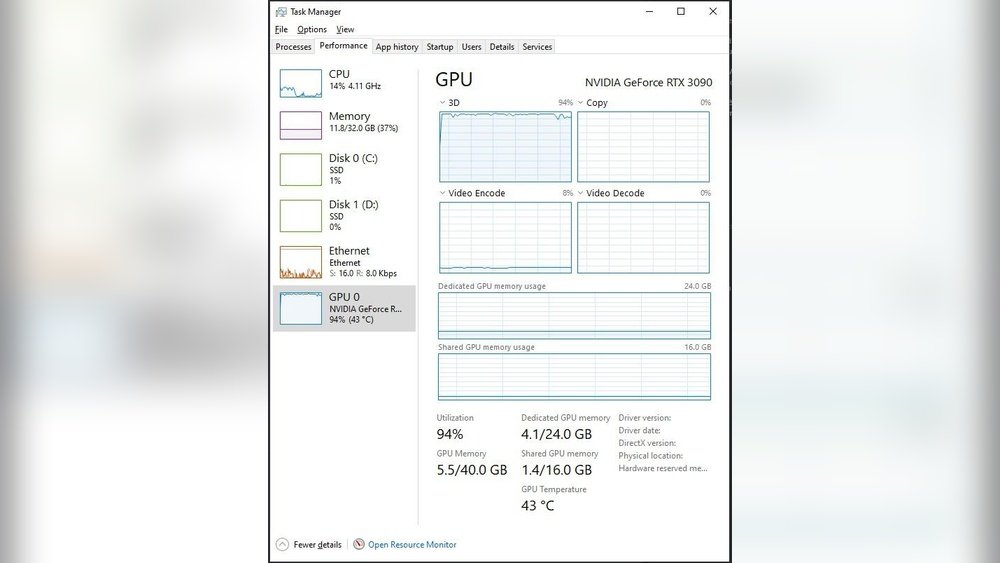
Is it okay for your GPU to run at 100 degrees? If you’ve noticed those high numbers flashing on your screen, you’re probably worried.
You want to know if your graphics card is safe or if it’s about to crash and burn. Understanding what these temperatures mean can save you from costly damage and frustration. Keep reading, because the answer might surprise you—and it will help you protect your PC better than ever before.

Credit: community.acer.com
Gpu Temperature Limits
Understanding GPU temperature limits is important for keeping your graphics card safe. The GPU works hard during gaming or heavy tasks. It produces heat as a result. Managing this heat helps avoid damage and maintain good performance.
Typical Operating Ranges
Most GPUs run safely between 30°C and 85°C. Idle temperatures are usually low, around 30°C to 40°C. During gaming or heavy use, temperatures rise to 70°C to 85°C. This range is normal and does not harm the GPU. Some newer GPUs can handle slightly higher temperatures without issues.
Maximum Safe Temperatures
Each GPU has a maximum safe temperature limit. This limit is often between 90°C and 105°C. Going above this limit can cause damage over time. The GPU may throttle performance to cool down. In some cases, the system will shut down to prevent harm. Running a GPU at 100°C regularly is risky and not recommended.
Credit: www.youtube.com
Risks Of Running At 100°
Running a GPU at 100° Celsius is a serious concern. High temperatures can cause many problems. These problems affect your computer’s health and its ability to work well. Understanding the risks helps you protect your device and keep it running smoothly.
Hardware Damage
Heat can harm your GPU’s parts. At 100°, metal and plastic may start to weaken. This can cause cracks or warping. Circuits inside the GPU can also break down. Once damaged, the GPU may stop working. Repairing or replacing it can be costly.
Performance Throttling
To avoid damage, GPUs slow down when too hot. This is called throttling. Running at 100° triggers throttling often. Your games or programs will run slower. The GPU reduces its speed to cool down. This lowers your computer’s performance badly.
Reduced Lifespan
High heat shortens the life of your GPU. Constantly running hot wears out parts faster. The GPU may fail years before expected. This means more repairs or new parts sooner. Keeping your GPU cool helps it last longer.
Causes Of High Gpu Temperatures
High GPU temperatures can worry many users. Understanding why your graphics card runs hot helps protect it. Several common causes lead to these high temperatures. Knowing them helps you keep your GPU cool and safe.
Poor Cooling Solutions
Many GPUs rely on fans and heat sinks to stay cool. If these parts are weak or broken, heat builds up quickly. Some budget GPUs have less effective cooling systems. This causes the temperature to rise fast. Proper cooling is essential for safe GPU operation.
Dust And Debris
Dust collects inside your computer over time. It blocks fans and vents, reducing airflow. Less airflow means heat cannot escape well. This causes the GPU to run hotter than usual. Regular cleaning helps maintain good airflow and lowers temperature.
Overclocking Effects
Overclocking pushes the GPU to work faster than normal. This increases power use and heat output. Without better cooling, temperatures can reach unsafe levels. Overclocking needs careful monitoring to avoid damage. It raises GPU temperature significantly.

Credit: www.youtube.com
Cooling Techniques
Cooling your GPU is important for its health and performance. High temperatures can reduce its life and cause crashes. Many ways exist to keep your GPU cool. Understanding these helps you pick the best method for your setup.
Air Cooling Tips
Air cooling uses fans to move heat away from the GPU. Keep your fans clean for better airflow. Place your PC in a cool, open space. Avoid blocking vents to allow fresh air in. Use extra case fans to push hot air out quickly.
Liquid Cooling Benefits
Liquid cooling uses water or coolant to absorb heat. It cools the GPU more efficiently than air. This method works well for high-performance or overclocked GPUs. Liquid cooling is quieter because fans run slower. It needs more maintenance but offers better temperature control.
Improving Case Airflow
Good case airflow keeps all parts cool. Organize cables to avoid blocking air paths. Use fans to create a flow from front to back. Intake fans bring cool air; exhaust fans remove hot air. Check that your case has enough vents and space for air movement.
Monitoring And Managing Temperatures
Monitoring and managing your GPU temperature is very important. High temperatures can harm your GPU and reduce its life. Keeping an eye on the temperature helps you avoid problems. You can also improve performance by managing heat well.
Recommended Software Tools
Use software to check your GPU temperature easily. Programs like MSI Afterburner, HWMonitor, and GPU-Z show real-time data. These tools help you see how hot your GPU gets during use. Many are free and simple to use. Choose one that fits your needs and skill level.
Setting Temperature Alerts
Temperature alerts warn you if your GPU gets too hot. You can set limits in many monitoring programs. Alerts notify you with sounds or messages. This helps you stop heavy use before damage occurs. Setting alerts keeps your GPU safe and working well.
Adjusting Fan Curves
Fan curves control how fast your GPU fans spin. You can change the fan speed based on temperature. Faster fans cool the GPU better but make more noise. Slower fans are quiet but may let temperatures rise. Adjust fan curves to find the best balance for your setup.
When To Seek Professional Help
Knowing when to seek professional help for your GPU is crucial. A GPU running at 100°C can be normal during heavy use but may signal problems if it happens often. Ignoring these signs can lead to hardware damage or system failure. Here are clear signs that show it is time to get expert support.
Persistent Overheating Issues
Short bursts of high temperatures are okay. Constant overheating is not. If your GPU stays at 100°C or more regularly, it needs attention. This can cause crashes or reduce performance. Persistent heat means cooling solutions may be failing or the GPU is under stress. Seek help to avoid permanent damage.
Hardware Inspection
Professionals can open your device to check the GPU and cooling system. They look for dust, damaged fans, or dried thermal paste. These issues are hard to fix at home. Proper inspection finds hidden problems that cause overheating. Trained technicians have the right tools and skills for this work.
Warranty And Support Options
Check if your GPU is under warranty before trying fixes yourself. Many manufacturers offer free repairs or replacements for hardware faults. Contact customer support for guidance on next steps. Using warranty services can save money and ensure safe repairs. Always follow the warranty terms to keep coverage valid.
Frequently Asked Questions
Is It Safe For Gpu To Run At 100 Degrees Celsius?
Running a GPU at 100°C is generally unsafe. Prolonged high temperatures can damage components and reduce lifespan. It’s best to keep GPU temperatures below 85°C for optimal performance and longevity.
What Causes Gpu Temperature To Reach 100 Degrees?
High GPU temperatures often result from poor cooling, dust buildup, or heavy workloads. Inadequate airflow and overclocking can also push temperatures to 100°C. Regular maintenance and proper cooling prevent overheating.
How To Prevent Gpu From Hitting 100 Degrees?
To avoid 100°C, ensure good case ventilation and clean dust regularly. Use quality thermal paste and consider aftermarket coolers. Lowering graphics settings can reduce GPU workload and heat output.
Will Gpu Performance Drop At 100 Degrees?
Yes, GPUs throttle performance at 100°C to avoid damage. This reduces clock speeds, causing lag or stuttering in games. Keeping temperatures lower ensures stable and efficient GPU performance.
Conclusion
Running a GPU at 100 degrees Celsius is risky. It can shorten the GPU’s life and cause crashes. Keep your computer cool with good airflow and clean fans. Use monitoring tools to check temperatures often. Lower the settings if temperatures stay too high.
Taking care of your GPU helps it work better and last longer. Don’t ignore overheating—it can lead to costly repairs. Stay safe, keep your hardware cool, and enjoy smooth performance.
