
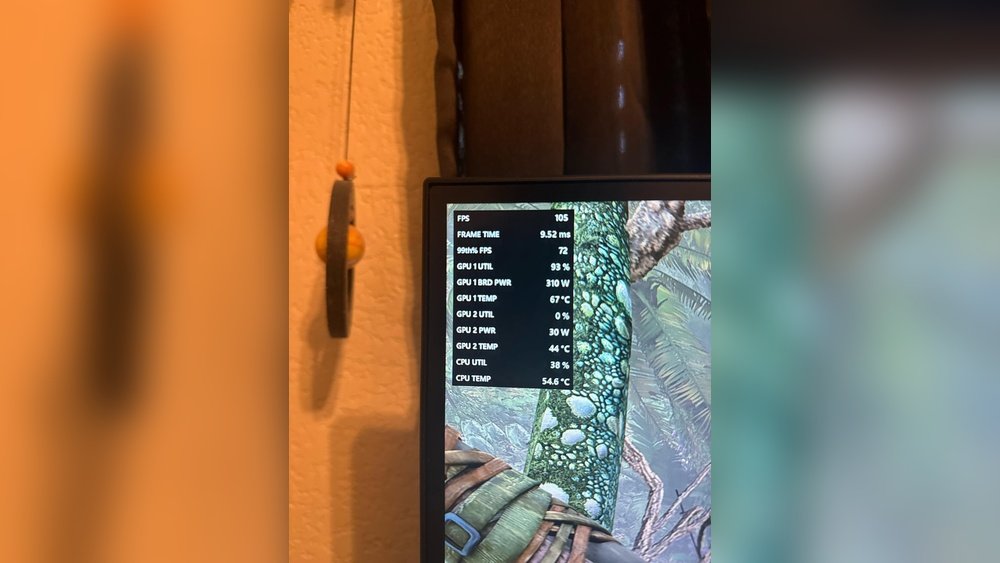
Is your GPU running at 99% usage, and you’re wondering if that’s a bad sign? You’re not alone.
When your graphics card is pushed to the limit, it’s natural to worry about damage or performance issues. But is high GPU usage always something to fear? Understanding what those numbers mean for your system can save you stress and help you get the most out of your hardware.
Keep reading, and you’ll learn when 99% GPU usage is normal—and when it’s a red flag you shouldn’t ignore.
Credit: www.reddit.com
High Gpu Usage Explained
High GPU usage can cause concern for many users. It means your graphics card is working hard. But high usage is not always bad. Knowing what it means helps you decide if action is needed.
This section breaks down what 99% GPU usage means. It shows when high usage is normal and when it signals problems.
What 99% Gpu Usage Means
When your GPU usage hits 99%, it means the card is nearly fully busy. The GPU is using almost all its power to run tasks. This often happens during gaming or video editing. The card processes many graphics or calculations at once. High usage shows your GPU is performing at its best.
When High Usage Is Normal
High GPU usage is normal during heavy tasks. Games, 3D rendering, and video editing use lots of GPU power. In these cases, 99% usage is expected. It means the card is doing its job well. Also, some background apps may use the GPU. If your computer is idle, high usage is less common.
Signs Of Problematic Usage
High GPU usage becomes a problem if your computer slows down. Overheating or loud fan noise can also show trouble. Unexpected crashes or freezes are warning signs. If usage stays high with no heavy tasks, it may mean malware or a bug. Monitoring your GPU temperature helps spot issues early.
Risks Of Constant 99% Gpu Usage
Running your GPU at 99% usage for a long time has risks. It can affect your computer’s health and performance. Understanding these risks helps you protect your device and avoid problems.
Potential Hardware Damage
Constant high GPU load can cause physical stress. Components may wear out faster than normal. This stress can lead to permanent hardware damage. Replacing parts can be costly and time-consuming.
Overheating Concerns
High GPU usage generates a lot of heat. Without proper cooling, temperatures rise quickly. Overheating can cause the system to shut down suddenly. It can also damage sensitive GPU parts.
Reduced Lifespan
Running at near full capacity shortens GPU life. Heat and stress wear down internal parts over time. A GPU working constantly at 99% may fail earlier. This means needing a replacement sooner than expected.
System Stability Issues
Extreme GPU use can cause crashes and freezes. Your computer may become slow or unresponsive. Programs might close unexpectedly or show errors. This affects your work and gaming experience badly.
Common Causes Of 99% Gpu Usage
High GPU usage can make your computer slow or hot. Knowing the common causes helps fix the issue. Sometimes, it is normal for the GPU to work hard. Other times, it shows a problem you need to solve.
Resource-heavy Applications
Some programs need a lot of GPU power. Video games, 3D modeling, and video editing use the GPU a lot. Running these apps can push the GPU to 99% usage. It means the GPU is busy handling complex tasks.
Background Processes
Some apps run behind the scenes. These background tasks can use the GPU without you knowing. System updates, software syncing, or even some apps can cause high GPU usage. Check your task manager to see which apps run.
Driver Problems
Outdated or faulty drivers can cause GPU issues. Drivers help the GPU talk to your computer. If drivers are old or broken, the GPU may act strange. Updating drivers can reduce unnecessary GPU load.
Malware And Viruses
Bad software can use your GPU for their work. Some malware makes your GPU work hard without your permission. This can lead to 99% GPU usage and slowdowns. Running a virus scan helps find and remove threats.
Mining Software
Some software uses your GPU to mine cryptocurrency. This process needs a lot of GPU power. Mining software can run secretly and cause high GPU usage. Check your system for unknown programs if usage stays high.
Credit: www.windowsdigitals.com
Monitoring And Diagnosing Gpu Usage
Monitoring and diagnosing GPU usage helps keep your computer running smoothly. High GPU usage, like 99%, is not always bad. Sometimes, it means your GPU is working hard to complete tasks. Other times, it shows a problem that needs fixing. Knowing how to check GPU performance can save you time and frustration.
Using Task Manager And Resource Monitor
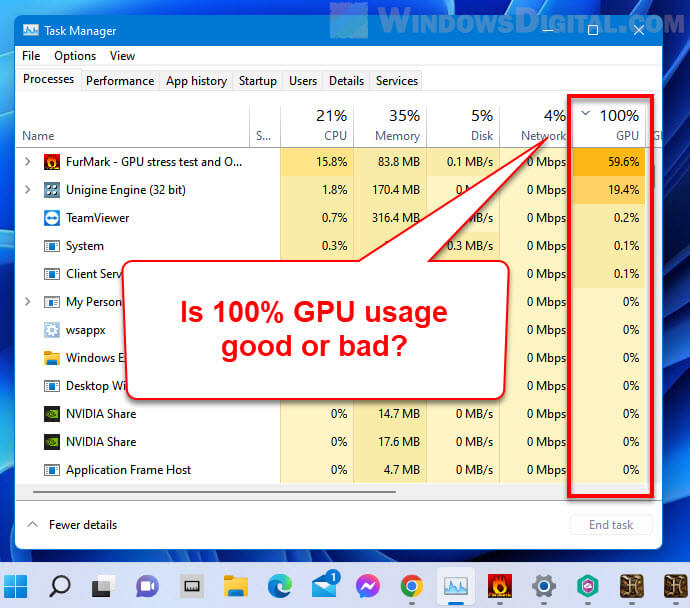
Task Manager shows real-time GPU usage on Windows. Press Ctrl + Shift + Esc to open it. Click the Performance tab and select your GPU. You can see how much of the GPU is used by apps. Resource Monitor gives more details about system resources. It helps find apps using too much GPU power. Both tools are built into Windows and easy to use.
Third-party Monitoring Tools
Third-party tools offer deeper insights into GPU usage. Programs like MSI Afterburner or HWMonitor show GPU load, memory use, and clock speeds. These tools provide graphs and alerts for unusual activity. They help catch problems early. Many tools are free and simple to install. They work well with most GPUs and offer more data than built-in tools.
Checking Temperatures And Clocks
GPU temperature affects performance and lifespan. High temperatures can cause crashes or slowdowns. Check your GPU temperature with monitoring tools. Ideal temps usually stay below 85°C during use. Watch clock speeds too. Lower speeds under load may signal throttling due to heat. Regularly checking these values helps keep your GPU healthy and efficient.
Performance Tips To Manage Gpu Usage
Managing GPU usage is important for smooth performance and system health. High GPU usage can cause slowdowns or overheating. Simple steps can help keep your GPU running well and extend its life. These tips improve your experience without needing advanced skills.
Adjusting Graphics Settings
Lowering graphics settings reduces the load on your GPU. Decrease resolution, shadows, and effects in games or apps. This change helps the GPU work less and stay cooler. It also improves frame rates and responsiveness.
Updating Drivers
GPU drivers control how your card works with software. Updating drivers can fix bugs and improve efficiency. Use official websites or software to get the latest versions. Updated drivers often lead to better performance and stability.
Optimizing Background Tasks
Running many programs uses GPU power even if you don’t see it. Close unused apps and browser tabs before starting heavy tasks. Check for background processes that use GPU and stop them. This frees resources and lowers GPU usage.
Improving Cooling Solutions
Good cooling stops your GPU from overheating. Clean dust from fans and vents regularly. Add extra fans or use better thermal paste if needed. Cooler GPUs perform better and last longer without throttling speed.
Overclocking And Underclocking Options
Overclocking increases GPU speed but raises heat and power use. Underclocking lowers speed to reduce heat and save energy. Use these options carefully with proper tools and knowledge. Adjusting clock speeds can balance performance and temperature.
When To Seek Professional Help
Knowing when to seek professional help for high GPU usage is important. Sometimes, 99% GPU use is normal during heavy tasks. Other times, it signals a problem that needs fixing. This section guides you on when to get expert support.
Persistent High Usage Issues
GPU usage at 99% for a long time can cause problems. If your computer feels slow or crashes often, this is a sign. Persistent high usage may damage hardware or reduce its lifespan. Professionals can diagnose if the issue is software or hardware related.
Hardware Diagnostic Steps
Before calling a professional, try simple checks. Clean dust from your GPU and check cooling fans. Run built-in diagnostic tools to test your GPU health. If problems remain after these steps, expert help is needed to avoid further damage.
Warranty And Repair Considerations
Check your GPU warranty before opening the device. Repairs by unauthorized people may void the warranty. Professionals authorized by the manufacturer offer safer repair options. They ensure your GPU works well after fixing the problem.

Credit: www.reddit.com
Frequently Asked Questions
Is 99% Gpu Usage Harmful To My Computer?
No, 99% GPU usage is not harmful by itself. It means your GPU is working hard. However, ensure proper cooling to avoid overheating and damage.
Why Does My Gpu Usage Reach 99% Often?
High GPU usage occurs during gaming, rendering, or heavy tasks. It shows your GPU is fully utilized for performance. This is normal under demanding workloads.
Should I Limit My Gpu Usage To Avoid Damage?
Limiting GPU usage is not necessary if temperatures are safe. Focus on maintaining good airflow and cooling. Modern GPUs handle full usage without damage.
How Can I Monitor My Gpu Temperature And Usage?
Use software like MSI Afterburner or GPU-Z to monitor temperature and usage. Keep temperatures below 85°C for safe operation. Regular monitoring prevents overheating issues.
Conclusion
High GPU usage means your graphics card is working hard. This is normal during gaming or heavy tasks. But constant 99% usage may cause heat and slowdowns. Keep your PC cool and check for updates often. If problems persist, consider adjusting settings or upgrading hardware.
Understanding GPU use helps keep your system healthy. Balance performance and temperature for best results.
