
Do you ever wonder how much RAM your computer has or how to check it quickly? Knowing your RAM is key to understanding your device’s performance and deciding if an upgrade is needed.
You’ll discover simple and fast ways to view your RAM, no matter what type of computer you use. Keep reading, and by the end, you’ll have the confidence to check your RAM anytime without hassle.
Credit: www.malinohighlands.com
What Is Ram And Why It Matters
RAM is a key part of your computer. It stands for Random Access Memory. RAM stores data your computer uses right now. It helps your device work fast and smooth. Without enough RAM, your computer may slow down or freeze.
Knowing about RAM helps you understand your computer better. It shows why some programs run well and others lag. It also helps when you want to upgrade your system. More RAM means you can open more apps at once without problems.
What Does Ram Do?
RAM holds information for active programs. It lets your CPU access data quickly. This fast access speeds up tasks like browsing and editing files. RAM is different from storage. Storage saves files long term. RAM only keeps data temporarily.
How Ram Affects Computer Speed
More RAM lets your computer handle more tasks. It reduces waiting time for loading apps. With low RAM, your device uses storage as slow memory. This slows down your system. Enough RAM keeps your computer running smoothly.
Types Of Ram
There are several RAM types, like DDR3 and DDR4. Newer types are faster and use less power. Most modern computers use DDR4. The type and amount affect performance and compatibility.
How To Check Your Ram Size
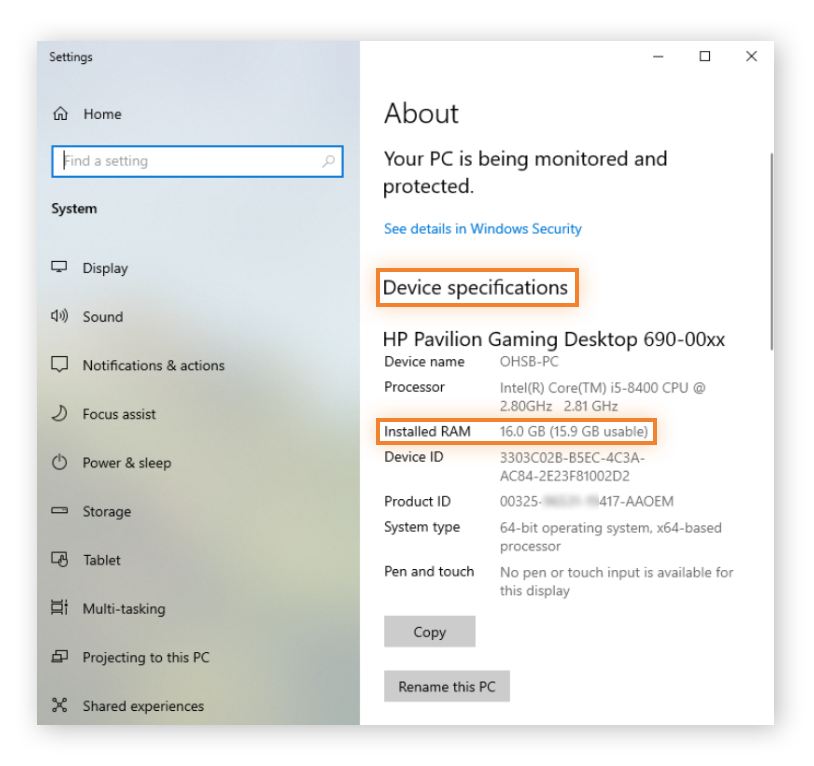
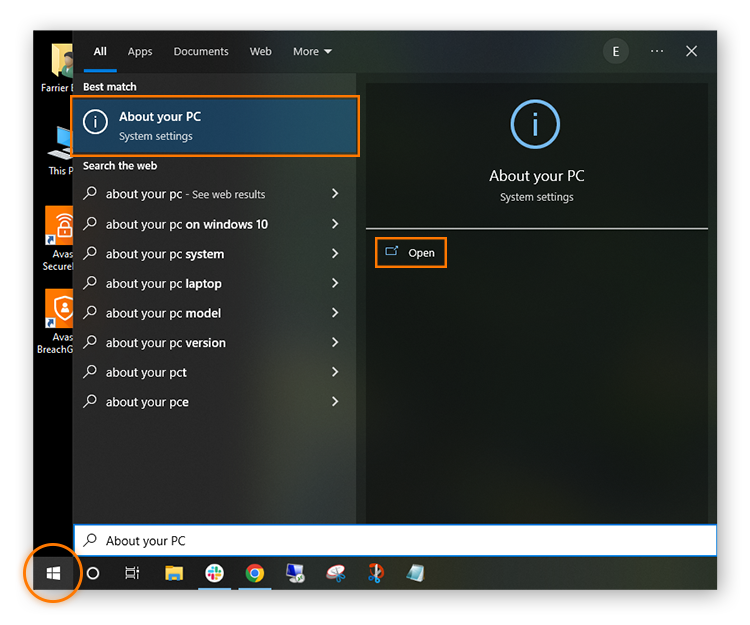
You can check RAM size in system settings. Windows and Mac both show RAM details easily. Knowing your RAM size helps decide if you need an upgrade. It also helps diagnose performance issues.
Ways To Check Ram On Windows
Checking the amount of RAM on your Windows computer is simple. Knowing your RAM helps you understand your system’s performance. You can find this information using built-in tools. Here are three easy ways to check your RAM on Windows.
Using Task Manager
Open Task Manager by pressing Ctrl + Shift + Esc. Click the “Performance” tab. Select “Memory” from the left side. You will see your total RAM and how much is in use. This method shows real-time memory usage and speed.
Checking System Information
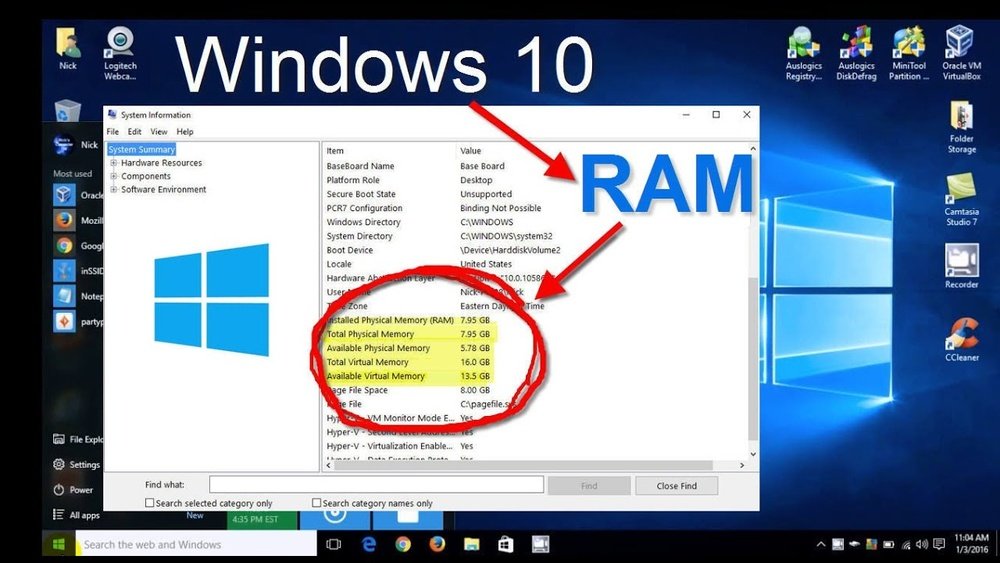
Press Windows key + R to open the Run box. Type “msinfo32” and press Enter. The System Information window will open. Look for “Installed Physical Memory (RAM)” on the right. This shows the total RAM installed on your PC.
Using Command Prompt
Open Command Prompt by typing “cmd” in the search bar. Type “wmic memorychip get capacity” and press Enter. It will display the size of each RAM module in bytes. Add these numbers to get the total RAM amount.
Viewing Ram On Macos
Viewing RAM on macOS helps you understand your computer’s memory use. It shows how much memory is installed and how it is used. This info helps with troubleshooting and managing system performance. macOS offers simple tools to check your RAM details fast.
Using Activity Monitor
Activity Monitor shows real-time memory use on your Mac. Open it by searching in Spotlight or find it in Applications > Utilities. Click the “Memory” tab to see detailed RAM use. You can view how much RAM is used, cached, and free. It also shows memory pressure, which tells if your Mac needs more RAM.
About This Mac Overview
The “About This Mac” window offers a quick look at your Mac’s RAM. Click the Apple menu in the top-left corner and select “About This Mac.” Under the “Overview” tab, you see the total RAM installed. This section shows memory size and type. It is a simple way to check RAM without opening complex tools.
How To Check Ram On Linux
Checking your RAM on Linux helps you understand your system’s memory usage. It shows how much memory is free, used, and available. This information helps you manage your computer better. There are simple ways to check RAM using terminal commands or graphical tools. Both methods are easy and fast.
Using Terminal Commands
The terminal is a powerful tool to check RAM on Linux. You can see detailed memory info with a few commands.
Type free -h to display memory usage in a readable format. It shows total, used, and free memory.
Another command is cat /proc/meminfo. It gives detailed stats about your RAM.
You can also use top or htop to view real-time memory use. These tools show which programs use the most memory.
Graphical Tools For Ram Monitoring
Graphical tools provide an easy way to check RAM without using commands. They have user-friendly interfaces.
System Monitor is a popular app on many Linux systems. It shows memory usage in graphs and numbers.
Other tools like GNOME System Monitor or KSysGuard offer similar features.
These apps update memory info live, helping you track usage over time.
Third-party Tools For Ram Monitoring
Third-party tools offer simple ways to check your computer’s RAM. These tools provide detailed information about memory usage and performance. They often show real-time data, helping you see how your RAM works during tasks.
Many tools are free and easy to use. They give clear graphs and numbers to understand your RAM better. These programs can help spot memory problems and improve your computer’s speed.
Using Cpu-z To Check Ram Details
CPU-Z is a popular tool for checking RAM specs. It shows your memory type, size, and speed. The interface is clear and simple to navigate. You can also see other system info, like the processor and motherboard.
Monitoring Ram With Hwmonitor
HWMonitor tracks memory use and temperature. It updates data in real time. The tool helps you watch how much RAM is free or used. It also shows voltage and hardware health, useful for advanced users.
Rammap For In-depth Memory Analysis
RAMMap offers detailed views of RAM allocation. It breaks down how Windows uses memory. The tool shows which files and apps take the most RAM. It’s great for finding hidden memory drains.
Task Manager Enhancements By Process Hacker
Process Hacker expands on the Windows Task Manager. It gives detailed RAM usage per process. You can see which programs use the most memory. The tool also allows you to close apps that slow down your PC.
Credit: www.avast.com
Tips To Manage Memory Usage
Managing your computer’s memory is key to keeping it fast and smooth. Memory, or RAM, helps your device run programs and handle tasks. Poor memory management can cause slowdowns or crashes. Learning simple ways to control memory use can improve your computer’s performance.
Closing Unnecessary Applications
Running many apps uses more memory than needed. Close programs you do not use. Check your taskbar or system tray to find open apps. Closing them frees up RAM for important tasks. This helps your computer work faster and avoid lag.
Upgrading Ram
Adding more RAM can boost your computer’s speed. More memory means your system can handle more programs at once. Check your device’s specifications to see if you can add RAM. This is a good option if your computer feels slow often.
Optimizing Startup Programs
Many programs start automatically with your computer. This can use up memory right away. Disable programs that you do not need at startup. Use your system settings or task manager to manage these apps. This reduces memory use and speeds up boot time.

Credit: breezeresidency.com
Frequently Asked Questions
How Can I Check My Ram Size On Windows?
Open Task Manager by pressing Ctrl + Shift + Esc. Click the Performance tab, then select Memory. Your RAM size is displayed in the top right corner in GB.
What Is The Fastest Way To View Ram On Mac?
Click the Apple menu and select About This Mac. The Overview tab shows your installed RAM size and type immediately.
How Do I Find Ram Details Using Command Prompt?
Type “wmic memorychip get capacity, speed” in Command Prompt. It shows each RAM stick’s size and speed precisely.
Can I Check Ram Usage In Real-time?
Yes, use Task Manager on Windows or Activity Monitor on Mac. These tools display current RAM usage and availability.
Conclusion
Checking your RAM helps you understand your computer better. It shows how much memory you have and how fast it works. You can do this using simple tools on your device. Knowing your RAM helps you decide if you need an upgrade.
It also helps with fixing slow computer problems. Take a few minutes to check your RAM today. It keeps your device running smoothly and saves you time later. Simple steps make it easy for anyone to see their RAM details.
Stay informed and keep your computer healthy.
