
Are you worried that your computer might be overheating? Knowing how to view the temperature of your CPU is the first step to keeping your device running smoothly and avoiding costly damage.
It’s easier than you think, and with the right tools, you can check your CPU’s temperature in just a few clicks. Keep reading, and you’ll learn simple methods to monitor your CPU’s health, protect your investment, and boost your computer’s performance.
Don’t wait for problems to happen—take control of your PC’s temperature now!
Why Monitor Cpu Temperature
Monitoring your CPU temperature is important for keeping your computer safe and running well. The CPU works hard and can get very hot. Checking its temperature helps prevent problems before they start. It also helps improve your computer’s performance and lifespan.
Risks Of Overheating
Overheating can cause your computer to slow down or crash. High temperatures may damage the CPU and other parts. This damage can lead to costly repairs or replacing the whole computer. Heat can also cause your system to shut down suddenly. This protects the hardware but can cause data loss.
Benefits Of Temperature Monitoring
Keeping an eye on CPU temperature helps you avoid overheating. It allows you to fix cooling problems early. Monitoring temperature can extend your computer’s life. It also helps maintain stable and fast performance. You can catch issues before they become serious. This saves time and money in the long run.
Methods To Check Cpu Temperature
Checking your CPU temperature helps keep your computer safe and running well. There are several easy ways to find this information. Each method shows the temperature in a slightly different way. Choose the one that fits your skills and needs best.
Using Bios/uefi Settings
BIOS or UEFI is the first place your computer looks when it starts. You can enter these settings by pressing a key like F2 or Delete during startup. Inside, find the hardware or health section. Here, you can see the CPU temperature. This method is simple and does not need extra software. But it only shows temperature before your operating system loads.
Third-party Software Options
Many programs show CPU temperature in real time. Examples include HWMonitor, Core Temp, and Speccy. These tools are easy to download and install. They provide more details like fan speed and voltage. This helps spot problems fast. Check the software’s reputation to avoid unsafe downloads.
Built-in Operating System Tools
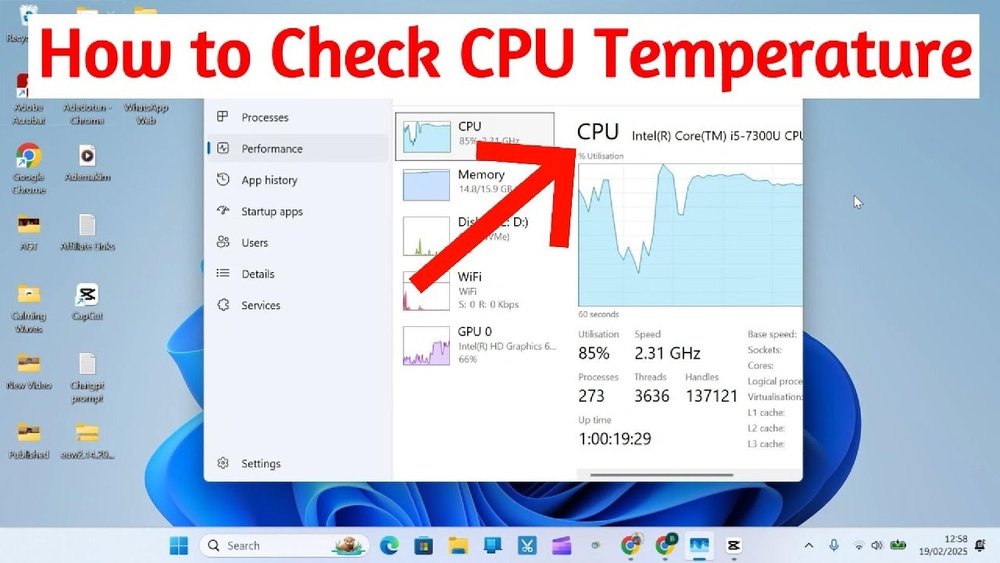
Some operating systems have tools to check CPU temperature. For Windows, the Task Manager shows performance but not temperature directly. You may need PowerShell commands or use Windows 11’s new features. Mac users can use the Activity Monitor with third-party apps for full details. Linux offers command-line tools like lm-sensors for monitoring.
Popular Cpu Temperature Tools
Checking your CPU temperature helps keep your computer safe. Overheating can cause slowdowns and damage. Many tools show the CPU temperature clearly and simply. These tools work on most computers and give real-time data. They help you watch your CPU’s heat and act fast if needed.
Core Temp
Core Temp is a simple tool for measuring CPU heat. It shows temperature for each core in your processor. The program is light and easy to use. It updates the temperature every second. You can see the temperature in the system tray.
Hwmonitor
HWMonitor tracks various hardware temperatures, including the CPU. It displays temperatures, voltages, and fan speeds. The interface is clear and organized. This tool supports many CPU models. It gives a good overview of your computer’s health.
Speedfan
SpeedFan monitors CPU temperature and controls fan speed. It can lower fan noise by adjusting fans automatically. The tool also shows voltages and hard drive temperatures. It works with many computers and motherboards. It helps balance cooling and noise levels.
Open Hardware Monitor
Open Hardware Monitor is free and open-source software. It shows CPU temperature, load, and clock speeds. The interface is simple and easy to read. It supports most CPUs and sensors. It updates information in real time for quick checks.

Credit: openhardwaremonitor.org
Step-by-step Temperature Check
Checking your CPU temperature is important to keep your computer safe. Overheating can cause damage and slow down your device. This step-by-step guide helps you see your CPU temperature easily. Follow each step carefully to understand your CPU’s health.
Accessing Bios/uefi
Restart your computer and press the BIOS key during startup. Common keys are Delete, F2, or F10. The BIOS or UEFI screen will open. Look for a section called “Hardware Monitor” or “PC Health.” Here, you can find your CPU temperature. Remember, the interface may look different depending on your motherboard brand.
Installing Monitoring Software
Download a trusted CPU temperature tool like HWMonitor or Core Temp. Install the software on your computer. Open the program to see live temperature readings. These tools show detailed info about each CPU core. They update temperatures in real-time, which helps during heavy use.
Interpreting Temperature Readings
Normal CPU temperatures range from 30°C to 50°C at idle. Temperatures above 80°C are risky and may cause damage. Check each core’s temperature for accuracy. High temperatures suggest poor cooling or dust buildup. Keep your CPU temperature in a safe range to avoid problems.
Safe Temperature Ranges
Knowing the safe temperature range of your CPU helps protect it from damage. CPUs work best within certain temperature limits. Staying inside these limits keeps your computer stable and fast.
Temperatures too high can cause crashes or shorten CPU life. Too low is usually not a problem but shows your cooling is strong. Let’s explore how temperatures change and what is safe.
Idle Vs Load Temperatures
Idle temperature means the CPU is not doing much work. This is when your computer is on but not running heavy programs. Idle temps usually range from 30°C to 50°C.
Load temperature is when the CPU is busy, like gaming or video editing. This makes the CPU work harder and generate more heat. Load temps can range from 60°C to 85°C, depending on the CPU and cooling system.
It is normal for CPU temperature to rise under load. A good cooling system keeps it from going too high. Avoid letting the CPU run near its maximum temperature for long.
Temperature Limits By Cpu Models
Different CPU brands and models have various temperature limits. Intel CPUs often have a maximum safe temperature around 100°C. AMD Ryzen CPUs usually have a safe max of about 95°C.
Older CPUs may have lower limits, so check your model’s specs. Laptop CPUs tend to run hotter than desktop CPUs. Cooling designs affect the safe temperature range too.
Always check the official temperature limits for your exact CPU model. Staying below these limits helps prevent damage and keeps your PC running well.
Credit: www.youtube.com
Preventing Cpu Overheating
Preventing CPU overheating is important for keeping your computer safe and working well. Heat can damage parts and slow down your system. Taking steps to control temperature helps your CPU last longer and run faster. Small changes can make a big difference in cooling.
Improving Airflow
Good airflow keeps hot air moving away from the CPU. Arrange cables neatly to avoid blocking air paths. Use case fans to bring in cool air and push out warm air. Place your computer in a spot with enough space around it. Avoid closing vents or putting the PC inside tight spaces.
Cleaning Dust And Debris
Dust blocks airflow and traps heat inside the case. Clean your computer regularly using a soft brush or compressed air. Focus on fans, vents, and heat sinks. Turn off and unplug the PC before cleaning. Removing dust helps fans work better and cool the CPU efficiently.
Upgrading Cooling Solutions
Better cooling parts lower the CPU temperature effectively. Consider buying a stronger CPU fan or liquid cooling system. High-quality thermal paste improves heat transfer from the CPU to the cooler. Check compatibility before upgrading cooling hardware. Updated cooling parts keep your CPU cooler under heavy use.
When To Seek Professional Help
Knowing when to seek professional help is important for your CPU’s health. Some temperature issues need expert care. Acting quickly can save your computer from damage. Learn the signs that show you need a technician’s help. Also, discover simple checks you can do before calling for support.
Signs Of Persistent Overheating
Constant high CPU temperatures can harm your computer. Watch for these warning signs:
- Your PC shuts down without warning.
- Fans run loudly all the time.
- Programs crash or freeze often.
- The computer feels very hot to touch.
- Temperature readings stay above 80°C for long periods.
These signs suggest a serious cooling problem. Seek professional help if you see them.
Hardware Inspection Tips
Before calling a technician, check these parts:
- Look for dust blocking the vents or fans.
- Make sure all fans spin properly.
- Check if thermal paste on the CPU is old or dry.
- Ensure cables are connected firmly.
- Inspect for any visible damage on the motherboard.
Simple fixes like cleaning dust can lower temperatures. If problems remain, a professional should inspect your CPU and cooling system.

Credit: www.alcpu.com
Frequently Asked Questions
How Can I Check My Cpu Temperature On Windows?
You can check CPU temperature on Windows using software like HWMonitor or Core Temp. These tools display real-time temperature readings and help monitor system health easily.
What Is A Safe Cpu Temperature Range?
A safe CPU temperature typically ranges between 30°C and 70°C. Temperatures above 85°C may cause overheating and damage your CPU over time.
Why Is My Cpu Temperature Running High?
High CPU temperature can result from poor cooling, dust buildup, or heavy workloads. Ensure proper airflow and clean fans regularly to maintain optimal temperatures.
Can Bios Show Cpu Temperature?
Yes, most BIOS setups display CPU temperature under the hardware monitoring section. Access BIOS during startup to view real-time temperature readings without additional software.
Conclusion
Knowing your CPU temperature helps keep your computer safe. Check it often to avoid overheating problems. Use simple tools or built-in software for quick results. Watching your CPU temperature can improve your device’s life. Stay alert to any sudden changes in heat.
Keeping an eye on temperature is a smart habit. It helps your computer run smoothly every day.
