
Are you curious about how much RAM your computer has or want to check if your system is running smoothly? Knowing how to view your RAM is simpler than you think, and it can help you understand your device’s performance better.
Whether you’re troubleshooting, planning an upgrade, or just want to learn more about your computer, this guide will show you exactly how to find that information quickly and easily. Keep reading, and you’ll be able to check your RAM like a pro in no time.
Check Ram On Windows
Checking your RAM on Windows helps you understand your computer’s memory capacity. This info is useful when installing new software or troubleshooting slow performance. Windows offers simple ways to see RAM details without extra tools.
Below are three easy methods to check RAM on your Windows PC. Each method shows how much memory is installed and available.
Using Task Manager
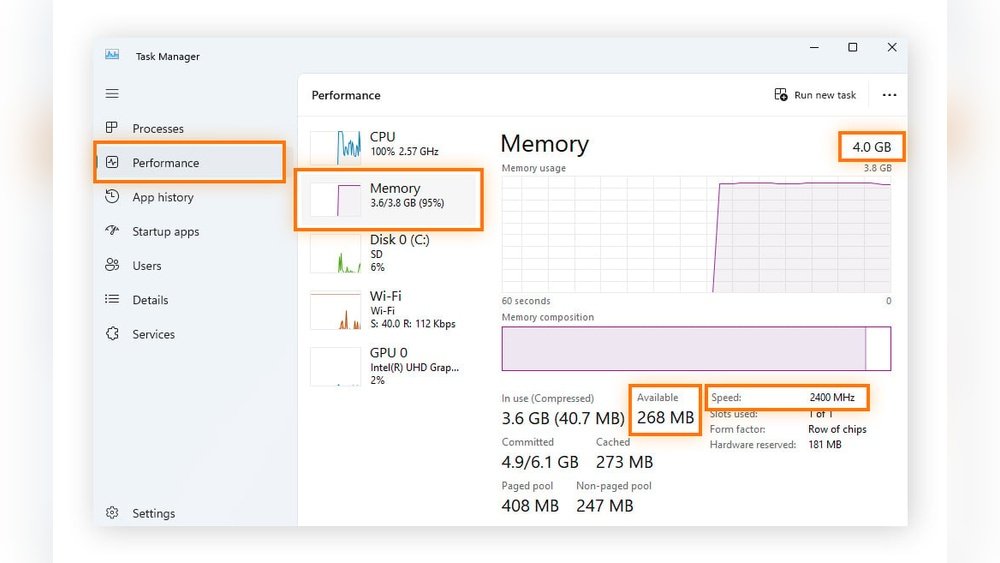
Open Task Manager by pressing Ctrl + Shift + Esc keys together. Click the “Performance” tab at the top. Select “Memory” on the left side panel. You will see total RAM and used memory here. It also shows speed and slots used.
Through System Settings
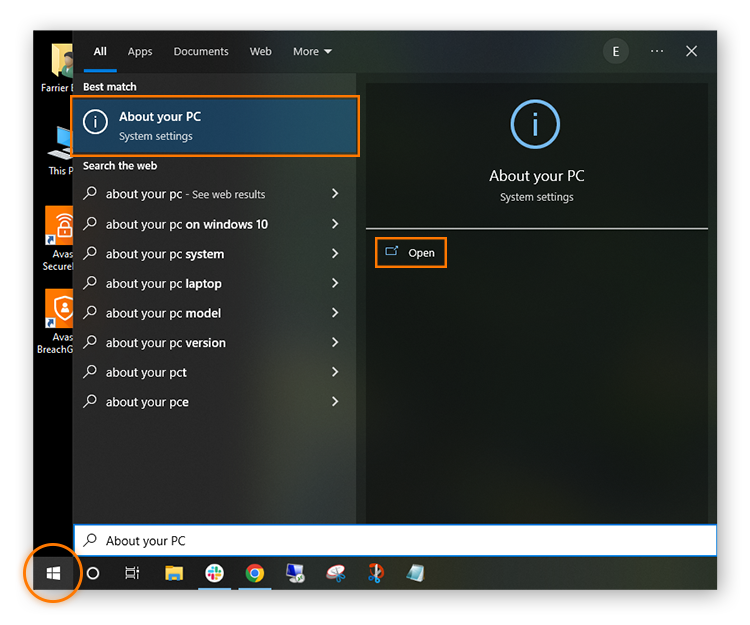
Press Windows key + I to open Settings. Click “System” and then choose “About” at the bottom. Under “Device specifications,” you find installed RAM amount. This method is quick and shows basic memory info.
Command Prompt Method
Open Command Prompt by typing “cmd” in the Start menu. Type the command wmic memorychip get capacity and press Enter. It lists the capacity of each RAM stick in bytes. Divide by 1,073,741,824 to get gigabytes.
Credit: www.avast.com
Check Ram On Mac
Checking the RAM on a Mac helps you understand your computer’s memory capacity. It shows how much memory is free and how much is used. This knowledge helps you manage your apps and improve performance.
There are simple ways to check RAM on a Mac using built-in tools. Two easy methods include using Activity Monitor and About This Mac.
Using Activity Monitor
Open the Activity Monitor from the Utilities folder or Spotlight search. Click the Memory tab to see detailed RAM usage. You can view memory used by each app and system processes. This helps you find apps using too much memory. The Memory Pressure graph shows if your RAM is overloaded.
About This Mac
Click the Apple menu and select About This Mac. The Overview tab shows the total RAM installed on your Mac. You can see the memory size and type here. This method is quick and useful for checking basic RAM details. It also shows other hardware information.
Check Ram On Linux
Checking RAM on Linux helps you understand your computer’s memory usage. It shows how much memory is available and used. This information is useful for managing system performance and troubleshooting. Linux provides simple ways to see RAM details through commands and graphical tools.
Using Terminal Commands
The terminal is a fast way to check RAM on Linux. Use the free command to see memory status. Open the terminal and type free -h. The -h option shows memory in a readable format like MB or GB.
This command displays total, used, and free memory. It also shows swap space details. Another useful command is vmstat. It gives real-time memory stats and system performance data.
You can also use top or htop for a live view of memory and running processes. These tools help track memory use by each program.
Graphical System Monitors
Graphical system monitors offer an easy way to check RAM visually. Most Linux desktop environments include a system monitor tool. For example, GNOME has “System Monitor,” and KDE uses “KSysGuard.”
Open the system monitor from your applications menu. Look for the “Resources” or “Memory” tab. You will see graphs and numbers showing RAM usage over time.
These tools show total RAM, used RAM, and cached memory. They also display CPU and disk usage. Graphical monitors are user-friendly and good for beginners.
Interpreting Ram Usage
Understanding how your RAM works helps you keep your computer fast and smooth. RAM shows how much memory your system uses at any time. Knowing what the numbers mean helps you manage your device better.
Available Vs Used Memory
Available memory is the amount your system can use right now. It includes free memory and memory that can be freed quickly. Used memory is the part currently in use by programs and processes. High used memory means many apps are running or using data.
Cached And Buffered Memory
Cached memory stores data your system might need again soon. It helps programs open faster by keeping files ready. Buffered memory holds data waiting to be written to disk. Both types help speed up your computer but still count as used memory.
Tips To Manage Ram
Managing your RAM well can improve your computer’s speed. It helps your system run smoothly and avoids slowdowns. Simple steps can make a big difference in performance. These tips help you keep your RAM use under control.
Closing Unnecessary Programs
Many programs run in the background without your knowledge. These programs use RAM and slow down your computer. Close apps you do not need. Check your task manager to see which programs use the most memory. Shutting them down frees up RAM for important tasks.
Upgrading Physical Ram
Adding more physical RAM is a good way to improve performance. More RAM means your computer can handle more tasks at once. Check your device’s specifications to see how much RAM it supports. Buy compatible RAM sticks and install them carefully. This upgrade can make your system faster and more efficient.

Credit: www.liftingitalia.com

Credit: heatmasterint.com
Frequently Asked Questions
How Do I Check Ram Size On Windows?
To check RAM size on Windows, open Task Manager with Ctrl+Shift+Esc. Click the Performance tab and select Memory. Your total RAM size displays at the top right of the window.
How To View Ram Details On Mac?
Click the Apple menu, then About This Mac. Under the Overview tab, you will see the memory size and type installed on your Mac.
Can I Check Ram Speed And Type Easily?
Yes, on Windows, use Task Manager under Performance > Memory for speed. On Mac, About This Mac > System Report > Memory shows RAM type and speed.
How To Check Ram Usage In Real-time?
Open Task Manager (Windows) or Activity Monitor (Mac). Both tools display RAM usage and help monitor memory performance instantly.
Conclusion
Checking your RAM is simple and useful. It helps you understand your computer better. You can see how much memory you have and if it works well. Use the steps shared to view your RAM quickly. Knowing this can improve your computer use and fix problems fast.
Keep your system running smooth by watching your RAM. Try these easy methods anytime you want to check. Stay informed and keep your device healthy.
