
Have you ever wondered how much RAM your computer really has? Knowing this simple detail can make a big difference in how your device performs.
Whether you’re trying to speed up your system, run a new game, or just understand your computer better, finding out your RAM size is the first step. You’ll learn easy and quick ways to check your RAM, no matter your skill level.
Keep reading—you’ll be surprised how simple it is to unlock this important info about your machine.
Check Ram On Windows
Checking how much RAM your Windows computer has is simple. RAM affects your computer’s speed and multitasking ability. Knowing your RAM size helps you decide if you need an upgrade. There are several easy ways to check RAM on Windows.
Using System Settings
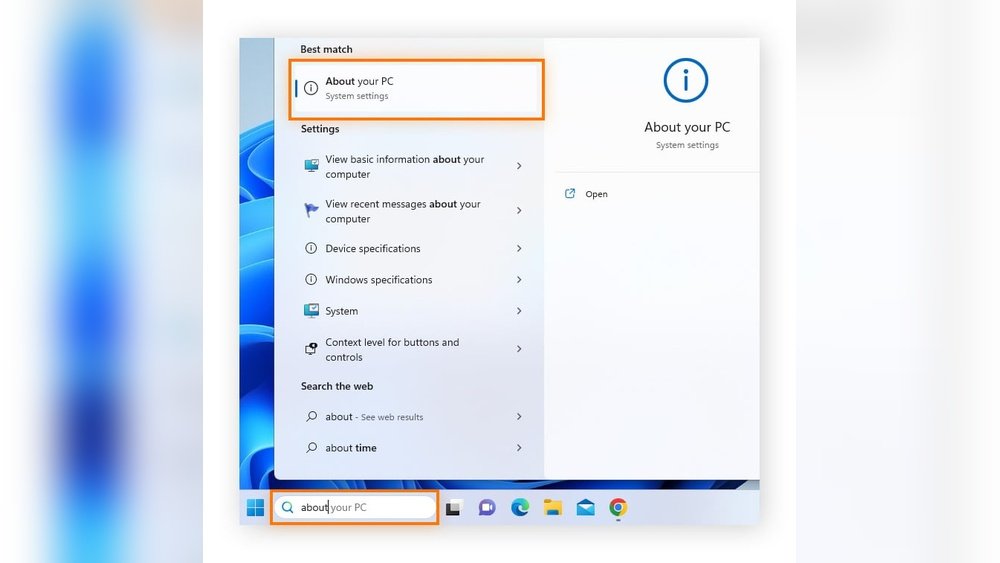
Open the Start menu and click on Settings. Choose the System option, then select About. Look under Device specifications for Installed RAM. This shows the total memory available on your PC. It is the easiest way to find out your RAM size.
Through Task Manager
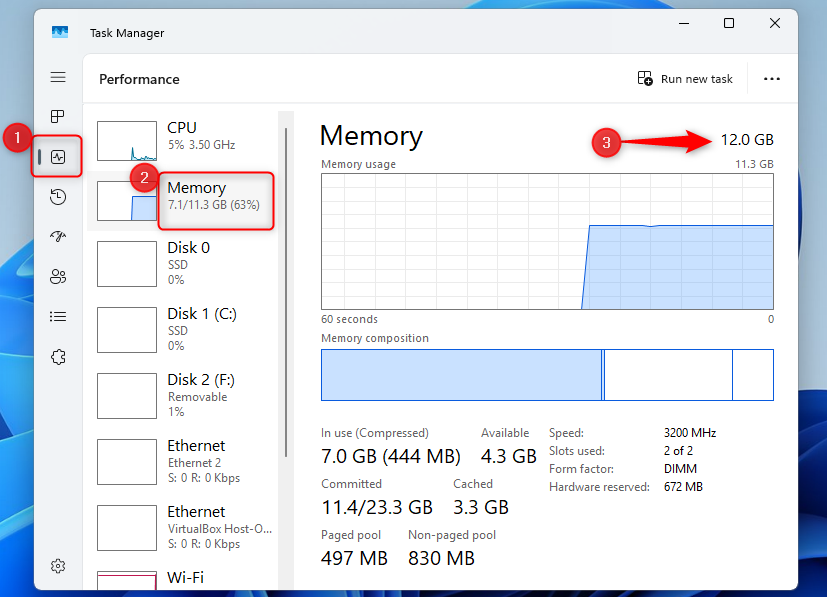
Press Ctrl + Shift + Esc to open Task Manager. Click the Performance tab at the top. Select Memory from the left panel. You will see the total RAM and usage details here. Task Manager also shows RAM speed and slots used.
Via Command Prompt
Open the Start menu and type cmd. Click Command Prompt to open it. Type the command wmic memorychip get capacity and press Enter. This shows the capacity of each RAM stick in bytes. Add the numbers to find total RAM.
Credit: www.rgvelectricalsupply.com
Check Ram On Mac
Checking the RAM on your Mac helps you know how much memory your computer has. This info is useful when running apps or upgrading your Mac. Two easy ways to see your RAM are through the About This Mac window and Activity Monitor. Both show the amount of RAM clearly.
About This Mac
Click the Apple logo at the top left of your screen.
Select “About This Mac” from the menu.
A window will appear showing your Mac’s overview.
Look for the “Memory” section to see your RAM size.
This shows total RAM and type, like 8 GB DDR4.
Using Activity Monitor
Open Finder and go to Applications > Utilities.
Launch the Activity Monitor app.
Click the “Memory” tab at the top.
Here you see memory usage and RAM details.
The “Memory Used” graph shows how much RAM is active.
This helps track real-time RAM use on your Mac.
Check Ram On Linux
Checking RAM on Linux is simple and quick. Linux offers multiple ways to see how much RAM your system has. You can use commands in the terminal or a graphical tool. Both methods give you clear information about your memory.
Using Terminal Commands
Open the terminal to check your RAM fast. Type free -h and press Enter. This command shows total, used, and free memory in a human-readable format.
Another useful command is cat /proc/meminfo. It provides detailed information about your RAM. Look for the line starting with MemTotal to see total RAM.
You can also use top or htop commands. They show live memory usage and system processes.
Graphical System Monitor
Most Linux desktops come with a system monitor app. Open it from the menu or search for “System Monitor.”
Look for the memory or RAM tab inside the app. It displays total RAM and current usage visually.
This method is easy for those who prefer not to use the terminal. It also updates in real-time, showing your memory use clearly.
Credit: www.liftingitalia.com
Why Knowing Ram Size Matters
Knowing how much RAM your computer has is very important. RAM, or Random Access Memory, helps your computer run programs fast. If you know your RAM size, you can better understand your device’s abilities. This knowledge helps you avoid slowdowns and make smart upgrades. It also ensures your computer works well for your needs.
Impact On Performance
RAM affects how fast your computer works. More RAM lets your device handle many tasks at once. Programs open quickly and run smoothly with enough RAM. Low RAM causes slow loading and freezing. Your computer might lag during work or play. Knowing your RAM size helps you see if your device meets your needs.
When To Upgrade
Upgrade RAM if your computer feels slow or stuck. If programs crash or lag often, you may need more RAM. Upgrading helps with heavy tasks like video editing or gaming. It also improves multitasking and speeds up your device. Check your RAM size before buying more. This ensures you get the right amount for better performance.
Tips For Managing Ram
Managing your RAM properly helps your computer run smoothly. It can prevent slowdowns and crashes. Small changes can make a big difference. Here are some simple tips to manage your RAM better.
Close Unnecessary Programs
Programs use RAM even when you do not need them. Closing unused apps frees up memory. Check your taskbar or use Task Manager to see running programs. Shut down the ones you do not use. This helps your computer work faster and saves memory for important tasks.
Use Lightweight Applications
Some applications use less RAM than others. Choose lightweight versions of apps when possible. These apps need fewer resources and run faster. For example, use a simple text editor instead of a heavy word processor. Lightweight apps keep your RAM free for other work.

Credit: patmetheny.com
Frequently Asked Questions
How Do I Check My Ram On Windows 10?
Open Settings, go to System > About. Look for “Installed RAM” under Device Specifications. This shows your total RAM.
Can I View Ram Size On Macbook?
Click the Apple menu, select About This Mac. The Memory section displays your MacBook’s RAM size clearly.
What Is The Easiest Way To Check Ram On Linux?
Use the command free -h in terminal. It shows total, used, and free RAM in human-readable form.
How To Check Ram Using Task Manager?
Press Ctrl + Shift + Esc to open Task Manager. Click the Performance tab and select Memory to see RAM details.
Conclusion
Knowing how to check your RAM helps you understand your computer better. It shows if your device can handle new programs or games. You can find this information quickly on most systems. This simple step saves time and avoids confusion later.
Keep your computer running smoothly by knowing its memory capacity. Try checking your RAM now and see how easy it is. Small actions like this improve your tech skills every day. Stay informed and use your device with confidence.
