
Have you ever wondered why your computer suddenly feels slow or unresponsive? The answer often lies in your CPU usage.
Knowing how to view CPU usage gives you a clear picture of what’s happening inside your device. It helps you spot problems before they become serious and keeps your system running smoothly. You’ll discover simple, step-by-step ways to check your CPU usage quickly and easily.
By the end, you’ll have the power to take control of your computer’s performance like never before. Keep reading—you won’t want to miss these essential tips!
Check Cpu Usage On Windows
Checking CPU usage on Windows helps you understand how your computer works. It shows how much power your CPU uses. This can help you find problems. You can see if any program uses too much CPU. Windows offers simple tools to check this.
Use Task Manager
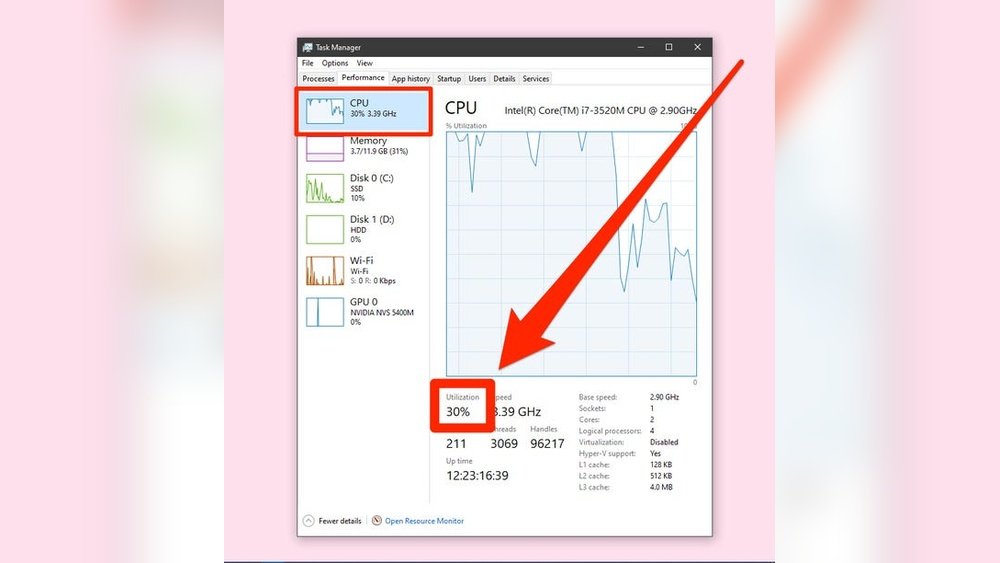
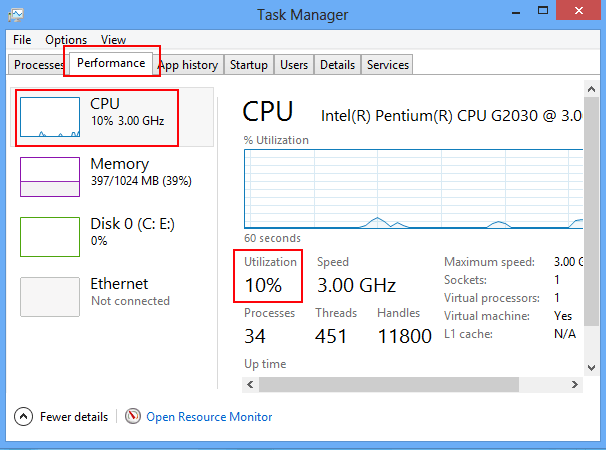
Task Manager is the easiest way to check CPU usage. Press Ctrl + Shift + Esc to open it. Click the Performance tab. You will see the CPU section with a graph. This graph shows real-time CPU usage. You can also see usage per app in the Processes tab.
Try Resource Monitor
Resource Monitor gives more details about CPU use. Open Task Manager first. Then click Open Resource Monitor at the bottom of the Performance tab. The CPU tab here shows which processes use the CPU. It shows threads and services too. This helps find programs using too much CPU.
Leverage Performance Monitor
Performance Monitor tracks CPU use over time. Press Windows + R, type perfmon, and press Enter. Add counters for CPU usage. You can set alerts for high CPU use. This tool is useful for advanced tracking and reports.

Credit: softwareg.com.au
View Cpu Usage On Mac
Checking CPU usage on a Mac helps understand how your computer works. It shows how much power your processor uses. This can help find slow programs or heavy tasks. Macs have built-in tools to see CPU activity easily.
Open Activity Monitor
Activity Monitor is the easiest way to view CPU usage on a Mac. Open it by going to the Applications folder. Then find the Utilities folder and click Activity Monitor. The CPU tab displays all running processes and their CPU use. You can see which programs use the most power. The graph at the bottom shows overall CPU load. This helps spot high CPU usage quickly.
Use Terminal Commands
Terminal offers another way to check CPU usage on Mac. Open Terminal from the Utilities folder. Use the command top to see a live list of processes. The CPU column shows the percentage each process uses. Press q to exit the list. Another command, ps -A -o %cpu,command, lists all tasks and their CPU use. Terminal commands give detailed CPU info in text form. This method is fast and useful for advanced users.
Monitor Cpu Usage On Linux
Monitoring CPU usage on Linux helps track your system’s performance. It shows how much processing power your computer uses. This helps find slow programs or system problems. Linux offers simple tools to check CPU use quickly. You can see real-time updates and detailed info.
Use Top Command
The top command shows CPU use in real time. Open your terminal and type top. You will see a list of running processes. CPU usage is displayed at the top of the screen. The list updates every few seconds. Press q to exit the top command.
Try Htop Tool
Htop is a better version of top with color and more details. Install it using your package manager, like sudo apt install htop. Run it by typing htop in the terminal. Use arrow keys to scroll and see all processes. It shows CPU use per core, memory, and process info. Press F10 or q to quit.
Explore Other Commands
Other commands also show CPU usage. Use mpstat to see CPU stats by core. The vmstat command gives system performance details. Try pidstat for CPU use by process over time. These tools help get a deeper look at your CPU activity. Combine them for full monitoring.
Credit: www.isunshare.com
Use Third-party Tools
Third-party tools offer a clear and detailed way to check CPU usage. These apps provide real-time data and easy-to-read graphs. They help you understand how your CPU performs under different tasks. Many tools also show temperature and other system info. Using these tools can help you keep your computer running smoothly and avoid overheating.
Popular Cpu Monitoring Apps
There are many CPU monitoring apps available. Some of the most popular are:
- HWMonitor: Simple and shows temperature and voltage.
- Core Temp: Focuses on CPU temperature and usage.
- Speccy: Gives detailed system info including CPU stats.
- Open Hardware Monitor: Free and open-source with many features.
- CPU-Z: Provides detailed CPU and system information.
These apps work on most Windows PCs and some support Mac and Linux.
Features To Look For
Choose a tool with clear and easy-to-read graphs. Real-time updates help track CPU use instantly. Look for temperature monitoring to avoid overheating. Alerts can warn you if CPU use gets too high. Some tools also show usage by each core. Lightweight apps use little system power. Easy installation and user-friendly interface matter too. Free versions are good for basic needs.
Tips To Interpret Cpu Usage
Understanding CPU usage helps keep your computer running smoothly. It shows how much work the processor is doing. Knowing how to read this data helps spot problems early. It also helps you know if your system is working well or needs help.
This section shares simple tips to interpret CPU usage. Use these tips to keep your device healthy and fast.
Identify Normal Cpu Load
Normal CPU load varies by device and tasks. Most computers run between 5% and 20% when idle. Simple tasks like browsing use low CPU. Heavy tasks like gaming or editing use more. Knowing your normal range helps spot issues fast.
Spot Cpu Spikes
CPU spikes are sudden jumps in usage. They can last seconds or minutes. Spikes happen during updates or heavy apps. Frequent spikes may slow your computer. Watch for long or repeated spikes. They often signal background issues or malware.
Understand Cpu Throttling
CPU throttling lowers processor speed to prevent overheating. It happens when the CPU gets too hot. Throttling reduces performance but protects your device. Notice slowdowns or lag during heavy use. Check for dust or poor cooling to fix throttling.
Credit: mirfatif.github.io
Improve Cpu Performance
Improving CPU performance helps your computer run faster and smoother. It reduces delays and stops programs from freezing. Simple steps can boost your CPU’s efficiency without extra cost. Focus on managing what your CPU handles every day.
Close Unnecessary Programs
Running many programs at once slows your CPU. Close apps you are not using. Check the taskbar and system tray for background programs. This frees up CPU power for important tasks. Your computer will respond quicker with fewer open apps.
Update Software And Drivers
Outdated software can cause your CPU to work harder. Update your operating system regularly. Keep drivers for hardware like graphics and sound cards current. Updates fix bugs and improve performance. This helps your CPU run tasks more efficiently.
Manage Startup Items
Many programs start automatically when your computer boots. Too many startup items slow down your CPU. Use the task manager or system settings to disable unneeded startup apps. This reduces CPU load right after you turn on your PC. Your system will boot faster and run better.
Frequently Asked Questions
How Can I Check Cpu Usage On Windows?
You can check CPU usage on Windows using Task Manager. Press Ctrl+Shift+Esc, go to the Performance tab, and select CPU. It shows real-time CPU usage and other details like speed and cores.
What Is The Best Tool To Monitor Cpu Usage?
Task Manager on Windows and Activity Monitor on Mac are best for basic CPU monitoring. For advanced users, tools like HWMonitor, CPU-Z, or third-party apps offer detailed CPU stats.
Why Is My Cpu Usage Constantly High?
Constant high CPU usage may indicate background apps, malware, or insufficient hardware. Check running processes and close unnecessary apps. Scan for malware to ensure system health and performance.
Can I View Cpu Usage On Linux Systems?
Yes, Linux users can check CPU usage via terminal commands like top, htop, or mpstat. These tools provide real-time CPU stats and help identify resource-heavy processes easily.
Conclusion
Monitoring CPU usage helps keep your computer running smoothly. You can spot problems early and fix them fast. Using simple tools makes checking easy for everyone. Keep an eye on your CPU regularly for best results. This way, your device stays healthy and works well.
Understanding CPU usage also helps save battery and improve speed. Try these steps today and feel the difference.
