
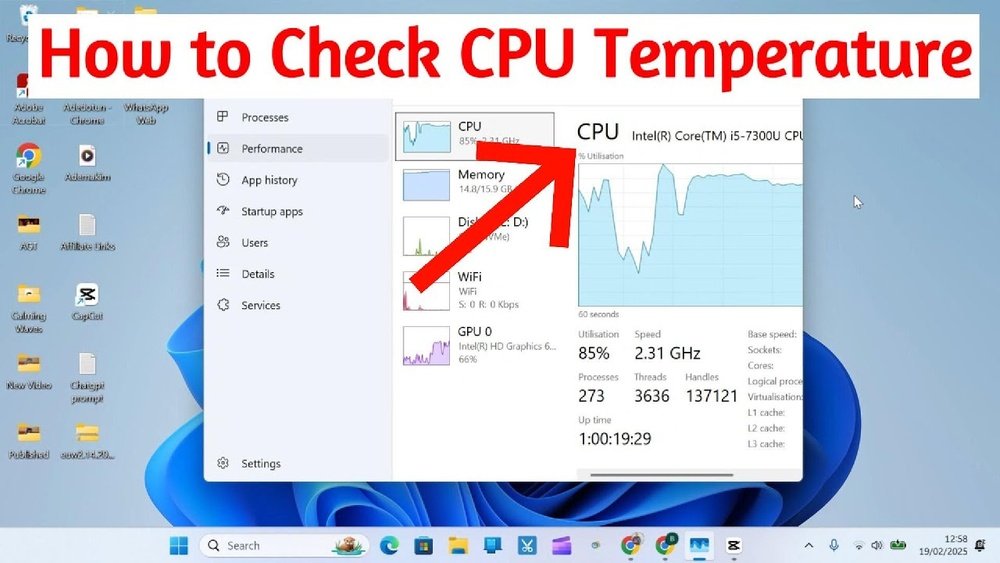
Are you curious about how hot your CPU really gets while you work, game, or browse? Keeping an eye on your CPU temperature is more important than you might think.
If your processor runs too hot, it can slow down your computer or even cause damage over time. But don’t worry—checking your CPU temps is easier than you imagine. You’ll discover simple, effective ways to monitor your CPU temperature and keep your system running smoothly.
Ready to protect your computer and boost its performance? Let’s dive in!

Credit: www.alcpu.com
Why Monitor Cpu Temps
Monitoring your CPU temperature is important for keeping your computer safe and running well. The CPU works hard and creates heat. Too much heat can cause problems that affect your computer’s speed and lifespan. Checking CPU temps helps you catch these issues early. It also helps you know if your cooling system works properly.
Impact Of High Temps On Performance
High CPU temperatures make your computer slow down. This happens because the CPU reduces its speed to cool down. It leads to lag and delays in tasks. Overheating can also cause crashes and freezes. Long-term heat can damage the CPU and other parts.
Signs Of Overheating
Your computer shows signs if the CPU gets too hot. It may shut down suddenly without warning. The fan might run loudly and often. You may notice the computer feels hot to touch. Programs might stop working or respond slowly.
Benefits Of Regular Monitoring
Checking CPU temps regularly helps avoid damage. It lets you fix cooling problems early. You can keep your computer running fast and stable. Monitoring also helps extend the life of your CPU. It gives peace of mind that your system is safe.

Credit: openhardwaremonitor.org
Methods To Check Cpu Temps
Checking your CPU temperature helps protect your computer from overheating. It also improves performance and extends hardware life. Several methods exist to view CPU temps. Each method suits different user needs and skill levels. Choose the one that fits your comfort with technology.
Using Built-in Bios Tools
The BIOS or UEFI firmware on your computer often shows CPU temps. Access it by restarting your PC and pressing a specific key, like F2 or Delete. The hardware monitor section displays temperature readings. This method requires no extra software. It shows real-time temperature before the operating system loads.
Popular Third-party Software
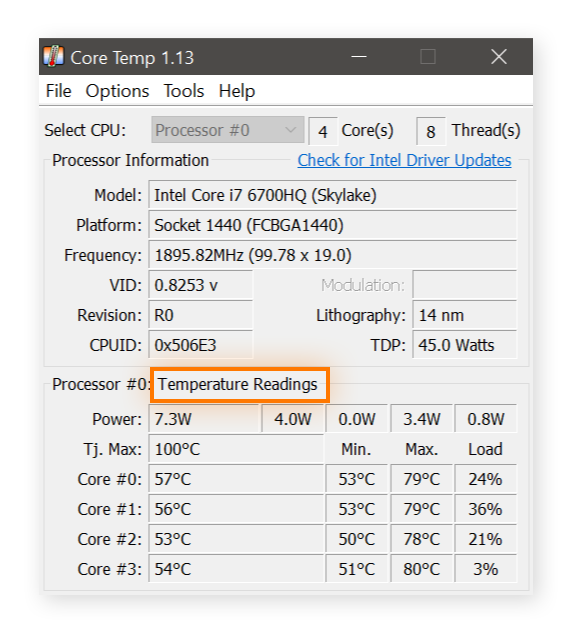
Many free apps display CPU temperatures clearly. Programs like HWMonitor, Core Temp, and SpeedFan offer easy-to-read data. They show temps in real time while you use the PC. Some also track fan speed and voltages. These tools work on Windows and provide simple graphs or numbers. They help monitor your CPU without opening BIOS.
Command Line Options
Advanced users can check CPU temps using command line tools. On Linux, commands like lm-sensors provide detailed temperature info. Windows users can use PowerShell scripts or third-party command line utilities. This method suits users comfortable with typing commands. It offers quick access to temperature data without a graphical interface.
Interpreting Temperature Readings
Understanding CPU temperature readings helps keep your computer safe. It shows how hard your CPU works. High temperatures can cause damage or slow performance. Knowing what numbers mean protects your device.
Safe Temperature Ranges
Most CPUs run well between 30°C and 50°C when idle. Under heavy use, 60°C to 80°C is normal. Some CPUs can handle up to 90°C but should not stay there long. Staying in safe ranges prevents damage and keeps your PC stable.
What Causes Temperature Spikes
Temperature spikes happen from heavy tasks like gaming or video editing. Poor airflow inside the case also raises temps. Dust buildup blocks fans and slows cooling. Overclocking your CPU pushes it beyond normal limits, causing heat to rise fast.
When To Worry About High Temps
Temperatures above 90°C need attention. Your CPU may throttle speed to cool down. This causes slow performance or crashes. If temps stay high, check fans and clean dust. Replace thermal paste if needed. Shutting down can protect your hardware from heat damage.
Tips To Lower Cpu Temperature
Keeping your CPU cool is important for your computer’s performance and lifespan. High temperatures can cause slowdowns or damage. Simple steps can lower CPU temperature effectively. These tips help your PC run smoother and last longer.
Improving Airflow In Your Pc
Good airflow moves hot air out and brings cool air in. Arrange cables neatly to avoid blocking fans. Use case fans to push air through your PC. Place your computer in a cool, open space. Avoid tight spots where heat can build up.
Cleaning Dust And Debris
Dust blocks airflow and traps heat inside your PC. Regularly clean fans, vents, and heat sinks with compressed air. Turn off and unplug your computer before cleaning. Removing dust helps fans work better and lowers temperatures.
Upgrading Cooling Solutions
Stock coolers may not be enough for heavy use. Consider upgrading to a better air cooler or liquid cooling system. Higher quality coolers remove heat faster and keep your CPU cooler. Choose a cooler that fits your CPU and case size.
Adjusting Fan Speeds
Faster fans cool your CPU more but can be noisy. Use BIOS or software tools to adjust fan speeds. Set fans to increase speed as temperature rises. This balance keeps your CPU cool and noise levels low.
Preventive Measures For Cpu Health
Keeping your CPU cool and healthy is important for your computer’s performance. High temperatures can damage the CPU and cause slowdowns or crashes. Taking preventive steps helps avoid problems and extends the life of your CPU.
Simple habits and tools make a big difference. Check the CPU temperature often and act if it gets too high. Let’s explore some easy ways to protect your CPU.
Regular Maintenance Practices
Clean your computer inside and out. Dust blocks airflow and traps heat. Use compressed air to blow dust from fans and vents. Keep the area around your computer clean too.
Replace old thermal paste between the CPU and cooler. It helps heat move away from the CPU. Do this every few years or when temperatures rise.
Avoiding Overclocking Risks
Overclocking increases CPU speed but also heat. It can cause damage if not done right. Avoid overclocking unless you know how to manage heat properly. Use safe settings and good cooling if you try it.
Monitoring Software Automation
Use software to check CPU temperature regularly. Many programs can warn you if the CPU gets too hot. Set alerts to stop the computer before damage happens. Automation helps you stay safe without constant checking.
Credit: www.avast.com
Frequently Asked Questions
How Can I Check My Cpu Temperature On Windows?
You can check CPU temperature using software like HWMonitor or Core Temp. These tools show real-time temps easily. Install and run the app to view accurate CPU temperature readings.
What Is A Safe Cpu Temperature Range?
A safe CPU temperature typically ranges between 30°C and 70°C. Temperatures above 80°C may cause overheating. Always monitor to avoid performance issues or hardware damage.
Why Is My Cpu Temperature Running High?
High CPU temperature can result from poor airflow, dust buildup, or failing cooling systems. Overclocking and heavy workloads also increase heat. Regular cleaning and proper cooling help reduce temperatures.
Can Bios Show Cpu Temperature?
Yes, most modern BIOS setups display CPU temperature. Restart your PC and enter BIOS during boot. Look for hardware monitoring or status sections to find CPU temperature.
Conclusion
Monitoring your CPU temperature helps keep your computer safe. It shows if your system runs too hot or works fine. Use simple tools to check the temperature anytime. Watching temps can prevent crashes and slowdowns. Stay aware and take action if numbers rise too high.
Regular checks keep your PC stable and long-lasting. Don’t ignore heat; small steps make a big difference. Keep your computer cool and running smoothly every day.
