
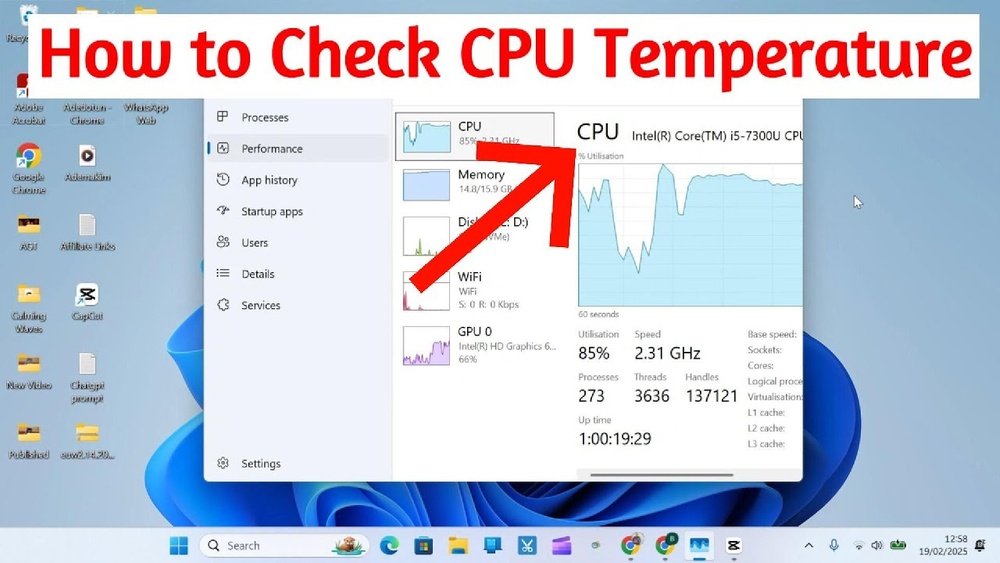
Are you worried your computer might be overheating? Knowing how to view your CPU temperature is one of the easiest ways to protect your device and keep it running smoothly.
If your CPU gets too hot, it can slow down your system or even cause damage. But don’t worry—checking your CPU temp is simpler than you think. You’ll learn quick and clear steps to monitor your CPU temperature, so you can spot problems early and keep your computer in top shape.
Keep reading to find out how easy it is to take control of your PC’s health.
Why Monitor Cpu Temperature
Monitoring your CPU temperature is important for keeping your computer safe and running well. The CPU works hard and can get very hot. Knowing its temperature helps avoid problems before they start. This simple check can save you from big issues and costs later.
Impact On Performance
High CPU temperature can slow your computer down. The CPU reduces speed to cool itself. This drop in speed makes programs run slower. Watching the temperature helps keep your computer fast and smooth.
Preventing Overheating
Too much heat can damage your CPU. Overheating may cause your computer to shut down suddenly. Checking the temperature lets you stop overheating early. It protects your computer from serious harm.
Extending Cpu Lifespan
Heat wears out the CPU over time. Keeping the temperature low helps the CPU last longer. A cooler CPU means fewer repairs and replacements. Monitoring temperature is an easy way to protect your investment.

Credit: openhardwaremonitor.org
Signs Of High Cpu Temperature
High CPU temperature can harm your computer. It affects performance and may cause damage. Recognizing the signs helps prevent problems early. Watch for common clues your CPU is overheating. Acting fast can protect your device.
System Slowdowns
Your computer may run slower than usual. Programs take longer to open or respond. This happens because the CPU reduces speed to cool down. Frequent slowdowns signal high CPU temperature.
Unexpected Shutdowns
The computer may turn off without warning. This is a safety feature to stop damage. Overheating causes the system to shut down quickly. Sudden shutdowns often mean the CPU is too hot.
Fan Noise Increase
The cooling fan works harder and gets louder. It tries to lower the CPU temperature. Loud or constant fan noise is a clear sign. Your CPU may be running too hot.
Tools For Checking Cpu Temperature
Checking your CPU temperature helps keep your computer safe and fast. Many tools show real-time temperature readings. These tools vary from simple built-in options to advanced software. Understanding these choices helps you pick the best one.
Built-in Bios/uefi Options
Your computer’s BIOS or UEFI has a basic temperature monitor. You can access it by pressing a key during startup, like F2 or Delete. This tool shows CPU temperature without extra software. It is simple but only updates when the PC is off or restarting.
Popular Software Utilities
Many free programs show CPU temperature in Windows. Tools like HWMonitor, Core Temp, and SpeedFan are common. They update temperatures live and offer detailed info. These apps are easy to install and use. They also show other system data like fan speed.
Using Manufacturer Tools
CPU makers provide their own software for monitoring. Intel has Intel Extreme Tuning Utility. AMD offers Ryzen Master for their processors. These tools give accurate temperature readings. They also help adjust performance and power settings safely.
Step-by-step Cpu Temp Monitoring
Monitoring your CPU temperature helps keep your computer safe and fast. Checking the temperature regularly prevents overheating and hardware damage. Follow these simple steps to view your CPU temperature accurately.
Accessing Bios/uefi
Turn off your computer. Press the key shown on the screen during startup, often F2, Del, or Esc. This opens BIOS or UEFI settings. Look for a section named “Hardware Monitor,” “PC Health,” or “System Status.” Here, you will find the CPU temperature. Note that BIOS shows temperature only when the PC is off or restarting.
Installing Monitoring Software
Choose trusted software like HWMonitor, Core Temp, or Speccy. Download and install the program on your PC. Open the software to view real-time CPU temperature. These tools work inside the operating system and update temperature continuously. Use them to check temperature during heavy tasks or gaming.
Interpreting Temperature Readings
CPU temperature varies by model but usually stays below 70°C under normal use. Temperatures above 85°C signal overheating and may cause damage. Idle temperature is often between 30°C and 50°C. High temperatures require better cooling or cleaning dust inside the case. Monitor your CPU regularly to avoid problems.
Tips For Safe Temperature Monitoring
Monitoring your CPU temperature is important to keep your computer healthy. Safe temperature checks help avoid damage and improve performance. Follow these simple tips for safe temperature monitoring.
Regular Checks
Check your CPU temperature often. This helps spot problems early. Make it a habit to monitor before heavy tasks. This keeps your system running smoothly.
Avoiding Software Conflicts
Use only one temperature monitoring tool at a time. Running many programs can cause wrong readings. Choose trusted software to avoid errors. This keeps your data clear and reliable.
Understanding Safe Temperature Ranges
Know the normal temperature range for your CPU. Most CPUs work well between 30°C and 70°C. Temperatures above 80°C can cause damage. Keep your CPU cool to ensure long life.

Credit: softwareg.com.au
Improving Cpu Cooling
Keeping your CPU cool helps your computer run better and last longer. High temperatures can slow down your system or cause crashes. Improving CPU cooling is simple. It starts with basic cleaning and can go up to upgrading parts. These steps help lower your CPU temperature effectively.
Cleaning Dust And Debris
Dust builds up inside your computer over time. It blocks airflow and traps heat. Use a soft brush or compressed air to clean fans and vents. Clean the heatsink and fan blades carefully. Regular cleaning keeps the cooling system working well. Do this every few months to avoid overheating.
Upgrading Cooling Solutions
Stock coolers often can’t handle heavy CPU use. Consider replacing your cooler with a better one. Air coolers with larger fans or heat pipes work well. Liquid coolers can cool CPUs more efficiently. Choose a cooler that fits your case and CPU socket. Upgrading improves heat removal and lowers temperatures.
Optimizing Airflow
Good airflow moves hot air out and brings cool air in. Arrange cables neatly to avoid blocking airflow. Place intake fans at the front and exhaust fans at the back or top. Make sure your case has enough fans for air circulation. Proper airflow helps keep all parts, including the CPU, cool.

Credit: www.alcpu.com
Frequently Asked Questions
How Can I Check My Cpu Temperature Windows?
You can check CPU temperature on Windows using third-party apps like HWMonitor or Core Temp. These tools show real-time temperature data clearly and help monitor your CPU health effectively.
What Is A Safe Cpu Temperature Range?
A safe CPU temperature typically ranges between 30°C and 70°C during normal use. Temperatures above 80°C may indicate overheating, which can damage your CPU or reduce performance.
Can Bios Show Cpu Temperature?
Yes, most BIOS setups display CPU temperature under hardware monitoring or system health menus. Access BIOS during startup to check CPU temperature without using software.
Why Is Cpu Temperature Important To Monitor?
Monitoring CPU temperature prevents overheating, which can cause crashes and hardware damage. Keeping it within safe limits ensures optimal performance and longevity of your computer.
Conclusion
Monitoring your CPU temperature helps keep your computer safe and fast. Simple tools can show your CPU heat anytime. Watching the temperature prevents damage and improves performance. Keep your system cool by cleaning fans and checking airflow. Regular checks avoid unexpected shutdowns and slowdowns.
Stay aware of your CPU’s health for smooth use. Small steps make a big difference in computer care. Don’t ignore CPU heat—it matters for your device’s life.
