
Are you ready to speed up your data projects and get results faster? Using a GPU in Kaggle can transform how you train models and analyze data.
But if you’re unsure where to start or how to make the most of this powerful tool, you’re in the right place. You’ll learn exactly how to activate and use a GPU in Kaggle step-by-step. By the end, you’ll be able to boost your performance and take your machine learning skills to the next level.
Keep reading to unlock the full potential of your Kaggle experience.
Benefits Of Using Gpu In Ml
Using a GPU in machine learning offers many clear benefits. It helps run tasks faster and handle more data easily. GPUs improve how complex models train and perform. This makes them essential for many ML projects.
Speed Improvements
GPUs process many calculations at once. This parallel processing cuts training time significantly. Models that take hours on CPUs finish in minutes on GPUs. Faster training means quicker results and more experiments.
Handling Large Datasets
Large datasets need a lot of memory and power. GPUs have high memory bandwidth to manage big data smoothly. They reduce delays caused by moving data between storage and processor. This helps train models on larger datasets without slowdowns.
Enhanced Model Complexity
GPUs allow training of deeper and more complex models. More layers and neurons improve model accuracy. Complex models need more computing power, which GPUs provide. This leads to better predictions and insights in ML projects.
Credit: medium.com
Setting Up Gpu In Kaggle
Setting up a GPU in Kaggle can speed up your data projects. Using a GPU helps with training machine learning models faster. This section explains how to enable and check GPU on Kaggle step-by-step.
Enabling Gpu In Notebook Settings
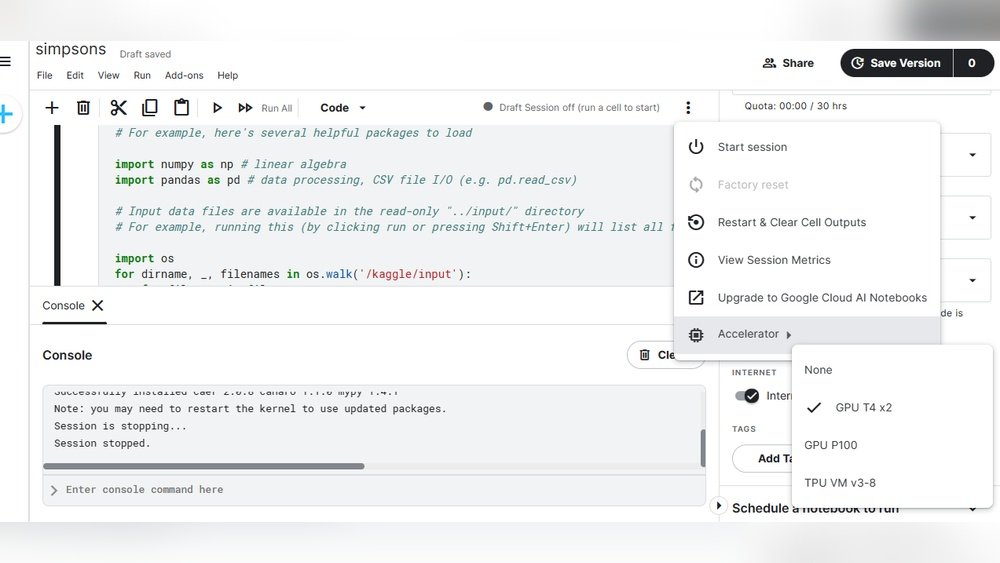
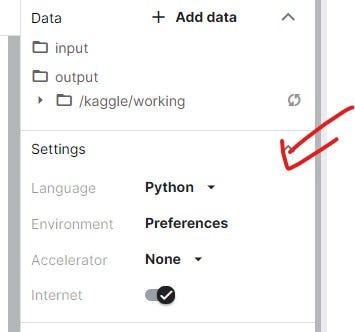
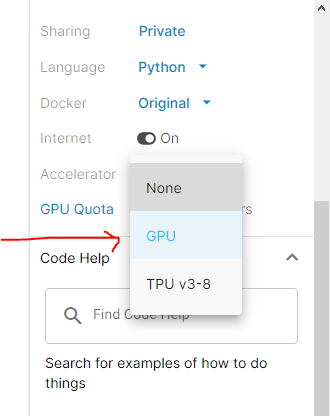
Open your Kaggle notebook first. On the right side, find the “Settings” tab. Click on “Accelerator” and select “GPU” from the dropdown menu. This turns on the GPU for your notebook. Save the settings and restart your notebook to apply changes.
Choosing The Right Gpu Type
Kaggle provides different GPU types, like NVIDIA Tesla P100 or T4. The exact GPU depends on availability and your project needs. For most tasks, the default GPU is good enough. You cannot select a specific GPU model manually.
Checking Gpu Availability
Run a simple code to check if GPU is active. Use the command !nvidia-smi in a notebook cell. It shows GPU details if available. If it shows an error, GPU is not enabled or not available.
Configuring Your Environment
Configuring your environment is the first step to use GPU on Kaggle. It ensures your code runs faster and smoother. Setting up the right tools and libraries is essential. It helps you make the most of the GPU power available.
Installing Necessary Libraries
Start by installing libraries that support GPU computing. Common libraries include TensorFlow and PyTorch. Use commands like pip install tensorflow-gpu or pip install torch. These libraries allow your code to use the GPU for heavy tasks. Confirm the versions match the Kaggle environment.
Verifying Gpu Support In Frameworks
After installation, check if your framework detects the GPU. For TensorFlow, run tf.config.list_physical_devices('GPU'). In PyTorch, use torch.cuda.is_available(). A positive result means your setup can use the GPU. If not, review your library versions and installation steps.
Managing Dependencies
Dependencies can cause conflicts and slowdowns. Keep your environment clean by managing packages carefully. Use pip freeze to list installed packages. Remove or update any conflicting versions. This prevents errors and ensures smooth GPU usage on Kaggle.

Credit: stackoverflow.com
Optimizing Code For Gpu
Optimizing your code for GPU use in Kaggle can boost your model’s training speed. It allows you to handle bigger datasets and complex calculations faster. Writing GPU-friendly code involves careful choices in operations, data processing, and avoiding errors that slow down the GPU.
Using Gpu-compatible Operations
Choose libraries and functions designed for GPU use, like TensorFlow or PyTorch. Use tensor operations instead of loops. These libraries automatically run many tasks on the GPU. Avoid CPU-only functions that waste GPU power.
Batch Processing Tips
Process data in batches, not one item at a time. Batching helps the GPU work efficiently by processing multiple samples simultaneously. Find a batch size that fits your GPU memory. Larger batches speed up training but use more memory.
Avoiding Common Pitfalls
Avoid frequent data transfers between CPU and GPU. Moving data back and forth slows down the process. Keep data on the GPU as much as possible. Also, watch out for operations that are not parallelizable. These can cause bottlenecks and reduce GPU benefits.
Monitoring Gpu Usage
Monitoring GPU usage is important when working with Kaggle. It helps you see how well your GPU performs. It also shows if your code uses the GPU efficiently. Watching these details saves time and resources. It stops your GPU from being idle or overloaded. Knowing how to monitor GPU use makes your projects run smoother.
Using Built-in Tools
Kaggle provides tools to check GPU status easily. You can use the command !nvidia-smi in a notebook cell. This shows GPU memory, temperature, and usage. It updates in real-time to track changes. The tool is simple and ready to use. No extra setup is needed for basic monitoring.
Interpreting Gpu Metrics
GPU metrics tell you how your GPU works. Memory usage shows how much GPU memory your code uses. High memory use can slow down your program. GPU utilization shows how busy your GPU is. Low utilization means the GPU is waiting or idle. Temperature should stay within safe limits. Overheating can cause errors or slowdowns.
Troubleshooting Performance Issues
Check GPU metrics if your code runs slowly. Low GPU usage may mean your code is not optimized. Try to increase parallel tasks or batch size. High memory use may cause your program to crash. Reduce the size of your data or model. Watch the temperature to avoid overheating. Restart the kernel if the GPU is stuck.
Credit: www.kaggle.com
Best Practices For Ml Projects On Kaggle
Using GPUs on Kaggle can speed up your machine learning projects a lot. Following best practices ensures your code runs smoothly and efficiently. This helps save time and use resources wisely. It also improves your model’s accuracy and reliability.
Efficient Data Loading
Load only the data you need for training. Use batch processing to handle large datasets. This reduces memory use and speeds up training. Use Kaggle’s built-in datasets to avoid extra downloads. Cache data locally when possible to save time on repeated runs.
Model Checkpointing
Save your model at regular intervals during training. This prevents loss of progress if the session ends. It also helps in tuning by comparing different checkpoints. Use simple file formats like .h5 or .pt for easy loading. Keep checkpoints small to save disk space and upload time.
Resource Management
Monitor GPU usage to avoid idle time or overload. Limit the number of processes running simultaneously. Use Kaggle’s session limits wisely to extend your work time. Clear unused variables and close sessions after use. This keeps your environment clean and fast.
Frequently Asked Questions
How Do I Enable Gpu In Kaggle Notebooks?
To enable GPU in Kaggle, open your notebook settings. Under “Accelerator,” select “GPU” and save. Your notebook now uses GPU for faster computations.
Which Gpus Are Available On Kaggle?
Kaggle typically provides NVIDIA Tesla P100 or T4 GPUs. Availability may vary, but these GPUs accelerate deep learning and data processing tasks efficiently.
Does Using Gpu On Kaggle Cost Extra?
No, using GPU on Kaggle is free. It comes with your Kaggle account, but there are usage limits to prevent abuse.
How Can I Check If Gpu Is Active In Kaggle?
Run the command !nvidia-smi in a notebook cell. It displays GPU details if the GPU is active and properly enabled.
Conclusion
Using a GPU in Kaggle can speed up your data work a lot. It helps run models faster and saves time. Remember to enable the GPU in your notebook settings first. Keep your code simple and check your GPU usage often.
Practice will make you more comfortable with these steps. Start small, then try bigger projects. This way, you learn and improve gradually. GPUs make data tasks easier and more efficient. Give it a try and see the difference yourself.
