
Are you ready to speed up your projects and get the most out of Google Colab? Using a GPU can transform your work, making complex tasks run faster and smoother.
But how do you actually enable and use a GPU in Google Colab? This guide will walk you through every step, showing you exactly what to do so you can boost your computations without any hassle. Keep reading—you’re about to unlock a powerful tool that can take your coding and data processing to the next level.
Credit: web.eecs.umich.edu
Enable Gpu In Google Colab
Enabling GPU in Google Colab lets you run tasks faster. It helps with heavy computing jobs like training machine learning models. Google Colab offers free access to GPUs, making it easy for users to improve performance.
Setting up the GPU is simple. You only need to change a few settings in your notebook. Once enabled, your code runs on powerful hardware without extra cost.
Accessing Runtime Settings
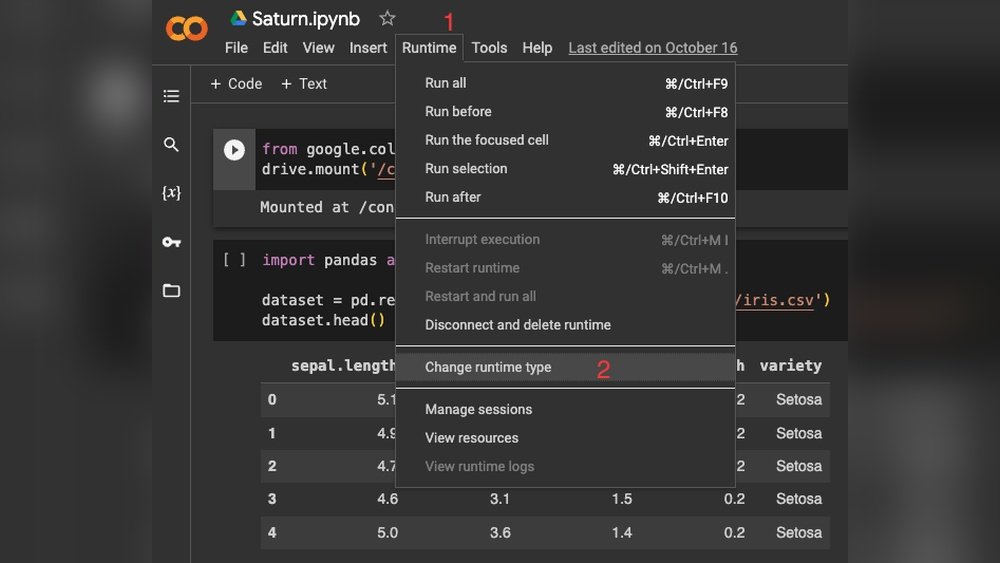
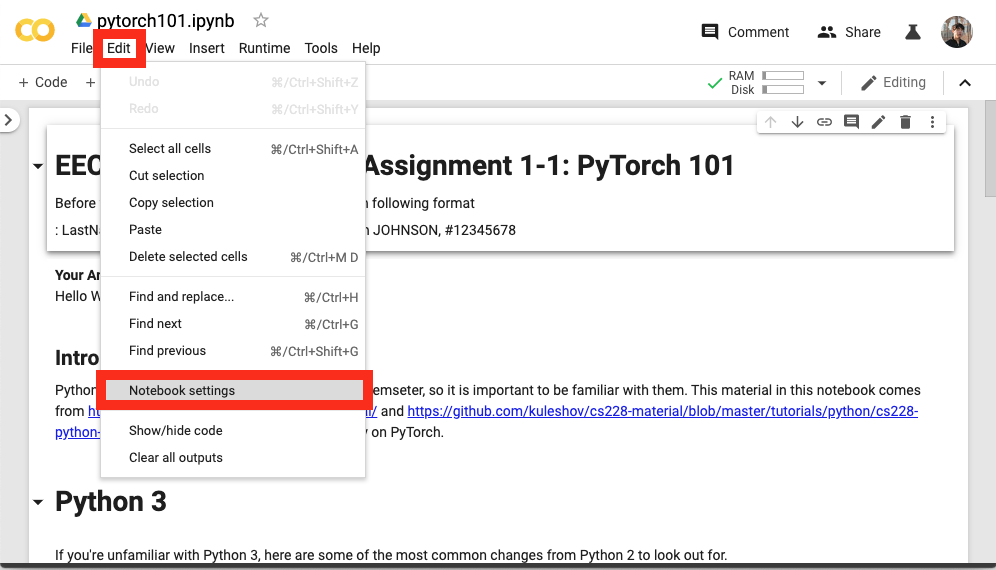
First, open your Google Colab notebook. Look at the top menu bar. Click on the “Runtime” option. A dropdown menu will appear. Select “Change runtime type” from this menu. This action opens a new window with runtime options.
Selecting Gpu Hardware Accelerator
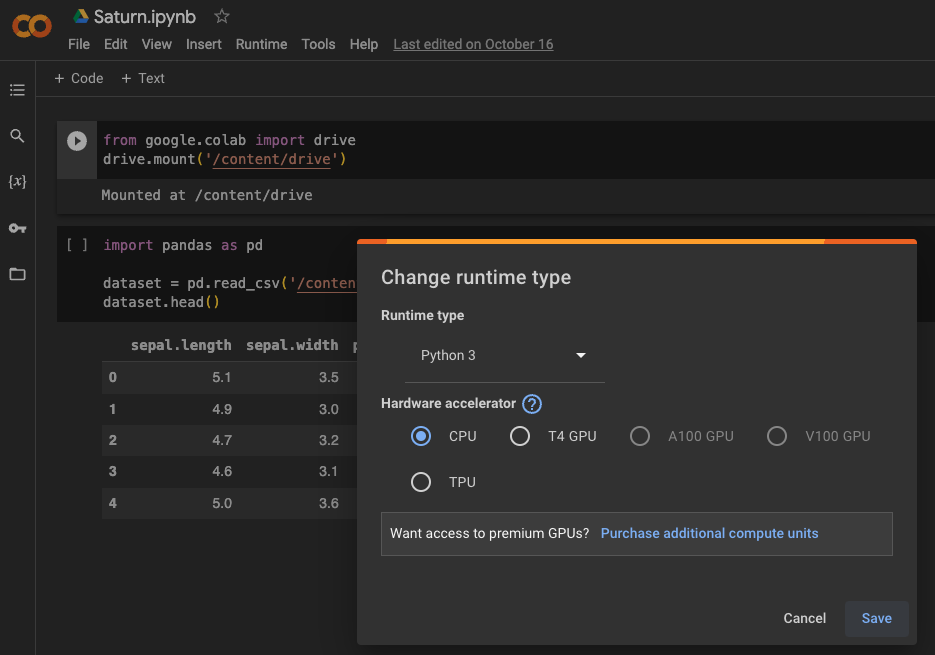
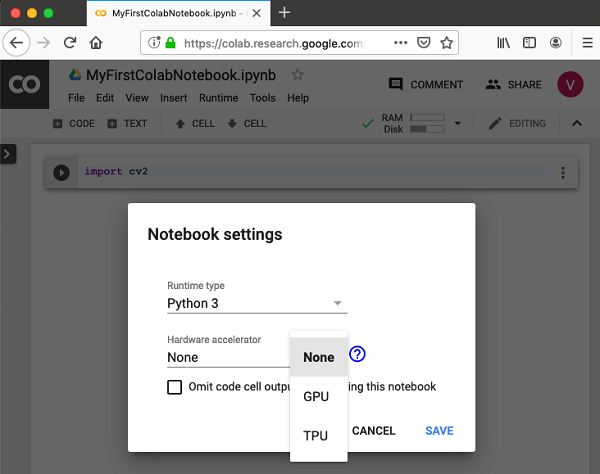
In the runtime type window, find the “Hardware accelerator” dropdown. Click on it to see available options. Choose “GPU” from the list. After selecting GPU, click the “Save” button below. Your notebook will now use the GPU to run code.
Verify Gpu Availability
Before using a GPU in Google Colab, check if the GPU is available. This step is important. It helps avoid errors in your code. You can quickly verify GPU access using simple commands. This ensures your notebook can use the GPU for faster processing.
Check Gpu With Python Commands
Run a few Python commands to see if the GPU is active. The command !nvidia-smi shows GPU status. It returns details about the GPU and running processes. You can also use TensorFlow to check GPU availability:
import tensorflow as tf print(tf.config.list_physical_devices('GPU')) If the output lists a GPU, it is ready for use. If the list is empty, no GPU is available.
Identify Gpu Model And Specs
Knowing the GPU model helps understand its power. Use !nvidia-smi to see the GPU type and memory. It shows GPU name, driver version, and usage details. This information guides you on what tasks your GPU can handle. For example, some GPUs are better for deep learning.
Set Up Machine Learning Environment
Setting up the machine learning environment in Google Colab is the first step to using a GPU effectively. This setup ensures your code runs faster and handles larger data. The process includes installing libraries and configuring frameworks to use the GPU.
Follow the steps carefully to prepare your environment for smooth and efficient machine learning tasks.
Install Required Libraries
Start by installing the necessary libraries. Use pip commands to get the latest versions. For example, run !pip install tensorflow to install TensorFlow. Similarly, install PyTorch with !pip install torch torchvision. These commands ensure you have the right tools for GPU support.
Keep your libraries updated to avoid compatibility issues. Installing these libraries in Colab is simple and fast.
Configure Tensorflow And Pytorch For Gpu
After installing, check if TensorFlow detects the GPU. Use tf.config.list_physical_devices('GPU') in your code. If a GPU appears, TensorFlow is ready to use it.
For PyTorch, run torch.cuda.is_available(). It returns true if the GPU is active. Set your device with device = torch.device("cuda" if torch.cuda.is_available() else "cpu"). This directs PyTorch to use the GPU when available.
Configuring both frameworks correctly helps you run training faster and more efficiently on Colab.
Credit: saturncloud.io
Optimize Code For Gpu Usage
Optimizing your code for GPU use in Google Colab helps speed up tasks. GPUs process many operations at once. This makes them great for deep learning and data science. Writing code that uses the GPU well can save time and resources.
To get the best from your GPU, write code that fits its strengths. Avoid operations that run better on CPUs. Use tools and libraries designed for GPUs. Manage where your code runs to avoid delays. These steps make your code faster and smoother.
Utilize Gpu-compatible Operations
Use libraries like TensorFlow or PyTorch. They have built-in functions optimized for GPUs. Replace slow loops with matrix and tensor operations. These run much faster on the GPU. Avoid using Python code that the GPU cannot accelerate.
Choose functions that support parallel processing. This lets the GPU handle many tasks at once. Check the library documentation for GPU support. Use batch processing to maximize GPU use. Process data in groups, not one at a time.
Manage Device Placement
Tell your code to run on the GPU explicitly. Many libraries allow you to set the device for operations. This prevents the code from defaulting to the CPU. Move data to the GPU before running operations.
Use commands like with tf.device('/GPU:0') in TensorFlow. In PyTorch, use to('cuda') to move tensors. Avoid mixing CPU and GPU operations in the same code block. This reduces slow data transfers between devices.
Monitor Gpu Performance
Monitoring GPU performance in Google Colab helps you use resources wisely. It shows how much memory and power your GPU uses. This lets you know if your code runs efficiently or needs changes. Keeping an eye on GPU stats avoids slowdowns and crashes.
Use Nvidia Tools In Colab
Google Colab supports NVIDIA tools for GPU monitoring. The nvidia-smi command is the most common. Run !nvidia-smi in a code cell to see GPU details. It shows memory use, temperature, and running processes. This tool helps spot if your GPU is overloaded or idle.
Track Memory And Utilization
Track GPU memory to prevent out-of-memory errors. Use nvidia-smi regularly during your session. Watch the memory column to see how much is used. Also, check GPU utilization to understand workload. High usage means your GPU works hard. Low usage means your code may not use GPU fully.
Credit: www.tutorialspoint.com
Troubleshoot Common Gpu Issues
Using a GPU in Google Colab can speed up your work. Sometimes, issues may stop the GPU from working well. Troubleshooting helps fix common problems quickly. This section guides you through solving typical GPU issues in Colab.
Resolve Runtime Errors
Runtime errors can stop your code from running. These errors often happen when the GPU is not set correctly. Check if the GPU is enabled in the Colab settings. Restart the runtime after enabling the GPU. Clear the output and rerun your code. This step often fixes many runtime errors.
Handle Gpu Allocation Limits
Google Colab limits GPU use for free accounts. You might see messages about GPU allocation limits. These limits reset after some time. Use the GPU in short sessions to avoid hitting the limits. Save your work often to prevent data loss. Consider upgrading to Colab Pro for longer GPU access.
Maximize Machine Learning Speed
Using a GPU in Google Colab can boost machine learning speed. This helps finish tasks faster and saves time. Efficient use of GPU resources makes your projects run smoother. Small changes in your code can lead to big speed gains. Focus on smart techniques to get the most from the GPU.
Batch Processing Tips
Batch processing means handling multiple data points at once. Bigger batches use the GPU better and reduce wait times. But very large batches may cause memory errors. Find the right batch size for your model and GPU. Test different sizes and choose the one that runs fastest without errors. Use batch processing to keep your GPU busy and efficient.
Leverage Mixed Precision Training
Mixed precision training uses both 16-bit and 32-bit numbers. It speeds up calculations and lowers memory use. This lets you train larger models or bigger batches. Many deep learning libraries support mixed precision easily. Enable it to improve training speed without losing accuracy. Mixed precision is a simple way to use GPU power wisely.
Frequently Asked Questions
How To Enable Gpu In Google Colab?
To enable GPU, go to “Runtime” > “Change runtime type” in Colab. Select “GPU” under the Hardware accelerator. Click “Save,” and your notebook will use the GPU for faster computation.
Which Gpus Are Available In Google Colab?
Google Colab offers NVIDIA Tesla K80, T4, P4, and P100 GPUs. Availability depends on the free or Colab Pro version and current server load.
How To Check If Gpu Is Active In Colab?
Run the command !nvidia-smi in a code cell. It shows GPU details if enabled. If no GPU is available, it returns an error or empty result.
Can I Use Gpu For Deep Learning In Colab?
Yes, Google Colab’s GPU accelerates deep learning training and inference. It supports popular frameworks like TensorFlow and PyTorch for efficient model building.
Conclusion
Using GPU in Google Colab speeds up your projects a lot. It helps run tasks faster and saves time. You only need to change a few settings to start using it. This makes coding easier and more fun. Keep practicing to get better with GPU use.
Your work will feel smoother and quicker. Try different projects to see how GPU helps you. Google Colab offers a free way to boost your computing power. Simple steps lead to big improvements. Give it a go and enjoy faster results.
