
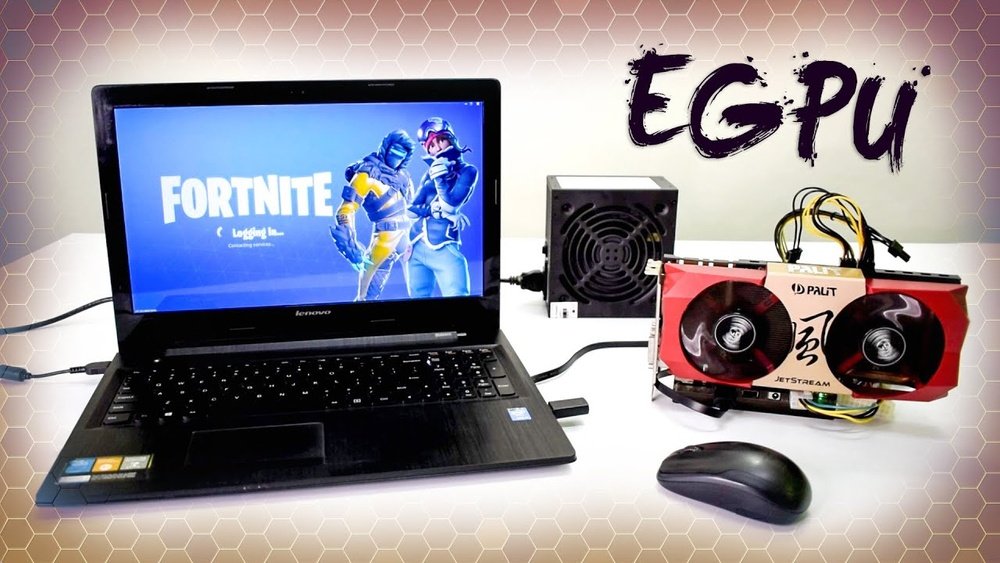
Are you struggling to get the best graphics performance from your laptop? Maybe you want to play the latest games, edit videos faster, or run demanding software smoothly.
Using an external GPU (eGPU) can be the game-changer you need. But how exactly do you set it up and make it work with your laptop? In this guide, you’ll discover simple, clear steps to boost your laptop’s power without buying a new one.
Keep reading, and unlock the full potential of your device today.
Benefits Of External Gpus
External GPUs offer many advantages for laptop users. They help improve your computer’s power without changing the laptop itself. This makes them a smart choice for people who need better graphics but want to keep their current laptop.
Using an external GPU can make your laptop more useful and last longer. It works well for different tasks, from gaming to creative work. Here are the main benefits of using an external GPU.
Enhanced Graphics Performance
An external GPU provides much stronger graphics power than most laptops. This means smoother games and faster video editing. You can run programs that need high graphics without slowing down. Your laptop’s screen will show better images and faster frame rates. This is perfect for gamers and designers who want clear visuals.
Extended Laptop Lifespan
Using an external GPU reduces the load on your laptop’s internal parts. Your laptop’s built-in graphics chip works less, so it stays cooler. This helps prevent overheating and wear over time. It also means you don’t need to buy a new laptop to get better graphics. An external GPU keeps your old laptop useful for longer.
Versatility For Various Applications
External GPUs work with many different programs and tasks. They improve gaming, video editing, 3D modeling, and even AI work. You can connect or disconnect the GPU as needed. This makes your laptop flexible for work or play. It also helps if you use multiple monitors or need faster processing.
Choosing The Right External Gpu
Choosing the right external GPU is important for the best experience. Not all GPUs work with every laptop. Your choice affects speed, graphics quality, and cost. Think about what fits your laptop and budget. This guide helps you pick the best external GPU.
Compatibility With Your Laptop
Check if your laptop supports an external GPU. Most use Thunderbolt 3 or 4 ports. These ports give the needed speed for good performance. Some laptops may need BIOS updates to work well. Make sure your laptop’s power and cooling can handle the GPU. Not all laptops can use every external GPU model.
Performance Vs. Budget
High performance GPUs cost more but run games and apps faster. Lower-cost models save money but may slow down some tasks. Decide how much power you need. Consider what you will use the GPU for. Balance your budget with the performance you want. Think about future needs too.
Popular External Gpu Models
Some external GPUs are well known for quality and value. The Razer Core X is a popular choice for many users. Sonnet eGFX Breakaway Box offers good performance at a fair price. Gigabyte AORUS Gaming Box is compact and strong for gaming. Check each model’s features and price before buying.
Required Hardware And Ports
Using an external GPU (eGPU) with a laptop requires specific hardware and ports. These components connect your laptop to the external graphics card. Choosing the right parts ensures smooth performance and compatibility.
Understanding these requirements helps avoid mistakes and saves time. Let’s explore the essential hardware and ports needed for a successful eGPU setup.
Thunderbolt 3 And Other Connections
Thunderbolt 3 is the most common port for eGPU connections. It offers fast data transfer speeds up to 40 Gbps. This speed allows the external GPU to work well with your laptop.
Some laptops may have Thunderbolt 4, which works similarly with eGPUs. Other connection types like USB-C without Thunderbolt usually do not support external GPUs effectively. Make sure your laptop has a Thunderbolt port before buying an eGPU.
Power Supply Considerations
External GPUs need their own power supply to run. The power supply must match the GPU’s requirements. Most eGPU enclosures come with built-in power supplies.
Check the wattage rating of the power supply. It should support your GPU’s maximum power use. A weak power supply can cause crashes or damage to the hardware.
Enclosure Options
The enclosure houses the external GPU and its power supply. It also provides cooling and protection. Enclosures connect to your laptop via Thunderbolt 3 or 4.
There are many enclosure types available. Some are compact and portable. Others are larger but provide better cooling and space for bigger GPUs.
Choose an enclosure that fits your laptop’s port and your GPU size. Good ventilation inside the enclosure helps maintain performance and hardware health.

Credit: reapinteractive.com
Setting Up The External Gpu
Setting up an external GPU (eGPU) for your laptop can improve graphics performance. This setup allows your laptop to run demanding applications smoothly. Follow these steps to connect and configure your eGPU correctly.
Connecting The Egpu To Your Laptop
Start by turning off your laptop. Connect the eGPU to your laptop using a Thunderbolt 3 or USB-C cable. Make sure the cable fits securely in both devices. Plug in the eGPU’s power supply to a wall outlet. Turn on the eGPU before powering your laptop. This ensures the laptop detects the eGPU during startup.
Installing Drivers And Software
After connecting, power on your laptop. The system should recognize the eGPU automatically. Visit the eGPU manufacturer’s website. Download and install the latest drivers for your device. Installing the correct drivers is essential for performance. Restart your laptop after installation to complete the setup.
Configuring Display Settings
Open your laptop’s display settings. Choose the eGPU as the preferred graphics processor. This setting directs apps to use the external GPU. Adjust resolution and refresh rate for your monitor. Set the external monitor as the main display if needed. Save your changes to apply the new settings.
Optimizing Performance
Optimizing the performance of an external GPU (eGPU) on your laptop ensures smooth graphics and faster processing. Proper settings and care can make a big difference in how well your setup works. Small adjustments help you get the best from your eGPU.
Adjusting Graphics Settings
Start by setting your laptop’s graphics to use the external GPU. Open the graphics control panel on your laptop. Choose the eGPU as the preferred device for games and apps. Lower the graphics quality if you notice lag or slowdowns. Balance settings between performance and visual quality. Update your GPU drivers regularly for better compatibility and speed. This simple step often solves many performance problems.
Managing Thermal Performance
Heat can slow down your laptop and eGPU. Keep your laptop and eGPU in a cool, ventilated space. Use a laptop cooling pad to reduce heat build-up. Clean dust from vents and fans to help airflow. Avoid placing your laptop on soft surfaces like beds or sofas. Monitor the temperature using software tools. If temperatures rise too high, reduce workload or pause intensive tasks.
Troubleshooting Common Issues
Connection problems are common with eGPUs. Check that cables and ports are secure and undamaged. Restart your laptop and eGPU if the device is not recognized. Update your laptop’s BIOS and Thunderbolt drivers. Disable integrated graphics in the device manager for some laptops. Look for error messages in the system logs. If performance is poor, try reinstalling the GPU drivers. Keep your system software up to date to avoid conflicts.

Credit: www.youtube.com
Use Cases For External Gpus
External GPUs (eGPUs) expand the power of your laptop. They connect through ports like Thunderbolt 3. This allows laptops to handle tasks usually reserved for desktops. Many users find eGPUs valuable for different reasons. Below are common uses of external GPUs.
Gaming Enhancements
External GPUs boost gaming performance on laptops. They allow higher frame rates and better graphics. Games look smoother and more detailed. Laptops with weak built-in graphics benefit the most. Gamers enjoy popular titles without lag or stutter. This extends the laptop’s gaming life.
Video Editing And Creative Work
Video editors need strong graphics power. External GPUs speed up rendering and playback. They handle high-resolution videos with ease. Creative professionals see faster edits and previews. This saves time and improves workflow. Laptops become suitable for demanding creative tasks.
Machine Learning And Data Processing
Machine learning requires heavy computation. External GPUs provide the needed power for training models. They process large datasets faster than CPUs alone. Data scientists can run complex algorithms smoothly. This helps complete projects quicker and more efficiently.
Limitations And Considerations
Using an external GPU (eGPU) with a laptop can boost graphics power. Still, some limits and factors affect this setup. Understanding these helps you decide if an eGPU fits your needs. It also prepares you for what to expect in daily use.
Bandwidth Constraints
eGPUs connect through ports like Thunderbolt 3 or 4. These ports have limited data speed compared to desktop GPUs. This limit can slow down graphics performance. Games and apps may not run as fast as on a full desktop GPU. Some data must travel back and forth through the cable, causing delays. The speed depends on the port and cable quality.
Portability Challenges
Carrying an eGPU setup is not as simple as a laptop alone. The eGPU box is often bulky and heavy. You need space to place it and connect cables. This reduces the laptop’s mobility. Setting up and packing up takes time. The eGPU also needs power from an outlet, limiting use on the go.
Cost Vs. Benefit Analysis
External GPUs and enclosures cost extra money. The total price can be close to a gaming desktop. Sometimes, the performance gain is less than expected. You should compare the price to buying a powerful laptop or desktop. Consider if you need better graphics now or later. Think about how often you will use the eGPU. This helps decide if the cost is worth it.

Credit: www.pcworld.com
Frequently Asked Questions
What Is An External Gpu For A Laptop?
An external GPU (eGPU) is a graphics card housed outside a laptop. It boosts graphics performance for gaming or professional work. You connect it via ports like Thunderbolt 3. It enhances visuals without opening your laptop.
How Do I Connect An External Gpu To My Laptop?
Connect the eGPU using a compatible port, usually Thunderbolt 3. Install necessary drivers and software. Then, configure your laptop to use the external GPU for graphics processing. Restart your laptop to apply changes.
Can All Laptops Support External Gpus?
Not all laptops support eGPUs. Your laptop must have a compatible port like Thunderbolt 3. Also, check BIOS and driver support for eGPU functionality. Confirm compatibility before purchasing an external GPU.
Will An External Gpu Improve Laptop Gaming Performance?
Yes, an external GPU significantly improves gaming performance. It provides better frame rates and graphics quality. However, performance depends on the eGPU model and laptop connection speed.
Conclusion
Using an external GPU can greatly boost your laptop’s graphics power. It helps run games and software more smoothly. Connecting it is simple with the right cables and settings. Just check compatibility before buying any device. Keep your drivers updated for the best results.
This setup saves money compared to buying a new laptop. Enjoy better visuals and faster performance anytime you need. Give your laptop a new life with an external GPU. Try it out and see the difference yourself.
