

Are you looking to boost your laptop’s graphics power without buying a new machine? Using an external GPU (eGPU) can be the game-changer you need.
Imagine running your favorite games smoother, editing videos faster, or handling heavy design work with ease. This guide will walk you through everything you need to know to connect and use an external GPU with your laptop. By the end, you’ll have the confidence to unlock your laptop’s full potential and enjoy top-tier performance whenever you want.
Keep reading to discover how simple it can be to upgrade your setup!

Credit: www.youtube.com
Benefits Of External Gpus
External GPUs offer many advantages for laptop users. They improve your laptop’s power and allow you to do more with less hassle.
These devices connect easily and bring new capabilities to your laptop. They help enhance graphics, protect your laptop, and give you freedom to move.
Enhanced Graphics Performance
External GPUs provide much better graphics than built-in laptop cards. They handle heavy tasks like gaming and video editing smoothly. This means clearer images and faster processing. You can enjoy high-quality visuals without buying a new laptop.
Extended Laptop Lifespan
Using an external GPU reduces stress on your laptop’s internal parts. The laptop’s processor and graphics chip work less hard. This lowers heat and wear, helping your laptop last longer. You save money by avoiding early replacements.
Portability And Flexibility
External GPUs connect through ports, so you can detach them anytime. Carry your laptop alone when traveling light. Attach the GPU at home or office for more power. This setup fits many lifestyles and work needs easily.
Choosing The Right External Gpu
Choosing the right external GPU (eGPU) for your laptop is important. It affects performance and usability. The right eGPU boosts graphics power without slowing your laptop down. Several factors matter before buying one. Focus on compatibility, power needs, and your budget. Each affects your choice and experience.
Compatibility With Your Laptop
Your laptop must support an external GPU. Check for a Thunderbolt 3 or 4 port. These ports handle fast data transfer needed for eGPUs. Some laptops may need BIOS updates. Your laptop’s operating system must support eGPU use. Windows 10, macOS, and some Linux versions work well. Make sure your laptop’s hardware and software match eGPU requirements. Avoid buying an eGPU that your laptop cannot use.
Power And Cooling Requirements
External GPUs need enough power to run smoothly. Check the power supply of the eGPU enclosure. It should match or exceed the GPU’s needs. Cooling is also key. Powerful GPUs generate heat. A good cooling system prevents overheating. Ensure your eGPU has fans or liquid cooling. Poor cooling reduces performance and damages hardware. A balanced power and cooling setup keeps your system safe.
Budget Considerations
External GPUs vary in price. Set a budget before shopping. High-end GPUs cost more but offer better performance. Mid-range GPUs can still improve your laptop’s graphics. Don’t forget the enclosure cost if not included. Sometimes, cheaper options save money but may lack features. Think about your needs and how much you want to spend. Spend wisely for the best value and performance.
Required Hardware And Accessories
To use an external GPU on your laptop, you need specific hardware and accessories. These parts work together to give your laptop better graphics power. Choosing the right items is important for smooth and effective performance.
External Gpu Enclosure
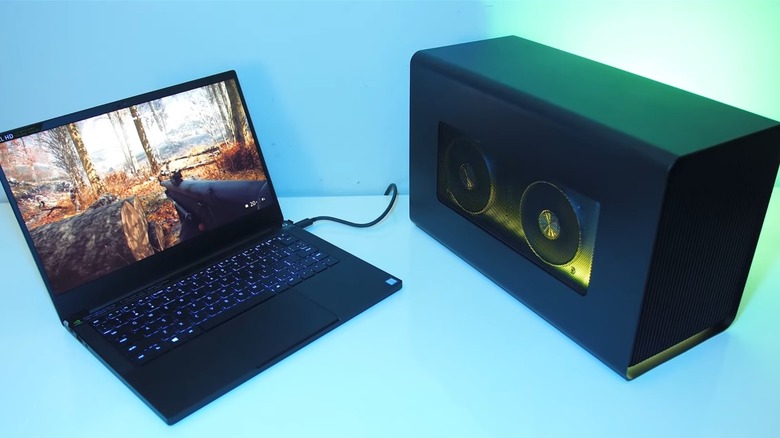
The external GPU enclosure holds the graphics card outside your laptop. It protects the card and provides a slot to install it. This enclosure connects the GPU to your laptop using a fast interface. Most enclosures support full-size desktop GPUs. They also have cooling systems to keep the card cool during heavy use.
Connecting Cables And Adapters
You need cables and adapters to link the enclosure with your laptop. Thunderbolt 3 or Thunderbolt 4 cables are the most common. These cables transfer data quickly, allowing the GPU to work efficiently. Some laptops may require special adapters to connect to the enclosure. Always check compatibility to avoid issues.
Power Supply Needs
The external GPU enclosure requires its own power supply. This power supply provides enough energy for the GPU to run well. Some enclosures come with built-in power supplies. Others need separate units. Make sure the power supply matches the GPU’s requirements for stable performance.
Setting Up The External Gpu
Setting up an external GPU (eGPU) for your laptop can boost its graphics power. This setup helps run demanding games or software smoothly. The process involves connecting the hardware, installing drivers, and adjusting display settings. Follow these steps for a smooth start with your eGPU.
Connecting The Gpu To Your Laptop
First, find the correct port on your laptop. Most eGPUs use Thunderbolt 3 or 4 ports. Connect the eGPU enclosure to this port using the cable provided. Ensure the connection is secure to avoid interruptions. Next, plug in the power supply to the eGPU and turn it on. Your laptop should recognize the new hardware soon after.
Installing Necessary Drivers
Drivers help your laptop communicate with the eGPU. Visit the GPU manufacturer’s website to download the latest drivers. Run the installation file and follow the on-screen instructions. Restart your laptop after installation. Check device manager to confirm the eGPU is listed and working properly.
Configuring Display Settings
Adjust your display settings to use the eGPU effectively. Open your laptop’s display settings panel. Choose the external GPU as the main graphics processor for games or apps. You can set the eGPU to handle only external monitors or your laptop screen too. Test performance by running a graphic-intensive program to ensure proper setup.
Optimizing Performance
Optimizing the performance of an external GPU on your laptop helps you get the best results. It ensures smooth graphics, better speed, and less lag. Simple steps can improve how your external GPU works with your laptop. Focus on key settings and regular checks.
Adjusting Graphics Settings
Set your graphics settings to match your GPU’s power. Lowering resolution and detail can help if the game or software lags. Use presets like “medium” or “high” instead of “ultra.” This balance improves speed without losing too much quality. Many programs let you change these settings easily.
Monitoring Gpu Usage
Keep an eye on your GPU’s activity. Use tools like Task Manager or third-party apps to see usage levels. High usage means your GPU is working hard. Low usage might mean it is not fully used. This helps find problems and adjust settings for better performance.
Updating Drivers Regularly
Always install the latest drivers for your external GPU. New drivers fix bugs and improve speed. Check the GPU manufacturer’s website for updates. Regular updates keep your system stable and fast. Set a reminder to update drivers every month or two.

Credit: www.pcworld.com
Troubleshooting Common Issues
Using an external GPU with a laptop can boost graphics power. Some common problems may appear during setup or use. Troubleshooting helps keep your setup running smoothly. Understanding key issues helps fix them fast. Below are common problems and tips to solve them.
Connection Problems
Check the cable and port for damage. Use a compatible cable for your eGPU and laptop. Make sure the eGPU is securely plugged in. Restart your laptop if the device does not show up. Try different ports if available. Some laptops may need a BIOS update for better support.
Driver Conflicts
Install the latest drivers from the GPU maker’s website. Remove old or conflicting graphics drivers before installing new ones. Use the device manager to check for driver errors. Disable integrated graphics if needed, to avoid conflicts. Restart your laptop after driver changes for proper setup.
Performance Bottlenecks
Performance can slow due to limited bandwidth of the connection. Use a Thunderbolt 3 or higher port for best speed. Close background programs to free up resources. Check power settings to ensure the laptop runs at full speed. Update your laptop’s firmware to improve compatibility and performance.
Popular External Gpu Models
External GPUs can boost your laptop’s graphics power. Choosing the right model is key. Many options suit different needs and budgets. This section shows popular external GPU models. It helps you pick the best setup for your laptop.
Top Enclosures On The Market
Enclosures house the graphics card and connect it to your laptop. Razer Core X is a favorite. It supports most large graphics cards. Sonnet eGFX Breakaway Box is another good choice. It offers quiet cooling and good power. Akitio Node is known for its ease of use and compatibility. These enclosures vary in size and price. Choose one that fits your laptop and graphics card.
Recommended Graphics Cards
NVIDIA GeForce RTX 3060 offers solid performance for gaming and design. RTX 3070 is more powerful and good for demanding tasks. AMD Radeon RX 6600 XT is a budget-friendly option. RX 6700 XT delivers great visuals and speed. Select a card that matches your laptop’s power and your needs. Check if the enclosure supports your chosen card size and power.
User Reviews And Ratings
Many users share their experiences online. Razer Core X often gets praise for build quality. Some say Sonnet eGFX Breakaway Box runs very quietly. Users find Akitio Node easy to set up and use. Graphics cards like RTX 3060 receive high marks for smooth gaming. AMD cards get good reviews for price and performance. Reading reviews helps avoid problems and find reliable models.
Credit: www.liftingitalia.com
Frequently Asked Questions
What Is An External Gpu And How Does It Work?
An external GPU is a graphics card housed outside a laptop. It connects via Thunderbolt or USB-C, boosting graphics performance. This allows laptops to handle heavy gaming, video editing, and 3D rendering with ease.
Which Laptops Support External Gpus?
Most modern laptops with Thunderbolt 3 or 4 ports support external GPUs. Check your laptop’s specifications to confirm compatibility. MacBooks and Windows laptops with these ports are usually compatible for eGPU use.
How To Connect And Set Up An External Gpu?
Connect the eGPU enclosure to your laptop using a Thunderbolt cable. Install the required drivers from the GPU manufacturer’s website. Restart your laptop and configure display settings to optimize performance.
Can An External Gpu Improve Gaming Performance?
Yes, an external GPU significantly improves gaming graphics and frame rates. It provides desktop-level GPU power to laptops, enhancing gameplay quality and speed. This is ideal for gamers needing better visuals on portable devices.
Conclusion
Using an external GPU can boost your laptop’s graphics power. It helps with gaming, video editing, and other heavy tasks. Setting it up is simple if you follow the right steps. Remember to check compatibility and use proper cables. This way, your laptop works better without buying a new one.
Try it out and enjoy smoother graphics and faster performance.
