

Is your laptop feeling slow or struggling to keep up with your tasks? Upgrading your RAM can be the easiest and most cost-effective way to boost your laptop’s speed and performance.
Imagine opening multiple apps without delays or running heavy programs smoothly. In this guide, you’ll discover simple, step-by-step instructions to upgrade your laptop’s RAM quickly and safely—even if you’ve never done it before. Ready to unlock your laptop’s full potential?
Let’s get started!
Signs You Need More Ram
Knowing when to upgrade your laptop’s RAM helps keep it running smoothly. RAM affects speed and multitasking ability. Watch for clear signs that your laptop needs more memory. These signs often show up during daily use.
Slow Performance Indicators
Your laptop might slow down during simple tasks. Programs take longer to open. Web pages load slowly. You may notice frequent pauses or freezes. These are signs your RAM is struggling.
Multitasking Limitations
Running many programs at once can slow your laptop. Switching between apps feels sluggish. Some apps may close unexpectedly. If you work with many tabs or programs, more RAM helps.
Software Requirements
New software often needs more memory. Games, video editors, and design tools use lots of RAM. Check software requirements before installing. If your RAM is below the recommended level, upgrade it.
Checking Laptop Compatibility
Checking laptop compatibility is the first step before upgrading RAM. It ensures the new memory will work with your device. Installing incompatible RAM can cause errors or prevent your laptop from starting. Knowing your laptop’s limits saves time and money. Follow these steps to check compatibility properly.
Finding Ram Specifications
Locate your laptop’s RAM details. Check the user manual or manufacturer’s website. Find the current RAM size and speed. Note the type, like DDR3 or DDR4. Use system tools like Task Manager or CPU-Z to see specs. This information guides your upgrade choices.
Maximum Ram Capacity
Each laptop supports a maximum RAM limit. This limit depends on the motherboard and processor. Search online for your laptop model’s maximum RAM capacity. Do not exceed this value. Installing more RAM than allowed will not work.
Types Of Ram Supported
RAM comes in different types and speeds. Your laptop supports only certain types. Common types include DDR3, DDR4, and DDR5. Check your laptop’s documentation for supported types. Match the new RAM to this type for compatibility.
Tools And Materials Needed
Upgrading the RAM of a laptop requires a few simple tools and the right materials. Having these ready helps the process go smoothly. It also reduces the risk of damage to your laptop.
This section covers the essential tools and how to choose the correct RAM module for your laptop. Knowing these details saves time and effort.
Required Tools
You need a small Phillips screwdriver to open your laptop’s back panel. A plastic pry tool helps to lift the panel without scratching it. An anti-static wrist strap prevents static electricity from damaging components. A clean, flat workspace keeps parts organized and safe.
Choosing The Right Ram Module
Check your laptop’s specifications to find compatible RAM types. Look for the right size, speed, and DDR generation. Match the new RAM with the existing module for better performance. Buy from trusted brands to ensure quality and reliability. Verify the maximum RAM your laptop can support before purchasing.
Preparing Your Laptop
Preparing your laptop before upgrading the RAM is important. This step helps protect your data and your device. Taking the right precautions makes the process easier and safer.
Backing Up Important Data
Save your important files on an external drive or cloud storage. This protects your data if anything goes wrong. Backups give peace of mind during hardware changes.
Powering Down And Unplugging
Turn off your laptop completely. Do not use sleep or hibernate mode. Unplug the power cord and all connected devices. This prevents electric shock and damage.
Grounding Yourself
Static electricity can harm your laptop components. Touch a metal object to discharge static from your body. Use an anti-static wristband if possible. This step protects delicate parts during the upgrade.
Removing The Old Ram
Removing the old RAM is the first step in upgrading your laptop’s memory. This process requires care to avoid damage. You must handle components gently and follow each step closely.
Accessing The Ram Slot
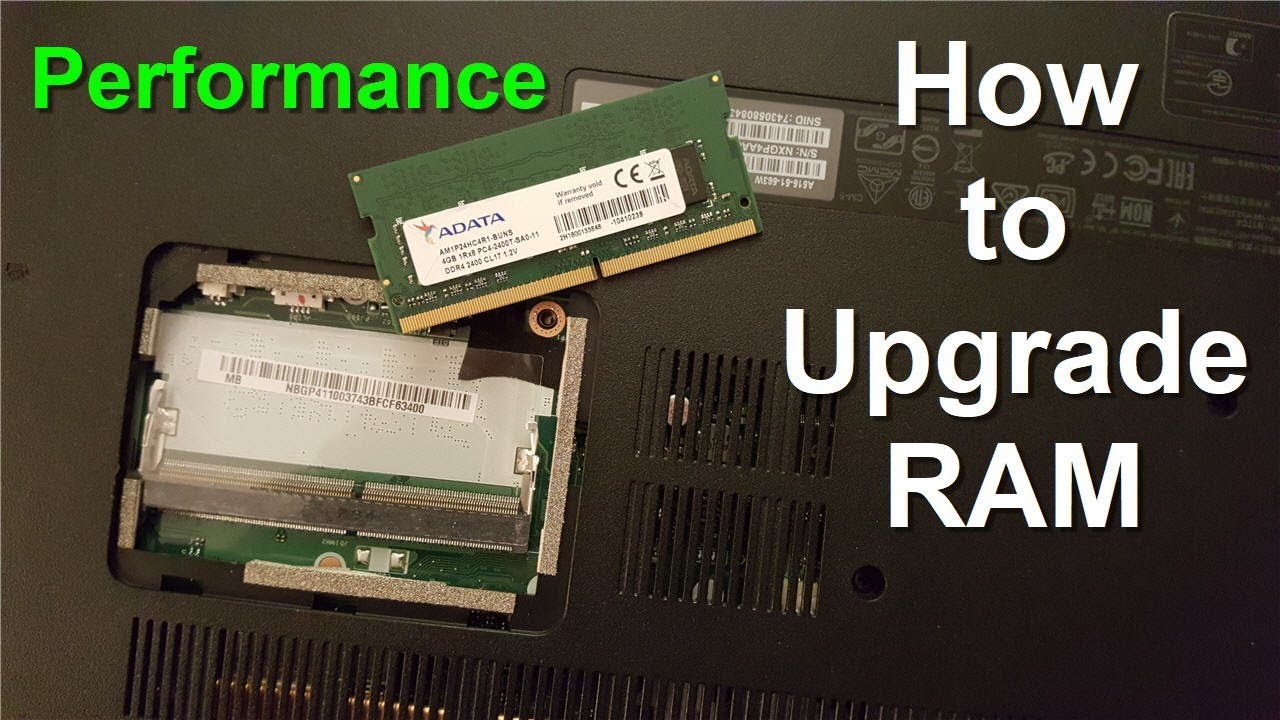
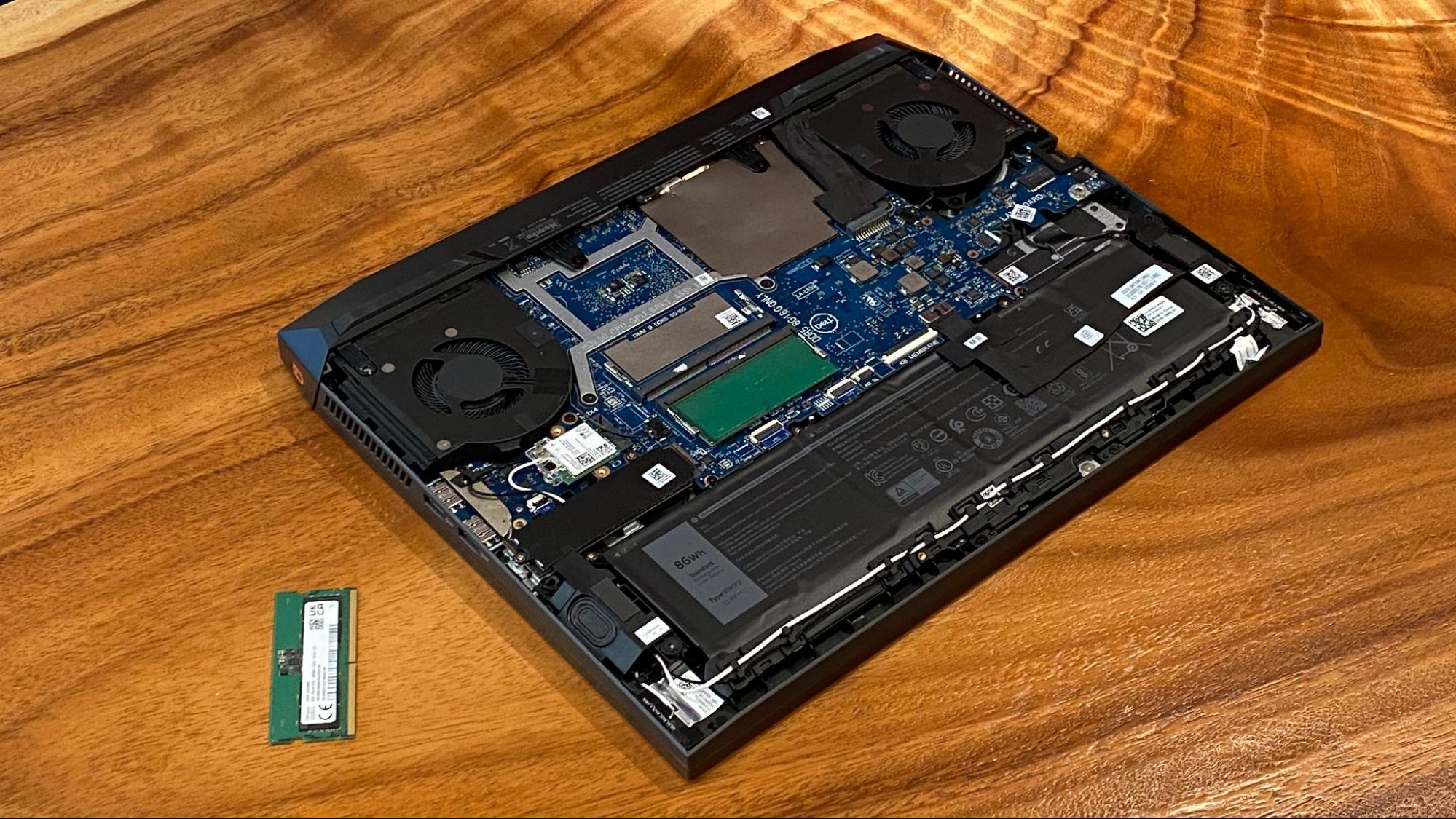
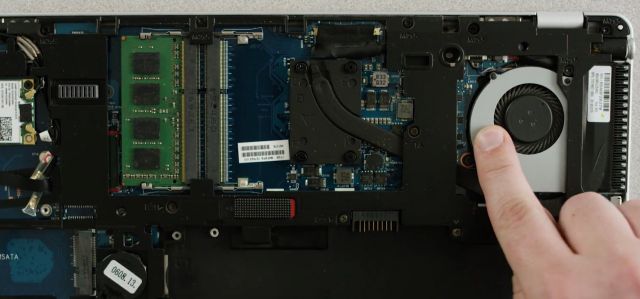
Turn off your laptop and unplug all cables. Place it on a flat surface. Flip it over to find the back panel. Use a screwdriver to remove the screws. Keep the screws safe for later. Gently lift the panel to expose the inside parts. Locate the RAM slot easily by its rectangular shape.
Releasing The Ram Module
Look for clips on both sides of the RAM module. Use your fingers to push the clips outward. The RAM will pop up at an angle. Hold the module by its edges to avoid touching chips. Slowly pull the RAM out of the slot. Set the old RAM aside carefully.
Installing The New Ram
Installing the new RAM is a key step in upgrading your laptop’s memory. This process needs care and attention to avoid damage. Follow the steps carefully to fit the RAM correctly.
Aligning The Ram Module
Hold the RAM module by its edges to avoid touching the chips. Check the notch on the module and match it with the slot in the laptop. The notch ensures the RAM fits only one way. Gently place the module at a 30-degree angle into the slot.
Securing The Module In Place
Press the RAM down slowly until you hear a click. The side clips will snap over the module to hold it firmly. Make sure the RAM is flat and secure. Avoid forcing it to prevent damage to the slot or module.
Testing The Upgrade
Testing the RAM upgrade is essential to ensure your laptop works well. It helps confirm the new memory is installed correctly. This step avoids future problems and improves your laptop’s performance. Follow these simple actions to test your upgrade effectively.
Booting The Laptop
Turn on your laptop after installing the new RAM. Listen for any unusual sounds or beeps. Watch the screen carefully for error messages. A smooth boot means the RAM is likely working fine. If the laptop fails to start, check the RAM seating again.
Verifying Ram Recognition
Check if the laptop detects the new RAM size. Open system settings or BIOS to see the total memory. The displayed memory should match the installed RAM amount. If the memory size is lower, reseat the RAM sticks. Proper recognition ensures your upgrade is successful.
Running Performance Tests
Run simple programs to test laptop speed and stability. Use built-in tools or free software for memory testing. Look for crashes, freezes, or slow responses. Good performance means the RAM works well. Troubleshoot if you find any errors during these tests.
Credit: www.youtube.com
Troubleshooting Common Issues
Troubleshooting common issues after upgrading your laptop’s RAM helps ensure smooth performance. Problems can occur even with a careful installation. Knowing how to identify and fix these issues saves time and frustration.
Some errors might stop your laptop from using the new RAM. Others cause the system to crash or freeze. Physical installation problems are also common, especially for first-timers. Let’s explore these problems and their solutions.
Laptop Not Recognizing Ram
Your laptop may not detect the new RAM module. This can happen if the RAM is not fully seated. Turn off the laptop and press the RAM firmly into its slot. A click sound usually means it is secure.
Check if the RAM type matches your laptop’s requirements. Different laptops need specific RAM speeds and sizes. Use your laptop’s manual or website to find compatible RAM. Incompatible RAM will not be recognized.
System Instability
Random crashes or freezes might occur after the upgrade. This often means the RAM is faulty or incompatible. Run a memory test tool to check for errors. Many free programs scan your RAM for problems.
Overclocking or incorrect BIOS settings can also cause instability. Reset BIOS settings to default to avoid conflicts. Ensure your laptop’s BIOS is updated to support new RAM modules.
Physical Installation Problems
Physical issues can stop the laptop from working properly. Dust or debris in the RAM slot can prevent good contact. Clean the slot gently with compressed air before installing RAM.
Be careful not to touch the metal pins on the RAM stick. Static electricity can damage the memory chip. Use an anti-static wrist strap or touch a metal surface to discharge static.
Tips For Optimal Performance
Upgrading your laptop’s RAM is just the first step. To get the best speed and smoothness, some care is necessary. Simple habits help keep your laptop fast and stable. Follow these tips for the best performance after a RAM upgrade.
Regular Maintenance
Clean your laptop’s vents to stop overheating. Dust can block airflow and slow down the system. Use a soft brush or compressed air carefully. Restart your laptop often. This clears temporary files and frees up memory. Close unused programs to reduce memory load. It helps the new RAM work better. Check for malware regularly. Viruses can use system resources and cause lag.
Updating Drivers And Bios
Keep your system drivers updated. New drivers improve hardware compatibility and speed. Visit the laptop maker’s website for the latest versions. Update the BIOS if needed. BIOS updates can fix bugs and support new RAM types. Follow instructions carefully during updates. Incorrect updates can harm your laptop. Regular updates keep your laptop running smoothly.
Credit: www.tomshardware.com
Credit: www.crucial.com
Frequently Asked Questions
How Do I Know If My Laptop Supports Ram Upgrade?
Check your laptop’s model specifications on the manufacturer’s website. Look for maximum RAM capacity and compatible RAM types. You can also use tools like Crucial’s System Scanner for accurate compatibility details.
What Tools Are Needed To Upgrade Laptop Ram?
You typically need a small Phillips-head screwdriver and an anti-static wrist strap. The screwdriver opens the laptop panel, and the wrist strap prevents static damage to components.
Can I Upgrade Ram Without Voiding My Warranty?
Many laptops allow RAM upgrades without voiding the warranty. Check your warranty terms and manufacturer guidelines before proceeding to avoid any issues.
How Much Ram Should I Add For Better Laptop Performance?
Upgrading to at least 8GB RAM is ideal for everyday use. For gaming or heavy tasks, 16GB or more significantly improves performance.
Conclusion
Upgrading your laptop’s RAM can boost its speed and performance. It’s a simple way to help your computer run better. Remember to check your laptop’s compatibility before buying RAM. Take your time and follow each step carefully. With a little effort, your laptop will feel faster and more responsive.
This small upgrade can make a big difference in daily use. Now, enjoy smoother multitasking and quicker app launches. A better laptop experience is within your reach.
